Home › Utilities › Ghost Buster Pro

Ghost Buster Pro 7.1.0 (Mac)
Updated
The catalogue note
Version 6.2.0 of Ghost Buster Pro updates the app icon for macOS 27, but the core utility remains the same: it finds leftover files from apps you have already removed and lets you delete them.
Clears support files, preferences, and caches after uninstalling apps
- Clearing out support files, preferences and caches left behind after uninstalling applications.
- Starting a scan immediately on launch — no waiting for setup.
- Directly deleting found files; nothing is removed automatically without your consent.
Requires macOS 15.6 or later and supports 9 interface languages
- Requires macOS 15.6 or later; runs on both Intel and Apple Silicon Macs.
- Interface available in English, German, Spanish, Italian, French, Russian, Polish, Simplified Chinese and Korean.
Suited for anyone who drags apps to Trash and wonders what stays behind
Ghost Buster Pro is aimed at anyone who has ever uninstalled an app by dragging it to the Trash and wondered what stayed behind. That covers a broad range of Mac users, but a few groups get more value than others.
- Each uninstall tends to leave support files and caches that build up over months. Ghost Buster Pro can locate those leftovers without digging through ~/Library manually.
- Developers and testers who cycle through beta builds of the same application. Preferences and caches from old versions often interfere with newer ones. A quick scan between builds keeps the environment clean.
- The rest was support files and caches still sitting on the drive. Ghost Buster Pro finds those.
- Anyone managing multiple Macs in a household or small office. Running a scan after uninstalling software on each machine prevents the same orphan files from accumulating across machines.
For someone who installs a handful of apps and never touches them again, the benefit is smaller. The tool is most useful when your install-uninstall cycle is frequent.
A cleanup workflow, start to finish
Say you have just removed an old video editor that you tried for a project and no longer need. You dragged it to the Trash and emptied it. Weeks later, you notice a folder called OldVideoEditor still appears in the Open With menu for some files.
- Launch Ghost Buster Pro. The scan begins immediately — no configuration screen, no waiting.
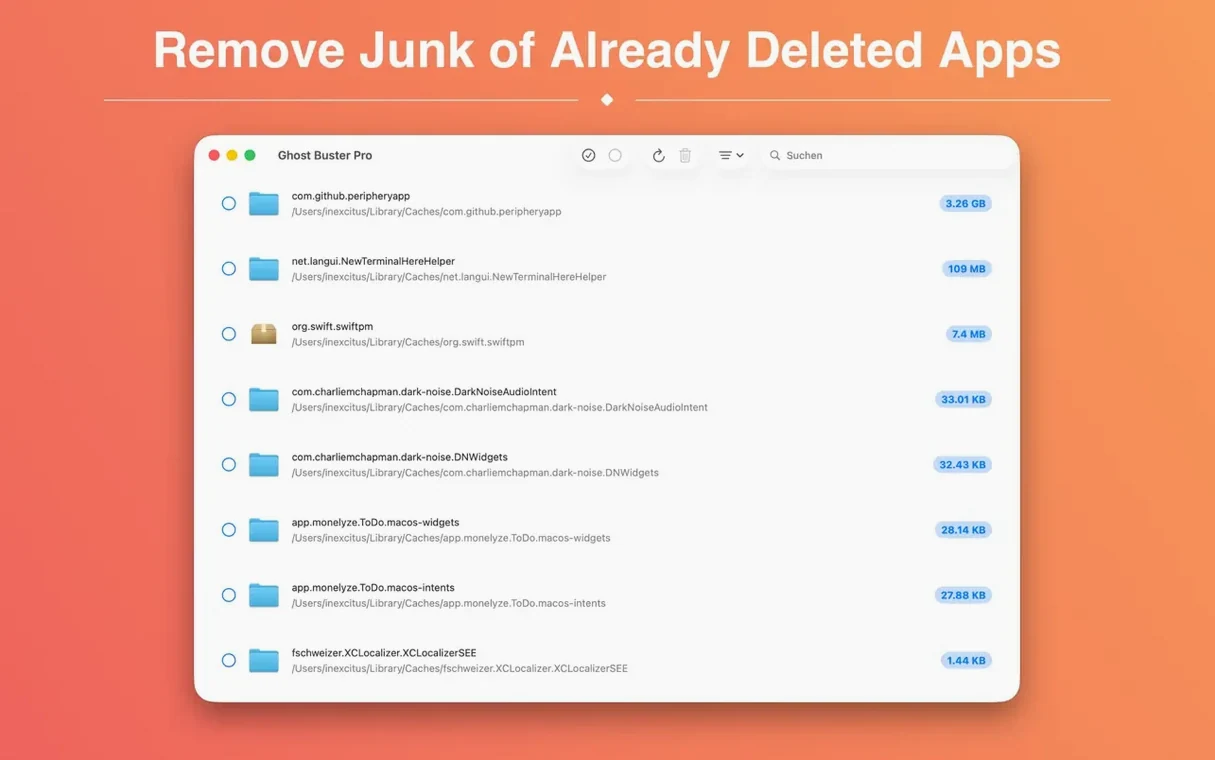
- The app lists every leftover file it finds. Each entry shows the file path, size and the original app name. In this case, several items show the old video editor's bundle identifier.
- Review the list. You can sort by size to see which leftovers take up the most space. Caches, preferences and support files are all listed separately.
- Select the items you want removed. Ghost Buster Pro does not delete anything automatically; you check each box.
- Click the delete action. The app moves the files to the Trash. You can empty the Trash normally afterwards.
After this, the old app no longer appears in the Open With menu, and the drive has regained several hundred megabytes.
Opens every couple of weeks and runs in the background while you work
I open Ghost Buster Pro once every couple of weeks, usually after a round of installing and removing plugin demos. The app sits in the Applications folder; I launch it and leave it running in the background while I work.
The scan finishes in a few seconds. I glance at the list — today it shows leftovers from three apps I uninstalled last month. One is an audio plugin that left a preference file and a cache folder. Another is a utility that left a support file in ~/Library/Application Support. The third is a game that left a save-data folder even though the game itself is gone.
I select all three groups and delete them. The files go to the Trash. I do not empty the Trash immediately — I keep it there for a day in case I realise I need something back. The next day, I empty the Trash and the drive is a bit cleaner.
That is the whole session. It takes about two minutes, and I do not have to think about it beyond that.
Finds no leftovers when apps were installed via non-standard package installers
- Ghost Buster Pro does not find any leftovers. This happens when the app you removed was installed via a package installer that did not use the standard bundle structure. In that case, check ~/Library manually or use the app's own uninstaller if it had one. Ghost Buster Pro works best with apps that follow macOS conventions.
- You are not sure whether a listed file is safe to delete. The app shows the full file path. If you recognise the app name and know you removed it, the files are safe. If you are unsure, leave them selected but do not delete — you can always run the scan again later.
- The scan lists files from an app you still use. This can happen if the app stores data in multiple locations and some of them match a pattern. Before deleting, verify the file path. If the path belongs to a current app, skip it. Ghost Buster Pro does not delete anything without your confirmation, so a mistaken selection is easily undone.
- You want to recover a file after deleting it. Ghost Buster Pro moves files to the Trash rather than erasing them immediately. Open the Trash, locate the file and put it back. This works as long as you have not emptied the Trash.
None of these issues are specific to Ghost Buster Pro — they are common to any leftover-file cleaner. The key is to review the list before clicking delete. The app gives you the information; the decision is yours.
Changes in this build
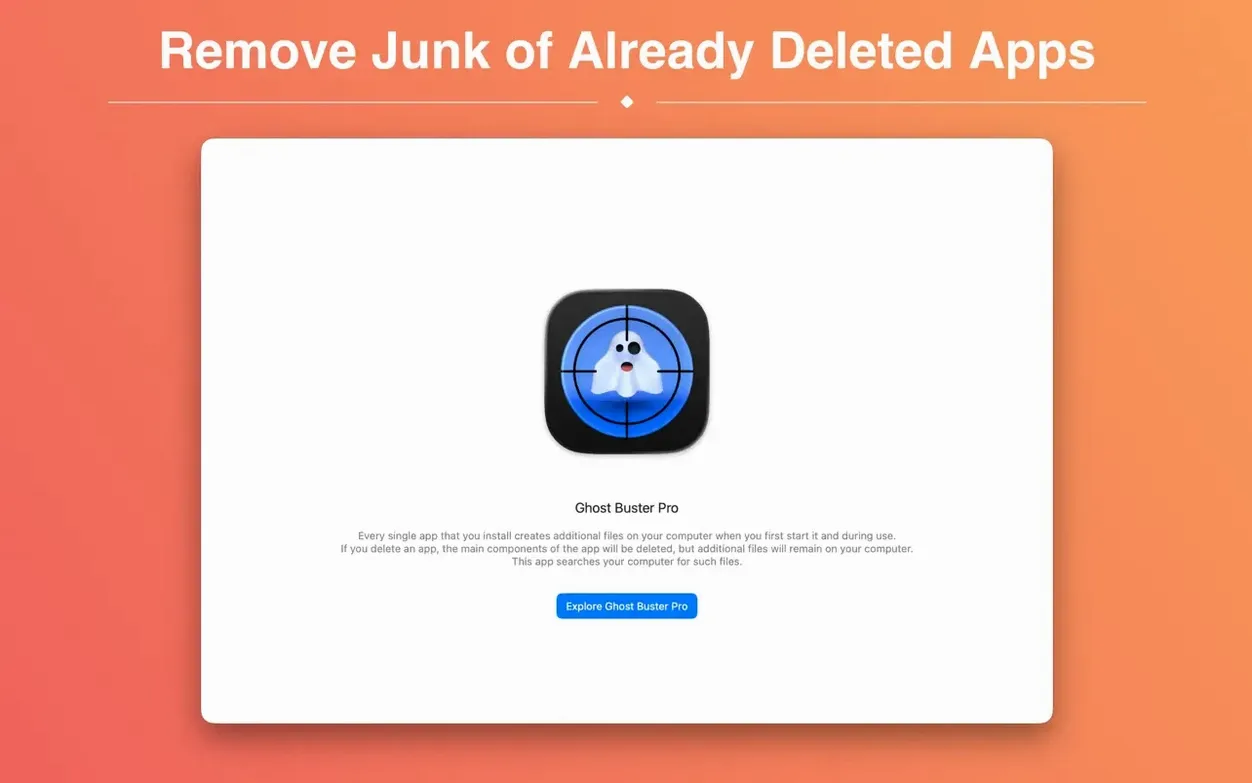
- New welcome screen. The app now opens with a clean introduction to its main capabilities, so you see what's available before you start hunting for leftovers.
- Step-by-step permission setup. Granting full disk access and other approvals is now a checklist — each item gets its own clear stage instead of a single prompt.
- Deeper remnant scans. The scan engine now reaches more Library folders, catching orphaned files that previous versions could miss.
- Redesigned Other Apps window. Every app's details appear in your system language, and the layout has been rebuilt for quicker scanning of what's installed.
Before it goes on the Mac
- macOS 15.6 or later
- Apple Silicon or Intel 64-bit processor
Questions from the room
Does Ghost Buster Pro delete files automatically?
No. It finds leftover files but only deletes them after you give permission.
Installing it on the Mac
- Mount the disk image and launch Open Gatekeeper friendly.
- Press Enter in Terminal to bypass Gatekeeper.
- Drag the app to the Applications folder.
- Open the app to start using it.
Notes from the control room
Sign in or open a catalogue account to leave a note.
No notes from the room yet. If you have used this build for a week, a short note helps the next person.