Haptyk 2.0.4 (Mac)
Updated
The catalogue note
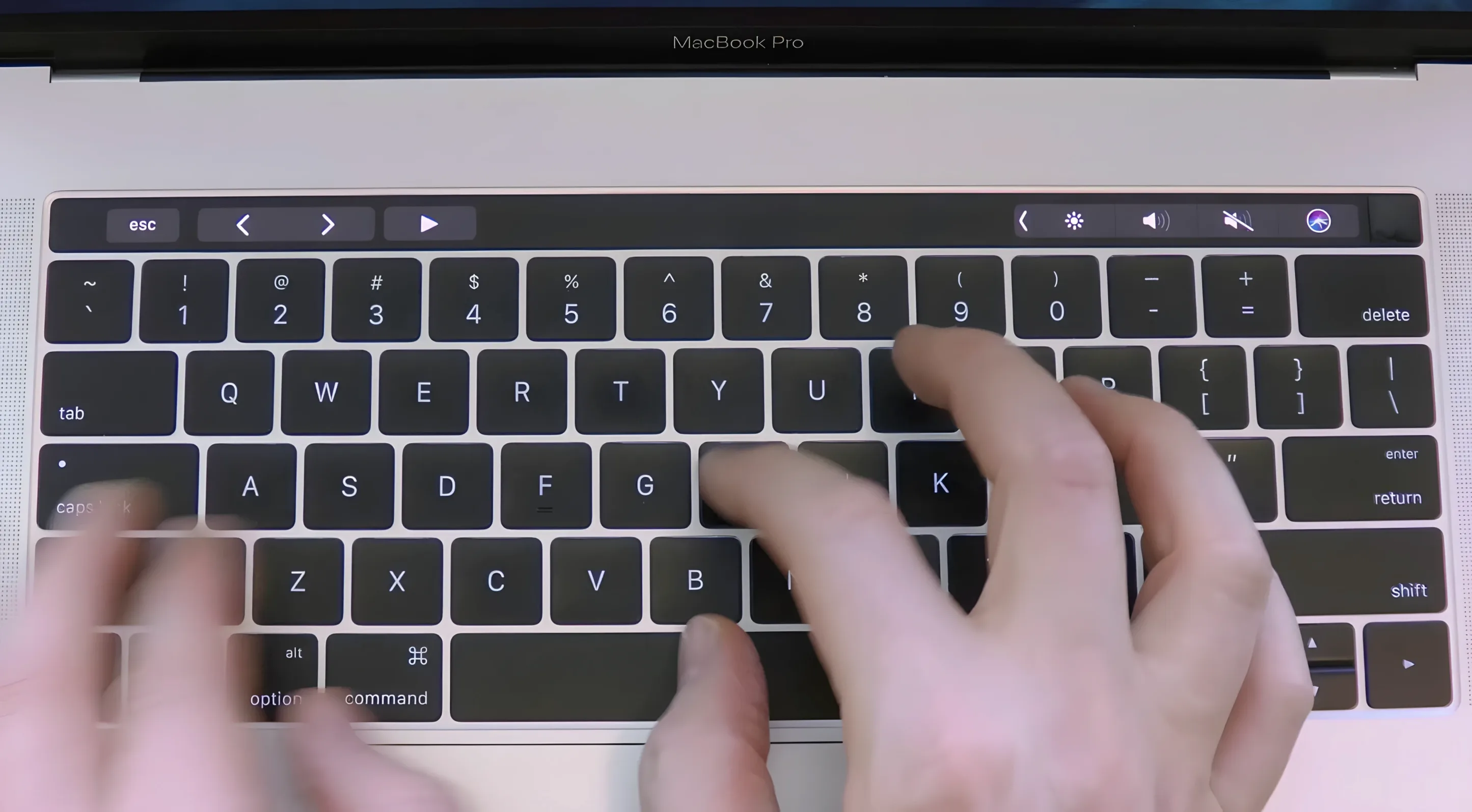
Haptyk is a utility that turns the built-in MacBook keyboard into a sound source, with volume tied to how hard you strike each key. It reads the accelerometer inside Apple Silicon MacBooks, so the response feels physical rather than synthetic.
For an experienced user, the appeal is in the fine control. The app doesn't just trigger a click on every keystroke; it interprets pressure, which means lighter typing produces quieter, softer feedback and heavier strokes come through with more presence. That makes it useful for anyone who wants acoustic confirmation of their typing dynamics, whether you're checking your rhythm or just prefer some physicality in your workflow.
You'll need macOS 13 Ventura or newer. The current version is 2.0.2, dated 2026-09-11.
Haptyk won't interfere with your system audio or other apps
A common concern is whether Haptyk interferes with system audio or other apps. It doesn't. The app plays its sounds as a separate output stream, so your music, video calls and DAW sessions remain untouched. You can adjust the volume independently in macOS's sound settings if needed.
The accelerometer polling is lightweight, and the sound files are short. Nothing that would alter a workday.
People also ask if it works with external keyboards. It does not. Haptyk is designed specifically for the built-in MacBook keyboard, using the chassis accelerometer that only exists in the laptop itself. An external keyboard won't trigger any sound.
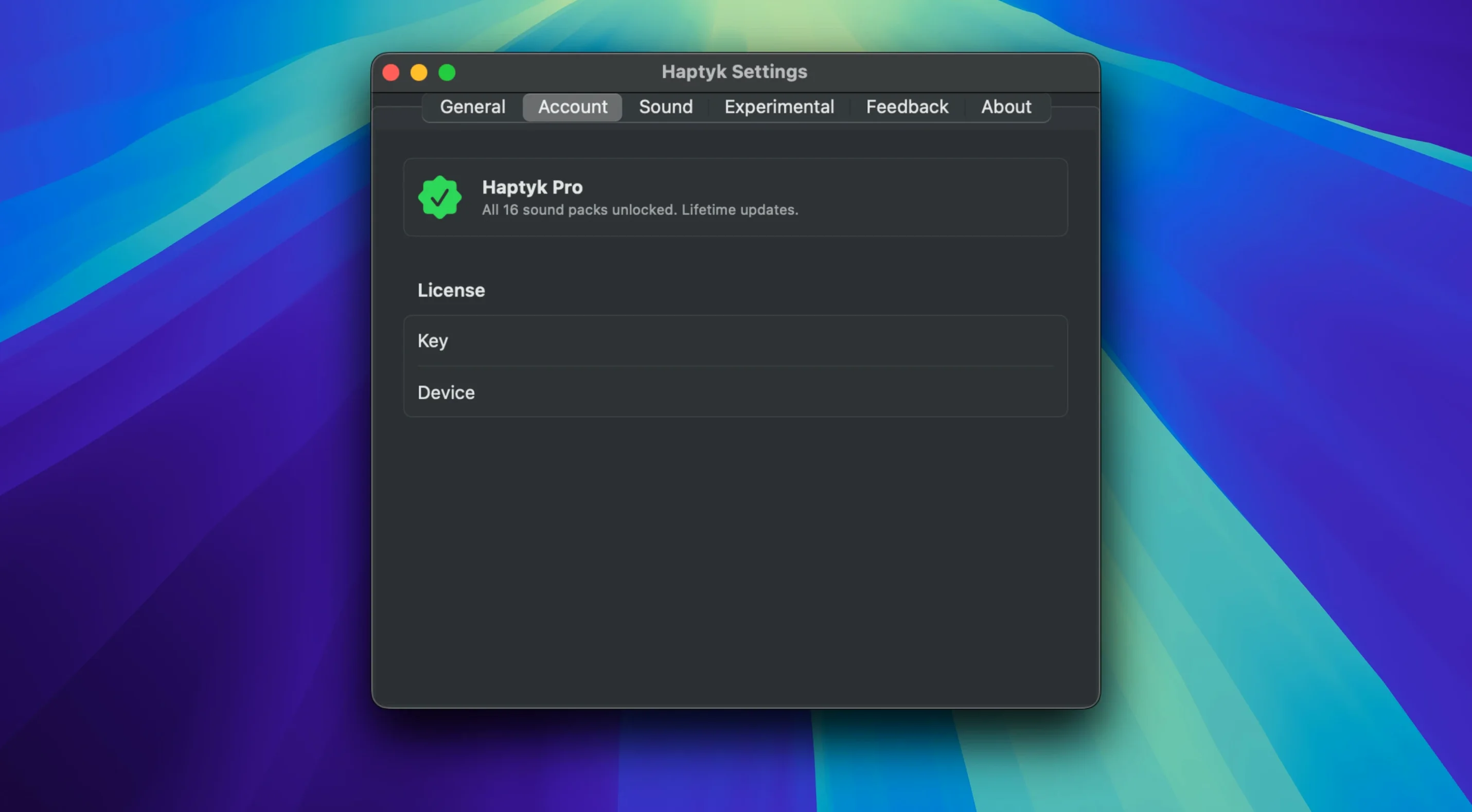
Some wonder whether it records or transmits keystroke data. The app has no networking component and doesn't log key presses. Activation is not required, and nothing leaves your machine.
Match typing intensity with auditory feedback in Ulysses or iA Writer
Consider someone who drafts long documents in Ulysses or iA Writer, spending six to eight hours at the keyboard. They want auditory feedback that matches their typing intensity — light taps for quick notes, firmer strikes for emphatic passages. Haptyk gives that without the bulk of a mechanical keyboard on a desk. The sound shifts naturally as the writer's pace changes, providing a subtle rhythm cue that helps maintain flow. For this kind of user, the app becomes part of the writing environment, not a distraction.
Set the overall output level first so it's clear but not overpowering
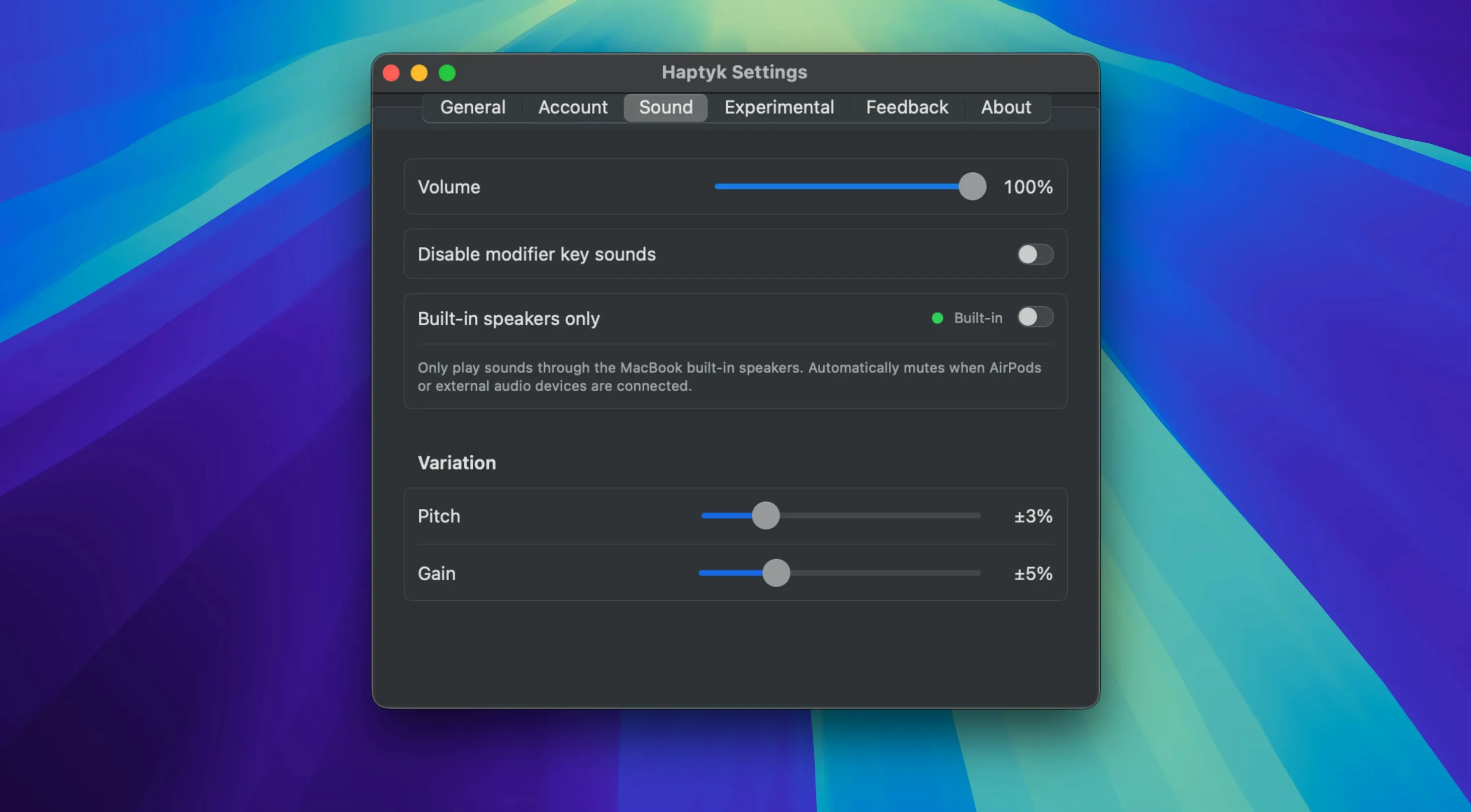
When you first launch Haptyk, the default volume might be too loud or too soft for your space. The first adjustment should be the overall output level. Set it so you can hear the keys clearly without overpowering background audio or disturbing others in the room.
Next, pay attention to the pressure sensitivity curve. Haptyk's core feature is how it maps force to sound intensity, and the default curve may not suit your typing style. If you type lightly, you might want a steeper curve that gives more variation at low force. If you type heavily, a gentler slope prevents every keystroke from sounding the same. Adjust until the feedback feels natural.
Finally, consider the sound profile itself. The app offers different sound sets — some brighter, some deeper. Pick one that complements your workflow. A crisp, high-pitched click works well for fast coding sessions, while a deeper thump suits relaxed writing.
Ideal for writers, developers, and editors on MacBook keyboards
Haptyk is most useful for people who spend extended periods typing on a MacBook's built-in keyboard. Writers, developers, editors and anyone who values tactile feedback will appreciate the dynamic response. It also suits those who miss the feel of mechanical keyboards but prefer the portability of a laptop.
Users who already rely on the MacBook's trackpad gestures and keyboard shortcuts will find Haptyk fits naturally into their workflow. It adds an extra layer of feedback without requiring any change to how they work.
On the other hand, if you always use an external keyboard or work primarily in silent environments where any clicking is unwelcome, Haptyk may not be for you. It's designed for the MacBook's own keyboard and for people who want their typing to sound as dynamic as it feels.
If you've ever wanted your MacBook to sound like a typewriter that actually knows how hard you're hitting the keys, Haptyk is worth a look.
Before it goes on the Mac
- macOS 13 Ventura or later
- Apple Silicon MacBook (M2 Pro or later, per the official site)
- ARM or x86 64-bit architecture
Questions from the room
Which Macs does Haptyk work on?
Haptyk requires an Apple Silicon MacBook — the official site lists MacBook Pro 14-inch and 16-inch with M1 Pro or later, plus the 13-inch M2 model.
What macOS version do I need?
You need macOS 13 Ventura or newer. The app supports both ARM and x86 64-bit architectures.
How does Haptyk detect typing force?
It uses the built-in accelerometer in Apple Silicon MacBooks to measure keypress force, then adjusts the typing sound volume accordingly.
Installing it on the Mac
- Open the downloaded disk image.
- Drag Haptyk into the Applications folder alias.
- Once the copy finishes, launch it from Launchpad.
Notes from the control room
Sign in or open a catalogue account to leave a note.
No notes from the room yet. If you have used this build for a week, a short note helps the next person.