Home › Utilities › Keyboard Maestro

Keyboard Maestro 11.0.4 (Mac)
Updated
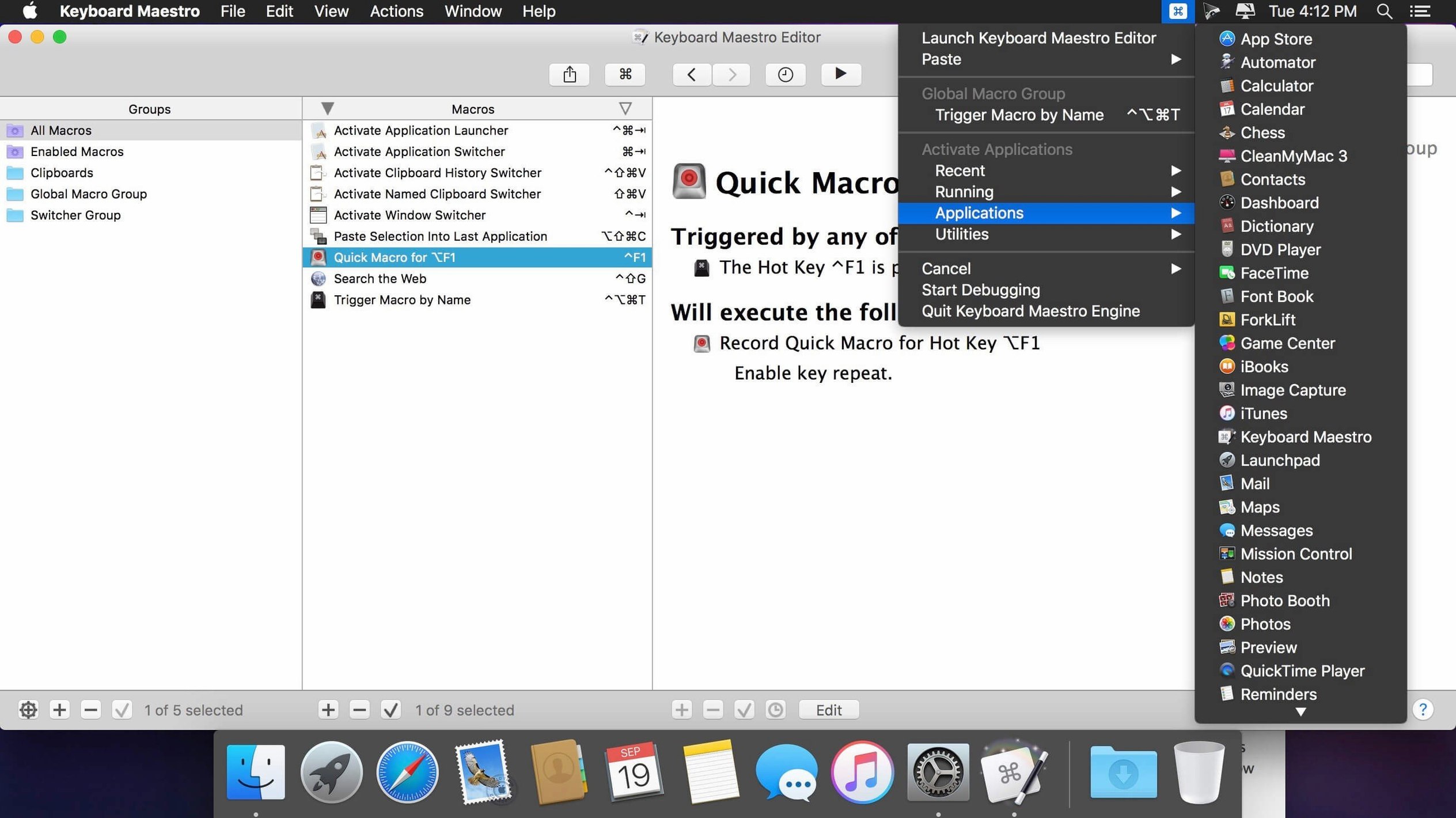
The catalogue note
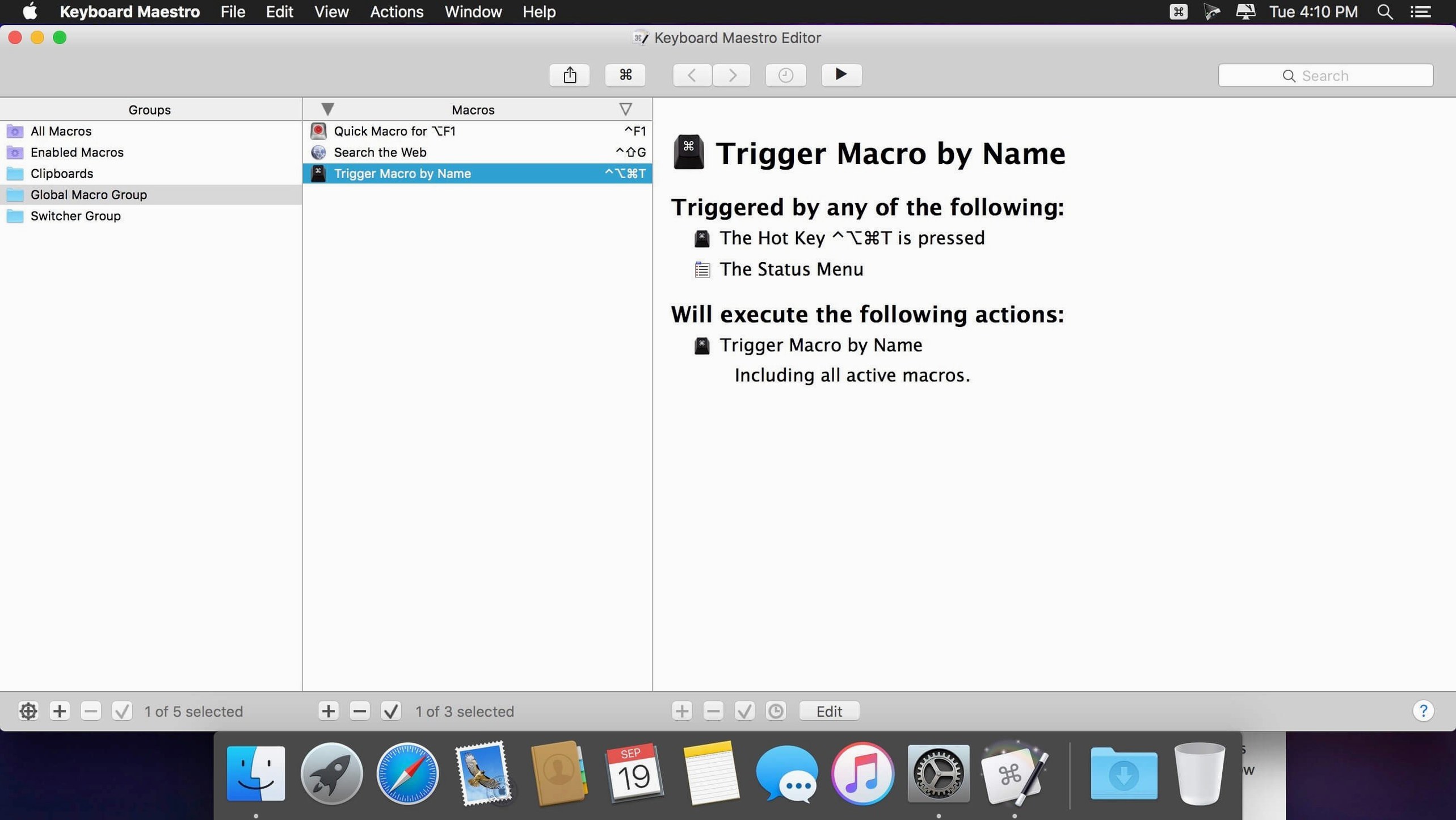
Version 11.0.4 of Keyboard Maestro adds a live display to Switch/Case actions, showing which entries are currently true or would execute, and introduces tool tips for the Macro Debugger window. It also supports Apple Text Recognition in the OCR Condition and fixes a search highlighting trigger issue.
One realistic task: open a daily project folder, set up windows, and start typing
Macro — A sequence of recorded actions triggered by a keyboard shortcut, time of day, or application launch. Each macro can contain hundreds of built-in actions.
Trigger — The event that fires your macro. For this task, use a keyboard shortcut like Control-Option-D.
Action: Open a file or folder — Tell Keyboard Maestro to open your ~/Projects/Current folder in the Finder.
Action: Rearrange windows — Resize and position the Finder window to the left half of the screen, then open Safari and snap it to the right half.
Action: Launch an app — Start iTerm2 or Terminal, positioned below the Finder window.
Action: Type text — Insert a pre-written snippet containing today's date, project name, and a checklist header into a new text file.
Clipboard history — Optional: before typing, paste an entry from the clipboard history if the snippet needs a URL you copied earlier.
Avoid recording everything as one monolithic macro
The most common error is trying to record everything as a single, monolithic macro. New users often sit down and attempt to script their entire morning routine — open Mail, check calendar, launch three apps, arrange windows, type a greeting — in one go. When one step fails (Mail is already open, the calendar window is a different size), the whole macro stops or behaves unpredictably. Break work into smaller macros, each with a single purpose, and chain them with the "Execute Macro" action or by assigning the same trigger group.
Another frequent slip is forgetting to set an application-specific trigger. A macro that types text into Safari will happily type into whatever window is frontmost, including a password field in System Settings. Always restrict macros to a specific application or application group using the "Macro is only available in" condition. Similarly, beginners often skip the "If Application is Frontmost" condition and wonder why their carefully built window rearrangement fires during a presentation.
Clipboard misuse is another one. People paste from the clipboard history without clearing it first, or they rely on the clipboard being empty and are surprised when stale content appears. Add a "Set Clipboard to Text" action at the start of any macro that depends on the clipboard, or use a dedicated variable instead.
Finally, many users ignore the Debugger until something breaks. The Macro Debugger window, now with tool tips in version 11.0.4, shows you exactly which action is executing and what values are flowing through variables. Running a macro once in the Debugger saves twenty minutes of guesswork.
Check 'Must Release All Keys' if macro runs but does nothing
Macro runs but does nothing visible. Check the trigger's "Must Release All Keys" setting. If you hold the shortcut too long, the macro may not fire until you lift every key. Also confirm the macro isn't limited to an app you don't have frontmost.
Switch/Case action doesn't match any entry. The new live display in version 11.0.4 shows which cases would execute with current values. If none are highlighted, add a default case or adjust the comparison. Case-sensitive text comparisons are a common gotcha — use the "Ignore Case" modifier if needed.
OCR Condition returns nothing. Apple Text Recognition works on still images, not live video or scrolling content. Ensure the image is captured first (use "Take a Screenshot" action), then run the OCR Condition against that file. If the text is tiny or low-contrast, the recognition may fail regardless.
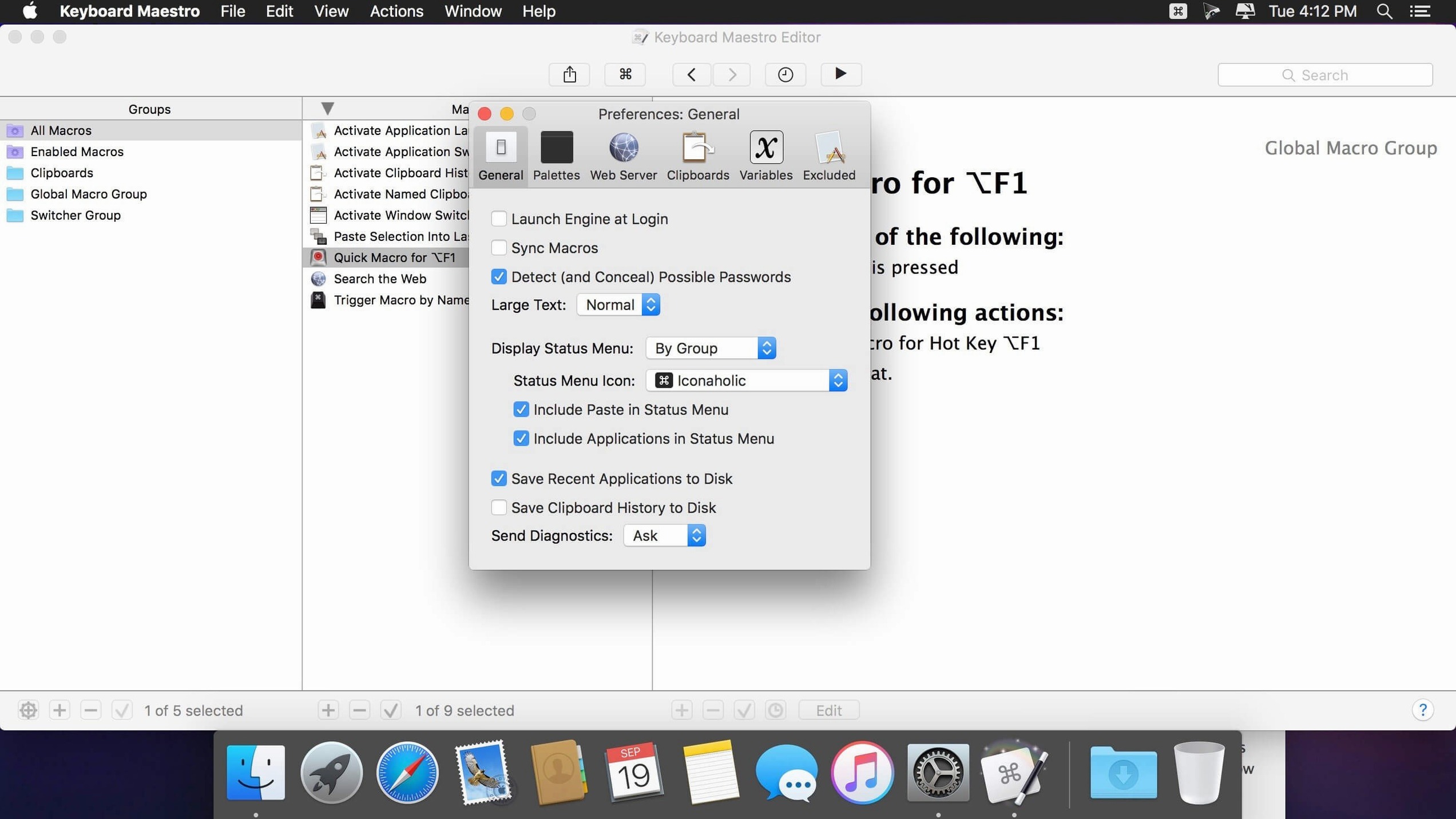
Clipboard history won't show. Keyboard Maestro's clipboard history stores up to 40 entries by default. If you paste and nothing appears, the clipboard might have been cleared by another app, or the history was reset when you restarted the Mac. The history persists across reboots only if you enable that option in the preferences.
Macro triggers on the wrong app. An application trigger set to "When Application Activates" fires every time that app comes to the front — even if you're just switching to it for a second. Use "When Application Opens" instead, or add a condition checking whether the app was already running.
Keyboard Maestro handles cross-app sequences Shortcuts cannot
Keyboard Maestro works alongside macOS's built-in Shortcuts app, but the two serve different roles. Shortcuts is good for simple, single-app automations; Keyboard Maestro handles cross-app sequences, window management, and deep clipboard work that Shortcuts can't touch. You can trigger a Shortcut from within a Keyboard Maestro macro using the "Execute AppleScript" action with a shortcuts command, or call a Keyboard Maestro macro from Shortcuts via the "Run AppleScript" action in Shortcuts.
Automator workflows and Folder Actions can also be called from Keyboard Maestro. Use the "Open File" action to trigger an Automator workflow saved as an application, or use "Execute Shell Script" to run an Automator command-line tool. The "Open URL" action lets you trigger web-based automations like IFTTT webhooks or a local web server.
macOS's built-in text replacements (System Settings > Keyboard > Text Replacements) are limited to short snippets. Keyboard Maestro's text expansion handles multi-line blocks, formatted text, and dynamic content like dates or clipboard inserts — and it can be restricted to specific applications.
For developers, the "Execute Shell Script" action can run Python, Ruby, or Swift scripts, pass variables to them, and read their output back into the macro. Combined with AppleScript and JavaScript for Automation, you can control almost any macOS application that has a scripting dictionary.
Control-Option-S fills this week's data from a template
This macro assumes you keep a status-report template as a text file and need to fill in the current week's data. The entire sequence runs from a single keyboard shortcut.
- Trigger: Assign Control-Option-S as the keyboard shortcut. Restrict the macro to "Microsoft Word" or "BBEdit" — whichever app you use for the report.
- Open the template: Use the "Open a File or Folder" action to open
~/Documents/Reports/Status_Template.rtfin your chosen editor. - Insert today's date: Add a "Type Text" action with the
%ShortDate%token, which Keyboard Maestro replaces with the current date in your system format. Follow it with a newline. - Pull clipboard history: Use the "Paste from Clipboard History" action and select the most recent entry. If you copied a meeting link or a ticket number earlier in the day, it goes straight into the report. If the clipboard is empty, set a fallback text using an "If" condition that checks the clipboard length.
- Add a bullet list from a variable: Store your weekly bullet points as a multiline text variable called
local bullets. Use the "Set Variable to Text" action earlier in the macro (or set it manually before running) and then insert it with a "Type Text" action that types%Variable%bullets%. - Save and close: Use a "Save Current Document" action, followed by "Close Current Document".
- Notify: Optionally, add a "Display Text" action that shows "Status report updated" on screen for three seconds.
If you need the same report in multiple formats, duplicate the macro and change the target application — one version for Word, one for Google Docs in Safari, one for plain text. The Switch/Case action's new live display in version 11.0.4 makes it easy to see which branch would execute based on the frontmost app, so you can fold all three into a single macro with a condition on the active application.
Once the macro is saved, pressing Control-Option-D runs the whole sequence in under two seconds — no clicking, no dragging, no retyping.
Changes in this build
- Added display to Switch/Case actions to indicate which entries are true or would execute currently.
- Support Apple Text Recognition in OCR Condition.
- Added Tool Tips for Macro Debugger window.
- Fixed an issue with search highlighting triggers.
Before it goes on the Mac
- macOS 10.13 or later
- Intel or Apple Silicon processor
- Interface language: English
Questions from the room
What macOS versions does Keyboard Maestro 11.0.4 support?
It runs on macOS 10.13 and later, on both Intel and Apple Silicon Macs.
Can Keyboard Maestro fill web forms or expand text snippets?
Yes, it includes built-in actions for filling web forms and expanding text snippets.
Does the 11.0.4 release include any new debugging features?
It adds tool tips for the Macro Debugger window and a display in Switch/Case actions that shows which entries are currently true.
Installing it on the Mac
- Mount the downloaded disk image.
- Drag the app into the Applications folder shortcut.
- Launch it from Launchpad after copying finishes.
- Use CORE Keygen for activation.
Notes from the control room
Sign in or open a catalogue account to leave a note.
No notes from the room yet. If you have used this build for a week, a short note helps the next person.