Permute 4.0.11 (Mac)
Updated
The catalogue note
You have a folder of MXF camera originals that need to become H.264 MP4s for a client review, or a batch of WAV stems destined for compressed MP3. Permute handles these conversions and many more — video, audio, images, even ISO disc images — all within one window. Before you download it, check the compatibility.
| Item | Detail |
|---|---|
| Developer | Charlie Monroe Software (single developer) |
| Current version | 4.0.11 |
| macOS requirement | macOS 26 or later |
| Architecture | Apple Silicon only |
Version 4 requires macOS 26 and runs natively on Apple Silicon machines — no Intel Mac support. The interface is available in 16 languages including English, German, French, Spanish, Russian, and Chinese (Simplified). Permute converts between most common container and codec combinations, and can also extract audio from video or produce ISO image files, making it useful for both post-production prep and archival tasks.
Live progress bar per file
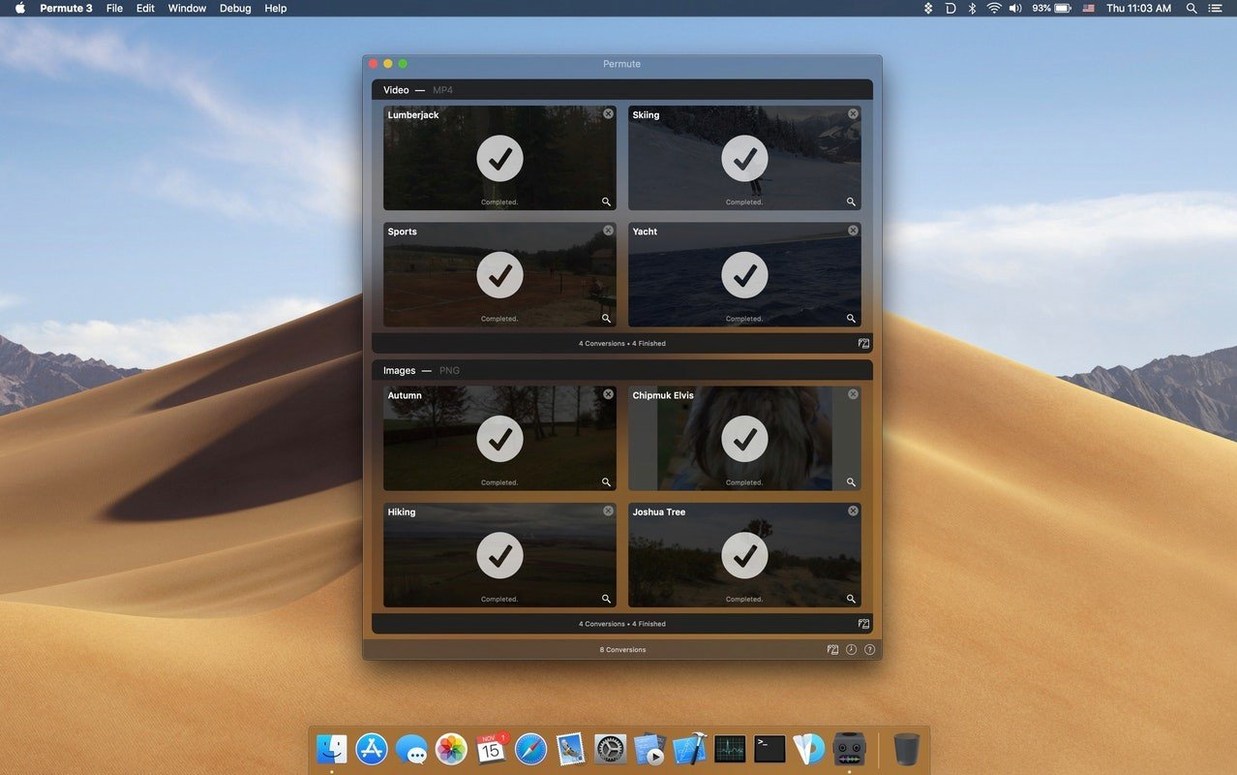
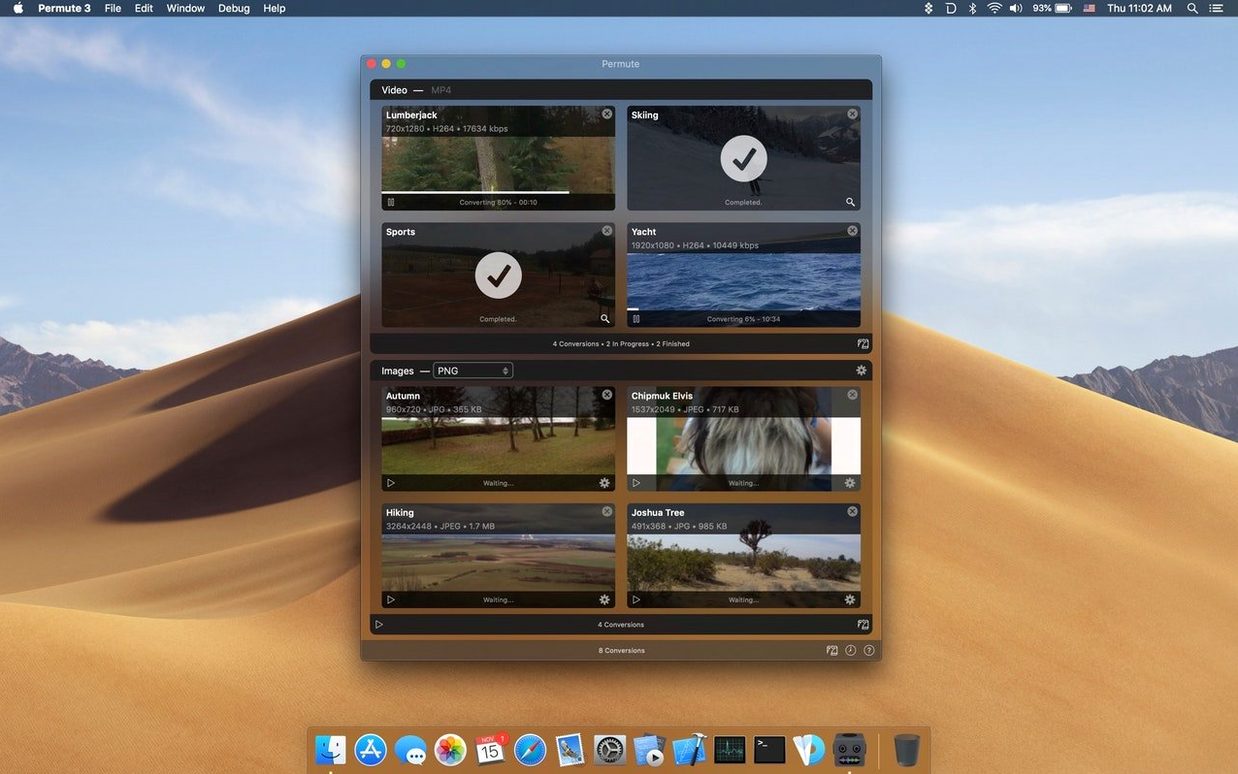
Permute does not hide its core features behind nested menus, but a few details in the interface reward a second look. The conversion queue shows a live progress bar per file; if you hover over a finished item, the pop-up reveals the output file size — handy for checking whether a preset compressed as expected. The app also preserves the original file’s creation and modification dates by default, so your converted copy does not appear brand-new in Finder if you are working through an organised media library.
Another detail: Permute can read video and audio metadata from source files and optionally write it into the output. This is not advertised heavily, but if you are converting interview footage or podcast recordings, keeping the title, artist, and album tags intact saves a round of re-tagging later. The same applies to chapter markers — Permute carries them across when the target format supports them.
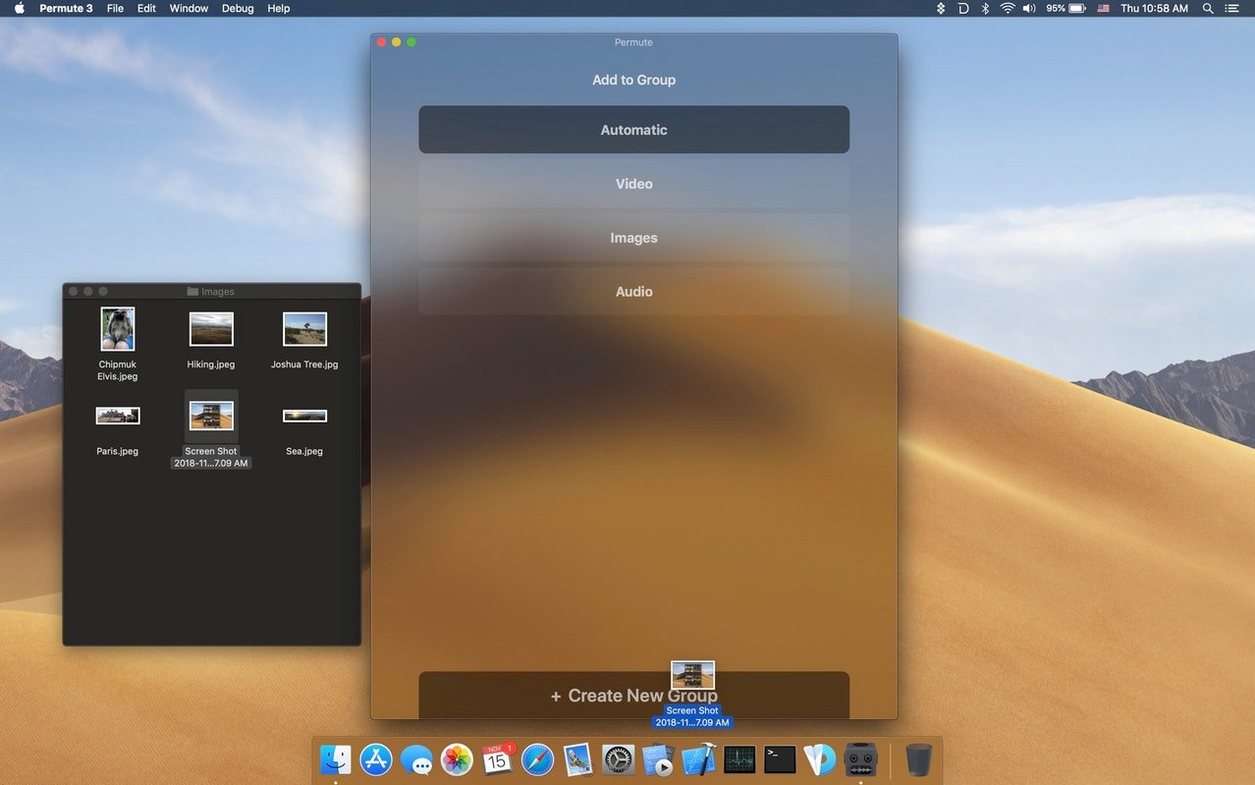
The drag-and-drop zone at the top of the window accepts entire folders, not just individual files. Dragging a folder adds every compatible file inside it recursively. This is faster than selecting files one by one when you have a day’s worth of rushes to transcode.
A workflow: converting camera originals to compressed delivery files
Let us run through a common scenario: you have ten clips shot on a mirrorless camera in 4K H.265 MOV format, and you need to deliver them as 1080p H.264 MP4s with AAC audio, plus a stereo mixdown as a separate WAV file. Here is how that works in Permute.
- Open Permute and drag the ten MOV files from Finder into the queue. Each appears as a row with its source name and a small preview thumbnail.
- Select all ten rows. In the preset panel, choose an H.264 preset — the built-in “Video – H.264” works for most delivery cases. You can adjust the resolution to 1920×1080 if the preset does not already scale down.
- For the audio-only export, add the same ten files again but this time select an audio preset such as “Audio – WAV”. You can keep the sample rate at 48 kHz and bit depth at 24-bit if that matches your post-production standard.
- Click the Convert button at the bottom. Permute processes the queue sequentially. The progress column shows each file’s encode percentage and estimated time remaining.
- When done, the output folder (set in Preferences or via the pop-up menu) contains twenty files: ten MP4s and ten WAVs. The original files are untouched.
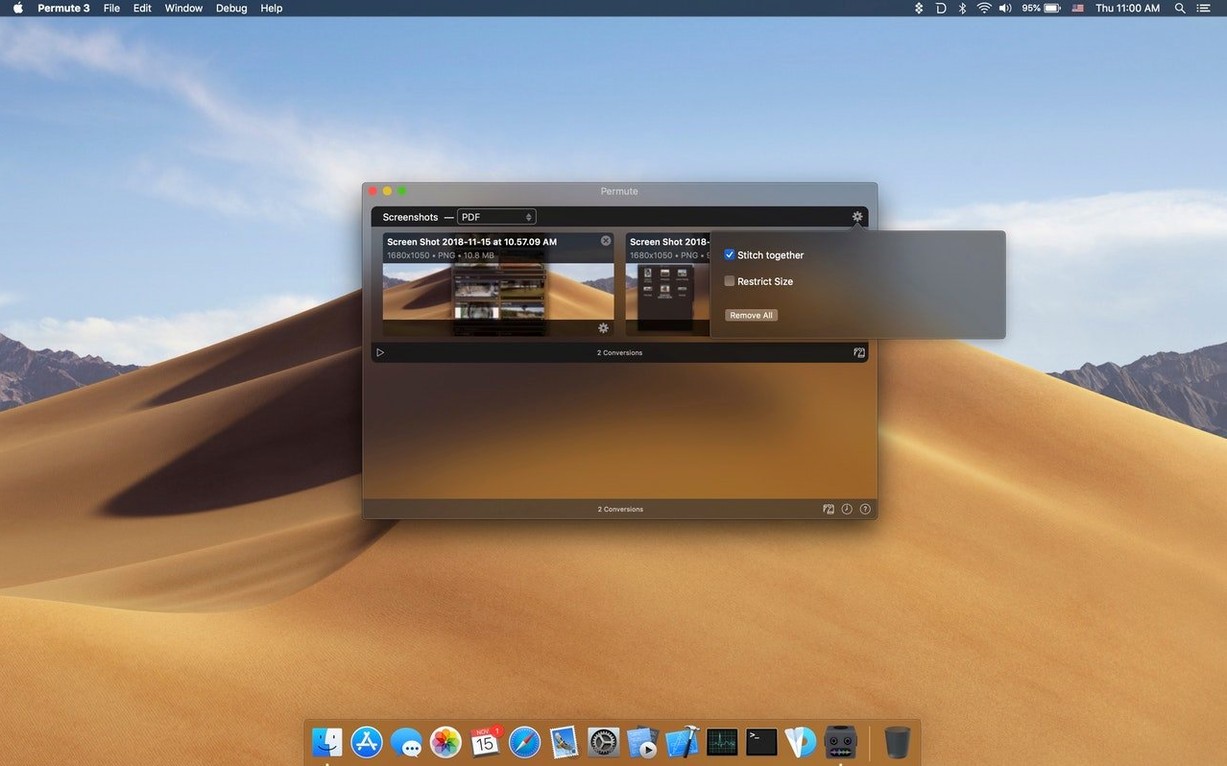
If you also need the clips merged into a single timeline, Permute can combine videos — just select the ten source files, right-click, and choose “Merge selected items”. The app joins them in the order they appear in the queue.
Three groups who benefit most
Permute suits anyone who regularly moves media between formats, but three groups benefit most directly.
- Video editors and post-production assistants — transcoding camera originals to edit-friendly intermediates or delivery codecs is a daily task. Permute’s batch queue and preset system cut the time spent waiting for individual encodes.
- Podcasters and audio content creators — converting WAV or AIFF masters to MP3, AAC, or FLAC for distribution is straightforward. The ability to extract audio from video also helps when repurposing recorded interviews.
- Archivists and media librarians — converting large folders of images or video to a standardised format, or creating ISO disc images from collections, keeps media accessible across systems. Permute’s batch processing and date-preservation matter here.
Because Permute runs natively on Apple Silicon, it uses the hardware media encoders where the codec allows — that means H.264 and H.265 conversions finish faster than software-only encoders on the same machine. Users on older Intel Macs cannot run version 4 at all, so the tool is squarely aimed at those already on Apple Silicon with macOS 26 or later.
Output too large? Check bitrate in the preset
Output file is much larger than expected.
This usually happens when the selected preset uses a high bitrate or a lossless codec. Check the preset’s video and audio bitrate settings — lowering them to a sensible delivery value (e.g. 20 Mbps for 1080p H.264) brings the file size down. Permute lets you create custom presets and save them for repeated use.
Subtitles are not appearing in the output.
If the source video contains subtitle tracks, Permute can burn them into the video or pass them through as separate streams. Make sure you have selected a subtitle handling option in the preset — the default may discard them. The same applies if you are adding an external SRT or ASS file: drag the subtitle file onto the source item in the queue to attach it.
Conversion fails or produces a corrupted file.
This is rare but can occur with very unusual source codecs or corrupt source files. Try converting a short segment first to confirm the source is readable. If the issue persists, update to the latest version of Permute — the developer releases fixes regularly. Permute relies on FFmpeg libraries, so the supported formats match what FFmpeg can decode.
The queue stops after one file.
By default, Permute processes the queue sequentially. If you need parallel conversions, check the preferences — there is a setting for the number of simultaneous encodes. Increasing it to 2 or 3 can speed up batch jobs on machines with enough CPU cores, but setting it too high may slow down each individual encode.
Before it goes on the Mac
- macOS 26 or later
- Apple Silicon processor
Questions from the room
Does Permute run on Intel Macs?
No. Version 4 requires macOS 26 and is Apple Silicon only.
What file types can Permute handle?
Video, audio, image files, and conversion to ISO format.
How many languages does the interface support?
16 languages, including English, German, French, Spanish, Russian, and Chinese (Simplified).
Installing it on the Mac
- Mount the downloaded disk image.
- Drag the application to the Applications folder alias.
- Once copying finishes, open Permute from Launchpad.
Notes from the control room
Sign in or open a catalogue account to leave a note.
No notes from the room yet. If you have used this build for a week, a short note helps the next person.