PopChar 10.5 (Mac)
Updated
The catalogue note
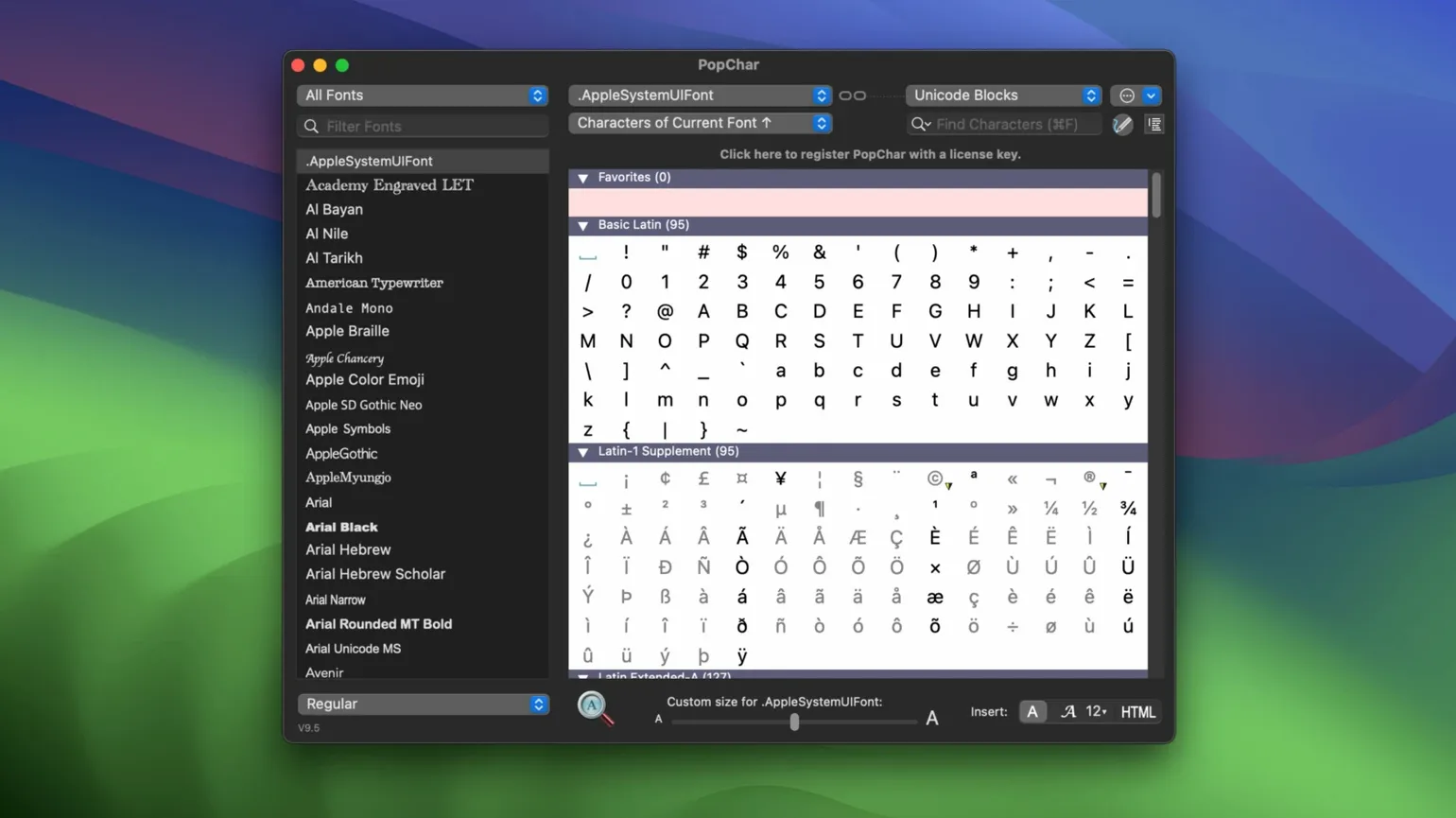
You are mid-sentence in an email, and you need an en dash, a Greek letter, or a curly quote. You know the Unicode codepoint, but you do not want to memorise shortcuts for every glyph you use. PopChar sits in the menu bar, appears with a keyboard shortcut, and gives you a live table of characters from the current font. You click one, and it goes into your document.
Questions worth asking before you install it
- Will it work with my apps? It works with modern Unicode-capable applications, so text editors, email clients, and browsers are covered.
- Can I search for a character? Yes, you can search by name. Type 'arrow' and the table narrows down to matching glyphs.
- Can I inspect a font's full character set? PopChar shows and inspects the character set of installed fonts, which is useful when you need to know what a typeface actually covers.
- How do I start it quickly? You can start PopChar with a keyboard shortcut, so it is one keypress away during typing.
What version 10.5 brings
The current release focuses on macOS Tahoe compatibility. The release notes mention further Tahoe adaptations and improvements, plus a fix for a bug where the ViewChanger and ShapeFinder buttons were not clickable in Tahoe. If you have been on an older build and have had trouble with those controls, this is the version to update to.
First days with PopChar: a few practical tips
After you mount the disk image and drag the app into Applications, launch it once to confirm it appears in the menu bar. The floating window stays above other windows by default, which is the main point — you see it without switching away from your document. If you prefer less screen clutter, set it to close immediately after insertion. That way PopChar opens, you click a character, and it disappears. No extra clicks to dismiss it.
Spend a few minutes building a favourites list. If you regularly insert the same dozen glyphs — bullet points, arrows, copyright signs — adding them to favourites saves the search step. The favourites panel is quicker than typing partial names every time.
Try the HTML symbols insertion if you write for the web. Instead of looking up entities like — or ×, you can find them in the table and let PopChar paste the entity string. For anyone writing Markdown or raw HTML, this cuts out one browser tab.
Workflow: finding a character in a specific font
Imagine you are choosing a dingbat for a print flyer and want to see what the Zapf Dingbats set actually offers. Open PopChar with your keyboard shortcut, then browse to the font you want to inspect. The full character grid shows every glyph that font contains. Scroll through the table, looking for the symbol you need. If the font is large, use the search by name — type 'star' or 'heart' and PopChar filters the current font's characters accordingly.
Once you find the right glyph, click it. PopChar inserts it into whatever application is active. If you set PopChar to close after insertion, you are back in your layout app immediately. If you need a second glyph from the same font, keep the window open and click again. This workflow replaces the old routine of opening the system Character Map, selecting a font, scrolling manually, copying the character, and pasting it back. PopChar removes the copy-paste step entirely.
Changes in this build
- Further macOS Tahoe adaptations and improvements.
- Fixed a bug where the ViewChanger and ShapeFinder buttons were not clickable in macOS Tahoe.
Before it goes on the Mac
- macOS 12 or later
- Intel or Apple Silicon
- Interface languages: English, German, French
Installing it on the Mac
- Mount the disk image and run Open Gatekeeper friendly.
- Press Enter in Terminal to bypass Gatekeeper.
- Drag the app to the Applications folder.
- Launch the app after installation.
Notes from the control room
Sign in or open a catalogue account to leave a note.
No notes from the room yet. If you have used this build for a week, a short note helps the next person.