PopClip 2026.11 (Mac)
Updated
The catalogue note
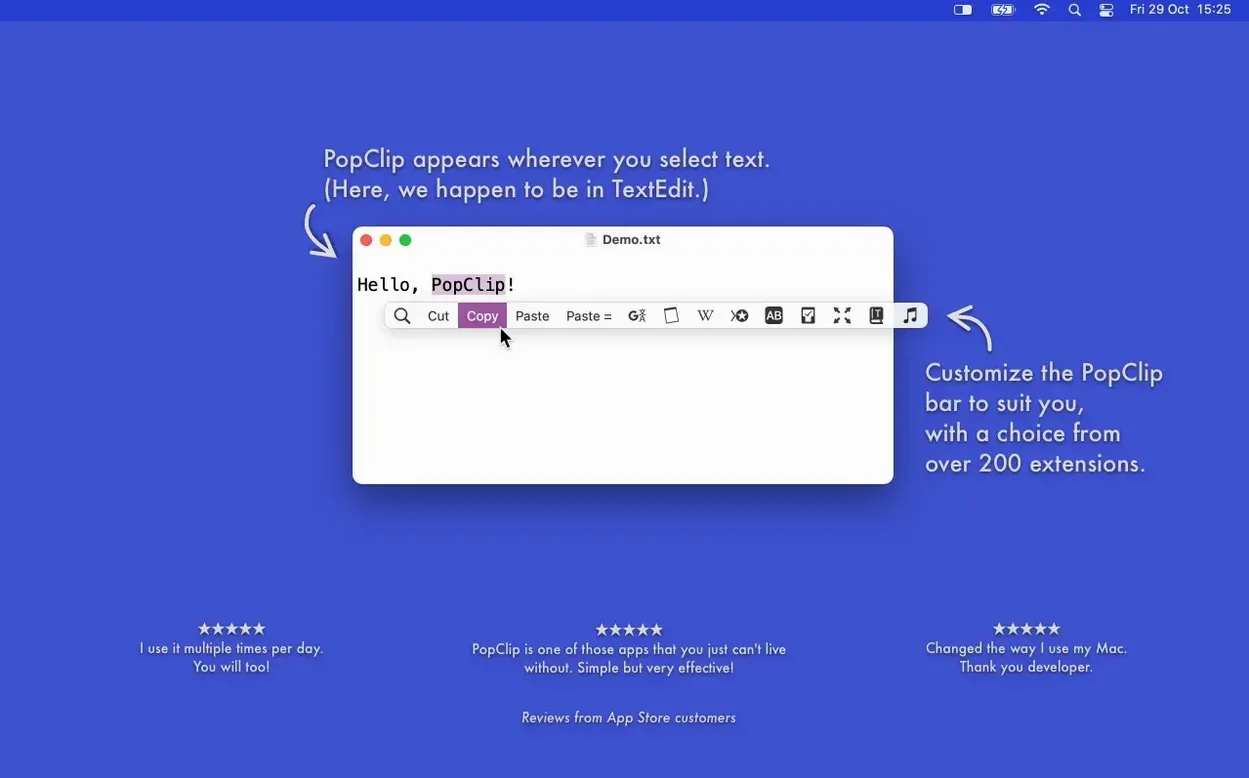
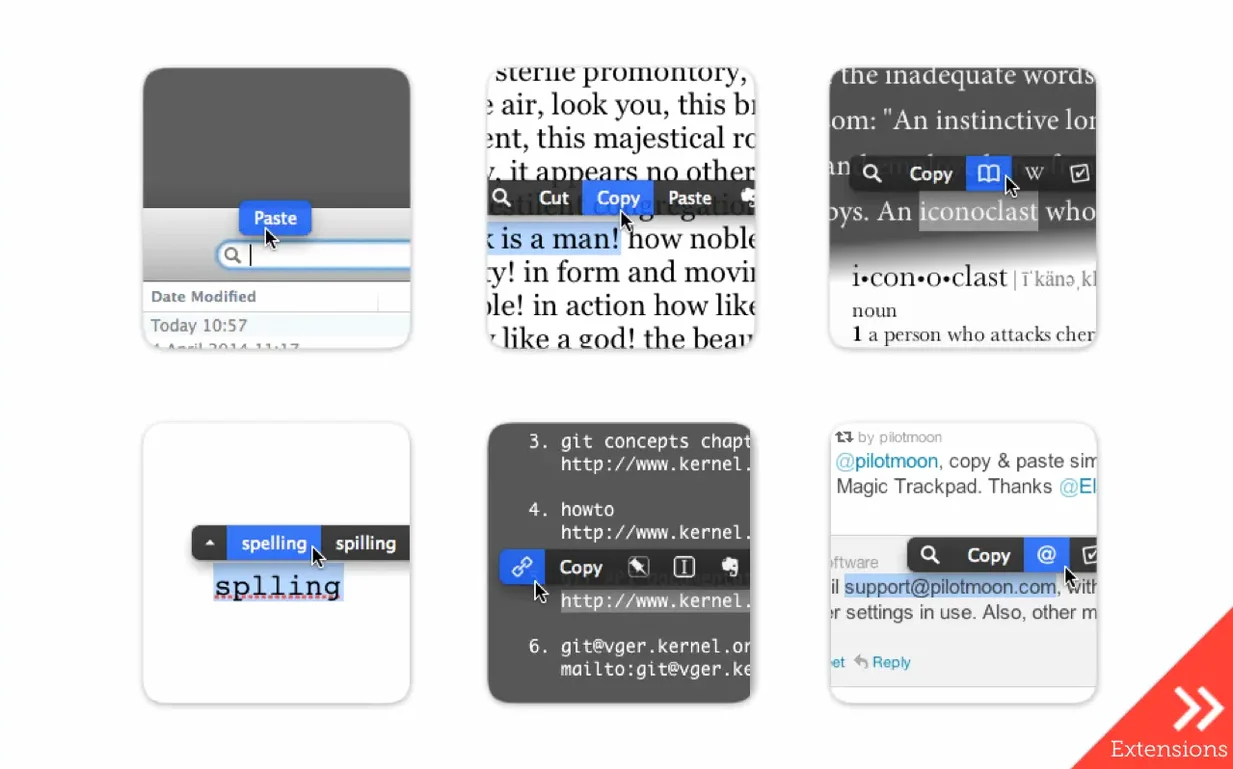
PopClip's popup appears the moment you select text, with actions that match what you're working with. Select a URL and you get Open Link. Select an email address and Compose appears. Select a file path and Reveal in Finder shows up. No toolbar hunting, no right-click menus — just the one action you likely need, presented next to your cursor.
Look up words without leaving your document
Select a single word and PopClip offers a dictionary lookup. It's the fastest way to check a definition while you're writing, and it works system-wide, not just in one app.
Copy and paste, contextually
The classic actions are there too: Copy, Paste, Cut. PopClip reads the surrounding app and shows what's relevant, so you're not constantly scanning a fixed toolbar.
Sync and compatibility
PopClip uses iCloud to sync your installed extensions, action layout, and settings across Macs. It works with most Mac apps, though a few don't play along. The app runs on macOS 13.5 or later, on both Apple Silicon and Intel.
PopClip is a utility that stays out of your way until you need it. Once you've used it for a week, you'll wonder how you selected text without it.
PopClip only appears after mouse-based text selection
New users often try to trigger PopClip with keyboard shortcuts, then assume it's broken. The app only appears after a mouse-based text selection — click and drag, or double-click to select a word. Keyboard-only selections won't bring it up. Another early frustration comes from selecting text inside apps PopClip doesn't support, such as certain terminal emulators or code editors that manage their own text rendering. The popup simply won't appear, and that's by design, not a bug.
People also install every extension they see, then wonder why the popup feels cluttered. PopClip's action list grows long quickly, and a crowded toolbar defeats the purpose of quick access. The smarter approach is to enable only the extensions you use weekly, then add more as you discover a need. Beginners also forget that the popup can be dismissed by clicking elsewhere or pressing Escape. It's not stuck; it's waiting for you to finish.
A quieter but common mistake is ignoring the extension preferences entirely. PopClip's settings let you reorder actions, disable ones you never use, and even set keyboard shortcuts for specific extensions. Many users never open that panel and miss half the app's usefulness.
A journalist drafts in Ulysses, pastes into a CMS, and checks facts in Safari
Consider a freelance journalist who drafts in Ulysses, pastes quotes into a browser-based CMS, and double-checks facts in Safari. Before PopClip, each move meant selecting text, right-clicking, choosing Copy or Look Up, then switching apps. With PopClip installed, the workflow changes. They select a quote in Ulysses, the popup shows Copy and Paste and Style. They switch to the CMS, click where the quote goes, and PopClip's paste action is ready. When a source URL sits in a Slack message, selecting it shows Open Link — one click, and Safari loads the page. The same selection can also trigger Search Web if they need context. The journalist never opens a right-click menu during a session, and that small saving adds up across a full day of editing.
Writers, editors, and translators eliminate friction between reading and acting
PopClip rewards anyone who selects text more than a few times a day, but certain groups benefit disproportionately. People who edit copy — writers, editors, translators, and content managers — gain the most because the app eliminates friction between reading and acting on text. Instead of reaching for a menu or memorising keyboard shortcuts, the action sits at the cursor.
Users who frequently handle links, file paths, and email addresses also see a clear advantage. Selecting a path in a chat window and clicking Reveal in Finder is faster than copying, opening a terminal, and typing. Developers who work across documentation, terminals, and browsers may not get much from PopClip if they live entirely in keyboard-driven workflows, but those who mix mouse and keyboard find it fills a gap that neither input method covers alone.
Anyone with multiple Macs will appreciate the iCloud sync. Install an extension on one machine, and it appears on the others without manual setup. That matters for people who switch between a desktop iMac and a MacBook throughout the day.
The 2026.8 maintenance release behaves the same way as before
PopClip 2026.8.1, released on September 7 2026, is a maintenance release that follows version 2026.7. The update cleans up issues from the previous build without adding new features. For everyday use, that means the app behaves the same way — the popup still appears on selection, the same extensions are available, and the sync process hasn't changed. What has improved is reliability in edge cases, particularly with apps that weren't cooperating before. The changelog describes it as a cleanup release, which translates to fewer moments where PopClip fails to show up or misidentifies the selected text type. Users who updated from 2026.7 may notice that certain third-party text fields now trigger the correct actions, where previously they showed only generic options.
Before it goes on the Mac
- macOS 13.5 or later
- Apple Silicon or Intel 64-bit
Questions from the room
Does PopClip work with every Mac app?
PopClip is compatible with most Mac apps, but not all of them. Some apps don't expose the text selection APIs PopClip relies on.
How do I install PopClip?
Unzip the downloaded file and drag the PopClip app to your Applications folder. Then launch it from Launchpad.
Installing it on the Mac
The installer runs under 7 MB, needs macOS 13.5 or later, and gets on with both Apple Silicon and Intel 64-bit Macs.
- Mount the disk image and run Open Gatekeeper friendly.
- Press Enter in the Terminal window that appears to bypass Gatekeeper.
- Drag the PopClip app into your Applications folder.
Notes from the control room
Sign in or open a catalogue account to leave a note.
No notes from the room yet. If you have used this build for a week, a short note helps the next person.