Home › Utilities › ProPresenter

ProPresenter 7.16.3 (Mac)
Updated
The catalogue note
If you have used Keynote for live events, you know the limit: one screen, one speaker, one timeline. ProPresenter on Mac treats a service like a broadcast, not a slideshow. Here is how a single Sunday morning run looks from start to finish.
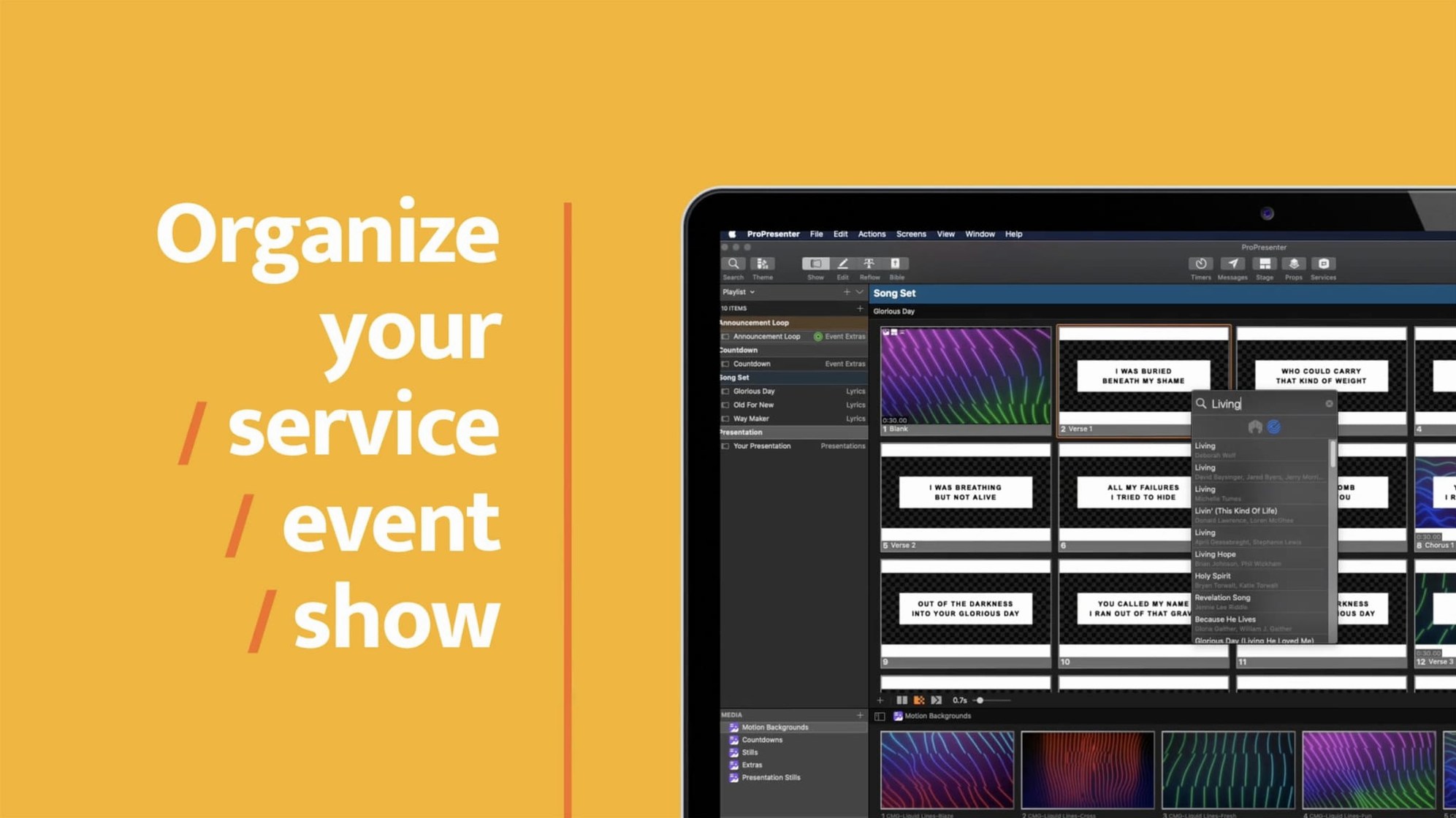
- Import the order of service as a plain text file. ProPresenter parses songs, scripture and announcements into individual slides; no manual copying.
- Assign a 1080p video loop to the background layer while the worship band plays. The video plays independently of the slide stack.
- Send a clean stage display to the pastor’s iPad via ProPresenter Remote — current slide, next slide, timer and notes. The congregation sees only the main feed.
- Route a separate lobby feed to an Apple TV in the foyer: a loop of announcements and a countdown clock, no audio bleed from the sanctuary.
- Use the audio playback tool to trigger a pre-recorded sermon intro. The output goes to the house PA while the main screen stays on a title slide.
- Switch to a live camera feed for the closing prayer. The camera input is treated as a media source inside the same playlist.
That is the real workflow — one app, three displays, two audio paths and a remote controller. ProPresenter does not replace a video switcher, but for most church and corporate events it removes the need for one.
Bypass Gatekeeper with Terminal before installing
The installation procedure is not standard for a Mac app. ProPresenter 7.16.3 comes as a disk image that requires you to bypass Gatekeeper manually. Users who have never used Terminal for this kind of task often hesitate. The short version: you mount the disk image, open Terminal, press Enter at the right prompt, then drag the app to Applications. If your system has SIP enabled — and it should, by default — the app works without disabling it. Some older guides recommend turning SIP off, but the current release does not need that. If you see a warning that the app is damaged or cannot be opened, check that you ran the Gatekeeper bypass step; the app is signed by the TNT team, not by Apple, so macOS will block it unless you authorise it through the command-line step.
Another recurring question is whether ProPresenter runs on Apple Silicon. Yes, the build is universal: ARM and x86 (64-bit) both work. If you are on an M-series Mac, the app runs natively. The same applies to Intel Macs running macOS 10.15 or later. No Rosetta translation layer is needed on either architecture.
People also ask if they can use the ProPresenter Remote app with the cracked version. The Remote app communicates over the local network using a discovery protocol. As long as both the Mac and the iOS device are on the same subnet, the connection works. No internet or account login is required. The same applies to sharing output with other Mac applications via network — that feature is not tied to an online licence server.
Import plain text instead of formatting slides
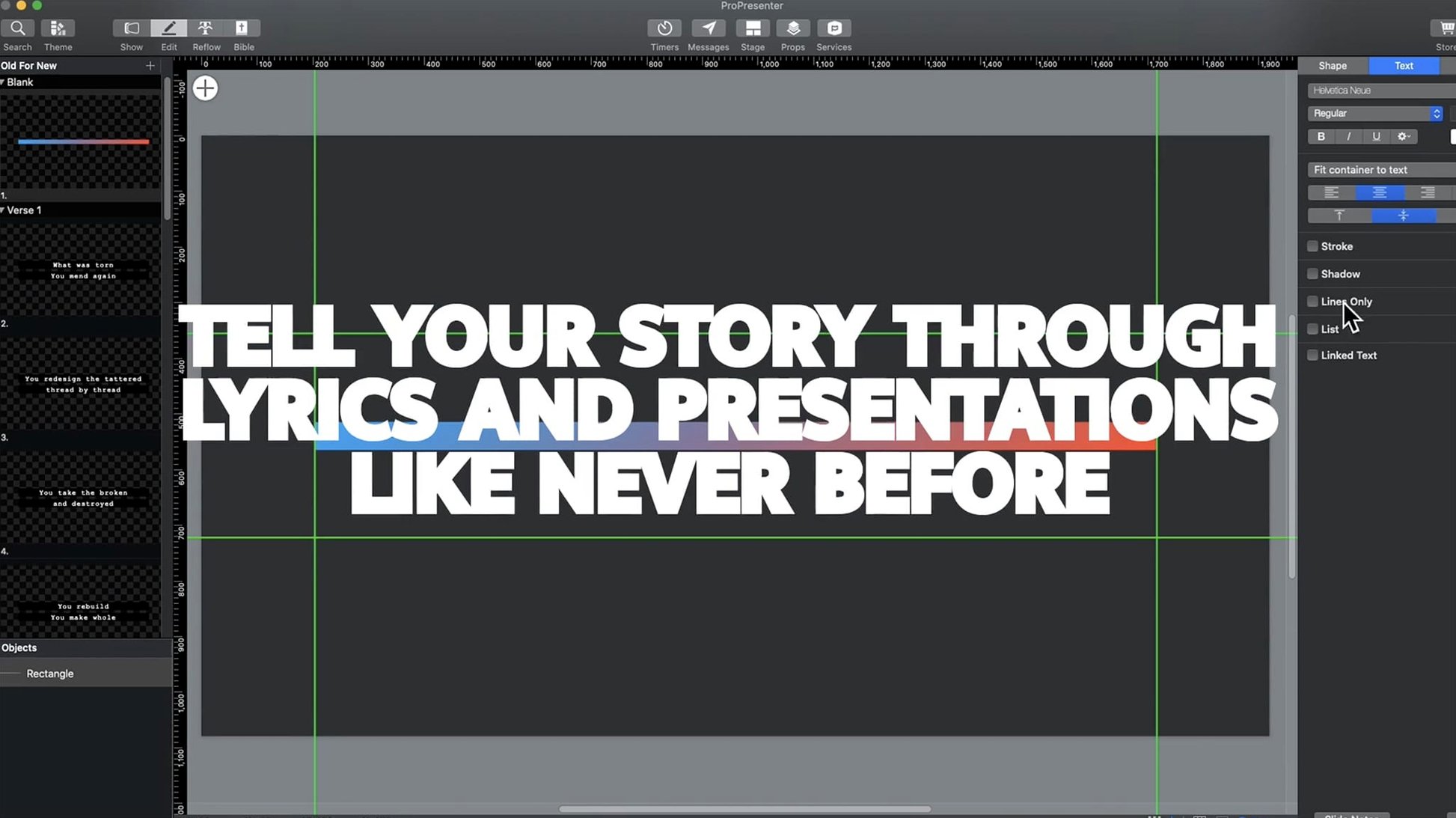
The most common mistake is treating ProPresenter like a slide editor. New users spend time formatting text inside the app, adjusting fonts and colours on individual slides, when they should be importing well-prepared content. ProPresenter reads plain text files and respects basic formatting markers. If you write your service order in a text editor with consistent section headers, the app will split songs, scripture and announcements correctly. Formatting inside the slide editor should be reserved for one-off tweaks, not for every slide.
Beginners also forget about the layer system. ProPresenter supports eight layers of content on a single slide. The default view shows only the top layer, so users drag media onto the stage and wonder why nothing appears. The slide editor has a layer panel — open it and check which layer your video or image landed on. If you place a video loop on layer 1 and text on layer 2, the video will play behind the text only if layer 2 has transparency enabled. Otherwise the text layer covers the video entirely.
Another oversight involves audio routing. ProPresenter can play audio files, but it sends the output to the system's default audio device unless you specify a different one in the audio preferences. If you route audio to the PA system through a separate interface, set that interface as the output device inside ProPresenter, not in macOS System Settings. The app has its own audio engine and does not always follow the system default once you change it once.
Finally, many people never use the confidence monitor features. A confidence monitor — what the speaker sees on their own screen — can show the current slide, the next slide, a timer and personal notes. Beginners leave it disabled because they do not know it exists. In the stage display settings, you can configure a separate output for the speaker. This is one of the features that distinguishes ProPresenter from Keynote or PowerPoint.
Saves time for churches running multiple services
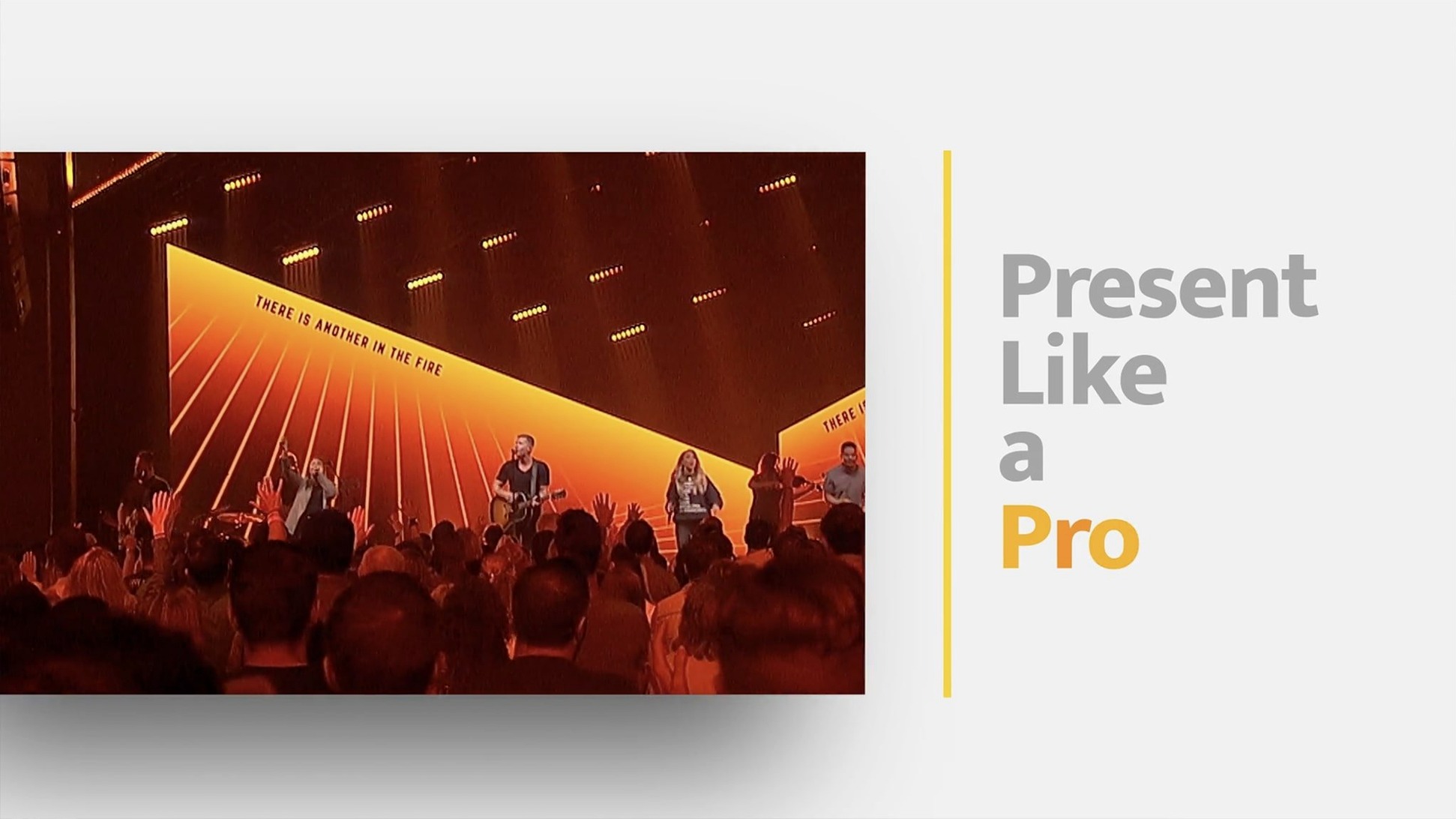
ProPresenter was originally designed for houses of worship, and that remains the primary audience. A church running three Sunday services with different song sets, a sermon, announcements and a video loop will see the biggest time savings. The ability to prearrange slide and soundtrack sequences and switch between them on the fly is what makes it useful for liturgical settings where the order of service changes weekly.
Corporate event teams also benefit. Business presentations often involve multiple speakers, branded lower thirds, sponsor videos and live camera feeds. ProPresenter handles all of those in one timeline. If you are running a conference with breakout rooms, the multi-screen support lets you send different content to each room from the same Mac.
Broadcast and live-streaming operators are another group. The app supports multi-camera streaming and recording. You can bring in camera feeds as media sources, switch between them, and output a clean feed to an encoder or a streaming platform. This removes the need for a separate vision mixer in smaller productions.
Schools and universities use it for assemblies, graduations and theatre productions. The confidence monitor features help student presenters stay on time, and the moderated Twitter feed integration works well for events where audience interaction is encouraged.
Select your external audio interface in Preferences first
Open the preferences and change the audio output device before you do anything else. If you have an external audio interface connected to the PA system, select it here. The default macOS output will introduce latency and may not route correctly to house speakers.
Set your stage display layout next. Go to the stage display settings and choose what each screen shows. Most operators want the current slide large, the next slide smaller, a countdown timer and speaker notes. You can configure separate layouts for the sanctuary, the lobby and an overflow room. Each layout can have different content and different timers.
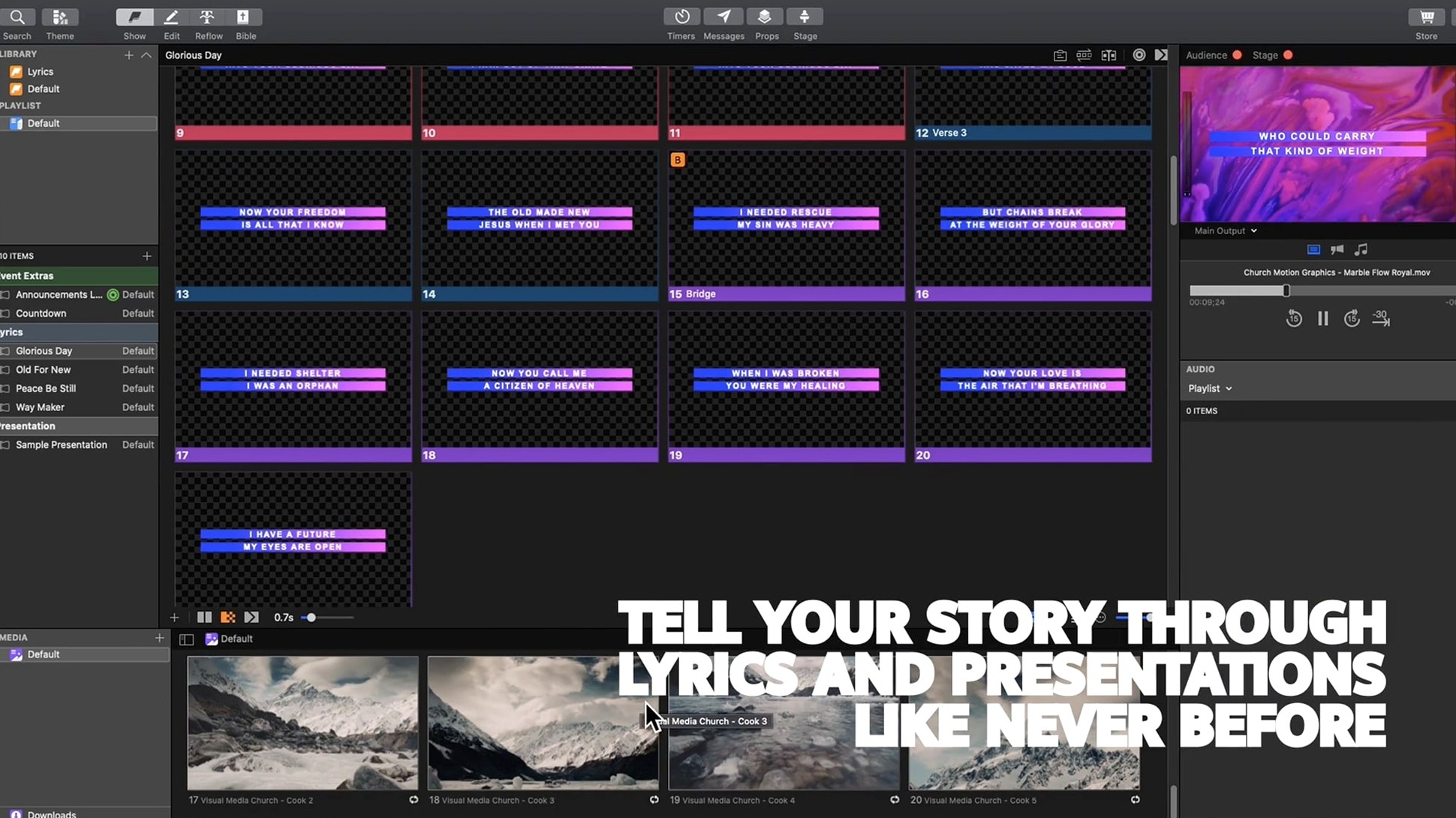
Enable the media bin view. By default, ProPresenter shows only the playlist. The media bin gives you a library of all imported videos, images and audio files. Drag items from the bin into playlists instead of re-importing them every time. This saves time when the same video loop is used across multiple services.
Configure the remote control settings. Turn on the network discovery option so that the ProPresenter Remote app can find the Mac. Set a PIN if you want to restrict access. Without this step, the remote app will scan the network and find nothing.
Layer panel dragging is faster in 7.16.3
Version 7.16.3 is a maintenance release. The developer, Renewed Vision, has been refining the slide editor and the media engine across the 7.x cycle. Users who upgraded from 7.15 will notice that the layer panel now responds faster when dragging media between layers.
Multi-screen output received stability improvements. On macOS 14 and later, the app used to lose display configuration after waking from sleep. That behaviour has been corrected. The stage display now remembers which screen is the confidence monitor and which is the main output after the Mac wakes up.
The ProPresenter Remote app on iOS has also been updated alongside the desktop release, though the iOS version number is separate. The remote now shows slide notes in a scrollable panel instead of truncating them after three lines. This is a small change, but it matters when a speaker has a full page of notes for a sermon.
ProPresenter Mac helps churches and live event teams manage lyrics, media, and presentations. This guide describes the 7.16.3 release as it works on macOS 10.15 and later, both Intel and Apple Silicon.
Before it goes on the Mac
- macOS 10.15 or later
- Intel or Apple Silicon
- Interface languages: Russian, English, German, Spanish, Korean, Norwegian, Portuguese, French
Installing it on the Mac
- Mount the disk image and run the Gatekeeper-friendly installer.
- Press Enter in the Terminal window to bypass Gatekeeper.
- Drag the app to the Applications folder.
- Disable SIP if the system requires it.
Notes from the control room
Sign in or open a catalogue account to leave a note.
No notes from the room yet. If you have used this build for a week, a short note helps the next person.