Home › Utilities › RAR Extractor

RAR Extractor 13.9.6 (Mac)
Updated
The catalogue note
You have a downloaded RAR archive with one file you need. Opening the whole archive takes time, so you drag it to RAR Extractor’s Dock icon, browse the file list, and extract just that file. That is the kind of workflow the app is built for.
Pull out only the files you need from an archive
- Extract a selected file or folder — browse the archive’s contents and pull out only what you need, leaving the rest untouched.
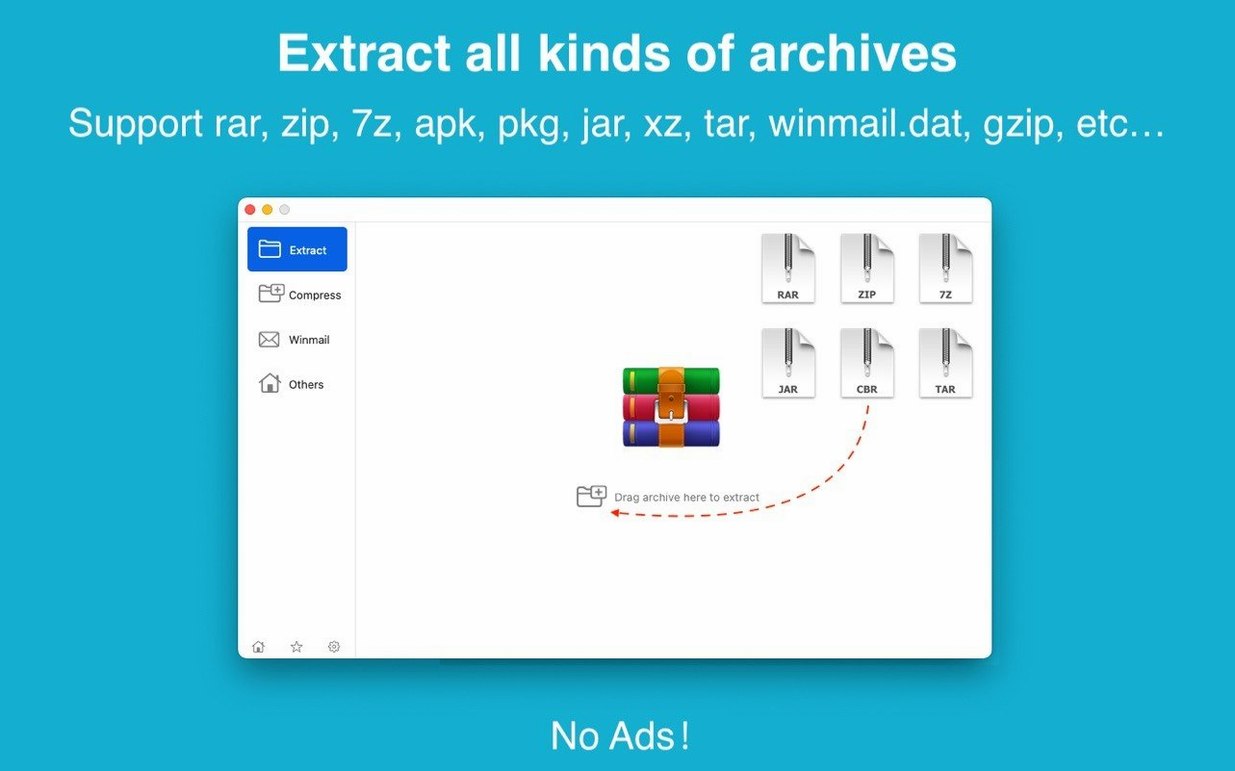
- Drag to desktop or Dock icon — drag an archive to the desktop for direct extraction, or drop it on the Dock icon to view or unpack it.
- Batch unpacking — queue multiple archives and extract them in one go instead of handling each file manually.
- Encrypted archive support — handles password-protected RAR, ZIP and other formats without extra steps.
- Wide format coverage — supports RAR, ZIP, 7Z, ISO, MSI, APK, JAR, RPM and many more, so you rarely need a second tool.
Sits in the Dock or menu bar until needed
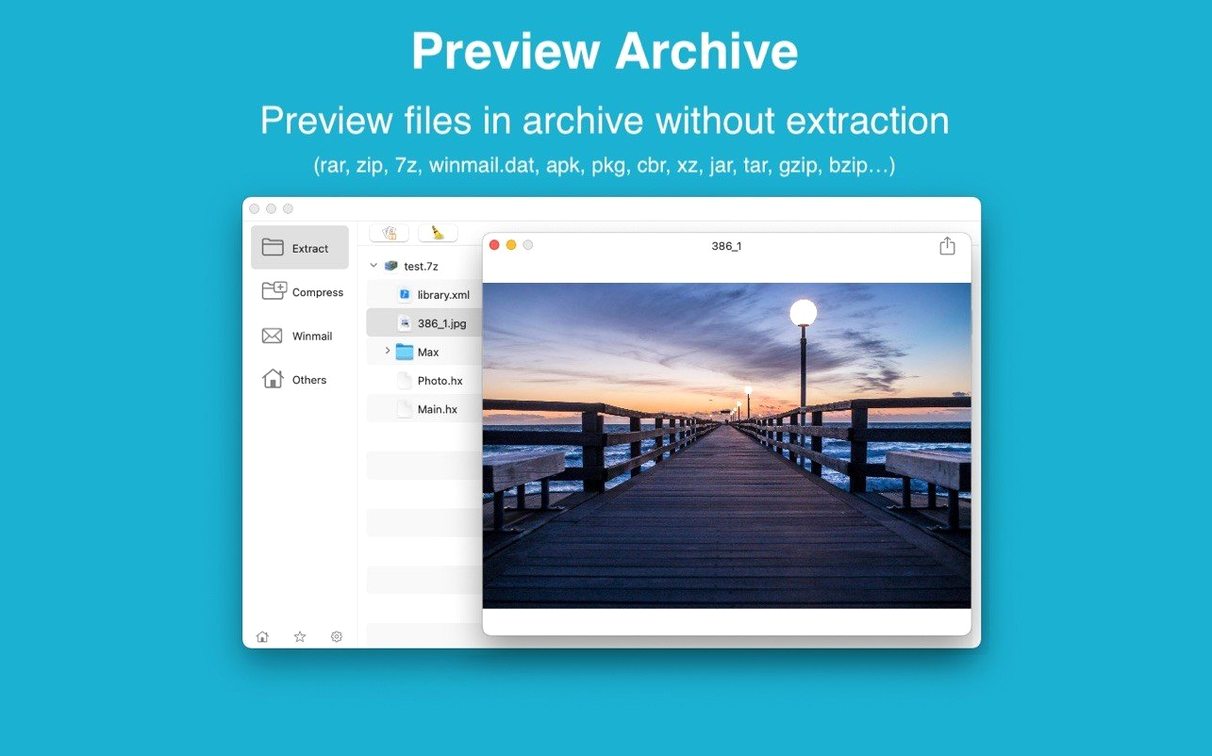
The app sits in the Dock or the menu bar and stays out of the way until needed. Its file list view gives you a quick look inside an archive before committing to an extraction. The underlying engine handles common and less common formats alike, which matters when you run into a .lzh or .cpt file from older software.
First days with RAR Extractor
After installing, drag the app to the Dock for quick access. The drag-to-Dock method becomes more useful once the app is always one click away. A few small habits help settle it into your routine:
- Set it as the default archive app. Right-click any archive and choose RAR Extractor under Open with. From then on, double-clicking opens the file list, letting you decide what to extract before unpacking anything.
- Try batch unpacking with a folder of mixed archives. Drop several RAR and ZIP files onto the app at once. The queue handles them sequentially without extra dialog boxes.
- Use the dual-window display for comparison. Open one archive, then a second. The side-by-side layout shows both contents lists, useful when you need to copy a file from one archive into another.
The app remembers the last extraction path, so repeated work in the same project folder stays consistent.
Drag archives straight to Finder or other apps
RAR Extractor works alongside standard macOS file management. You can drag a file straight from the archive contents list to Finder or another app’s window — the file extracts to that location without extra steps.
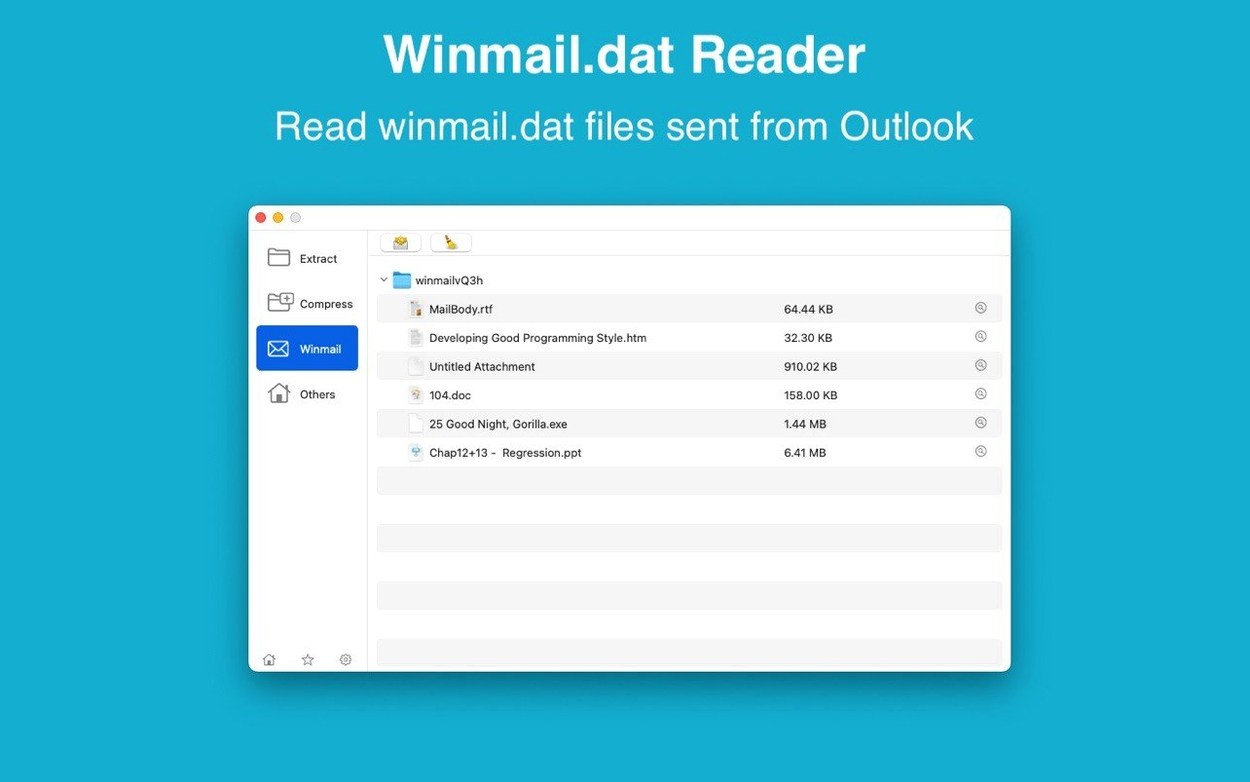
For email attachments saved as winmail.dat, the preview feature reads the content inside Outlook’s proprietary format. When a colleague sends a .dat file, you see the attached files before deciding to extract them.
Files extracted through the app land in a folder named after the archive, keeping your Downloads organised. If you prefer a different location, use the extract-to option during the extraction process.
The app respects macOS Gatekeeper and security settings. The install process requires a short Terminal step to bypass Gatekeeper, after which the app runs normally. No background services or autostart items are added to your system.
AES-256 encryption for password-protected archives
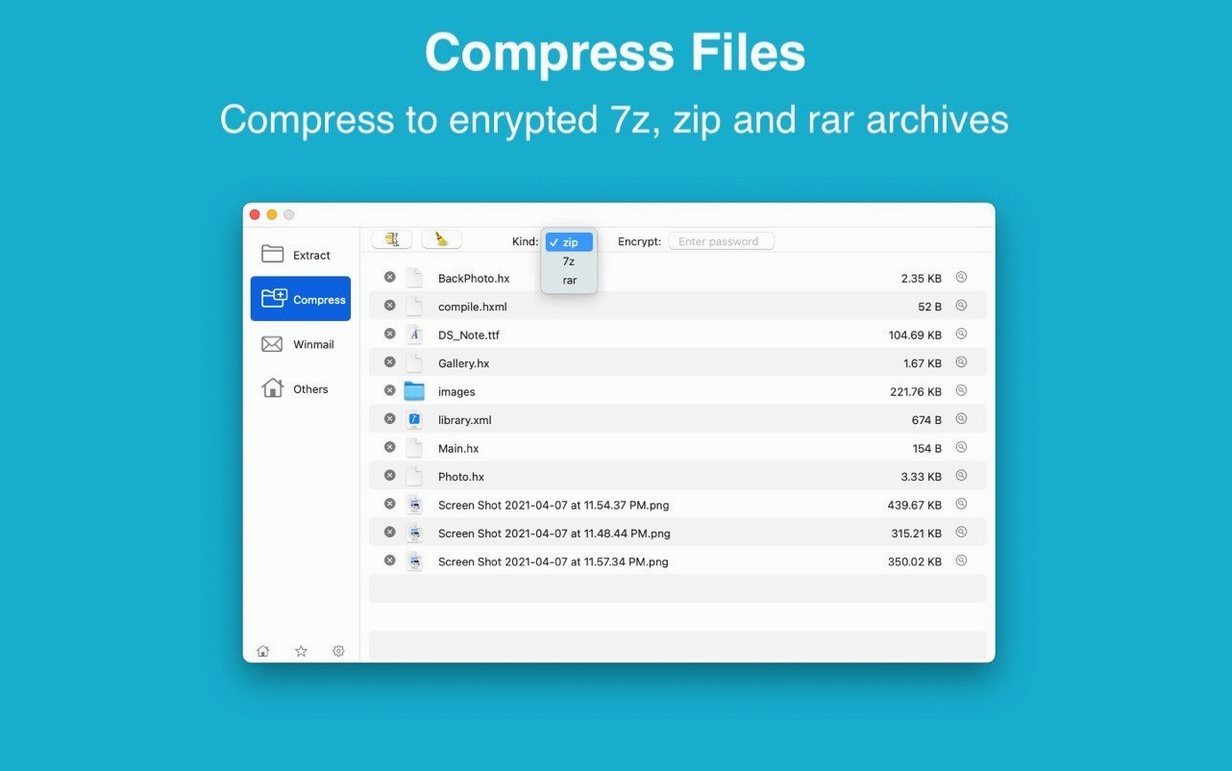
- Password-protected archives prompt for the password once per extraction; the app handles both creation and extraction of encrypted ZIP and 7Z files using AES-256.
- The file list shows size and modification date for each item inside an archive, letting you judge whether the file is the right one before extracting.
- Drag an archive to the desktop and release — the extraction starts immediately, and the extracted folder appears on the desktop.
- Language toggle between English and Simplified Chinese is available in the app’s settings.
These are not advertised prominently, but they reduce friction once you know about them.
Workflow: extracting a single file from a large RAR archive
- Drag the RAR file to the RAR Extractor Dock icon. The app opens and displays the archive contents in a file list.
- Browse the list to find the file you need. The list shows the internal folder structure, the file name, its size, and its last modified date.
- Select that file, then choose Extract Selected. The app asks for a destination folder.
- If the archive is encrypted, a password prompt appears. Enter the password once.
- The single file is extracted to the chosen location. The rest of the archive remains untouched.
This method avoids unpacking hundreds of files when you only need one, saving disk space and time.
Runs on macOS 11.5 or newer with no extra libraries
RAR Extractor runs on macOS 11.5 or newer, covering both Apple Silicon (ARM) and Intel 64-bit Macs. The app requires no additional libraries or frameworks — it installs as a single drag to the Applications folder.
With support for over two dozen archive formats, including older ones like LZH, ARJ and ACE, the app handles files that macOS’s built-in Archive Utility cannot open. The same applies to encrypted archives: RAR Extractor works where the system’s native tools stop.
For users who handle archives regularly, the dual-window display and batch unpacking make the app a practical companion rather than a one-off tool. It fits a scenario where you manage downloads, email attachments and software packages throughout a workday.
Small conveniences that are easy to miss
After a week of daily use, a few details become noticeable that are not obvious from the first launch. They are not advertised in the menu bar, but they save time once discovered.
- The app remembers recent extraction locations. If you extract files to a project folder once, that location stays in the destination picker until you change it. No need to navigate the same folder tree repeatedly.
- Archive creation from the file list. When you have a folder of loose files, you can create a password-protected 7Z or ZIP archive directly from within the app’s interface. The same AES-256 encryption applies whether you are extracting or creating.
- Dual-window mode works with drag-and-drop between archives. Open two archives side by side, then drag a file from one window to the other. The file is extracted and re-archived into the destination without intermediate steps.
- The Dock icon shows extraction progress. While a batch of archives is being unpacked, the icon displays a progress indicator. You can continue working in other apps and see at a glance when the job finishes.
- Files inside an archive appear in the same folder structure as the original. The file list preserves the directory tree, so you know where each file lives before extracting. This is especially useful for large software packages like MSI or RPM files where internal paths matter.
Fitting into a mixed-format workflow
In a typical week, you might encounter a .rar file from a colleague, a .7z archive from a software download, and a .tar.gz from a command-line tool. RAR Extractor handles all three without switching apps. The same applies to less common formats like .lzh from legacy software or .rpm from Linux package repositories.
For users who handle email attachments, the winmail.dat preview is a time-saver. Outlook’s proprietary format often confuses other apps, but RAR Extractor reads the attachments inside and lets you extract them individually. This works alongside the standard macOS mail client and Outlook for Mac.
The app does not interfere with other archive utilities. If you prefer The Unarchiver for certain formats or the built-in Archive Utility for simple ZIP files, RAR Extractor coexists without conflicts. Setting it as the default for a few formats while leaving others to different apps is straightforward via the Open with menu.
Practical tip: keep a .rar torrent or two ready for testing
After setting up RAR Extractor, test it with a variety of archive formats you actually use. If you regularly handle rar extractor - unarchiver pro mac crack downloads, try extracting a password-protected RAR to confirm the encryption prompt works as expected. For users who work with 7.1 audio extractor archives, the app handles multi-volume 7Z files without additional setup. The same applies to 1.4 extractor files — the app recognises the format and presents the contents list normally.
A quick test with a rar torrent file (a single RAR archive, not a multi-part set) confirms the drag-to-Dock method works immediately. The file list appears within a few seconds, even for archives containing many small files.
Before it goes on the Mac
- macOS 11.5 or later
- Intel or Apple Silicon Mac
- Interface languages: English, Simplified Chinese
Questions from the room
Can RAR Extractor handle encrypted archives?
Yes, the app supports extraction of encrypted archives as long as you provide the correct password.
Installing it on the Mac
- Mount the disk image and run Open Gatekeeper friendly.
- Press Enter in Terminal to bypass Gatekeeper.
- Drag the app to the Applications folder.
- Open the app when installation is complete.
Notes from the control room
Sign in or open a catalogue account to leave a note.
No notes from the room yet. If you have used this build for a week, a short note helps the next person.