Remove-It 2.0.0 (Mac)
Updated
The catalogue note
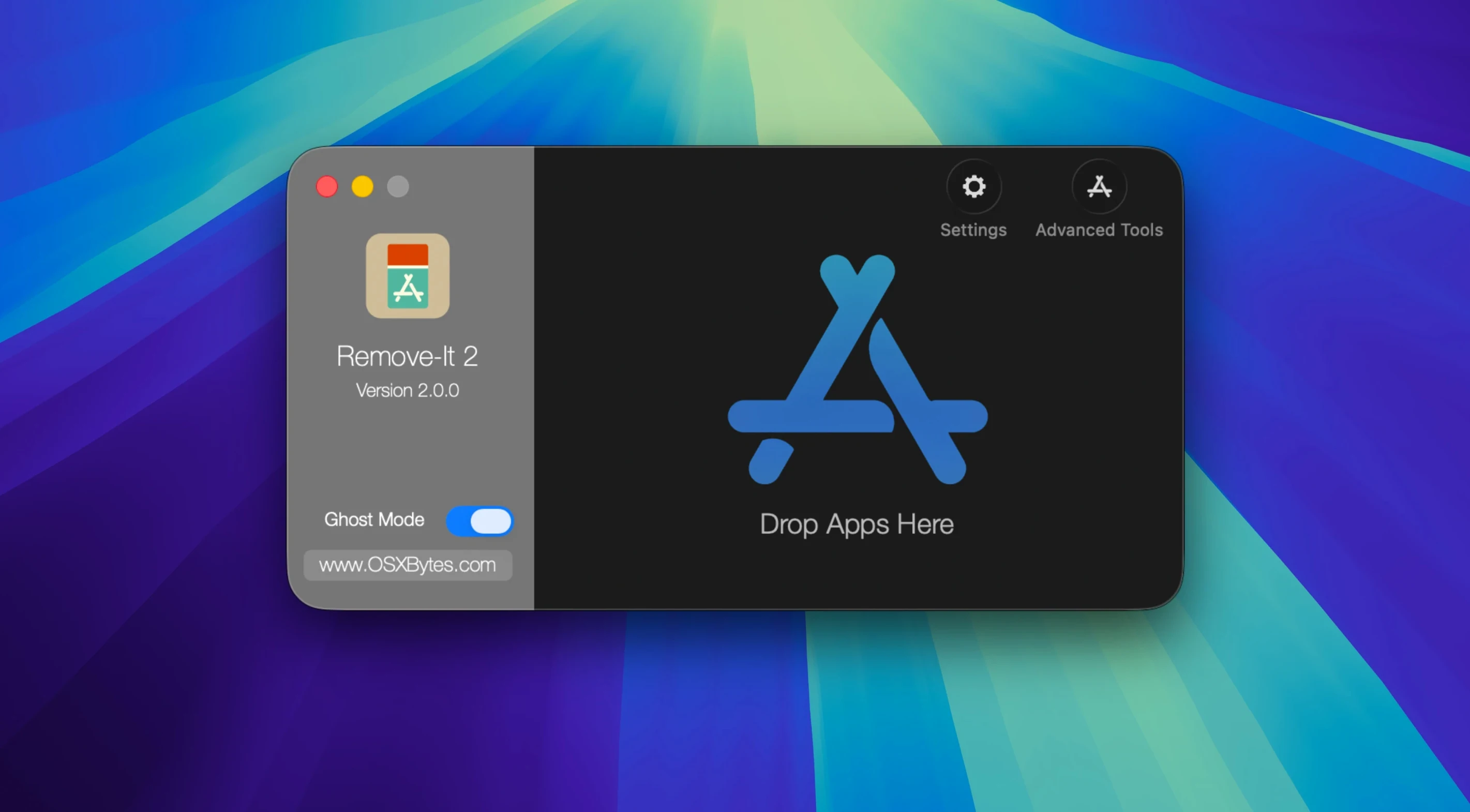
The Levenshtein distance search algorithm is an unusual choice for an uninstaller. Remove-It (also known as iTrash) uses it to match related files by name similarity, not just exact paths. Here are three tasks a newcomer should try first.
Find leftover files for a recently deleted app
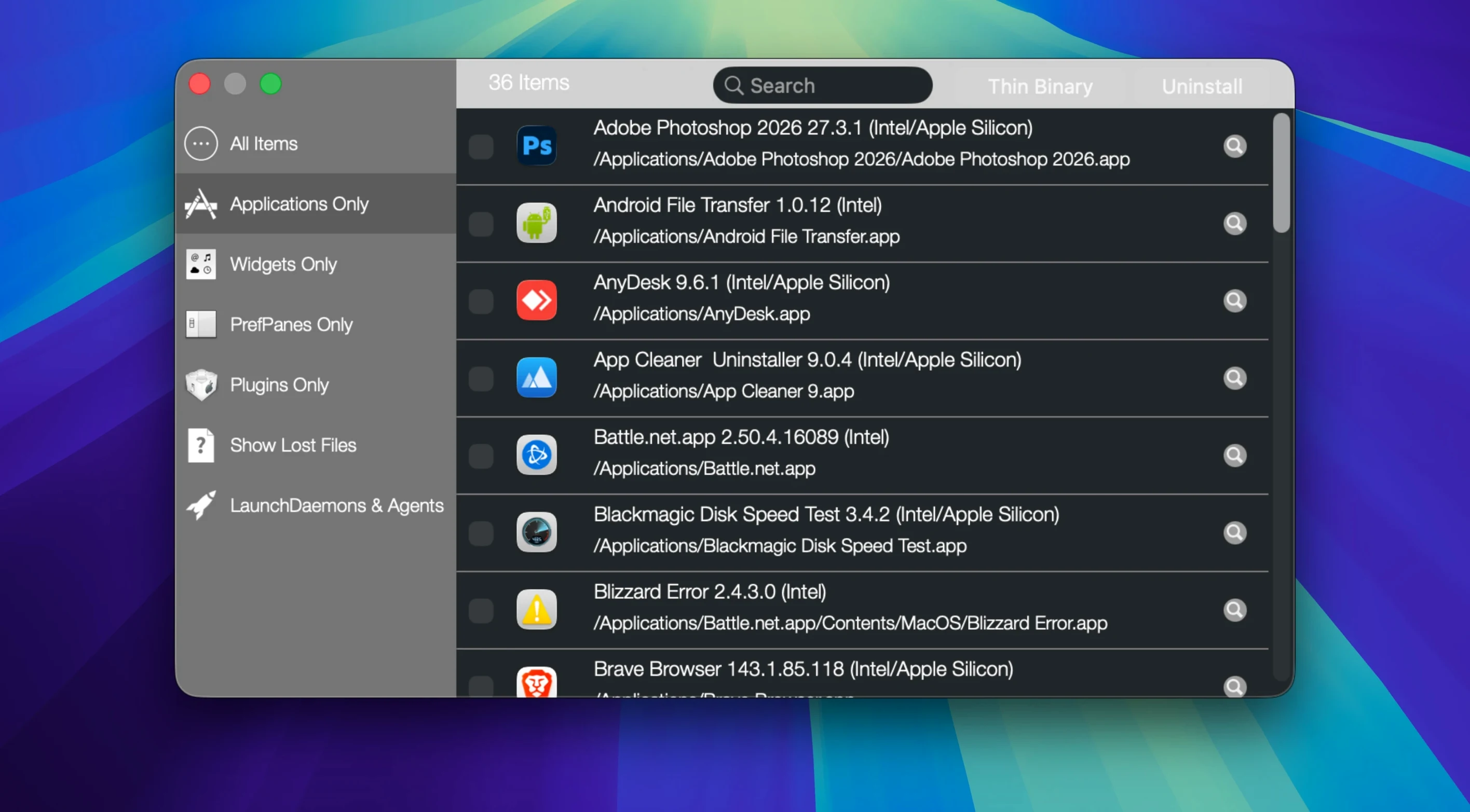
Open Remove-It, select the application from the list, and click the search button. The tool scans all volumes, not just the Applications folder, and finds both visible and hidden files. Review the results, tick what you want gone, and remove them.
Trim a Universal Binary
If you have an app that contains both Intel and Apple Silicon code, Remove-It can strip the unused architecture to reclaim space. Select the app, choose the option to remove architecture binaries, and confirm. The app itself stays functional.
Run Expert Mode for a deeper clean
When the standard search misses something — common with complex suites — switch on Expert Mode. The scan widens its criteria, catching more potential orphan files. Use this with care: review each item before removal.
Prevent accidental removal of system items
Before you start cleaning, open Remove-It's preferences and adjust a few defaults. Enable Protect default applications to prevent accidental removal of system items. Add any folders or apps you want to keep safe under Protected user applications and folders. If you rely on background mode — where dropping something into the Trash triggers a scan — turn that on now. Finally, decide whether you want Expert Mode active by default or only when called upon. These take thirty seconds and save you from later surprises.
Removing a DAW with scattered support files
Let's say you are clearing out an old DAW that came with its own plugins, support files and preferences scattered across ~/Library and /Library. You drag the main app to the Trash, then open Remove-It. The app appears in the list automatically because of background mode. You select it and run a standard search.
The results show a dozen items: the .app bundle itself, several .plist files, a cache folder, and audio unit presets. You tick everything and remove it. But you know this suite also left behind a license manager and a helper tool in /Library/Application Support. A second search with Expert Mode turned on catches both. You review the extra hits — they look correct — and remove them. Total time: under two minutes, and no manual hunting through folders.
Build confidence by reviewing every file
- Run Remove-It, review every file it finds, and remove them. This builds confidence in the search results before you tackle larger suites.
- Use the list of installed apps as a discovery tool. Remove-It shows everything on all volumes, not only /Applications. You might spot old apps you forgot about — look for items with dates from years ago. This is a clean opportunity, not a cleaning spree.
- Keep Expert Mode for second passes. Start with the standard search. If leftover files remain, switch to Expert Mode only for that app. The wider search can suggest false positives; your review is essential.
- Remember the Universal Binary trim. If you have space concerns, check your largest apps for architecture bloat. Removing unused binaries from a few big applications can free noticeable storage without affecting how they run.
- Search for remove-it for mac free download if you need the latest version on another machine — just verify the site is the official OSXBytes source.
Before it goes on the Mac
- macOS 10.15 or later
- Apple Silicon or Intel processor
- Interface language: English
Questions from the room
Does Remove-It work on Apple Silicon Macs?
Yes, it supports both ARM (Apple Silicon) and x86 64-bit (Intel) architectures on macOS 10.15 and later.
Can it remove files from apps I already deleted?
Yes. Remove-It shows all installed applications on all volumes and can find leftover files of apps that are no longer present.
What is the Levenshtein distance search?
It is a string-matching algorithm that finds files with similar names, not just exact matches. This helps Remove-It locate related files that an ordinary search might miss.
Installing it on the Mac
- Open the downloaded disk image.
- Drag the app to the Applications folder alias.
- After copying finishes, launch the app from Launchpad.
- Follow the included instructions if errors appear.
Notes from the control room
Sign in or open a catalogue account to leave a note.
No notes from the room yet. If you have used this build for a week, a short note helps the next person.