Sensei 2.1.2 (Mac)
Updated
The catalogue note
Version 2.1.2 of Sensei, developed by Cindori AB, weighs in as a Mac utility that monitors performance and cleans up the system. Before you drag it into your Applications folder, here are the concrete things people ask about most often.
- No separate tools needed for hardware status.
- Fan control is included. You can adjust fan speeds manually if the automatic curve doesn’t suit your workflow or noise tolerance.
- It does more than monitor. The app also cleans temporary files and can uninstall applications properly, removing leftovers.
- macOS 14 only. Sensei 2.1.2 requires macOS 14 (Sonoma). It runs on both Intel and Apple Silicon Macs.
- Interface languages. English, Russian, Spanish, Simplified Chinese, Dutch, French, Swedish, and Japanese are available.
- Install is straightforward. Open the disk image, drag the app into the Applications folder alias, then launch from Launchpad.
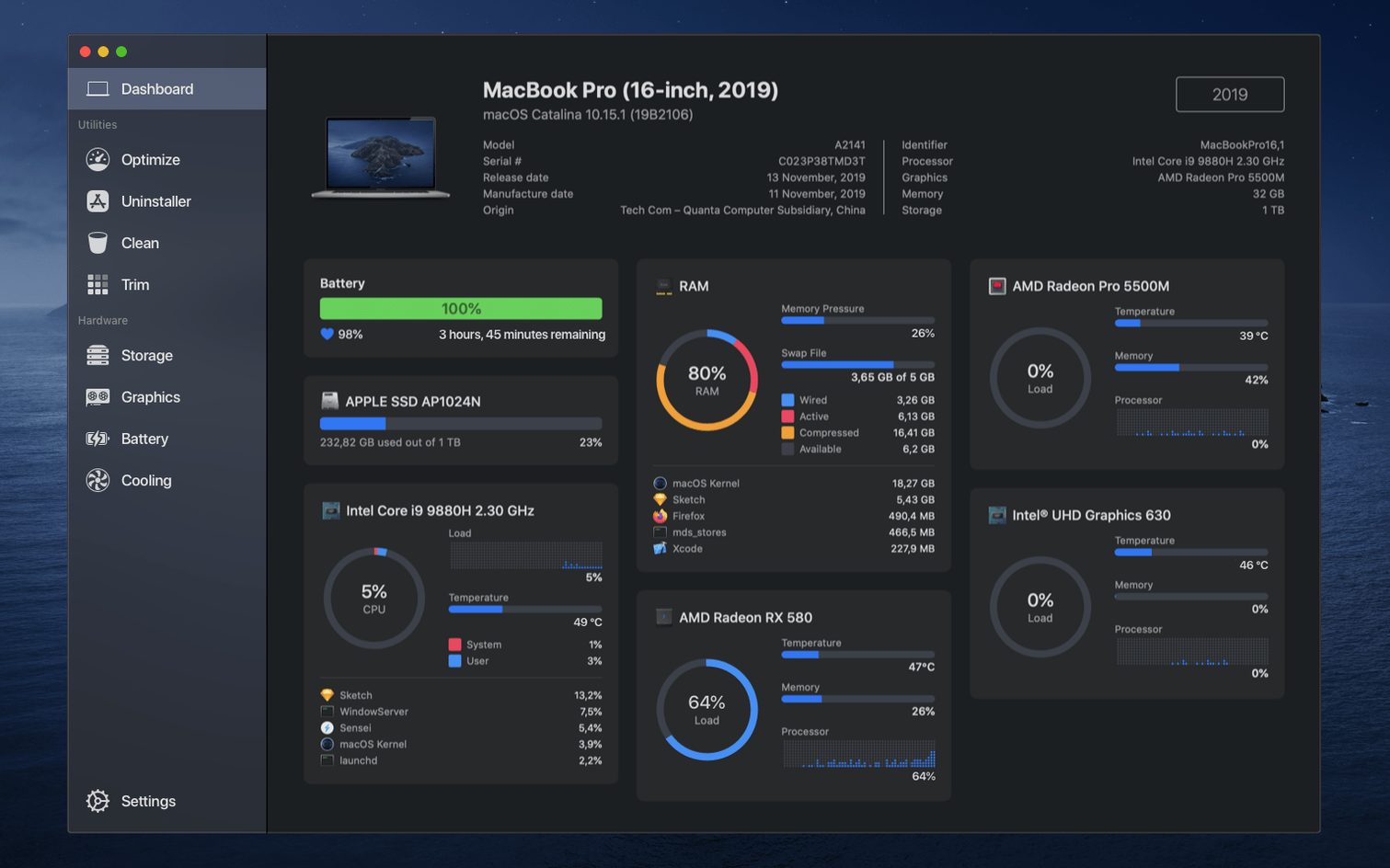
Dashboard shows CPU, memory, disk and network in one glance
The Dashboard consolidates several readings into one glance — CPU load, memory pressure, disk activity and network throughput all sit on a single screen. I find it useful when tracking down why a session feels sluggish without opening Activity Monitor separately.
Another detail: the app can enable TRIM on third-party SSDs. macOS normally restricts this to Apple drives, so if you swapped in a Samsung or WD SSD, Sensei can switch TRIM on from the Storage tab. It is a one‑click operation and the change persists across reboots.
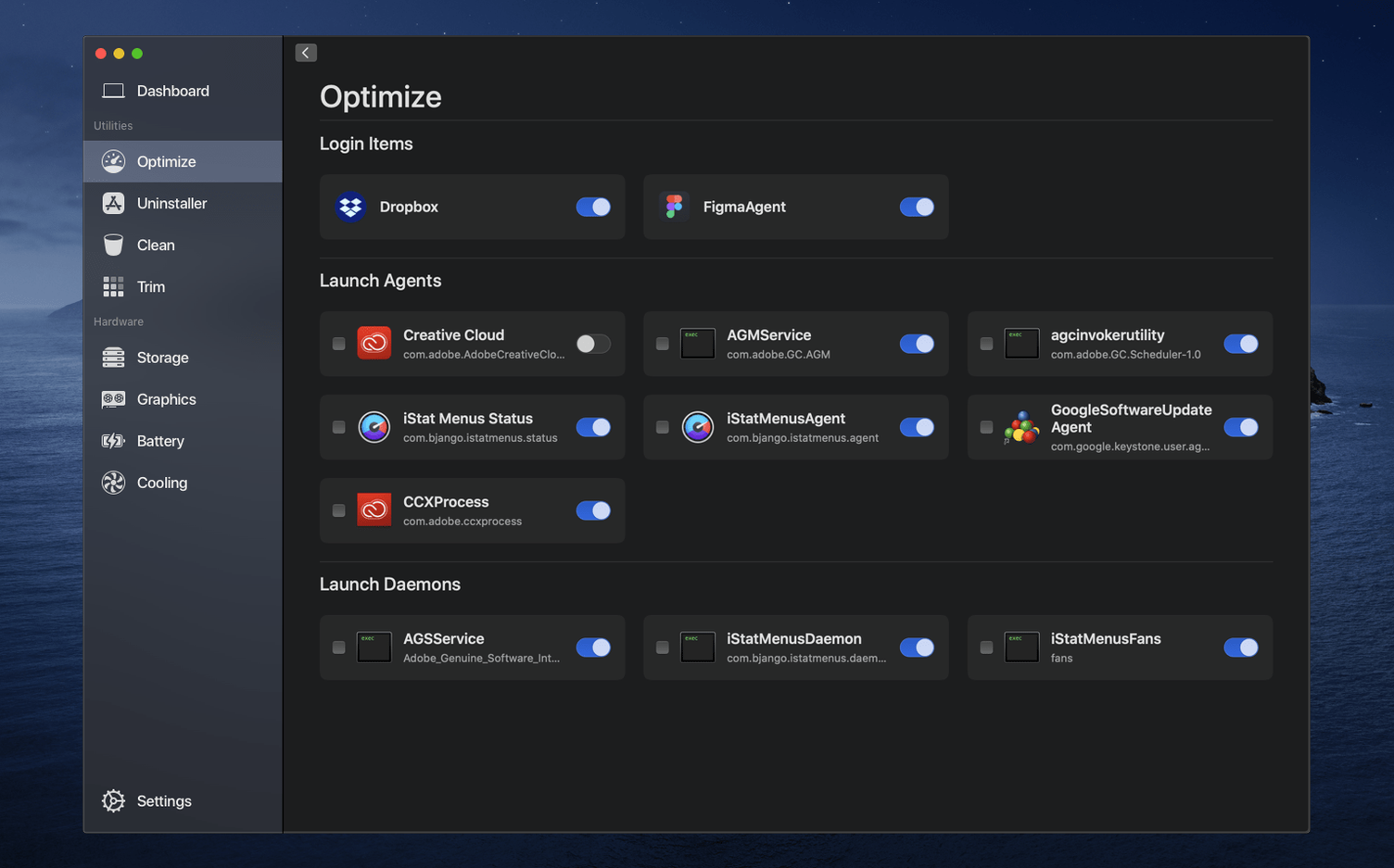
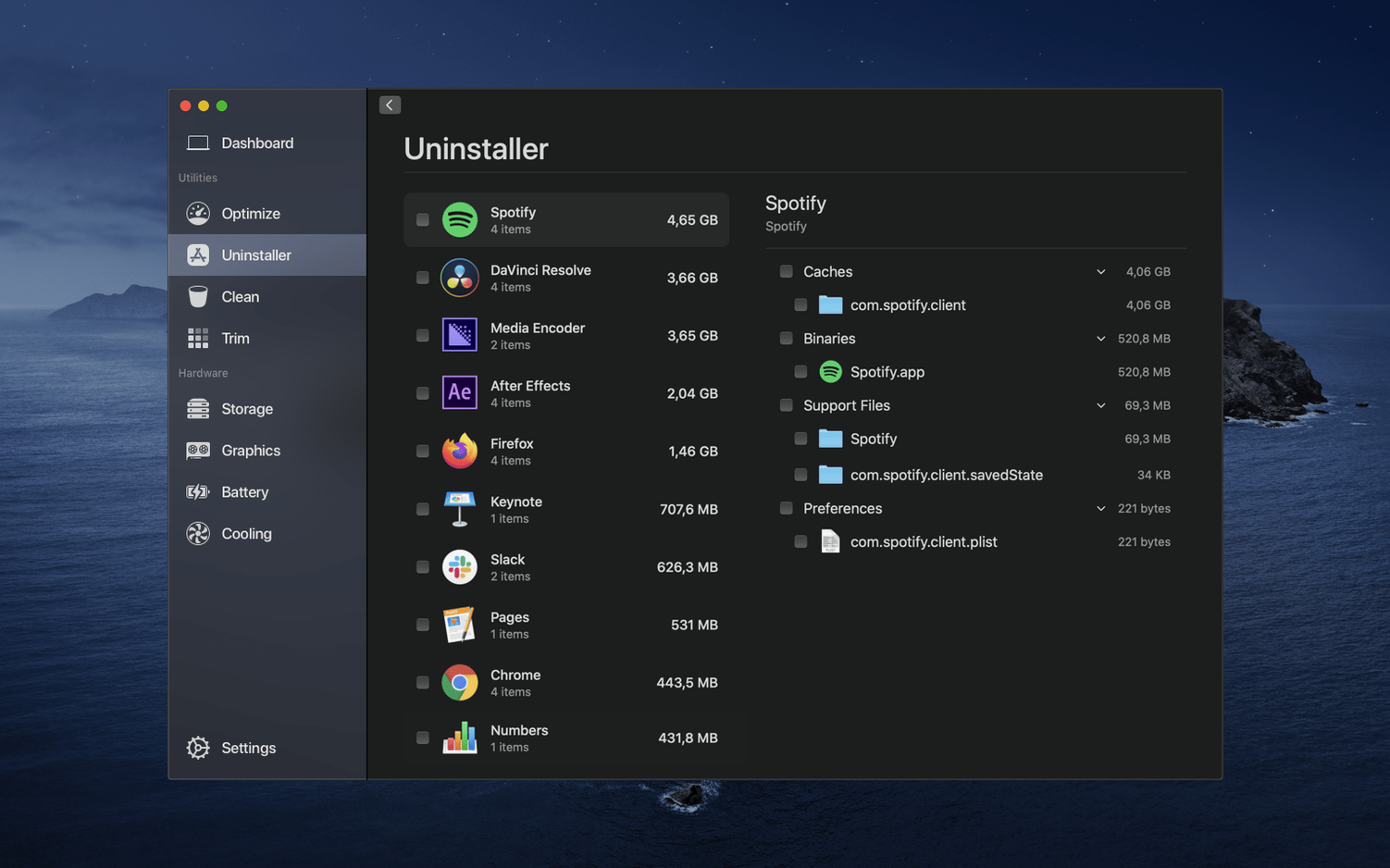
Uninstalling applications through Sensei goes beyond dragging to Trash. The app scans for preference files, caches and support folders tied to the target application and offers to delete them too.
Version 2.1.2 changelog helps you decide when to replace the app
Version 2.1.2 arrived after 2.1.1 and 2.1.0, and the changelog for those updates is worth knowing if you are already on an earlier 2.1.x build. That makes it easier to judge when a replacement might be needed.
- Sensei 1.6.0 added support for macOS 14 Sonoma, which was the first version to drop Intel‑only builds and require Apple Silicon or Rosetta. If you are still on an older macOS, that version was the cutoff.
- Sensei 1.7.0 refined the Dashboard layout and fixed a few cases where temperature sensors did not report correctly on M2 Macs.
- Sensei 1.7.1 improved disk cleanup speed when scanning large caches — noticeable if you regularly clear browser and developer temp files.
None of these updates changed the core workflow: monitoring, cleaning and fan control remain the same three tabs at the top. The improvements are under‑the‑hood accuracy and interface polish.
Fan control resets after sleep unless you enable 'apply on wake'
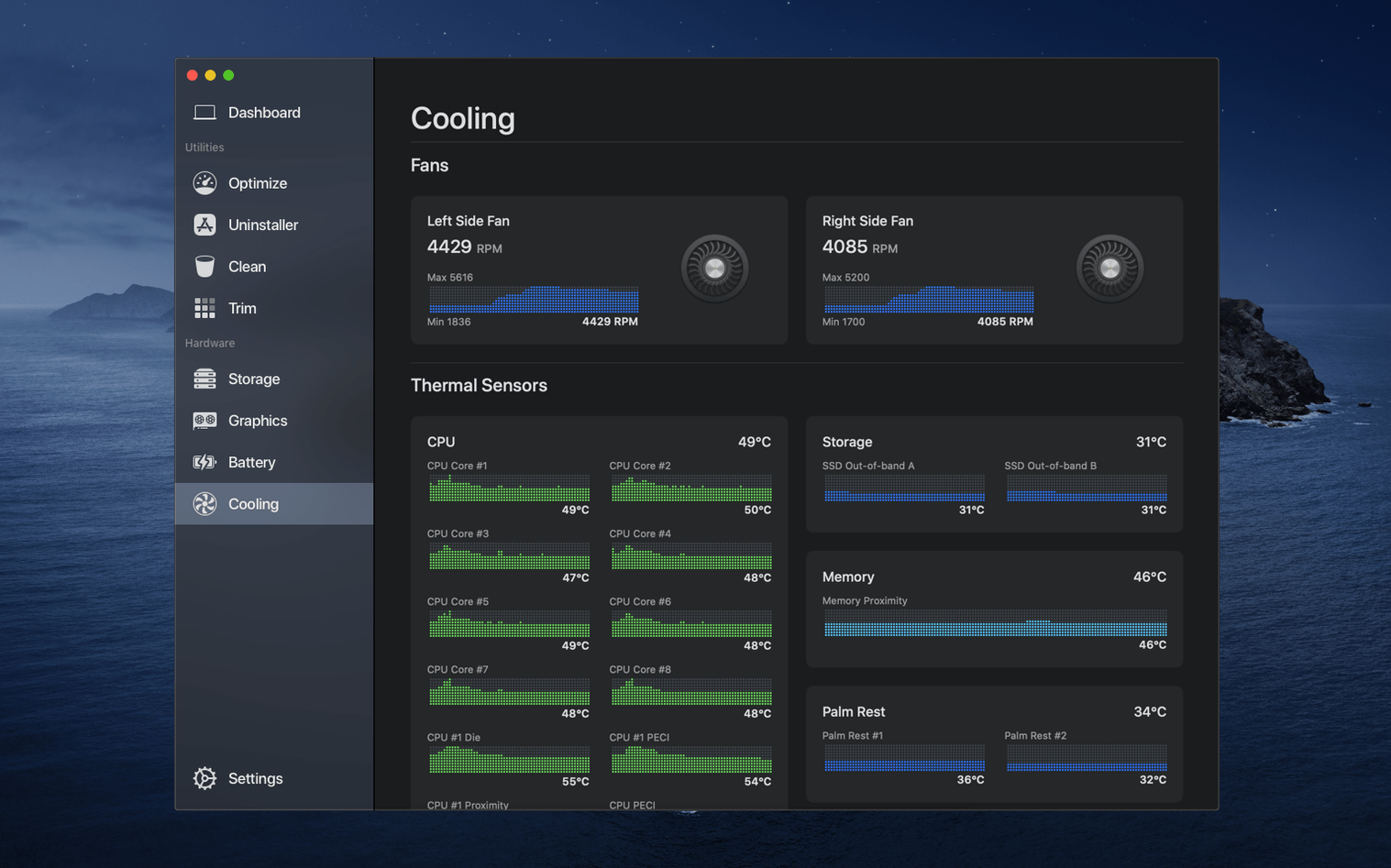
Fan control does not stick after sleep. Some Macs reset fan curves when waking from sleep. In Sensei, you can set a custom fan profile and enable the “apply on wake” option in the Fans section. If that still fails, try quitting and relaunching the app after wake — it re‑applies the saved profile.
Temperature sensors show “N/A” on certain Macs. This typically happens on models where the sensor data is not exposed by the system. Sensei reads from the SMC, and a handful of 2019‑2020 Intel Macs have incomplete sensor tables. There is no workaround other than checking for a future update. The app still reports CPU and GPU temperature on the majority of supported machines.
Disk cleanup does not free as much space as expected. The tool targets temporary files, logs and caches. It will not touch user data, Time Machine snapshots or APFS purgeable space. If you need to reclaim a large amount, run the scan twice — sometimes the first pass removes files that were locked by running applications, and a second pass after reboot catches the rest.
Menu bar monitor disappears after update. A fresh install sometimes resets the menu bar module to disabled. Open Sensei, go to Preferences and re‑enable “Show in menu bar”. The module will reappear after a few seconds.
Sensei needs no helper tool or kernel extension on macOS 14
Does it need a helper tool or kernel extension? No. Sensei works entirely in user space using the system frameworks provided by macOS 14. It does not install background daemons or kernel extensions, so it leaves no persistent services running when the app is quit.
Can I use it alongside other monitoring tools? Yes. iStat Menus, TG Pro and Sensei coexist on the same Mac without conflicts. They all read from the same SMC and system sensors, so you may see duplicate readings in the menu bar if you run more than one, but nothing breaks.
Does the cleanup function delete anything that cannot be recovered? Files moved to Trash by the cleanup module can be restored from Trash before it is emptied. The app does not permanently erase anything unless you empty Trash separately. Caches and logs removed by the scan are not recoverable, but those are files the system regenerates as needed.
Will fan control void my warranty? Software fan control adjusts the same PWM values that macOS uses for its automatic curve. It does not alter firmware or hardware settings. Apple’s warranty covers hardware defects; running the fans at higher speeds does not change that.
Does it run on macOS 13 Ventura? No. Version 2.1.2 requires macOS 14 (Sonoma) or later. The last version that supported Ventura was Sensei 1.x, but that branch is no longer updated.
That covers the main questions. If you need a single app for hardware monitoring, basic cleanup and fan control on Sonoma, Sensei fits that brief.
Before it goes on the Mac
- macOS 14 (Sonoma) or later
- Intel or Apple Silicon processor
Questions from the room
Can Sensei control the fans on my Mac?
Yes, Sensei includes fan control so you can set manual speeds rather than relying on the system’s automatic curve.
Does Sensei only monitor the system or can it clean files too?
It does both.
What version of macOS does Sensei 2.1.2 require?
It requires macOS 14 (Sonoma) and works on both Intel and Apple Silicon Macs.
Installing it on the Mac
- Open the downloaded disk image.
- Drag the app into the Applications folder alias.
- After copying finishes, launch the app from Launchpad.
Notes from the control room
Sign in or open a catalogue account to leave a note.
No notes from the room yet. If you have used this build for a week, a short note helps the next person.