Home › Utilities › Shadowrocket

Shadowrocket 2.2.92 (Mac)
Updated
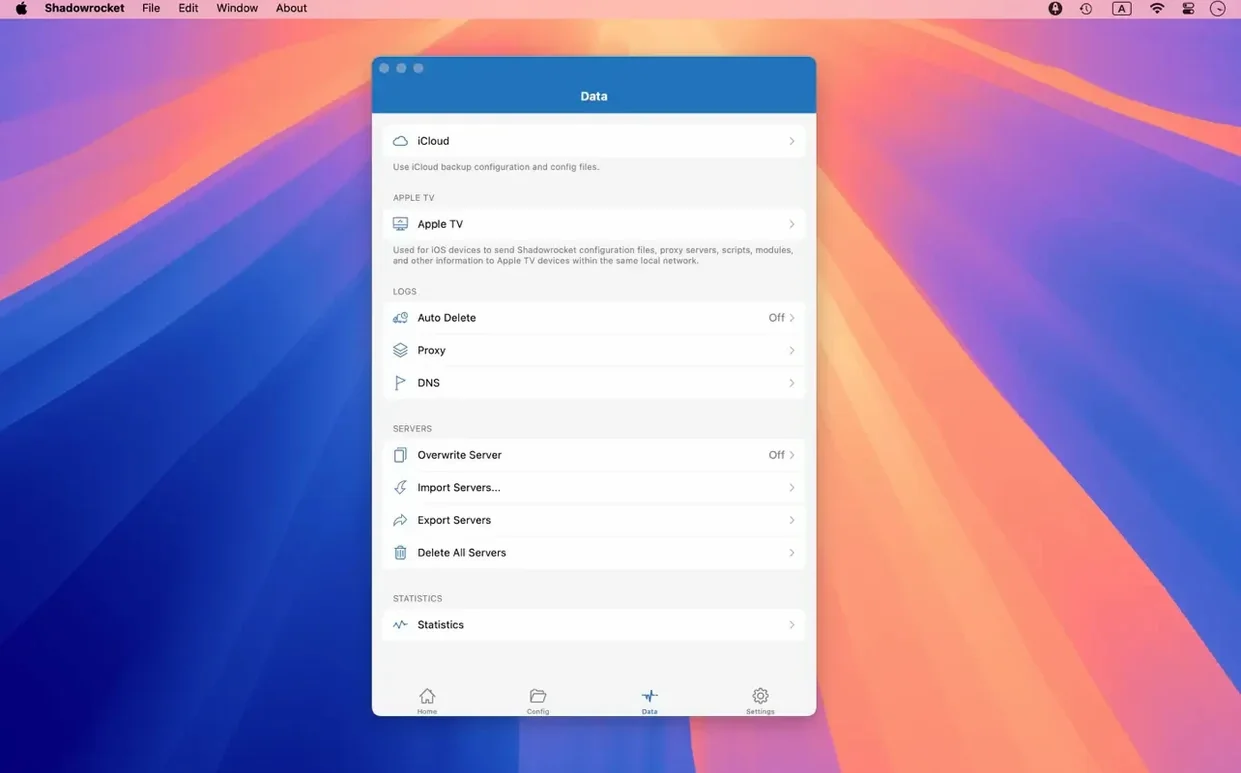
The catalogue note
Local DNS mapping is one of those features that tells you an app was built by people who actually use proxies. Shadowrocket lets you map specific domains to custom IPs before any proxy rule touches them, which is handy when you need internal resources to bypass the tunnel entirely.
What it handles and who it is for
- Protocol support: Shadowsocks, V2Ray, and SOCKS5.
- DNS security: DNS over HTTPS, DNS over TLS, and DNS over QUIC.
- Traffic interception: HTTP, HTTPS, and TCP from any app on the machine, forwarded to a proxy server.
- HTTPS decryption for inspection.
- Full IPv6 support.
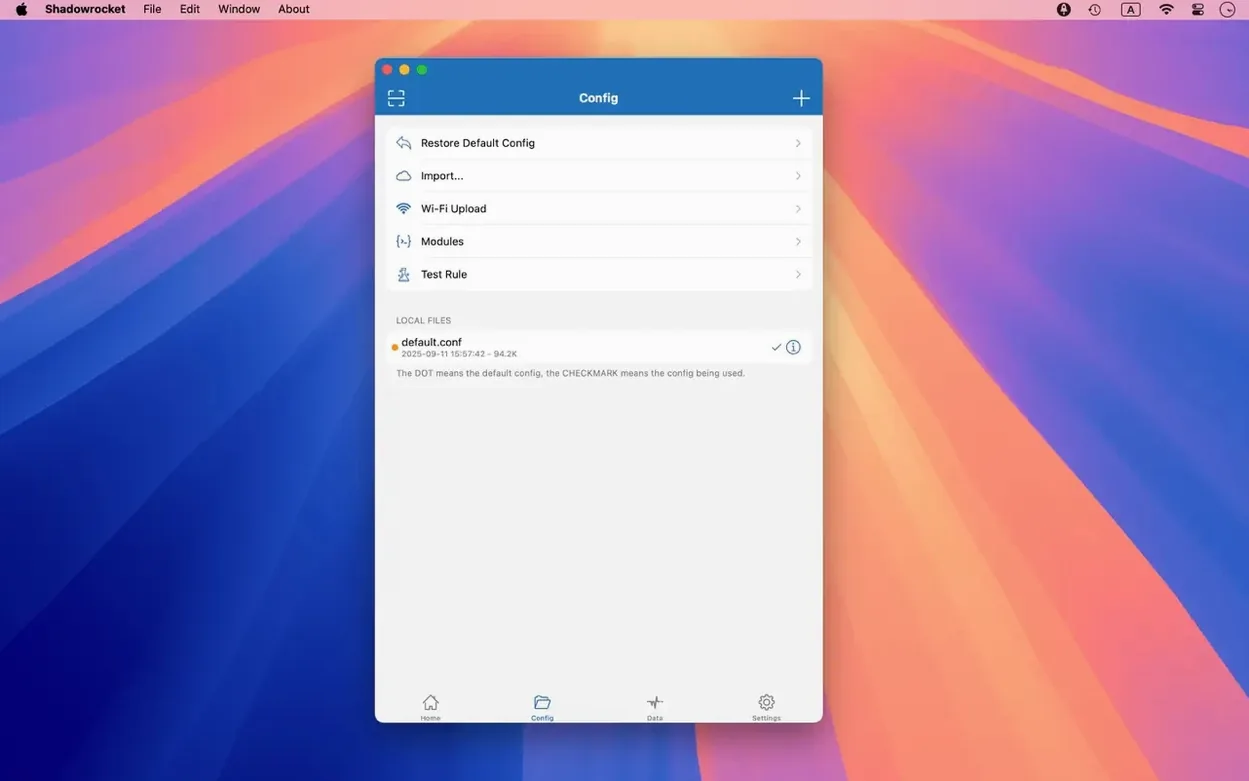
- Rule files can be imported from a URL or iCloud Drive.
- Traffic and speed metering for both direct Wi‑Fi and proxy connections.
Controls which traffic goes through the proxy
Shadowrocket is not a VPN in the traditional sense. It is a rule-based proxy client that decides per connection what goes through the proxy and what does not. That makes it useful for anyone who needs granular control over routing — developers testing geo-locked services, power users who switch between proxy nodes, or anyone running a mixed environment of local and remote resources. The app runs natively on macOS 10.15 and later, Intel and Apple Silicon.
Replaces browser proxy extensions at the system level
Shadowrocket works at the system level, intercepting traffic before it leaves your Mac, so it integrates with whatever else you are running. Browser extensions for proxy management become redundant — the app handles routing for Safari, Chrome, Firefox, and any other browser without additional configuration. The same applies to terminal tools like curl or wget, and to any app that respects the system's network stack.
macOS's built-in firewall and Network settings coexist without conflict. Shadowrocket does not install a kernel extension or alter system files; it uses the Network Extension framework available since macOS 10.15. That means you can toggle it on and off from the menu bar without restarting services or logging out. The Dock icon and menu bar presence give you quick access to connection status and traffic logs without opening the main window.
iCloud Drive integration for rule files is practical if you maintain the same set of rules across multiple Macs. Drop a rule file into iCloud Drive on one machine, import it on another, and the proxy behaviour stays consistent. The same approach works for importing configuration from a URL — useful when you pull rules from a shared repository or a team server.
Works alongside your existing VPN without stacking
Will it interfere with my existing VPN? Shadowrocket runs alongside a VPN, but the two do not stack. If a VPN tunnel is active, Shadowrocket intercepts traffic that reaches the proxy rules after the VPN has already routed it. In practice, you would typically use one or the other, not both at the same time, unless you have a specific chain setup in mind.
Does it slow down everyday browsing? The app adds a processing step for each connection that matches a proxy rule. For traffic that goes directly (no proxy rule matches), overhead is minimal — the rule check happens fast. The actual speed depends on the proxy server you connect to, not on Shadowrocket itself.
Can I run it in the background without the window open? Yes. The menu bar icon and the Dock icon are enough to monitor status. You can close the main window and the proxy continues running. Version 2.2.92 included fixes for menu bar and Dock icon behaviour, so those elements now respond reliably.
Do I need to reconfigure my browser? No. Shadowrocket intercepts traffic system-wide, so no proxy settings need to be changed in individual apps. This is especially convenient for apps that do not offer proxy configuration at all.
What happens when I disconnect from the proxy? All traffic returns to the normal direct route immediately. No residual rules or routes remain active. You can disconnect from the menu bar or by quitting the app.
Imports rule files from a URL or iCloud Drive
- Rule files can be imported from a URL or iCloud Drive — no need to manually copy files into obscure folders.
- Traffic and speed metering covers both the direct Wi‑Fi connection and the proxy connection side by side, so you can compare latency and throughput at a glance.
- DNS mapping works before proxy rules are evaluated. That means a domain mapped to a local IP never hits the proxy, which is useful for internal servers or development hosts.
- The app logs HTTP, HTTPS, and DNS requests. You can review them to see exactly which domains are being routed through the proxy and which are not.
- Script filters let you modify traffic on the fly without changing rule files. This is a small but powerful detail for advanced users.
- Multi-level proxy server support means you can chain proxies if your setup requires it — for example, passing through an internal proxy before reaching an external one.
Starts with a server list and traffic log panel
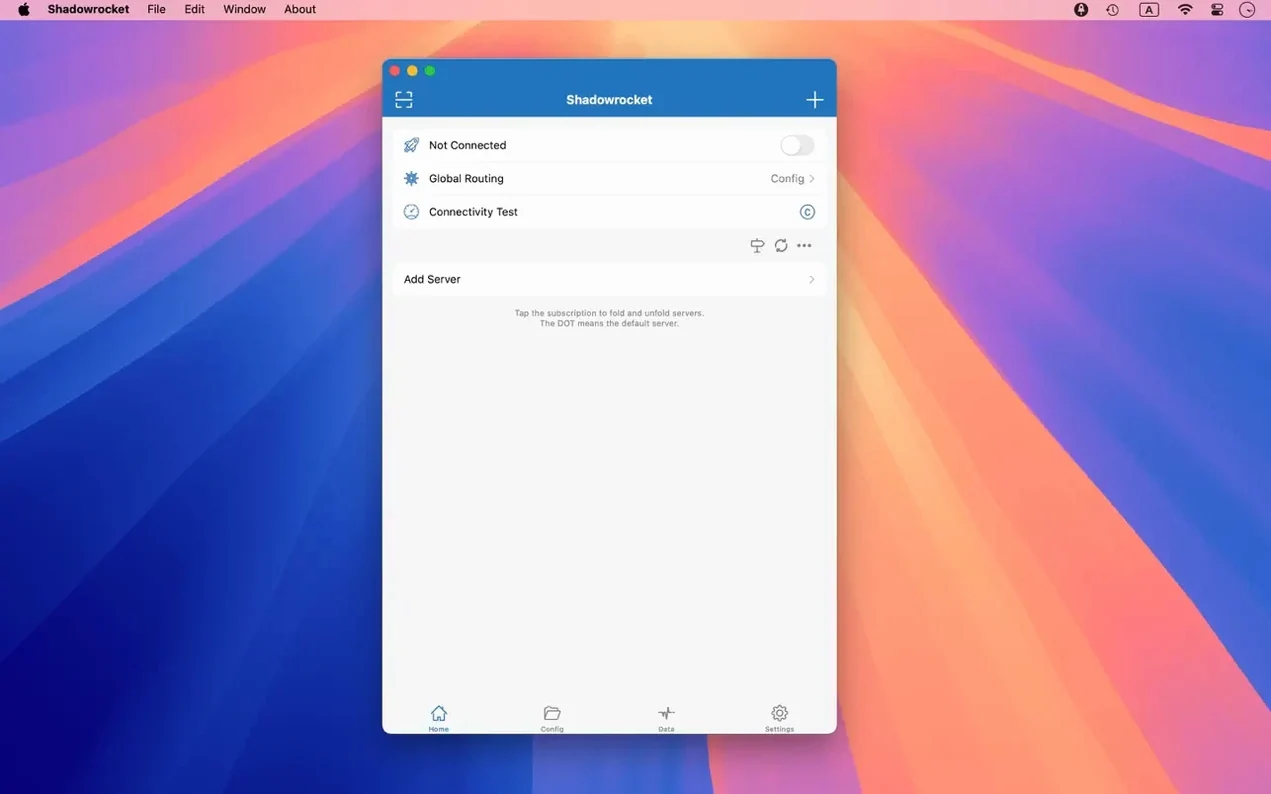
You open the downloaded disk image, drag Shadowrocket into the Applications folder, and launch it from Launchpad. The first thing you see is the main window with a server list and a traffic log panel.
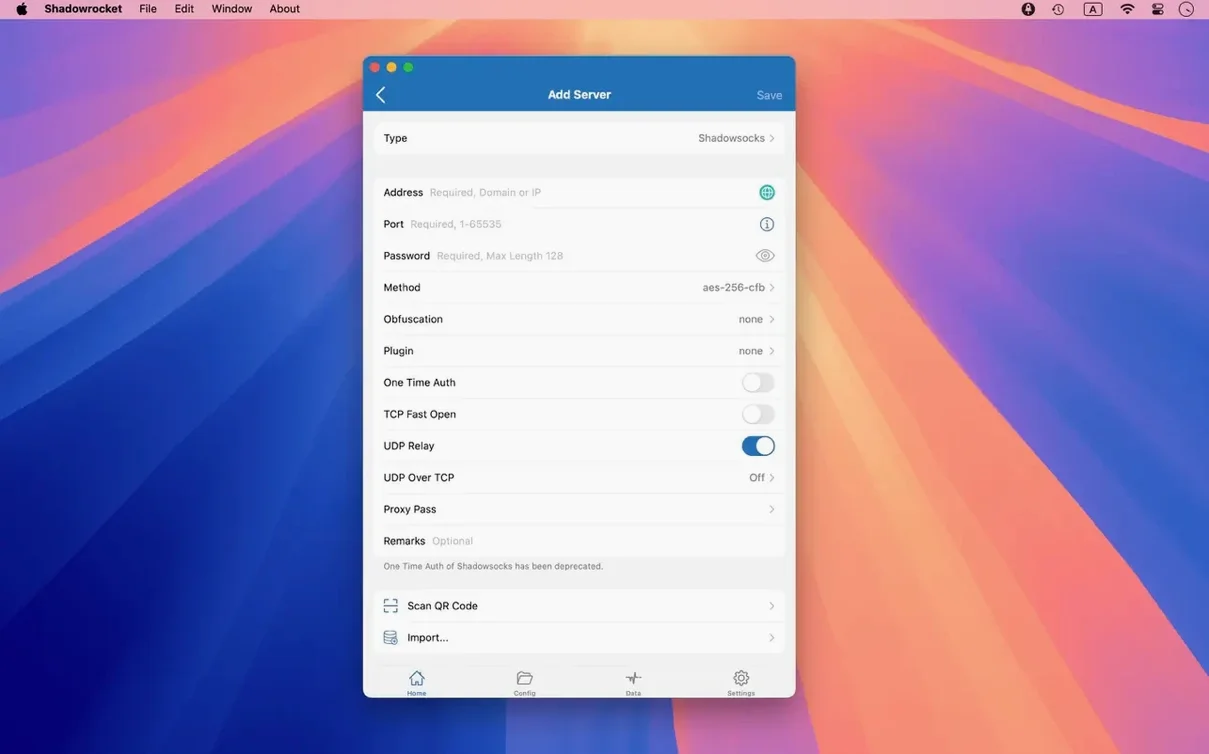
You add your first proxy server — let us say a Shadowsocks node. The fields are straightforward: address, port, password, encryption method. Once saved, the server appears in the list. You select it and click connect. The menu bar icon changes colour, and traffic starts appearing in the log panel.
Now you want to route only specific traffic through this proxy. You import a rule file from a URL you have used before: the file contains domain rules, CIDR ranges, and a GeoIP section. The app loads it and the rule count updates. You toggle the switch to enable the rule set.
You open Safari and visit a site that should go through the proxy. The log panel shows the request, the rule that matched, and the time it took. You visit a local site — a development server running on your network — and the request does not appear in the proxy log, because a local DNS mapping you set earlier sends it directly.
After a few minutes you check the traffic meter. It shows the data transferred through the proxy and the direct connection separately. You notice the proxy connection is a bit slower than usual, so you switch to a different server from the list. The connection drops and re-establishes within a second.
You finish the session by disconnecting from the menu bar. The app remains open but idle. Next time you need it, you just select a server and connect again. The rules, DNS mappings, and server list are all preserved.
Changes in this build
- macOS UI bugs fixed in server tables, the menu bar, and the Dock icon.
Before it goes on the Mac
- macOS 10.15 or later
- Intel or Apple Silicon
Installing it on the Mac
- Open the downloaded disk image.
- Drag the app into the Applications folder alias.
- Launch the app from Launchpad after copying finishes.
Notes from the control room
Sign in or open a catalogue account to leave a note.
No notes from the room yet. If you have used this build for a week, a short note helps the next person.