Home › Utilities › SiteSucker Pro

SiteSucker Pro 6.2.2 (Mac)
Updated
The catalogue note
Version 6.2.2 of SiteSucker Pro brings a Format HTML option to Webpage settings and fixes several PDF creation bugs. If you regularly archive reference pages, documentation, or media-heavy sites, this is the kind of update that keeps the tool predictable.
| Detail | Value |
|---|---|
| Developer | Rick Cranisky |
| Current version | 6.2.2 |
| Category | Utilities |
| macOS | macOS 26 |
| Architecture | Intel and Apple Silicon |
| Languages | English, German, Spanish, Italian, Portuguese, French |
SiteSucker sits nicely next to your usual Mac toolkit: it does one thing, does it quietly, and respects the limits you set. The Limits section lets you cap link depth, total file count, and file sizes, so you won't accidentally pull down a whole forum. File Types can restrict downloads to selected kinds or grab everything. The Advanced section even includes a user-agent setting to imitate Safari or Firefox, which helps when sites behave differently per browser. Logs open in Console, so you can inspect what happened without leaving your workflow.
Workflow for archiving a documentation site
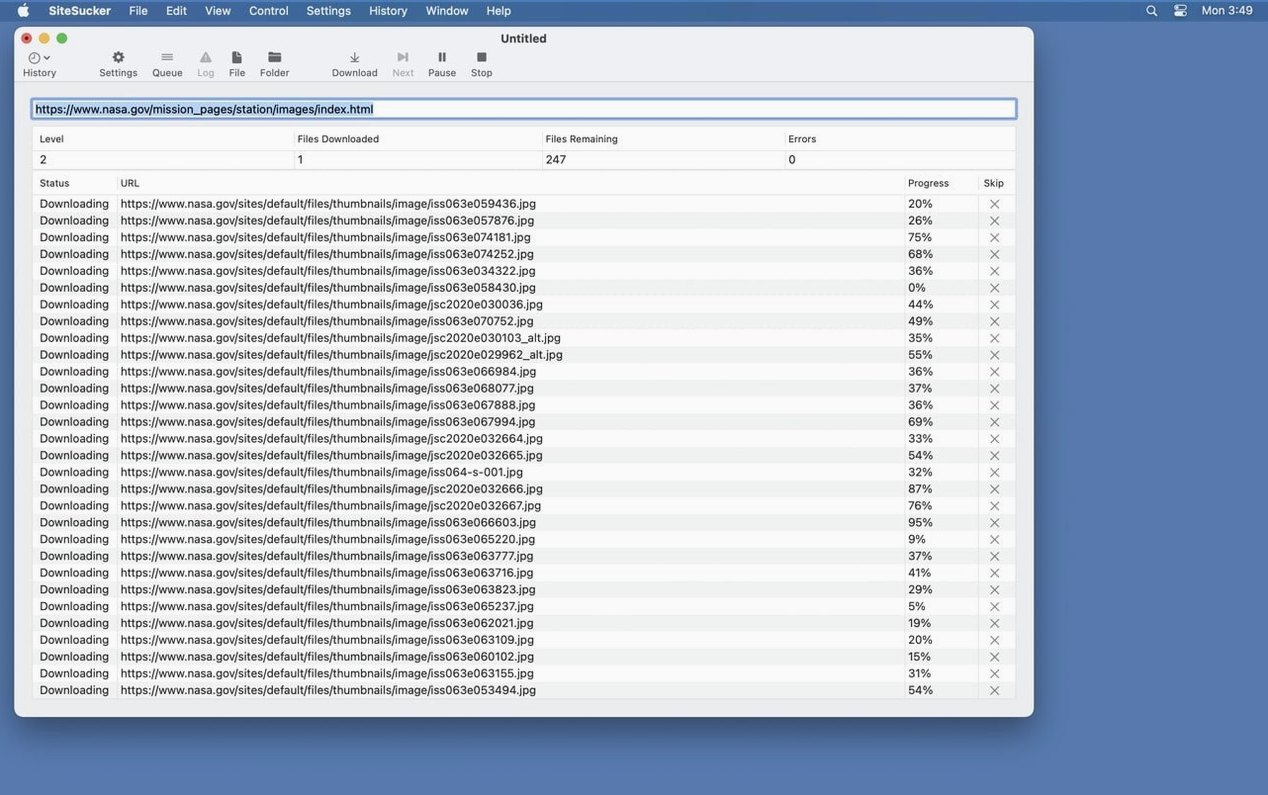
Let's walk through a typical job: saving a software documentation site for offline reference. Start by entering the root URL — the index page where all the guides link from. In the Limits section, set link depth to 2 or 3, depending on how many sub-pages the site uses. A depth of 2 usually covers the main guide pages and their immediate children; depth 3 catches nested examples. Set a reasonable total file count — 500 is a safe starting point for most doc sites.
Move to File Types. Documentation sites mix HTML pages, CSS files, JavaScript, and images. You want the HTML and CSS, but you can skip the JS if the pages render fine without interactive elements. Select only the types you need.
Under Paths, you can force inclusion of a specific stylesheet or image folder if the site loads assets from a separate domain. Add the path prefix and set it to download. Now hit the download button. SiteSucker runs through the pages, logs everything, and duplicates the directory structure on your local disk. When it finishes, open the log from the toolbar to check for any skipped files or errors. The whole process takes minutes, and you have a browsable copy that works offline.
Leaving default settings lets SiteSucker pull tens of thousands of files
The most frequent error is leaving the default settings and letting SiteSucker run unchecked. Without a file count limit, the app can pull down tens of thousands of files from a moderately sized site — forum threads, user profiles, search results. The disk fills up fast, and the operation takes hours instead of minutes. Always set a reasonable file count and link depth before starting.
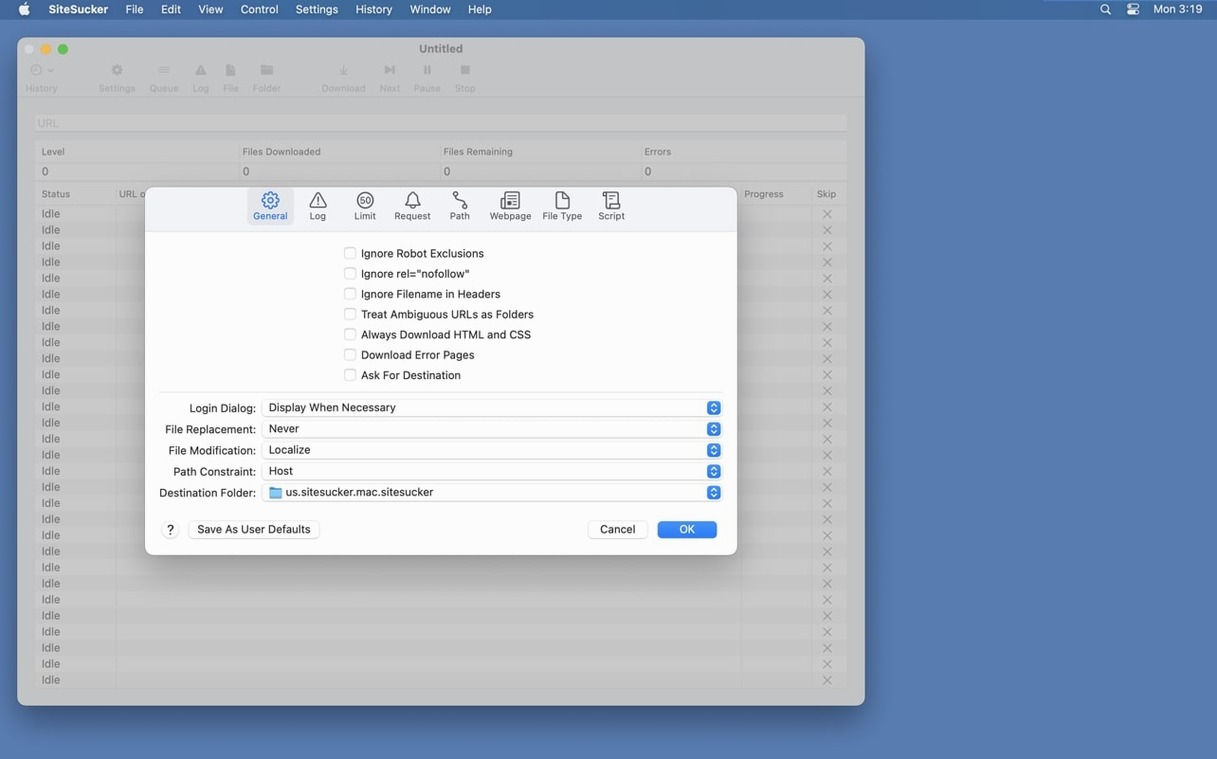
Another mistake is forgetting to check the robots.txt exclusion. By default, SiteSucker respects robots.txt, which means it skips directories the site owner has blocked. If you genuinely need those files — and many archiving jobs do — you must turn that exclusion off in the General settings. Beginners assume the app missed pages because of a bug when really it followed the site's rules.
New users also tend to download everything, including embedded video. The Pro version handles video, but pulling down every YouTube or Vimeo embed from a site with dozens of videos creates a huge download. If you only need the text and images, restrict File Types to HTML, CSS, PDF, and image formats. Leave video unchecked unless the task specifically requires it.
Finally, people often forget to check the log after a download. The log shows skipped files, failed requests, and pages that exceeded size limits. Skimming it takes thirty seconds and saves you from discovering later that half the site is missing. Make it a habit.
Real-world scenario: a researcher archiving a conference site
Anna runs a small research group that studies human-computer interaction. Every year, a major conference publishes its proceedings online — papers, presentation slides, poster PDFs, and supplementary data files. The site stays live for about a year, then gets archived with limited access. Anna needs a permanent local copy she can search through without an internet connection.
She opens SiteSucker Pro and enters the conference proceedings URL. The site has hundreds of papers organised by session, each with a PDF, an HTML abstract, and sometimes a video recording of the talk. Anna sets link depth to 3 to catch all session pages and individual paper pages. She limits file count to 2,000, which covers the full proceedings with room for extras. In File Types, she selects HTML and PDF only — the text and the papers are what matter. The video embeds stay untouched.
She turns off the robots.txt exclusion because some session directories are blocked by default. Under Paths, she adds the supplementary data folder so those files come down too. The download runs overnight. In the morning, she opens the log, sees three PDFs were skipped due to size limits, and adjusts the maximum file size setting to include them. A second run grabs the missing files. Anna now has a complete offline copy of the conference proceedings, structured exactly like the live site, ready for her team to browse on planes or in the field.
Changes in this build
- Fixed bugs related to creating PDFs.
- Added a Format HTML option to Webpage settings.
Before it goes on the Mac
- macOS 26
- Intel or Apple Silicon
Questions from the room
Can SiteSucker Pro download videos from YouTube and Vimeo?
Yes, the Pro version can download embedded YouTube and Vimeo videos as part of a site download.
Installing it on the Mac
- Mount the disk image and run Open Gatekeeper friendly.
- Press Enter in the Terminal window to bypass Gatekeeper.
- Drag the app to the Applications folder.
- Launch the app when installation is complete.
Notes from the control room
Sign in or open a catalogue account to leave a note.
No notes from the room yet. If you have used this build for a week, a short note helps the next person.