ScreenFlow 10.5.2 (Mac)
Updated
The catalogue note
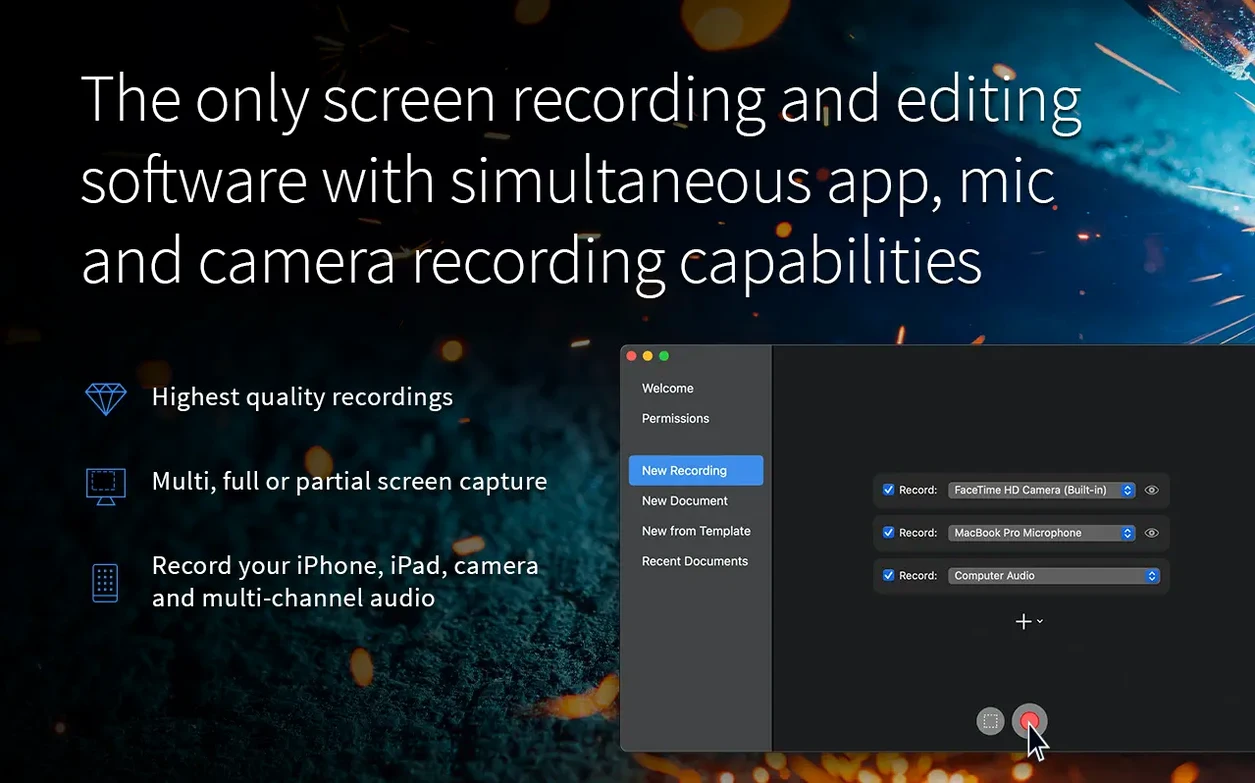
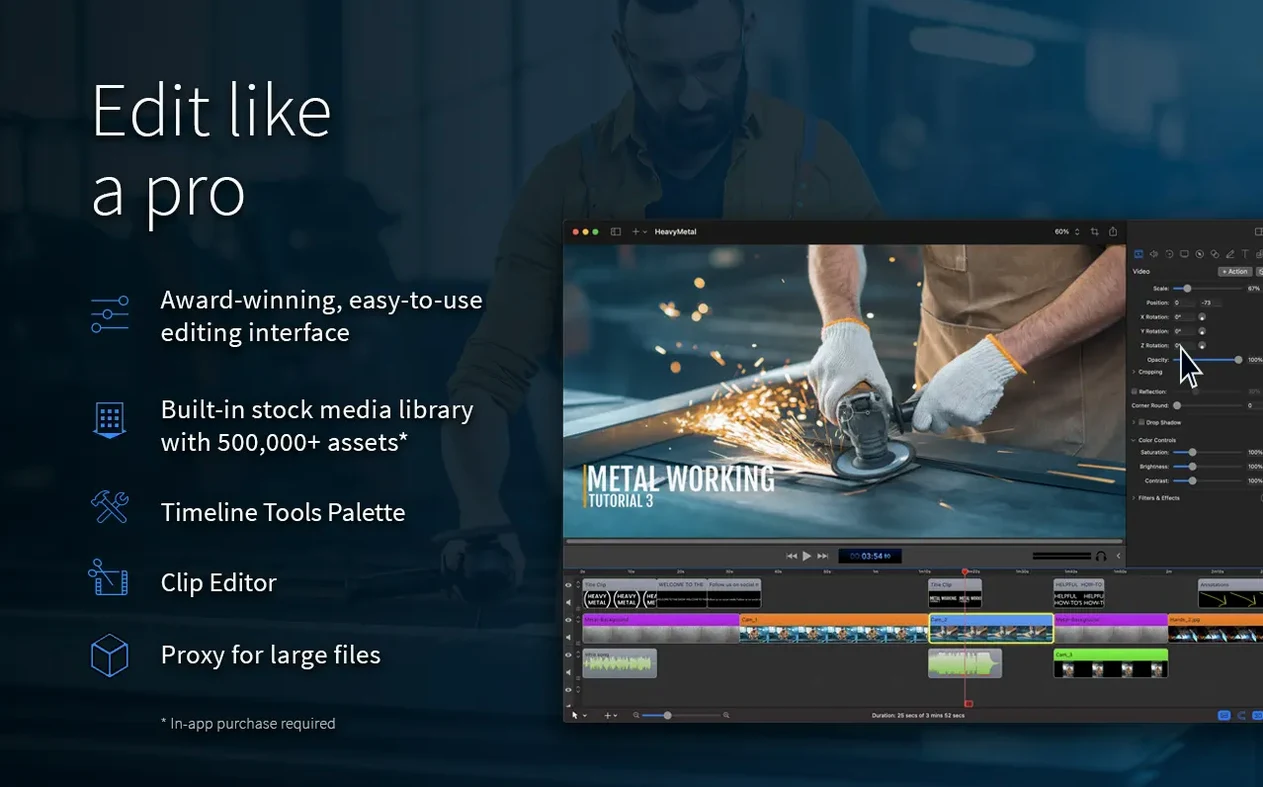
ScreenFlow is a macOS app for screen recording and video editing, made by Telestream. It captures your screen, video, audio, and even iOS devices, then lets you edit the result with a full timeline, effects, and export options like animated GIF and APNG. It is a Mac-only product, so if you are on Windows, this is not your tool.
The key question for most people: will it run on your Mac? ScreenFlow 10.5.2 works on both Apple Silicon and Intel 64-bit Macs, and requires macOS 10.15 or later. That covers most machines from the last several years. The current version also lists macOS 15 and macOS 26 as supported systems, and the latest update specifically fixes a crash that happened on macOS 26.2 or newer. So if you are running a recent system, this version is the one you want.
Beyond compatibility, ScreenFlow is straightforward in daily use. You pick a recording source, hit record, and end up with a video in the editor. The editing side is deeper than you might expect from a screen recorder: you can trim, split, add annotations, and export in multiple formats. The interface is in English, German, Spanish, French, and Japanese.
The 10.5.2 update, released on 12 February 2026, also fixed a broken manage button under licenses and corrected Chroma Key exports for certain screen recordings. Small fixes, but they matter if you hit those edges.
Runs on any Mac with macOS 10.15 or later
ScreenFlow does not set a hard minimum on RAM or processor speed beyond the macOS version it runs on. If your Mac meets the macOS 10.15 baseline, the app will launch and run. The recording engine works with whatever your built-in or external hardware provides: a built-in webcam, a USB microphone, or multichannel audio interfaces. The editor loads your project into memory, so a machine with more RAM will handle longer timelines and higher-resolution source files without swapping. Apple Silicon machines and Intel 64-bit models are both supported, so there is no performance advantage or disadvantage baked into the architecture choice at the application level.
Recording an entire 4K monitor while capturing camera video and microphone audio at the same time will use more system resources than recording a small region with no audio input. That is normal. The app itself does not enforce a limit on recording length, but available disk space and sustained write speed of your drive are the practical constraints.
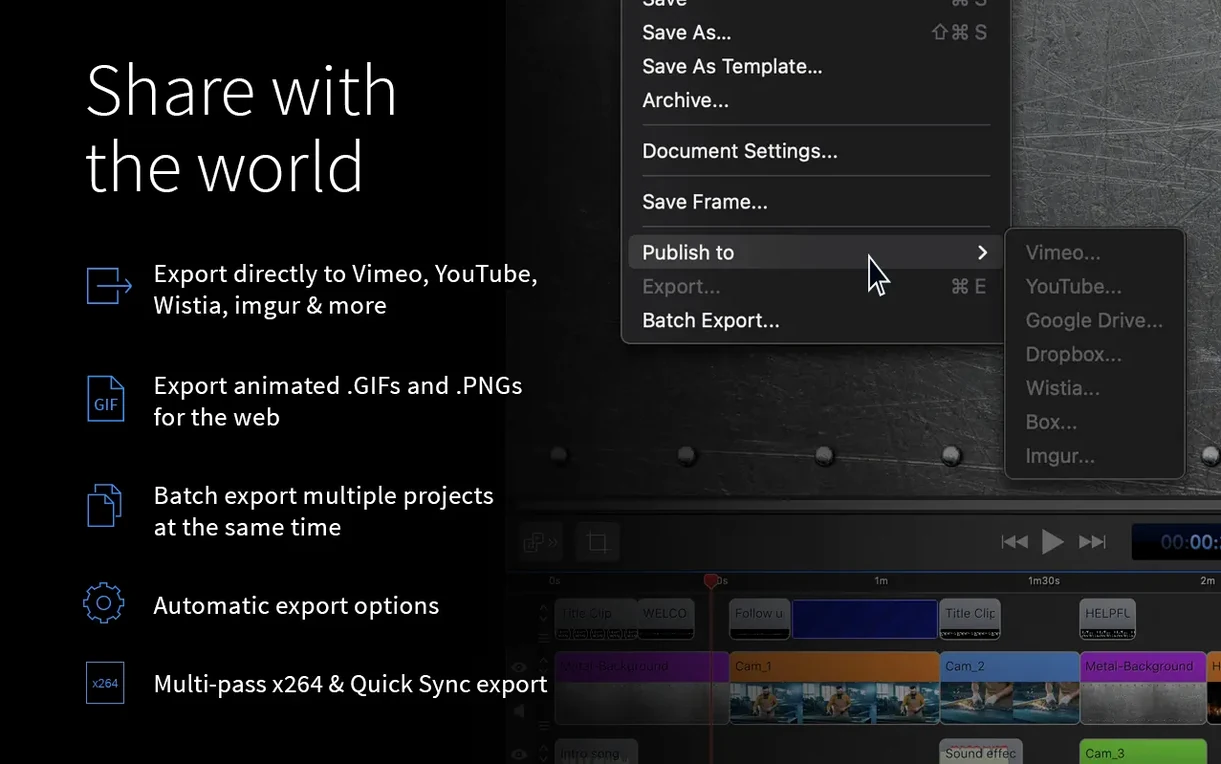
For export, ScreenFlow writes ProRes and MP4 files. ProRes files are large and write-intensive; MP4 with H.264 encoding is lighter on disk I/O but heavier on CPU encoding time, especially on Intel machines without a hardware encoder. Apple Silicon Macs handle H.264 encoding more efficiently through their built-in media engines.
Record only the region you need to avoid huge files
A few patterns show up repeatedly when people start with ScreenFlow:
- Recording the entire screen when only a small region is needed. This produces a huge file and makes later editing slower. Set the recording region to just the application window or area you need.
- Ignoring audio input selection before recording. ScreenFlow can capture system audio, microphone input, and multichannel audio simultaneously. If you do not select the correct input beforehand, you end up with silent recordings or the wrong source.
- Forgetting to stop the recording manually. ScreenFlow does not auto-stop after a set duration unless you configure it. Beginners often walk away and come back to a 45-minute file that needs trimming.
- Not checking the iOS capture settings before connecting a phone or tablet. The iPad and iPhone capture works over a wired or wireless connection, but it needs to be set up correctly first. Without that, the device never appears as a source.
- Overlooking the chroma key fix in version 10.5.2. If you work with green screen recordings and get odd export results, the fix in this release directly addresses that. Updating from an older version saves time.
None of these are hard to avoid. They just require a moment of planning before hitting record.
Recording a software tutorial with webcam and system audio
A software trainer creates tutorial videos for a macOS application that runs in a specific window size. They need to record the application window, their own face from a webcam, and the system audio that includes notification sounds from the app. The trainer has been using an older version of ScreenFlow and noticed that exports with chroma key on the webcam footage sometimes had a green halo around their head. Updating to 10.5.2 fixed that. They set the recording region to the exact application window dimensions, select the webcam as a video source and the built-in microphone as an audio source, and enable system audio capture. The result is a clean, layered recording that needs only trimming and a few annotations in the editor before export to YouTube. The whole process takes under an hour, start to finish.
Configure recording region, webcam, and audio before starting
A video editor sits down to record a walkthrough of a new plugin they are testing. They open ScreenFlow and configure the recording region to the plugin window, set the webcam as an additional video source, and select both the microphone and system audio as audio inputs. They hit record, demonstrate the plugin for four minutes, then stop the recording.
The recording appears in the timeline as a set of tracks: one for the screen capture, one for the webcam video, and one for the audio mix. The editor trims the start and end to remove the couple of seconds of dead air before and after the demonstration. They add a text annotation that labels the plugin's main controls. A zoom-and-pan effect follows the cursor movement during a section where the editor clicks through a menu. The chroma key on the webcam track removes the background, leaving only the editor's face over the screen capture.
After the edit, the project is exported as a ProRes file for archival and as an MP4 for uploading. The MP4 gets shared directly to the editor's YouTube channel from within ScreenFlow. The entire session, from opening the app to final upload, takes about twenty minutes for the recording and another ten for the edit and export. ScreenFlow is open the whole time and does not get in the way.
Changes in this build
- Fixed a crash with macOS 26.2 or higher.
- Fixed exports with Chroma Key for certain screen recordings.
- Fixed the manage button under licenses going to a non-existent URL.
Before it goes on the Mac
- macOS 10.15 or later
- Apple Silicon or Intel 64-bit
- Interface languages: English, German, Spanish, French, Japanese
Questions from the room
Does ScreenFlow work on Apple Silicon Macs?
Yes, ScreenFlow 10.5.2 supports both Apple Silicon and Intel 64-bit Macs.
What macOS version do I need for ScreenFlow?
ScreenFlow requires macOS 10.15 or later. The current version also supports macOS 15 and macOS 26.
What does the ScreenFlow 10.5.2 update fix?
It fixes a crash on macOS 26.2 or later, a broken manage button under licenses, and Chroma Key export issues for certain screen recordings.
Installing it on the Mac
- Mount the disk image and launch the Open Gatekeeper friendly app.
- Press Enter in Terminal to bypass Gatekeeper.
- Drag the app to the Applications folder.
- Open the app to start using it.
Notes from the control room
Sign in or open a catalogue account to leave a note.
No notes from the room yet. If you have used this build for a week, a short note helps the next person.