Home › Utilities › Radio Silence

Radio Silence 3.4 (Mac)
Updated
The catalogue note
Radio Silence runs on any Mac from macOS 10.15 upwards, on both ARM and x86 64-bit hardware. That covers the current Apple Silicon line-up and older Intel machines still in service. The app itself is small, and you won't see a menu bar icon – it stays out of the way until you need it.
Blocks specific apps from reaching the internet, not just ports
Most Macs already have a firewall, but it works on ports and connections, not on individual apps. Radio Silence sits a level higher: it watches network activity in real time and lets you block specific applications from reaching the internet. If an app tries to phone home and you don't want it to, you flip a switch and it's done.
Working with it
- Install Radio Silence and launch it.
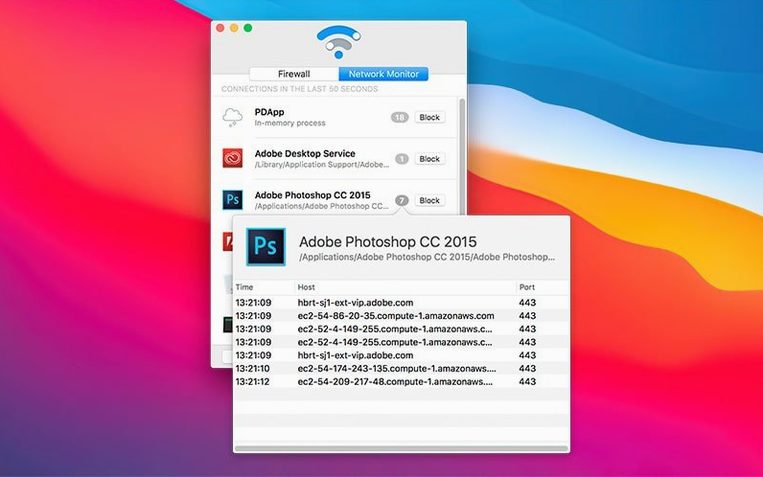
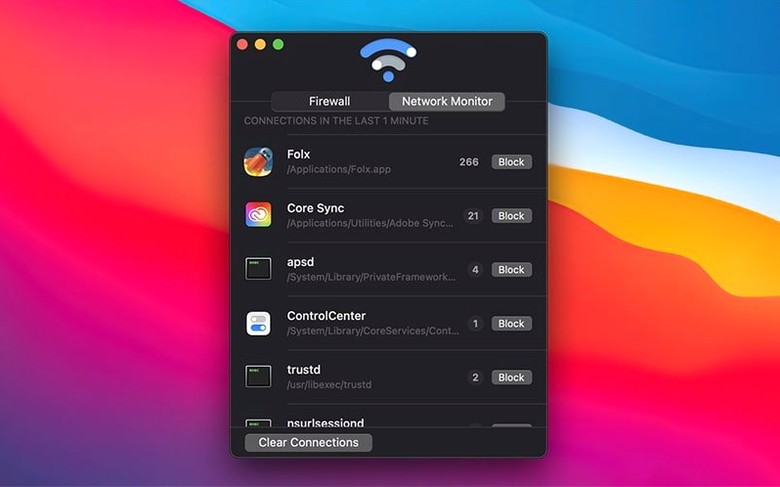
- Open the Network Monitor to see live connections from your running apps.
- Find an app you want to restrict – one that checks for updates too often, or a utility that calls its servers unnecessarily.
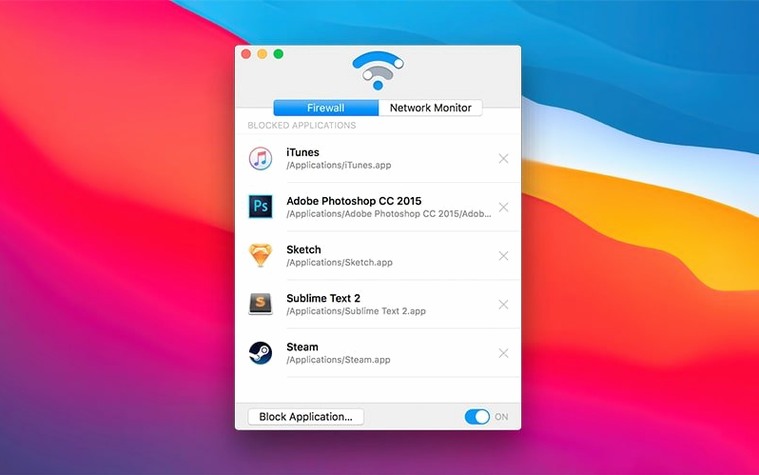
- Block it. The Firewall tab lists everything you've blocked, so you can review or undo any decision.
That's the whole workflow. No rules to write, no ports to remember. For someone who already manages their Mac carefully, Radio Silence is a simple way to add per-app control without changing how you work.
Catches apps that phone home too often, like media players and utilities
Radio Silence suits several kinds of Mac users. The obvious one is anyone who runs software that phones home more than it should – media players checking for metadata, utility apps that send usage stats, or older programs that try to update when you aren't ready. A second group is people who work on sensitive documents on a portable Mac in shared spaces, where an unexpected connection could reveal what you are doing. The third is anyone who simply prefers to know what their machine is doing on the network and wants a lightweight way to keep that information visible without wading through system logs.
For studio users, Radio Silence can sit alongside a DAW without adding overhead. It does not install kernel-level drivers or modify audio routing. It just watches and, when asked, blocks.
Small details in the interface
Version 3.4 adds a few touches that matter once you start using it regularly. The help view now includes troubleshooting information that appears if the app fails to launch – useful on a fresh macOS install where permissions might not be set correctly. The installation process also handles errors and missing permissions more gracefully than earlier versions, which means less time guessing what went wrong.
The Firewall tab lists all blocked apps in a straightforward list. You can remove an app from the block list just as easily as you added it. The pause function lets you temporarily disable the firewall without clearing your rules, which is handy when you need to let an app through once for an update and then re-enable the block.
There is no menu bar icon. Radio Silence stays invisible unless you have its window open. That is a deliberate choice – it does not add another icon to the top of your screen, and it keeps the app from being a visual distraction.
Less demanding than Little Snitch, with simpler per-app blocking
Little Snitch is the most common alternative. It is more powerful, with application-level filtering, rule sets, network zones and an extensive alert system. But it demands more attention – you have to decide about each new connection the first time an app tries to reach out. Radio Silence is simpler: you see a connection, you block the whole app or you leave it alone. No pop-up prompts, no rule-writing.
OpenSnitch is another option, though it runs on Linux and requires some comfort with command-line tools. It does not offer the same one-click blocking that Radio Silence does, and its interface is less polished. For a Mac user who wants a quick, visual tool, Radio Silence is more approachable.
macOS itself includes a firewall via the Security & Privacy panel, but it works on ports and protocols, not on individual applications. Blocking one app without blocking others that use the same port is not straightforward. Radio Silence fills that gap.
A real scenario: a recording engineer with an offline workstation
Consider a mix engineer who keeps their studio Mac disconnected from the internet to avoid distractions and background updates during sessions. They occasionally need to plug in to download a plugin installer or check a client's reference track. After the session, they go back offline. Rather than remembering to disable each app's network access one by one, they open Radio Silence, block a handful of known phoning-home apps and use the pause function to allow a single update when needed. The app stays off the menu bar, and the engineer gets on with listening. That is the kind of use where Radio Silence saves time without adding friction.
Runs on macOS 10.15 or later, on both ARM and Intel Macs
Radio Silence version 3.4 requires macOS 10.15 or later. It runs on both ARM and x86 64-bit systems, so it works on Apple Silicon Macs and on Intel-based machines. The interface is in English. The download comes as a disk image that you mount and then install with the standard macOS procedure. The app itself is small – it does not install background services or kernel extensions that would affect system performance. Once installed, it sits quietly until you open it to check connections or block an app.
The latest release, version 3.4, improves setup reliability on newer macOS versions and adds the help view for troubleshooting. If you run into permission issues during installation, the app now handles them more clearly.
Changes in this build
- Installation guidance for macOS Tahoe.
- Better handling for installation errors and missing permissions.
- New help view with troubleshooting info if the app fails to launch.
Before it goes on the Mac
- macOS 10.15 or later
- Intel or Apple Silicon
- English interface
Installing it on the Mac
- Mount the downloaded disk image.
- Run the standard installation procedure.
Notes from the control room
Sign in or open a catalogue account to leave a note.
No notes from the room yet. If you have used this build for a week, a short note helps the next person.