Termius 9.35.4 (Mac)
Updated
The catalogue note
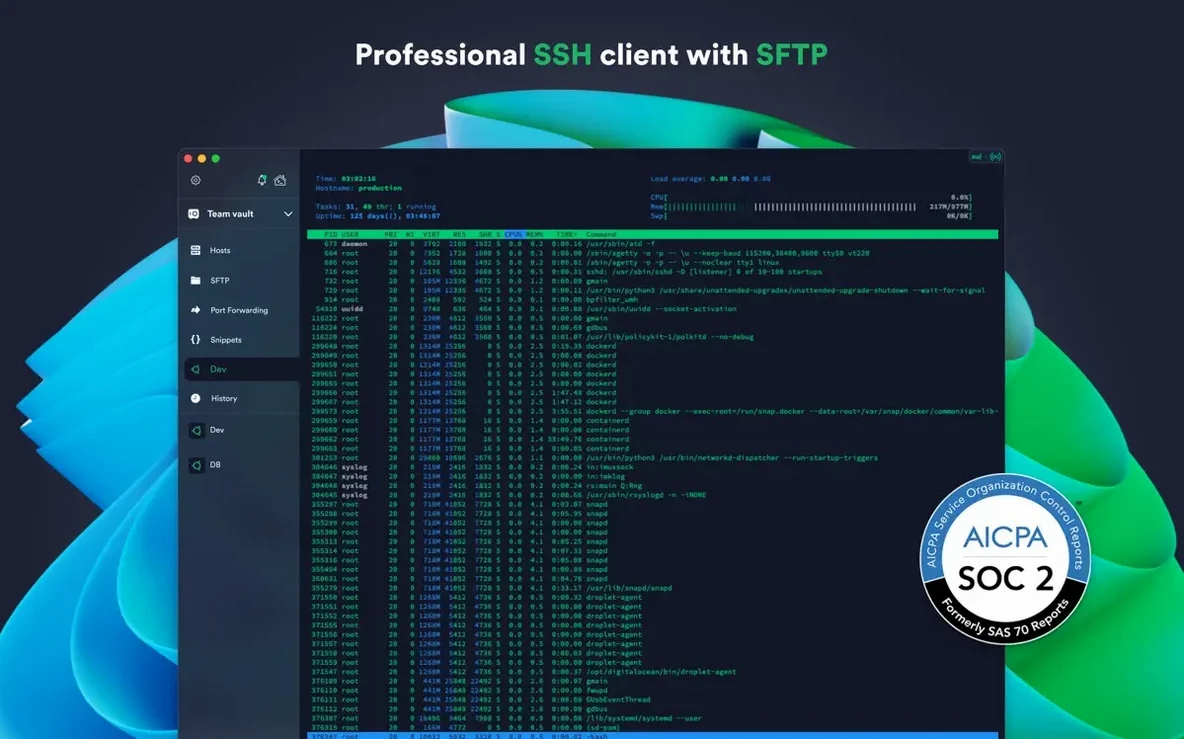
Termius is a cross-platform SSH client and terminal app that manages remote connections from a single interface.
Connects via SSH, Mosh, Telnet, and integrates with AWS and DigitalOcean
Termius connects to remote hosts over SSH, Mosh, Telnet, port forwarding, and SFTP. It integrates with AWS and DigitalOcean, so you can pull your server list straight into the app. The desktop version runs on macOS, Windows, and Linux, with mobile companions for iOS and Android.
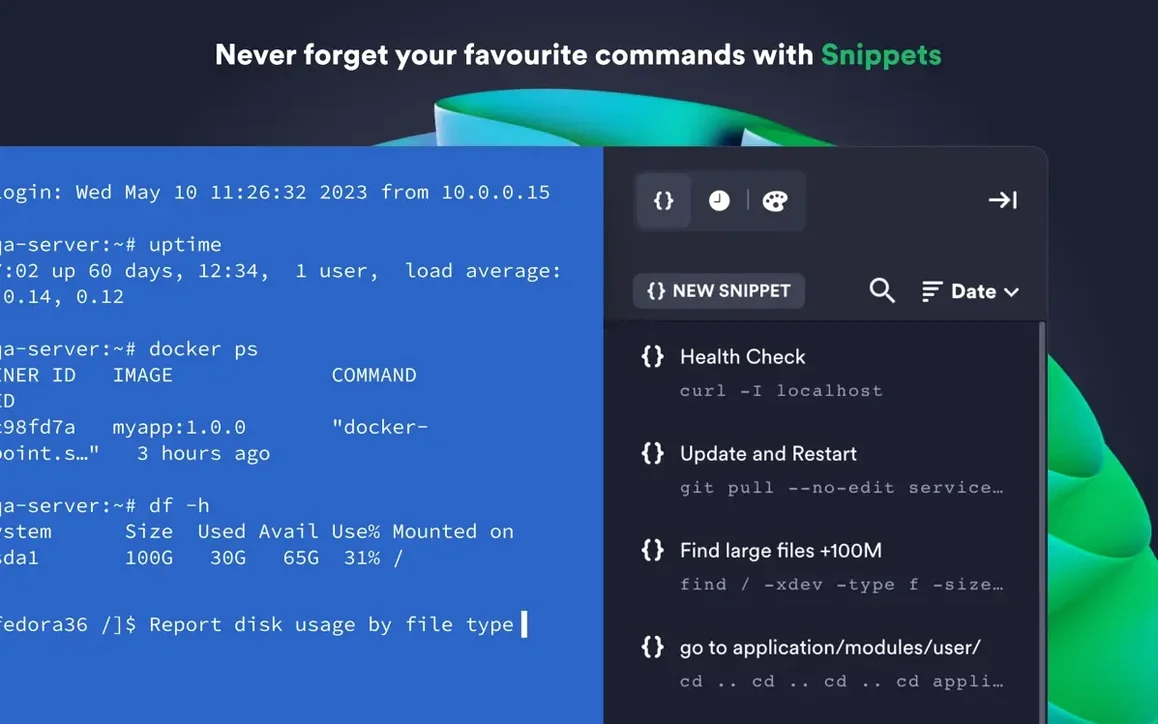
Credentials and connection settings can sync through encrypted cloud storage, which is useful if you hop between machines. SSH agent forwarding keeps keys on your local computer, and the app supports ECDSA and ed25519 keys plus the chacha20-poly1305 cipher. Saved commands and shell scripts run with one tap, and a shared history keeps track of what you typed.
Compatibility
Termius 9.35.4 needs macOS 10.13 or later and runs on both Intel and Apple Silicon. The interface is in English. The current version brings stability improvements, which is a polite way of saying fewer crashes.
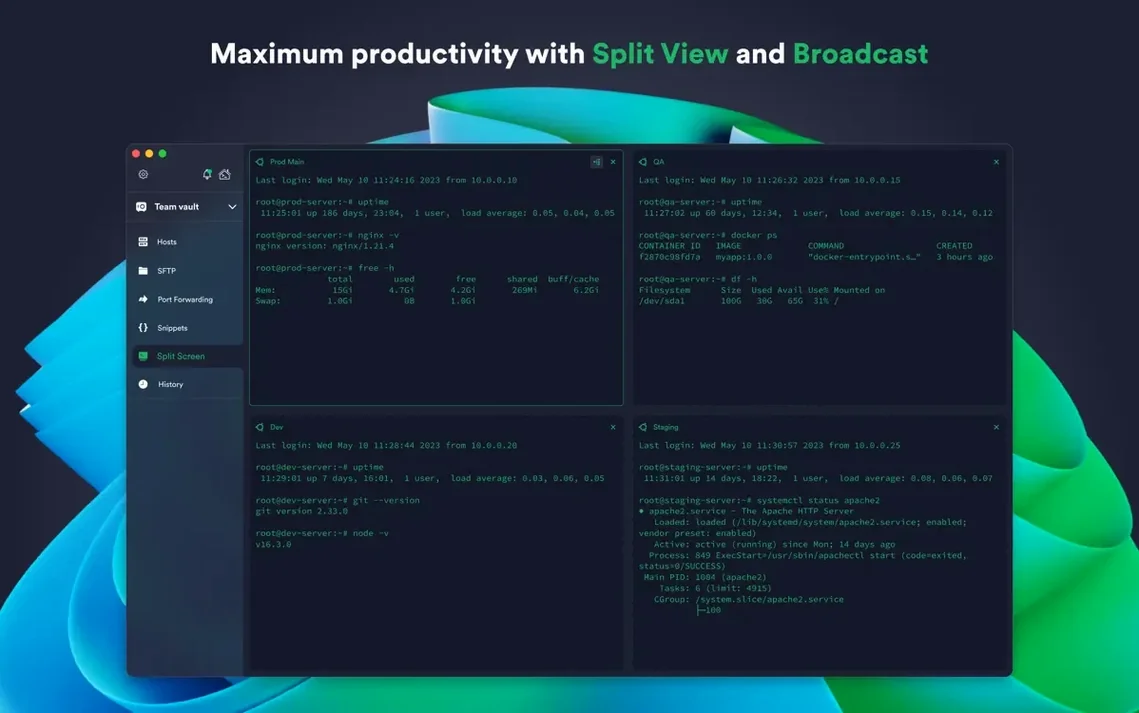
Drag a tab to the side of the window for split-view
Termius has a few details that don't make the feature list but save time once you notice them. The tabbed interface and split view work together: you can drag a tab to the side of the window to create a split pane, then keep typing in both sessions without switching. It is not a separate mode — just drag and drop.
The shared command history is per host group, not global. If you organise your servers into groups (production, staging, personal), each group keeps its own list of recent commands. That means you do not scroll past deploy scripts when you are troubleshooting a serial device.
Saved commands and shell scripts can include line breaks. When you tap one, Termius sends the whole block as if you pasted it. This is handy for multi-line aliases or a sequence of diagnostic commands you run every morning.
Per-connection themes and fonts are independent of the global appearance. You can set a dark theme with a monospaced font for production boxes and a lighter theme with a larger typeface for reading logs on a serial cable. The setting sticks to the connection, not to the window.
Send terminal text to other apps using macOS Services
Termius respects macOS system services. You can select text in a terminal session, right-click, and choose Services to send it to another app — for example, to paste a hostname into a monitoring dashboard or to look up an IP address in a network utility. This works because the app registers as a standard text provider.
Touch ID protects the credential store. If you have a Mac with a fingerprint sensor, you can unlock the encrypted vault without typing a master password each time. Face ID works on supported Macs with a camera notch. Two-factor authentication for the Termius account adds another layer on top of that, but it is separate from the local unlock.
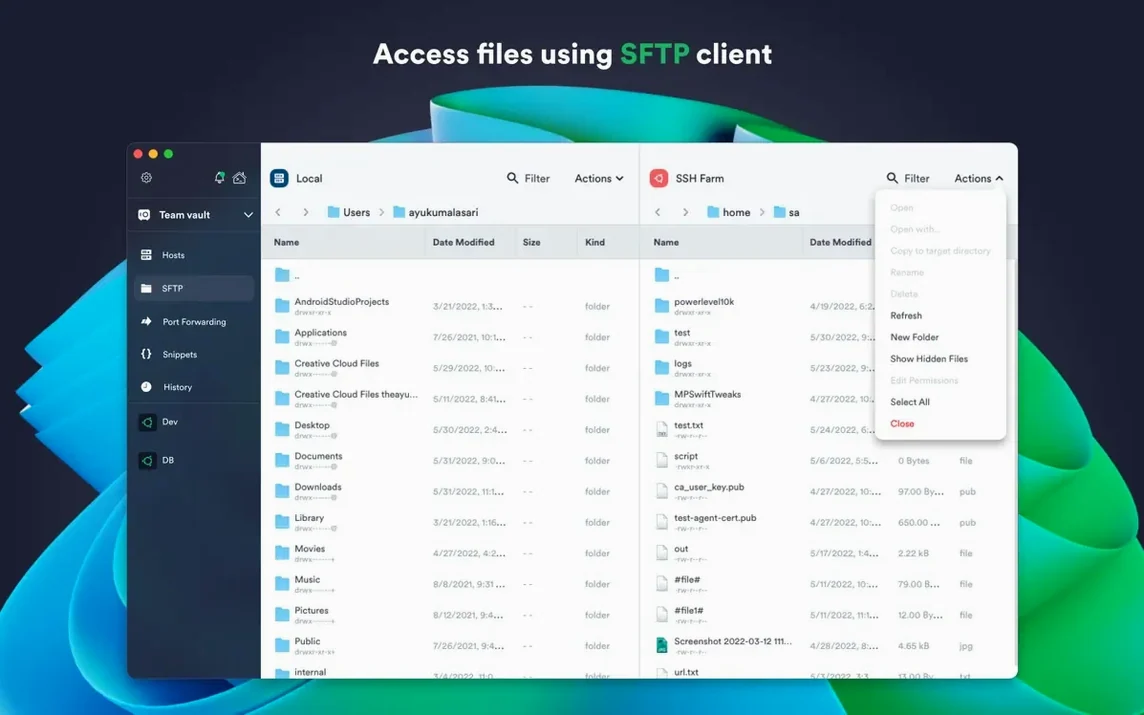
Drag and drop works both ways. You can drag a file from Finder into an SFTP session to upload it, or drag a file from the remote host's file list to a Finder window to download it. The same gesture works in the local terminal: drag a text file onto the terminal window and Termius inserts its path.
If you use Automator or Shortcuts, you can trigger a saved command from outside Termius via the URL scheme. The app registers termius:// URLs, so a quick script or a launcher like Alfred can open a specific connection or run a command without opening the full interface first.
Import existing SSH keys from ~/.ssh on first launch
Start by importing your existing SSH keys. Termius scans ~/.ssh on launch and offers to import any keys it finds. Accepting this saves you from re-adding them manually. If you use agent forwarding, check that the agent is running in your local shell before you connect — the app passes through whatever the agent provides.
Set up at least one host group before you add many servers. You can move hosts between groups later by editing the connection, but it is easier to organise from the start. The group list is the same on all synced devices, so the structure carries over to your phone or tablet.
Test the encrypted sync early. After you add a few connections, enable cloud sync in the settings and confirm the same hosts appear on another device. If you have a Mac at work and one at home, this removes the need to duplicate configuration. The sync uses your Termius account credentials, not iCloud, so it works across platforms.
Try a serial cable connection if you have a device that needs one. Termius handles the standard baud rates and flow control options without extra drivers on macOS. Open the connection settings, choose serial, and pick the device path from the dropdown — macOS lists it as /dev/cu.usbserial-xxxx or similar.
Cannot read ~/.ssh directly — import keys through the app's own interface
It also cannot read ~/.ssh directly, which means you must import keys through the app's own interface. If you need the local terminal or full SFTP access to your computer, download the version from the Termius website instead.
Another common snag: the app does not show any hosts after you set up sync. This usually happens when the sync token has expired or the account is logged out on one device. Open the settings, check that you are signed into the same Termius account, and trigger a manual sync. The cloud storage is encrypted, so it does not expose credentials, but it also means you must authenticate on each device.
Some users report that saved commands disappear after an update. Termius stores them locally and in the cloud, but if you clear the app data (for example, by removing the app and reinstalling), you lose the local copy. To avoid this, keep cloud sync enabled and confirm that your saved commands appear in the cloud before you wipe anything.
If FIDO2 hardware-key authentication does not work, check that your Mac recognises the key outside Termius. The app passes the authentication request to the system's WebAuthn handler, so if the key works in Safari, it should work in Termius. If it still fails, try a different USB port or a direct connection without a hub.
Changes in this build
- Stability improvements.
Before it goes on the Mac
- macOS 10.13 or later
- Intel or Apple Silicon
- English interface
Installing it on the Mac
- Open the downloaded disk image.
- Drag the app into the Applications folder shortcut.
- Once the copy finishes, open the app from Launchpad.
Notes from the control room
Sign in or open a catalogue account to leave a note.
No notes from the room yet. If you have used this build for a week, a short note helps the next person.