Home › Mac Apps › Super Vectorizer Pro
Super Vectorizer Pro 2.4.0 (Mac)
Updated
The catalogue note
Super Vectorizer Pro runs on any Mac from OS X 10.10 Yosemite onward, Intel or Apple Silicon, so it covers nearly everything still in use. This is a bitmap-to-vector converter aimed at graphic designers who need clean, editable paths from logos, sketches, or scanned line art without spending hours on manual tracing.
What the standout features do
- Real-time vector preview — adjust threshold, colour count, or detail level and see the vector result update immediately. No repeated export-check cycles.
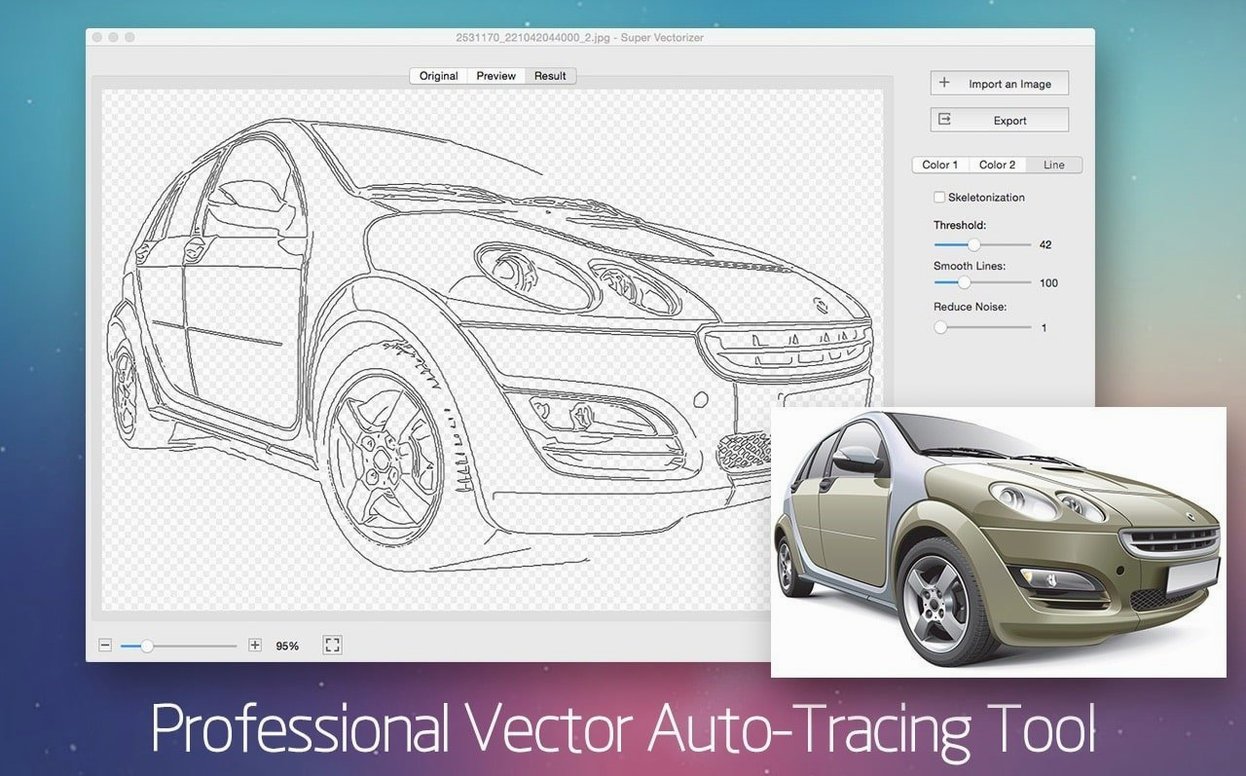
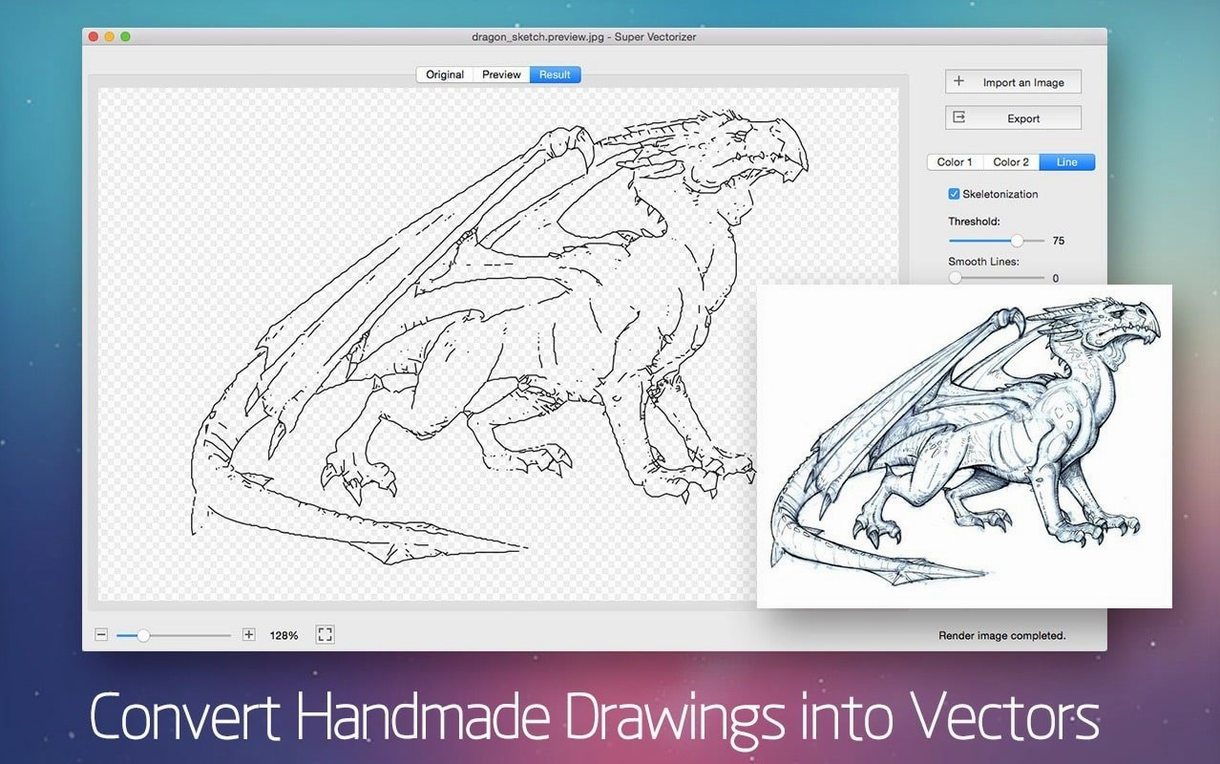
- Skeletonization — reduces shapes to centre-line paths, useful for converting handwriting or technical drawings into stroke-based vectors.
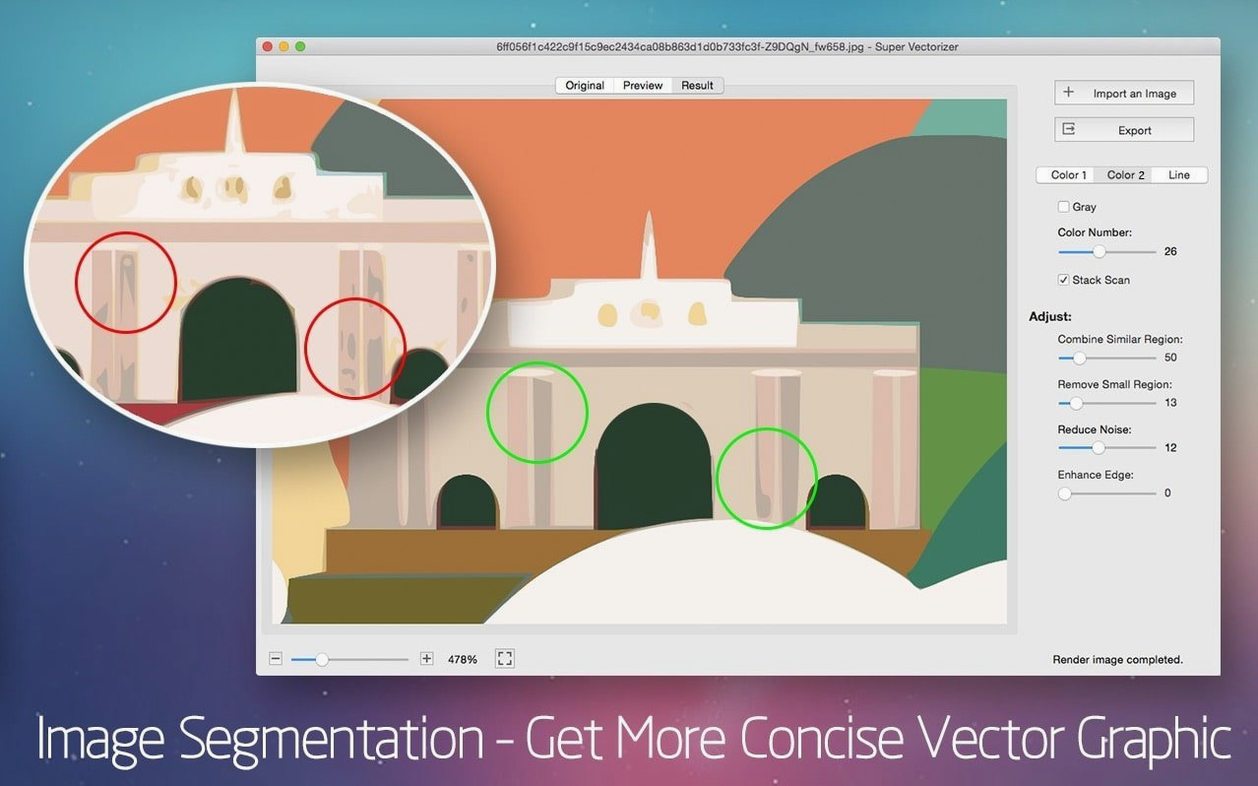
- Up to 64 colours — controls how many colours the vector output uses. Lower numbers produce flat, poster-like results; higher numbers keep photographic detail in vector form.
- Multi-language interface — English, German, French, Spanish, Italian, Russian, Japanese, Traditional Chinese, Simplified Chinese.
Drop an image, tweak the preview, export to any vector app
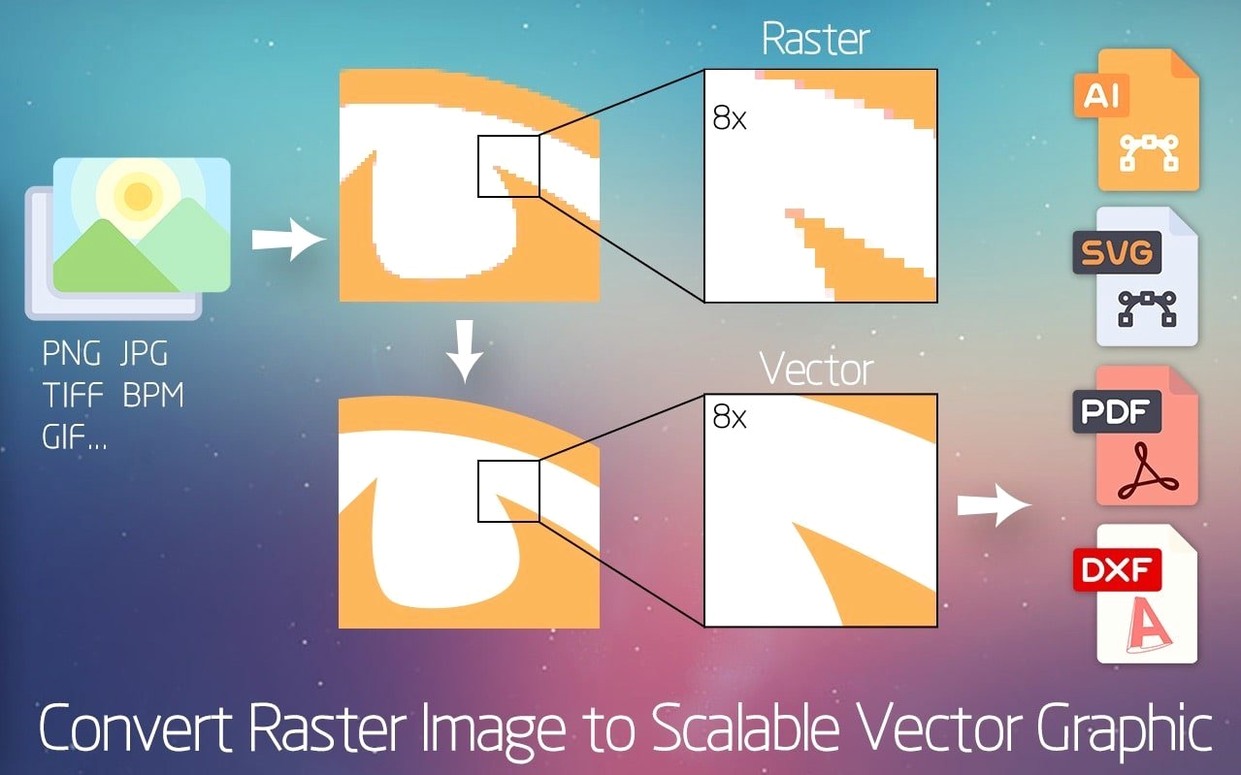
Drop a PNG, JPEG, or TIFF into the app, tweak the preview until the vector version looks right, then export to SVG, PDF, AI, or DXF. The resulting files open cleanly in Illustrator, CorelDRAW, Affinity Designer, or any other vector editor. The skeletonization pass is especially handy when you want to keep the stroke structure of a signature or a schematic instead of generating filled outlines.
A full workflow: turning a scanned pencil sketch into a layered vector file
Let's walk through a realistic scenario. You have a pencil drawing on paper, scanned as a 300 DPI TIFF. You want clean, editable vector strokes that you can colour in Illustrator later.
- Open the scan — Super Vectorizer Pro accepts the TIFF directly. The real-time preview shows the default vectorisation result.
- Enable skeletonization — this is the key step for line art. Instead of outlining the pencil marks as filled shapes, the app reduces them to centre-line paths that match the original strokes.
- Adjust the threshold — if the preview looks noisy or too faint, tweak the threshold slider until the line weight matches your original drawing. The preview updates instantly, so you can compare side by side.
- Set colour count to 2 or 3 — for a pencil sketch you typically only need black lines on a white background. Keeping colours low prevents unwanted grey fills from scanner noise.
- Export as SVG — SVG keeps the skeletonized paths clean and editable. Open the file in your vector editor, where each stroke is a separate path ready for stroke width adjustment or colour fill.
This method works equally well for signatures, architectural blueprints, or any line-based original. The skeletonization pass is what separates this workflow from a standard trace tool.
Runs on macOS 10.10 or later, Intel and Apple Silicon
The app runs on OS X 10.10 or later, both Intel and Apple Silicon. The installer is a disk image; you mount it, then open Gatekeeper-friendly by dragging the app into Applications and running a short Terminal command to bypass Gatekeeper for that single app. After that, launch normally.
The interface is available in nine languages, so you can work in English, German, French, Spanish, Italian, Russian, Japanese, Traditional Chinese, or Simplified Chinese. The app itself is lightweight — it processes images on the fly without background services or persistent helper processes. You can quit it after export and it leaves nothing running.
Skip the preview and you will need to rework the export
- Skipping the preview — the real-time preview is there for a reason. Exporting without adjusting threshold or colour count often yields a vector file that needs rework. Spend ten seconds tweaking before you export.
- Using skeletonization on photographic images — skeletonization is designed for line art, not photos. Applying it to a photograph produces odd centre-line artefacts that look nothing like the original. Leave skeletonization for sketches, handwriting, and diagrams.
- Exporting to AI when you only need SVG — AI files are fine if you work in Illustrator, but SVG is more portable and opens in any vector editor without conversion issues. DXF is best for CAD workflows. Pick the format that matches your destination app.
- Forgetting transparent background output — if your vector art needs to sit on a coloured background later, enable transparent background output before export. Otherwise you get a white rectangle behind your shapes.
Before you install, check the export formats and macOS requirements
Does it handle 70 input formats well, or is that just marketing?
More than 70 input formats means you can throw almost any common image file at it — PNG, JPEG, TIFF, BMP, GIF, and many others. The app reads them all through system-level image loading, so if macOS can open the file, Super Vectorizer Pro can vectorise it. I have not tested every single format, but the ones you actually use day to day are covered.
Output works in Affinity Designer, CorelDRAW, and Illustrator
Yes. The export formats — SVG, PDF, AI, DXF — are industry standards. Affinity Designer opens SVG and PDF natively. CorelDRAW handles all four. Illustrator reads AI and SVG. There is no lock-in to a single ecosystem.
Why do I need to bypass Gatekeeper during installation?
The Terminal command you run is a one-time permission that tells Gatekeeper to let this specific app run. It takes about ten seconds and you do not need to disable System Integrity Protection or change any security settings permanently.
That depends on where you find the download. The version described here is 2.3.3. Some sources offer a demo; others provide the full build directly. Check the description on the site you are using. The app itself is small enough to download quickly either way.
If you are looking for related tools, you might also come across super vectorizer pro in discussions alongside other Mac graphics utilities. It is a focused tool for one job — bitmap to vector — and it does that job without pretending to be a full design suite.
Changes in this build
- Region mode — a new tracing engine that splits artwork along real edges and fills each region with its representative colour. Not bound by a colour count; complex portraits resolve thousands of regions while preserving gradients and fine detail.
- Redone edge enhancement — colours snap at the boundary without drift. No more soft halos or white seams along traced edges.
- Two independent controls — Simplify merges similar-coloured regions, and Min Area removes speckles. Previously both were tied to a single slider.
- 10 built-in presets — Portrait, Landscape, Icon, Manga, Line Art and Text added, plus Icon and Manga variants for Color mode.
- AI super-resolution preprocessing — small images and line art get upscaled before tracing for cleaner edges; exports stay at the original dimensions. Apple Silicon only.
- EPS format output now supported.
Before it goes on the Mac
- macOS 10.13 or later
- Apple Silicon or Intel 64-bit
Questions from the room
Does Super Vectorizer Pro work with Adobe Illustrator?
Yes. It exports to AI, SVG, PDF, and DXF formats, all of which open directly in Illustrator and other major vector editors.
What macOS versions does it support?
Super Vectorizer Pro runs on Mac OS X 10.10 and later, including all versions through macOS Sonoma. Both Intel and Apple Silicon Macs are supported.
Installing it on the Mac
- Mount the disk image and run Open Gatekeeper friendly.
- Press Enter in Terminal to bypass Gatekeeper.
- Drag the app into the Applications folder.
- Launch the app after installation.
Notes from the control room
Sign in or open a catalogue account to leave a note.
No notes from the room yet. If you have used this build for a week, a short note helps the next person.