Things 3.24.2 (Mac)
Updated
The catalogue note
Things 3.24 arrived on 14 September 2026, with a point release on 30 September. The headline additions are full Spotlight integration and support for the new Siri AI on OS 27, plus better snooze options and an extra-tall widget.
Runs on both ARM and 64-bit Intel Macs
Things runs on both ARM and 64-bit Intel Macs, so it will work on anything from a 2012 MacBook Pro to the latest Mac Studio. It needs macOS 10.15 or later, and sync between devices uses a free Things Cloud account.
Task manager with four views and repeating tasks
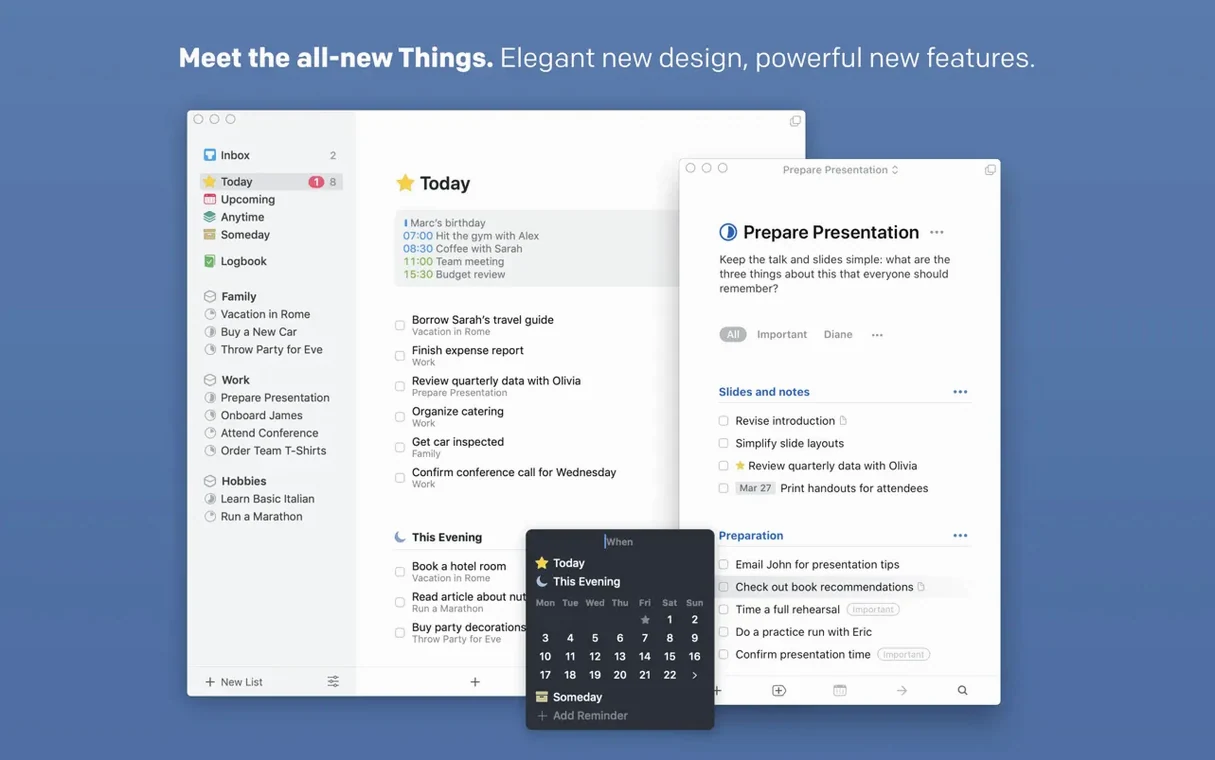
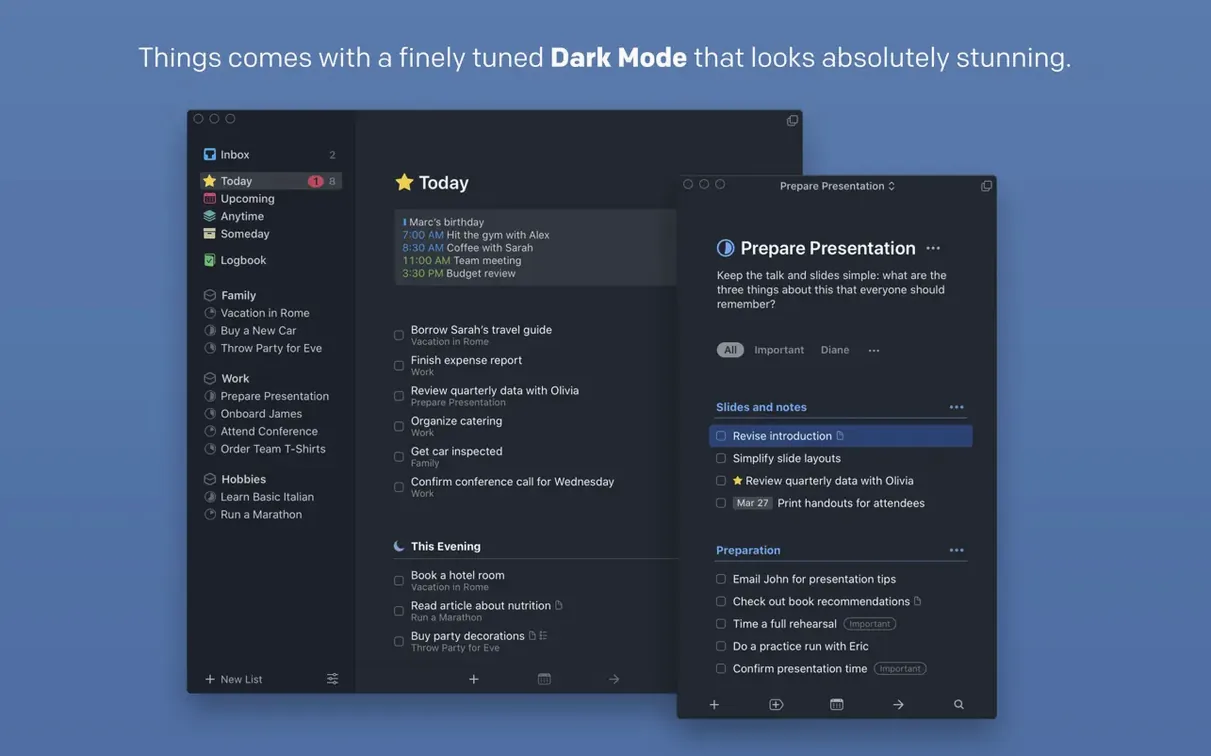
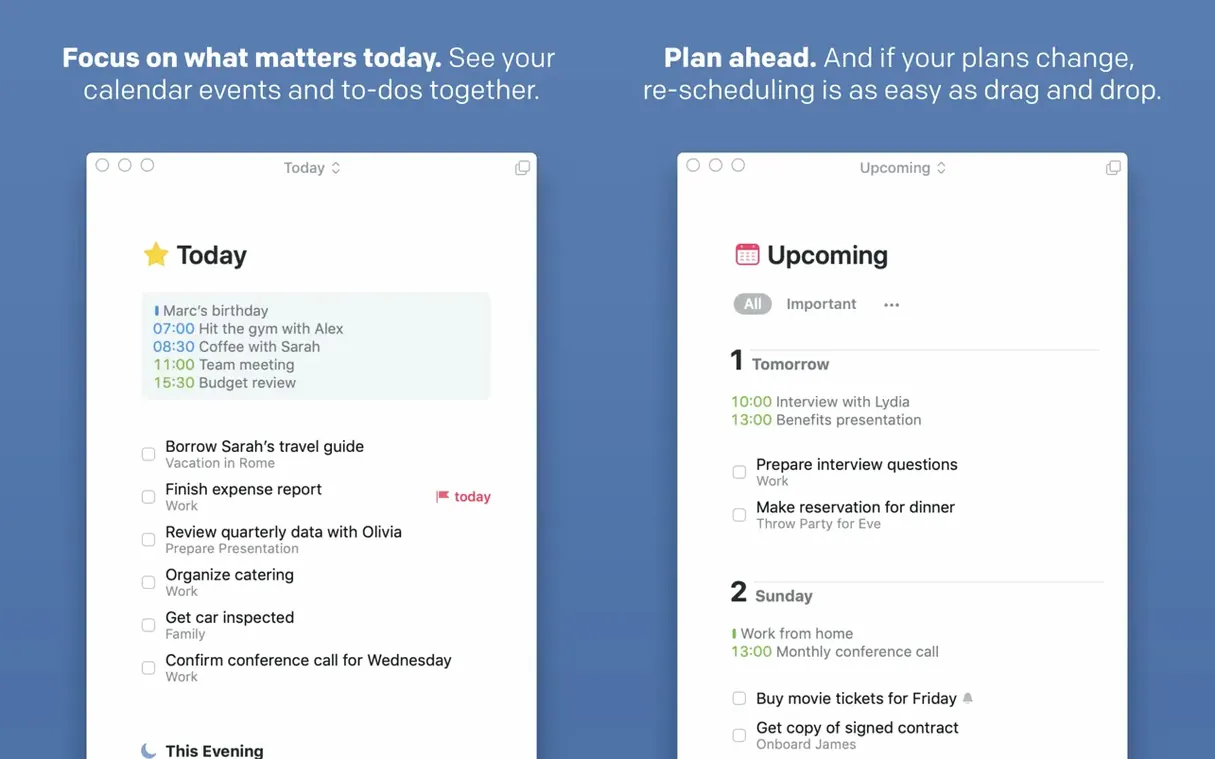
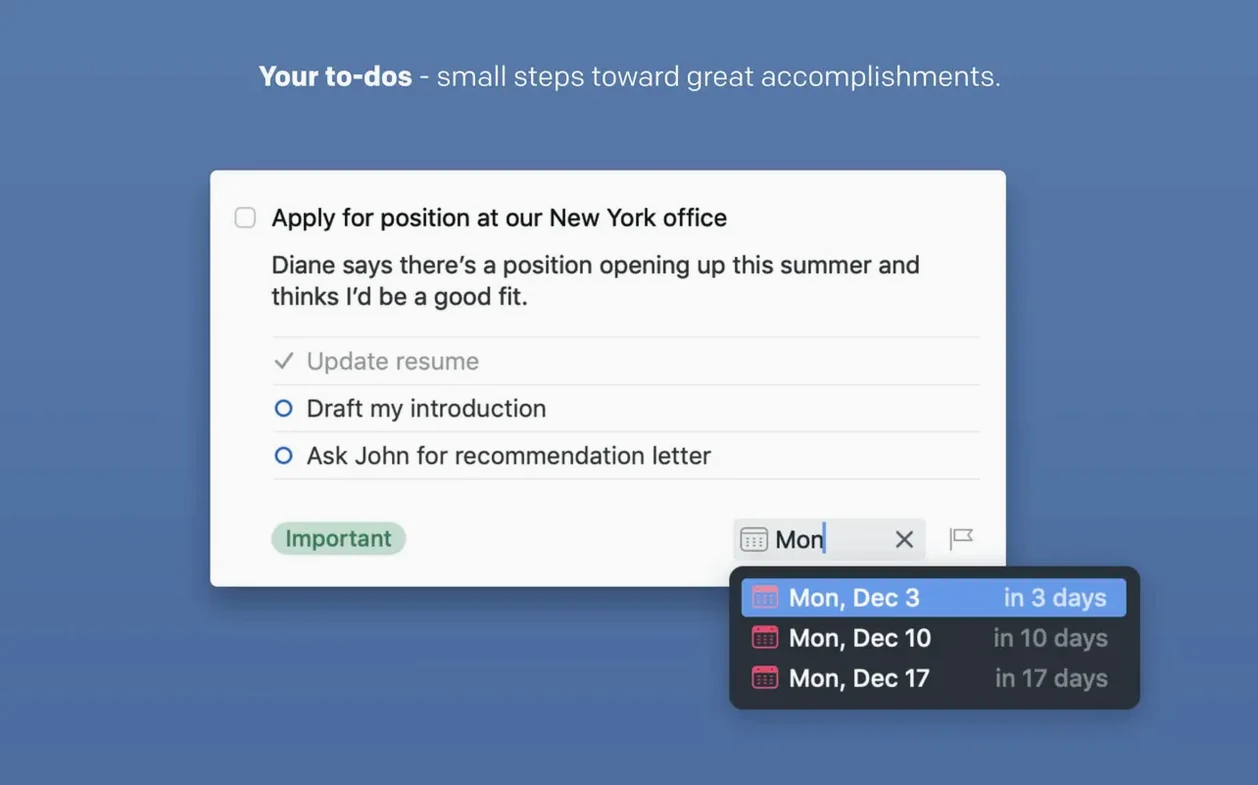
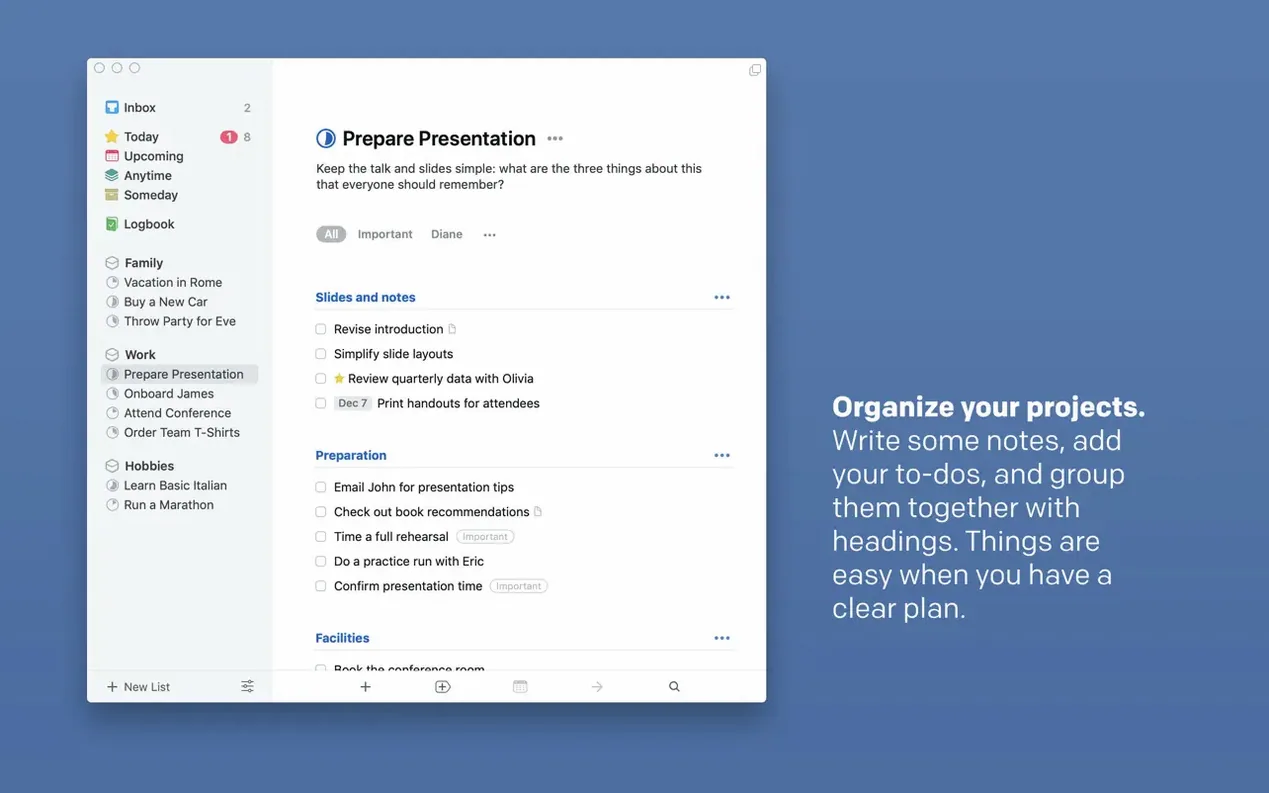
Things is a task manager built around four views: Inbox, Today, Upcoming, and Areas. Projects hold larger goals, and each task can carry notes, subtasks, deadlines, and reminders. Repeating tasks handle the routine stuff.
Calendar events and Things tasks appear together in one list, so you see the whole day at a glance. Notification Center widgets put due items on the desktop, and the Touch Bar offers quick controls on compatible Macs.
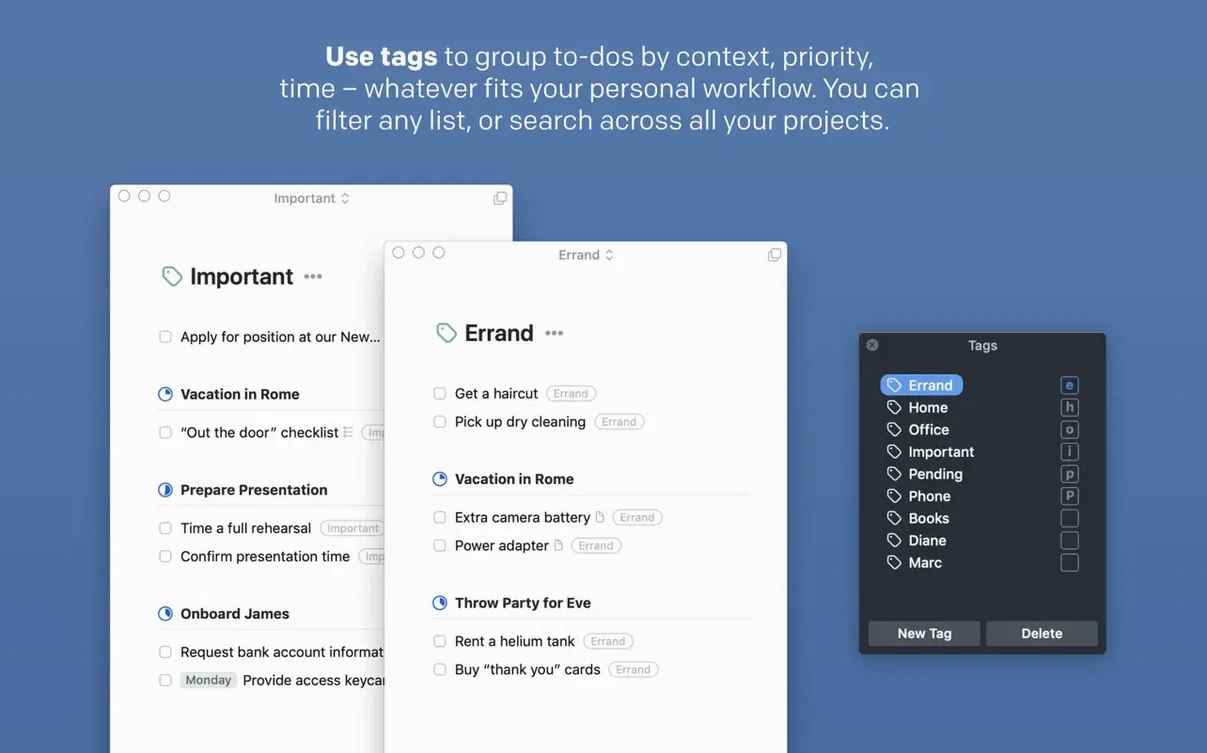
Tags let you filter across projects and areas — useful when you want to see only work tasks or everything tagged “low energy”. Quick entry fires from any app via a keyboard shortcut, and Siri can grab tasks hands-free. Handoff and Share actions make it easy to push items between devices or from other applications.
The inbox trap: unassigned tasks that linger
A few things trip people up in the first week. The most frequent is the Inbox — tasks that land there and stay there because the user hasn’t assigned them to a project or a date. Things expects you to process the Inbox, not treat it as a permanent list. The fix is a short daily review: drag tasks to Today or to a project, or delete what no longer matters.
Another snag is the sync. Things Cloud syncs reliably once set up, but if you skip creating an account or lose your internet connection, changes won’t reach other devices. Open Preferences, check the Cloud tab, and verify the account is active. If sync stalls, a manual “Sync Now” button usually nudges it.
Repeating tasks can confuse people who expect them to behave like calendar events. Things doesn’t auto-reschedule a task until you mark the current instance complete. If you need a task to repeat on a fixed date regardless, set a deadline instead of a repeat interval.
Some users also miss that the “Today” view only shows tasks scheduled for today or overdue items. If a task has no date, it stays in Someday or its project until you assign it. That’s by design, but newcomers sometimes wonder why their long list of unassigned tasks doesn’t appear in Today.
How a location recordist tracks gear and sessions
I know a location recordist who manages sessions, gear maintenance, and invoicing through Things. He uses the Inbox to capture quick notes during a session — “check phantom on channel 4”, “replace XLR cable in kit B” — then processes them at lunch. Each recording project becomes a Things project with tasks for equipment prep, travel, session notes, and client follow-up. Tags separate “gear” from “admin” so he can filter the Today view to only what he can do between takes. The Spotlight integration in 3.24 lets him open any task by name without switching windows, which saves time when he’s patching cables and needs to check the next step.
Simpler to start than OmniFocus
OmniFocus is the closest competitor. It offers more granular project planning — sequential and parallel task groups, custom perspectives, and a review system. Things is simpler to start with: you drag and drop, you set a date, you’re done. OmniFocus suits people who need multiple contexts and custom views; Things suits people who want to get tasks out of their head and into a clear Today list without configuring much.
Todoist works across more platforms — Windows, Android, Linux, web — and its natural language date entry is strong. Things’ calendar integration feels more native on macOS, and the Today/Upcoming split is more visual.
Reminders is Apple’s built-in option. It’s free and syncs via iCloud, and recent versions added lists, tags, and smart lists. Things offers a cleaner interface and better project structure — nested tasks, a dedicated Inbox, and the Someday list for things you don’t want to schedule yet. Reminders works well for basic lists; Things works better for people who manage multiple projects.
Start with four or five areas using Option+Space
Start by setting up your Areas — broad categories like Work, Personal, Finance, Health. Each area holds related projects. Don’t create more than four or five areas at first; you can add later.
Use the keyboard shortcut (default is Option+Space) to capture quick thoughts. It opens a small window from anywhere, and you can type a task name, tag, and date in one line. Process the Inbox daily — empty it into projects or Today.
Try tags for context: “@office”, “@home”, “@errand”. They’re optional but helpful when you’re deciding what to work on next. You can also tag by energy level or by tool needed.
Set up Things Cloud immediately after installing. Even if you only use one Mac, it backs up your data and lets you switch to an iPhone or iPad later without exporting anything.
Spend ten minutes on the first day entering all current tasks — don’t worry about perfect organisation. Put everything in the Inbox, then sort over the next few days. The app stays out of your way once the data is in it.
Changes in this build
Version 3.24.2 is now available on the Mac App Store, bringing a fresh round of maintenance from Cultured Code.
Before it goes on the Mac
- macOS 10.15 Catalina or newer
- Apple Silicon or Intel 64-bit Mac
Installing it on the Mac
- Mount the disk image and launch Open Gatekeeper friendly.
- Press Enter in Terminal to bypass Gatekeeper.
- Drag the app to the Applications folder.
- Launch the app.
Notes from the control room
Sign in or open a catalogue account to leave a note.
No notes from the room yet. If you have used this build for a week, a short note helps the next person.