Home › Utilities › VMware Fusion Pro

VMware Fusion Pro 26H1 (Mac)
Updated
The catalogue note
VMware Fusion Pro 26H1 supports two processor architectures — Apple Silicon and Intel 64-bit — and runs Windows, Linux, and other operating systems as guest VMs. The 26H1 release adds guest OS support for Fedora 44, Ubuntu 26.04 LTS, and several other recent distros.
Hardware support includes Intel and Apple Silicon
- What hardware does it run on? Both Apple Silicon (M-series) and Intel-based Macs are supported. The installer detects your architecture automatically.
- Can I run Windows virtual machines for DirectX 11 games? Yes, Windows 10 VMs get DirectX 11 hardware acceleration, plus USB 3.1 and eGPU device passthrough.
- Does it work with remote ESX hosts? The 26H1 release adds remote connections to ARM-based ESX hosts, alongside existing Intel ESX support.
- What about Linux containers or Kubernetes? You can spin up local Kubernetes clusters for development and testing inside VMs.
Interface and workflow
The UI is in English. Virtual machine creation wizards walk you through the OS selection, storage allocation, and network configuration. The release adds timestamps for VM creation and last power-on time — a small but useful addition when you manage several VMs. The app behaves like a professional tool should: quietly.
Fixes for the most common installation issues
Even with straightforward installation, a few issues recur. Here is what I have seen most often, and what tends to fix them.
Virtual machine fails to boot after installation
The guest OS installer runs, but the VM does not start afterwards. Check that the ISO or installation media is no longer mounted — the VM can try to boot from it instead of the virtual disk. Also confirm that the virtual disk has enough space; the guest OS needs room for updates and swap files. If the VM was created on an Intel Mac and moved to Apple Silicon, it will not boot unless you have an ARM-compatible version of the guest OS.
USB 3.1 devices not recognised
USB 3.1 support is there, but devices sometimes do not appear inside the guest. The usual cause is that the device is still attached to the host. Open the VM menu and check that USB is connected. If it still does not show, disconnect and reconnect the device while the VM is running. Some older USB controllers need a reboot of the guest OS after connection.
DirectX 11 acceleration not working in Windows 10
Hardware acceleration for DirectX 11 requires that VMware Tools are installed inside the guest. If you skipped that step during setup, install them from the VM menu. Also verify that the guest OS is Windows 10 (the feature is not supported on older Windows versions) and that the VM has at least 2 GB of video memory allocated. On Apple Silicon Macs, DirectX 11 runs through translation — performance will be lower than native, but it should still work.
eGPU passthrough not detected
eGPU support requires that the eGPU is connected and recognised by macOS before the VM starts. Attach the eGPU, wait for it to appear in the macOS System Information, then launch the VM. If it still does not appear, check that the VM settings allow eGPU passthrough — this is not enabled by default for every VM type.
Remote connection to ESX host fails
The 26H1 release added remote connections to ARM-based ESX hosts. If the connection fails, confirm that the ESX host is running a version that supports remote connections from Fusion Pro. Network firewalls on both sides can also block the required ports — typically TCP 443 and 902. If you are connecting over a VPN, check that the VPN allows traffic to the ESX host's IP address.
Local Kubernetes cluster setup stalls
Kubernetes clusters run inside VMs. The most common mistake is not allocating enough resources: give the VM at least 4 GB of RAM and 2 CPU cores for a basic cluster. Also ensure that the guest OS inside the VM has Docker or containerd installed. If the cluster creation script times out, increase the timeout in your tool's configuration.
Timestamps and other everyday changes in the 26H1 release
The 26H1 release introduced several changes that affect day-to-day work, especially if you manage multiple VMs or keep guests updated.
- Timestamps for VM creation and last power-on time. These appear in the virtual machine library. If you run a dozen VMs for different projects, this saves you from opening each one to remember when you last used it. Useful for cleaning up old test environments.
- Remote connections to ARM-based ESX hosts. Previously, remote ESX connections were limited to Intel-based hosts. Now you can connect to ARM ESX hosts directly from Fusion Pro on an Apple Silicon Mac. This matters if your organisation uses ARM servers for development or edge deployments.
- Guest OS support additions. The 26H1 release adds Ubuntu 26.04 LTS, Fedora 43, Fedora 44, SUSE Linux Enterprise 16, openSUSE 16.0, and FreeBSD 15.0 as supported guest operating systems. If you work with rolling-release distros or enterprise Linux, you can now install the latest versions without workarounds. The VM creation wizard includes these in its OS selection list.
No UI redesign or workflow changes arrived in this release. The application looks and behaves the same as previous versions — the additions are under the hood, in compatibility and management convenience.
Why beginners often allocate too little RAM to the host
I have watched several new users trip over the same things. Here are the most common ones.
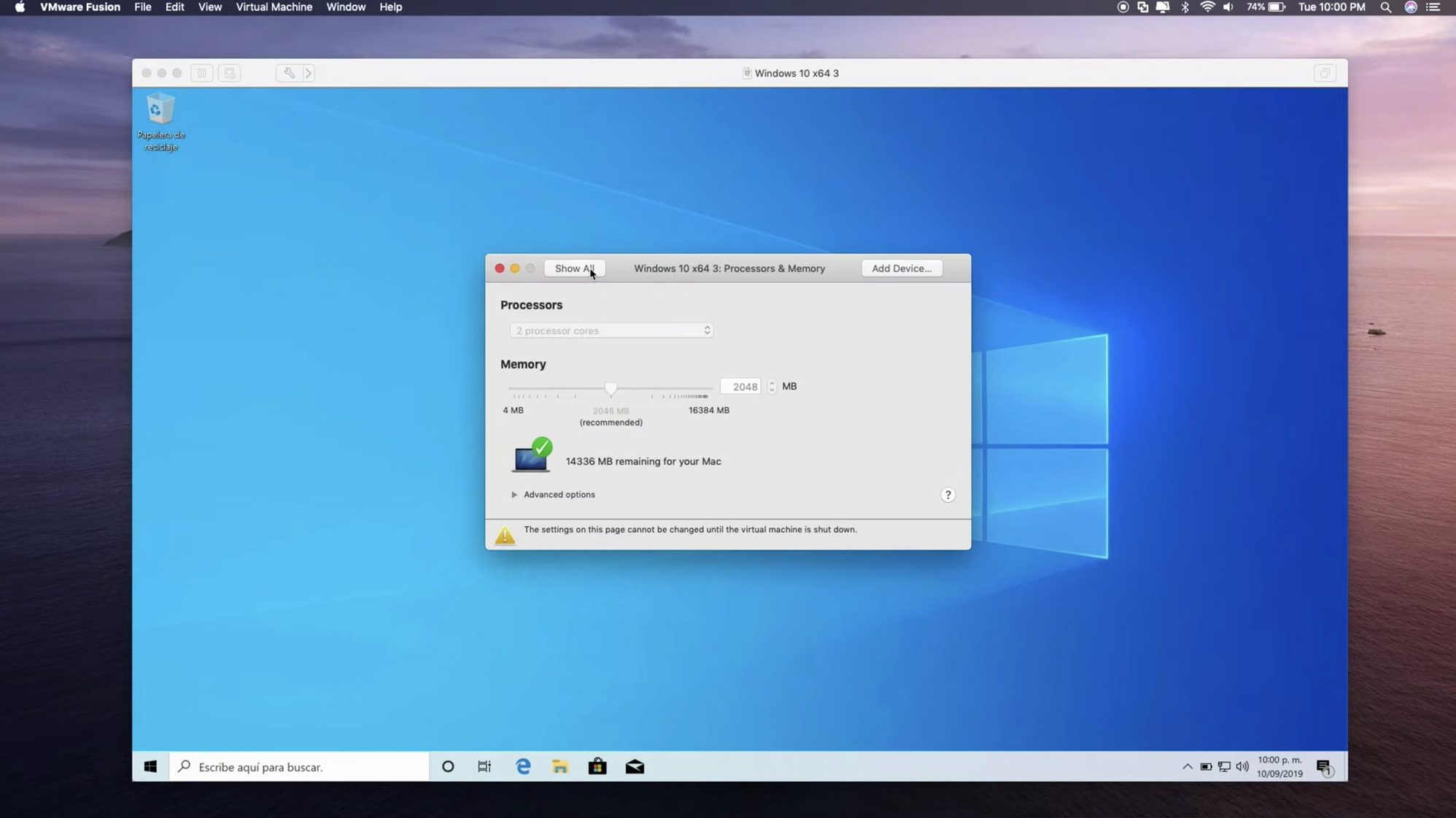
Allocating too little RAM to the host. A VM needs memory, and macOS also needs memory. Beginners often give the guest all available RAM and wonder why the host becomes sluggish. A rule of thumb: leave at least 4 GB for macOS, more if you run other applications alongside. For a Windows 10 VM, 4 GB is enough for basic use; 8 GB is better.
Ignoring VMware Tools. The guest OS runs without VMware Tools, but mouse integration, clipboard sharing, and display resolution scaling all depend on them. Install them immediately after the guest OS finishes setup. The VM menu has an option for this.
Not checking the guest OS architecture. A common mistake: downloading a Windows 10 ISO for Intel and trying to run it on an Apple Silicon Mac. It will not work — you need the ARM version of Windows. The same applies to Linux: on Apple Silicon, use ARM builds of your preferred distro. Fusion Pro does not translate the guest OS kernel.
Assuming snapshots are backups. Snapshots capture the VM state at a point in time, but they are not a backup strategy. If the virtual disk becomes corrupt, snapshots can be lost too. Keep separate backups of important VMs. Snapshots are for testing and rollback, not archival storage.
Forgetting to shut down the guest properly. Suspending a VM is faster, but if the host crashes or loses power, suspended VMs can become inconsistent. Shut down the guest OS when you are done for the day, especially if the VM runs a database or other stateful application.
Overlooking network configuration. By default, VMs use NAT networking. Beginners who need the VM to appear on the same network as the host often do not switch to bridged networking. Change this in the VM settings before installing the guest OS — switching later can break the network configuration inside the guest.
How Fusion Pro compares with Parallels Desktop and others
Fusion Pro is not the only virtualisation option for Mac. Here is how it sits alongside three alternatives, based on practical use.
Parallels Desktop. Parallels is the closest competitor. It runs on both Intel and Apple Silicon, supports DirectX 11 and USB 3.1, and has a similar feature set. The main difference is that Parallels targets a broader audience — its UI is more polished and includes features like Coherence mode (which integrates Windows apps into the macOS desktop). Fusion Pro feels more like a tool for IT administrators and developers: less hand-holding, more direct control over networking and hardware. Parallels also updates more frequently, but Fusion Pro tends to support a wider range of Linux distros and enterprise guest OSes out of the box. For managing remote ESX hosts and Kubernetes clusters, Fusion Pro has the edge.
UTM. UTM is a free and open-source virtualisation app based on QEMU. It supports both Intel and Apple Silicon, and can run a wide range of guest OSes, including ARM versions of Windows and Linux. UTM does not have DirectX 11 acceleration — it uses software rendering for graphics — so it is not suitable for gaming or GPU-heavy workloads. It also lacks USB 3.1 and eGPU passthrough. For basic virtualisation, testing Linux distros, or running legacy operating systems, UTM is a capable alternative. But it requires more manual configuration: you often need to set up QEMU parameters yourself. Fusion Pro is more polished and integrates better with macOS.
VirtualBox. Oracle VM VirtualBox runs on Intel Macs, but its Apple Silicon support is still in development (as of early 2025, it is experimental and limited). On Intel Macs, it supports USB 2.0 (USB 3.0 via extension pack), and does not offer DirectX 11 acceleration or eGPU passthrough. It is free and open-source, but the feature gap compared to Fusion Pro is significant. For developers who need a quick Linux VM on an Intel Mac and do not want to pay, VirtualBox works. But for Windows VMs, remote ESX management, or Apple Silicon Macs, it is not a viable alternative.
In summary: Fusion Pro sits between Parallels (more consumer-oriented) and UTM (more manual, less feature-rich). It is the best choice if you need enterprise guest OS support, remote ESX connections, or Kubernetes clusters, and you are comfortable with a professional-grade tool.
Running Windows 11 ARM on Apple Silicon
Beyond the basic compatibility questions, a few practical concerns come up regularly.
Can I run a Windows 11 ARM virtual machine on Apple Silicon? Yes, but you need the ARM version of Windows 11. Microsoft provides this through its Insider programme or volume licensing. The VM will run, and DirectX 11 acceleration works in Windows 10 — for Windows 11, DirectX support depends on the guest OS version. USB 3.1 and eGPU passthrough work on Apple Silicon as well.
Will my existing Intel-based virtual machines work on Apple Silicon? No, not directly. Intel x86_64 guest OSes cannot run on Apple Silicon Macs because the processor architecture is different. You would need to recreate the VMs with ARM-compatible guest OSes. If you have data or applications on the old VMs, migrate them manually. Fusion Pro does not translate x86_64 instructions for the guest OS kernel.
Does it support macOS as a guest OS? Yes, you can run macOS VMs inside macOS, but only on Apple Silicon Macs (not on Intel Macs). This is useful for testing different macOS versions or running older releases. Apple's licensing allows macOS VMs only on Apple hardware.
How many virtual machines can I run at once? This depends on your Mac's hardware resources. Each VM consumes RAM, CPU cores, and disk I/O. On a Mac with 16 GB of RAM, you can comfortably run two or three lightweight Linux VMs simultaneously, or one Windows VM alongside a Linux VM. Heavier workloads (Windows with DirectX, Kubernetes clusters) will reduce that number. There is no software-imposed limit — the only constraints are your Mac's resources.
Does it work with external drives for VM storage? Yes. You can store virtual machine bundles on external drives, including SSDs connected via USB 3.1 or Thunderbolt. Performance will be lower than an internal SSD, but it is usable. For production work, keep VMs on the internal drive or a fast Thunderbolt SSD.
Can I use it without an internet connection? Yes. Fusion Pro does not require an internet connection to run VMs. You only need internet to download guest OS installation media, update the application, or connect to remote ESX hosts. Offline usage is fine.
What about OCI containers? Fusion Pro supports OCI containers through a command-line interface. This is aimed at developers who want to run containers alongside VMs without a separate Docker Desktop installation. It is not a full container runtime — think of it as a complementary feature for development workflows.
Changes in this build
- Adds timestamps for virtual machine creation and last power-on time.
- Adds support for remote connections to ARM-based ESX hosts.
- Adds guest OS support for Ubuntu 26.04 LTS, Fedora 43, Fedora 44, SUSE Linux Enterprise 16, openSUSE 16.0, and FreeBSD 15.0.
Before it goes on the Mac
- macOS 13 or later
- Apple Silicon or Intel 64-bit processor
- English interface
Questions from the room
What file systems or disk formats does Fusion Pro support for VMs?
VMware Fusion Pro uses its own virtual disk format (VMDK) by default. It also supports importing and converting other VM disk formats, though the brief doesn't list specifics beyond VMDK.
Can I run macOS as a guest operating system inside Fusion Pro?
The brief does not list macOS as a supported guest OS. VMware historically restricts macOS VMs to Apple hardware, but check the release notes for the exact guest OS list.
Installing it on the Mac
- Install the app following the included instructions.
- Use the included activation instructions.
- Download registration keys if needed from the included link.
Notes from the control room
Sign in or open a catalogue account to leave a note.
No notes from the room yet. If you have used this build for a week, a short note helps the next person.