Home › Utilities › ViWizard Spotify Music Converter

Updated
The catalogue note
ViWizard Spotify Music Converter is a desktop utility that pulls audio from Spotify and saves it as local files in formats your other software actually reads.
Intel Macs supported, Apple Silicon needs Rosetta
The current build, version 2.17.0, targets Intel Macs running macOS 10.10 or later. That means older machines are fine, but if you're on Apple Silicon you'll be relying on Rosetta translation. The app pulls music through Spotify's Web Player, so you need a working connection and a Spotify account, not just a local library.
Output to MP3, FLAC, WAV, AIFF, M4A and M4B
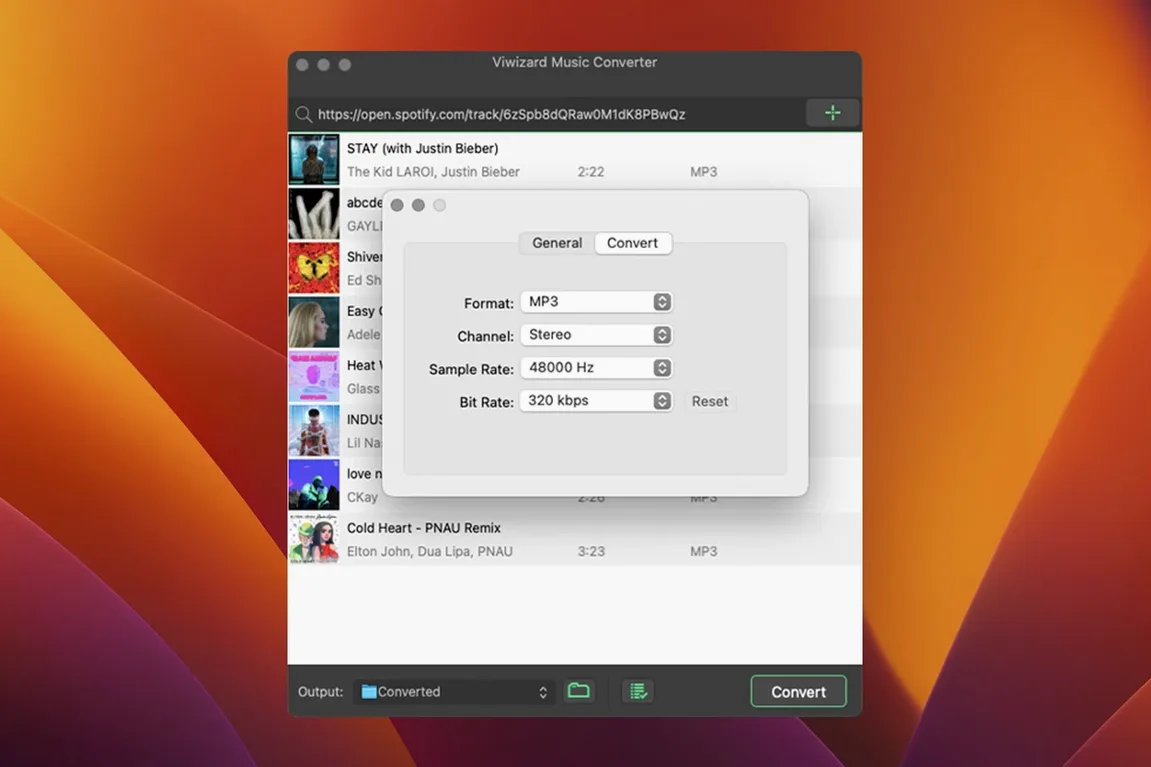
Conversion covers songs, playlists, albums, artists, podcasts and audiobooks. Output formats are MP3, FLAC, WAV, AIFF, M4A and M4B, with control over channel count, bitrate and sample rate before you start a batch. The interface runs in English, German, French and Japanese. It's a straightforward tool: point it at the Spotify content, pick the format, let it run.
Compared to Sidify and AudFree for Mac
If you've looked at the Mac audio conversion space before, you've likely run into a couple of other Spotify-oriented utilities. Sidify Music Converter and AudFree Spotify Music Converter both do roughly the same job — extract audio from Spotify and wrap it in common file formats. All three use the Spotify Web Player under the hood, so none of them are ripping from the native desktop client. The main differences are in output flexibility and interface language coverage. ViWizard offers six output formats, including AIFF and M4B alongside the usual MP3 and FLAC, whereas some competitors stop at MP3, AAC and WAV. ViWizard's batch processing and metadata preservation are standard across the category, but the inclusion of Japanese and French in the interface makes it a bit more accessible if your workflow isn't English-only. None of these tools have a native Apple Silicon build — they all rely on Rosetta on newer hardware — so that's not a differentiator.
Another angle worth noting: ViWizard is part of a broader product line from ViWizard Studio that covers converters for Amazon Music and Tidal as well. If you work across multiple streaming services, the interface and workflow stay consistent between those tools. That can save a few minutes of re-learning a layout when you switch platforms.
Gatekeeper bypass requires Terminal command
A few things come up repeatedly when someone is about to run this for the first time. First, the Gatekeeper bypass step during installation — the disk image requires you to open Terminal and press Enter to allow the app to run. The app itself does not request admin permissions after that; it runs from your Applications folder like any other program.
Second, the Intel-only architecture. On an Apple Silicon Mac, the app runs via Rosetta 2. Rosetta is included with macOS and activates automatically the first time you launch an Intel app, so there is nothing extra to download. Performance is fine for batch conversion tasks because the heavy lifting is done by the Spotify Web Player and the encoding libraries, not by the CPU in a way that would expose the translation layer. The app does not have a native ARM build at version 2.17.0.
Third, metadata. ViWizard keeps track titles, artist names, album info and cover art during conversion. If you have specific naming requirements — like organising by artist folder or album folder — the output settings let you automate that. The metadata writes into the file tags, so your music player of choice should read them correctly.
Finally, the question of whether you need an active internet connection. Yes. The converter accesses Spotify's Web Player for every track, so you cannot convert from an offline Spotify cache. You also need a Spotify account — the free tier works, but a Premium account gives you higher bitrate streaming, which the converter can capture.
Paste a Spotify link to start conversion
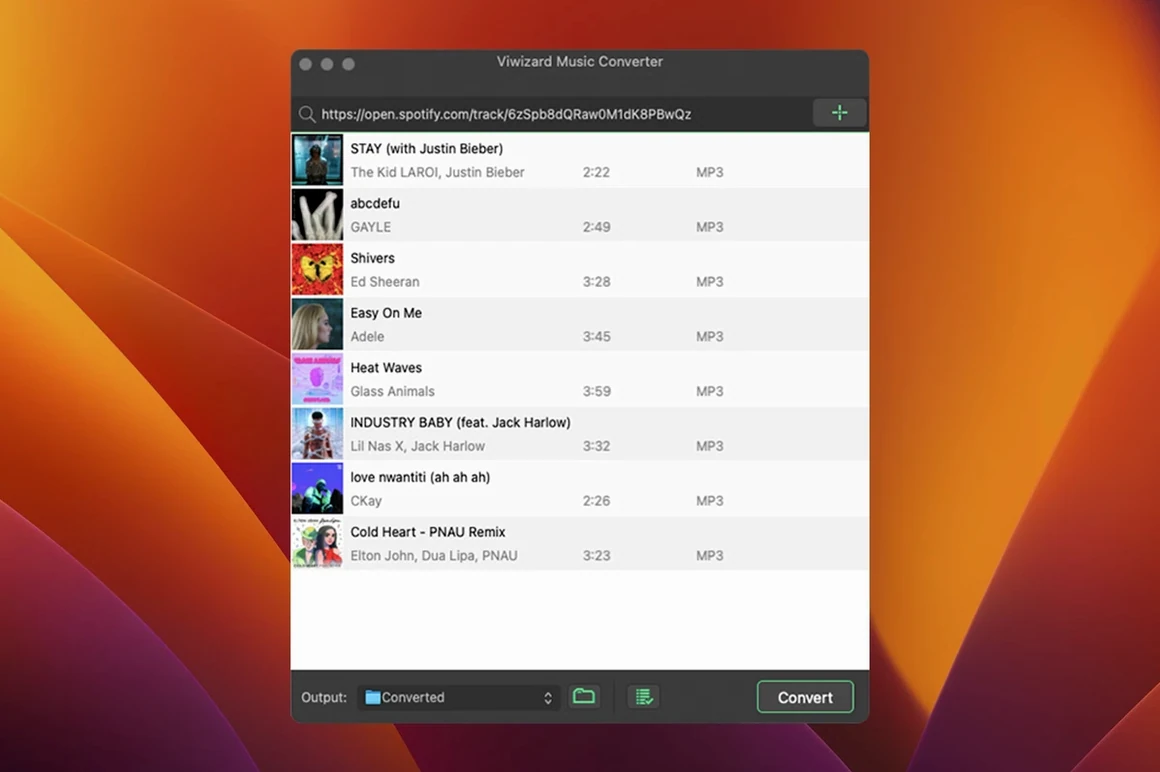
You open the app and see a field where you paste a Spotify link. Maybe it's a playlist you've been curating for months, or a single album you want in FLAC for archival. You copy the link from Spotify, paste it into ViWizard, and the app loads the track list from the Web Player. The interface shows each track with its title, artist and duration.
Before you start, you set the output format to FLAC and the sample rate to 44100 Hz. You leave the bitrate at its default because FLAC is lossless anyway. The channel setting stays on stereo. You also tell the app to organise output by artist folder, so the files land in ~/Music/ViWizard/ArtistName/AlbumName/ without you having to rename anything later.
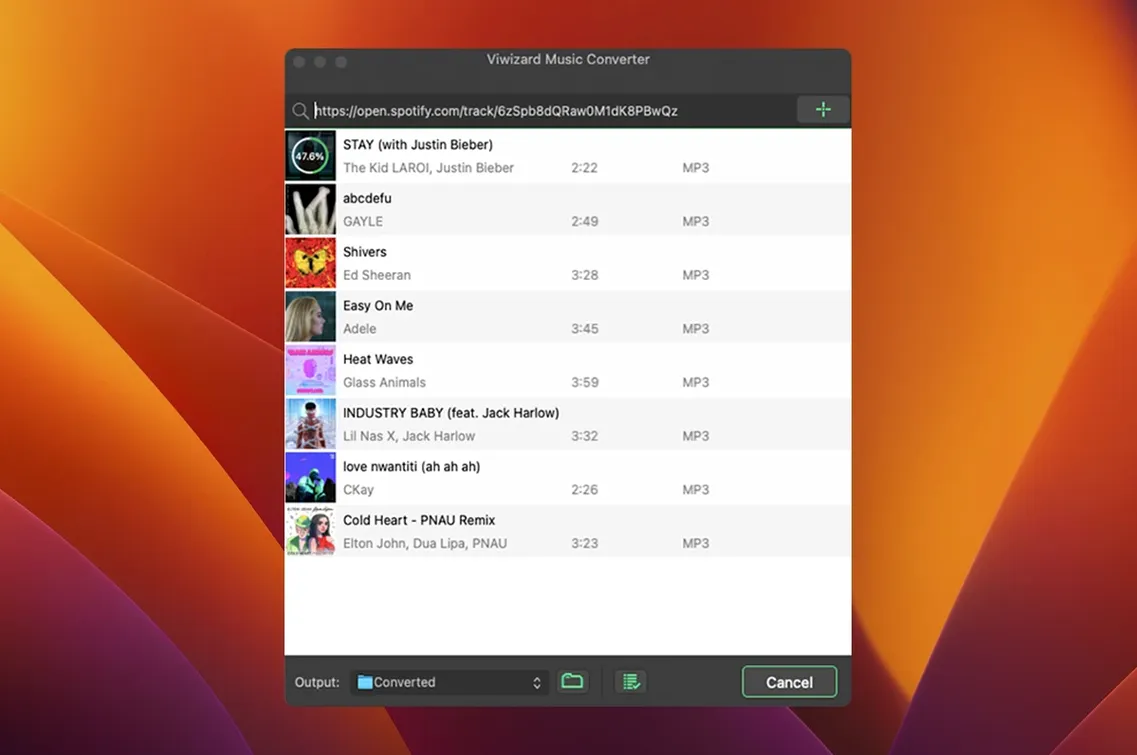
You click the Convert button. The app works through the playlist track by track, showing a progress bar per track and an overall percentage. It takes a while for a long playlist because each track has to stream from Spotify, buffer and encode. You leave it running in the background while you do other things. When it finishes, you open the output folder and drag the FLAC files into your music library manager. The metadata is there — genre, year, cover art — so you do not need to tag anything by hand.
That's the entire interaction. No account setup beyond the Spotify login that happens in the embedded Web Player, no configuration panels beyond the format and folder choices. You close the app when the batch is done.
Requires macOS 10.10 or later and Intel processor
ViWizard Spotify Music Converter 2.17.0 requires macOS 10.10 (Yosemite) or later and an Intel processor. It is a 64-bit application, so it will not run on the older 32-bit-only macOS versions. The installer comes as a disk image that you mount, bypass Gatekeeper via Terminal, and drag to Applications. No additional frameworks, libraries or runtimes are bundled — the app depends only on system frameworks present in macOS 10.10 and later.
The app's disk image is small, and the installed application takes up negligible space relative to the audio files it produces. During conversion, the app uses the Spotify Web Player, which requires a stable internet connection and a Spotify account. The output folder is configurable; by default it goes into your user Music directory. The app writes metadata into the file headers of the output formats that support it (MP3 ID3, FLAC Vorbis comments, WAV RIFF, AIFF, M4A/M4B iTunes-style metadata).
If you search for viwizard spotify music converter mac or viwizard spotify music converter mac torrent to find the download, make sure the version you get matches the Intel 64-bit build described here. The application does not include any background services, login items or scheduled tasks — it runs only when you launch it.
Before it goes on the Mac
- macOS OS X 10.10 or later
- Intel architecture
- Interface languages: English, German, French, Japanese
Questions from the room
Does ViWizard Spotify Music Converter work on Apple Silicon Macs?
The listed requirements say Intel architecture and macOS 10.10 or later. Apple Silicon machines may run it through Rosetta, but there is no native build listed for this version.
What audio formats can ViWizard export to?
The converter exports to MP3, FLAC, WAV, AIFF, M4A and M4B, with adjustable channel, bitrate and sample rate settings.
Installing it on the Mac
- Mount the disk image and run the Open Gatekeeper friendly command.
- Press Enter in Terminal to bypass Gatekeeper.
- Drag the app into the Applications folder.
- Launch the app once the copy finishes.
Notes from the control room
Sign in or open a catalogue account to leave a note.
No notes from the room yet. If you have used this build for a week, a short note helps the next person.