

Wipr 2.38 (Mac)
Updated
The catalogue note
If you already run a Safari content blocker, you know the drill: it needs to be lightweight, updated regularly, and invisible when it works. Wipr fits that brief.
What Wipr does
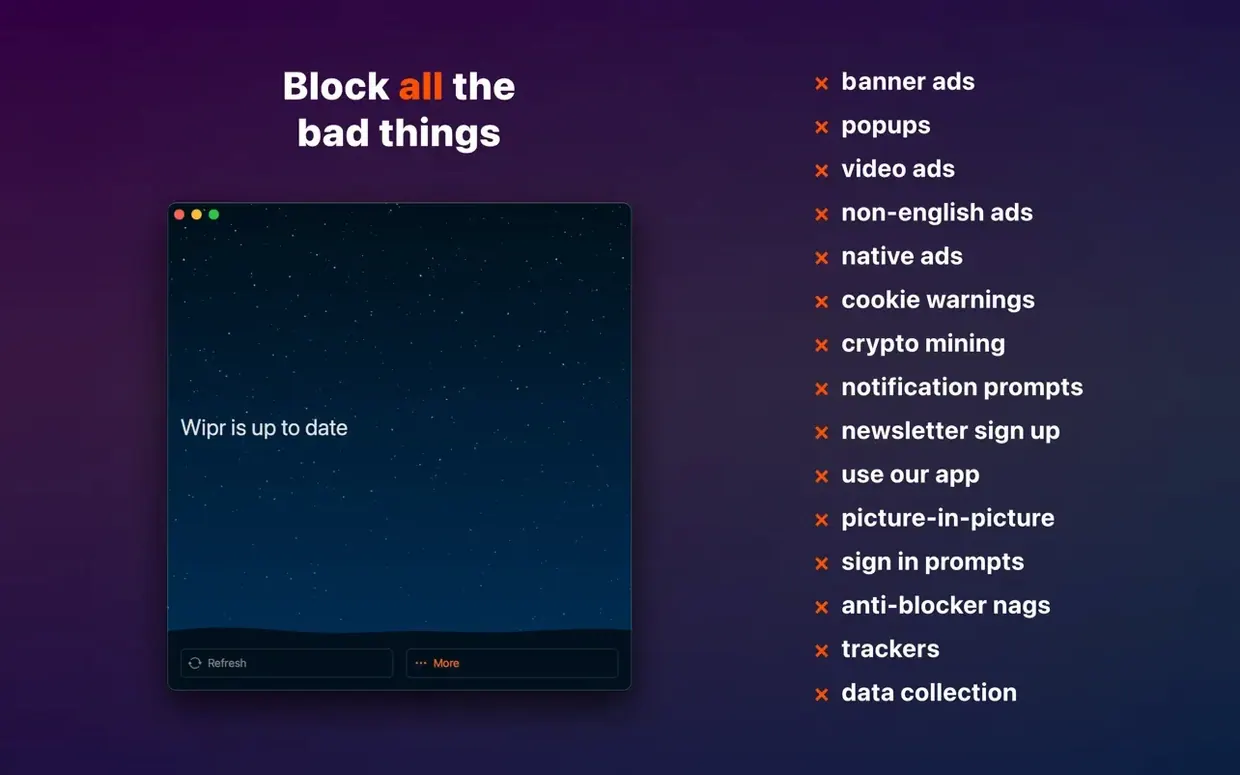
Content blocking — Removes ads, popups, trackers, cookie warnings, and other web annoyances across Safari.
Supported devices
Mac — Works on Intel 64-bit and Apple Silicon Macs running macOS 10.13 or later.
Updates and maintenance
Blocking list refresh — Updated twice a week to keep up with changing trackers and ad networks.
Wipr Extra — The 2.38 release improves Wipr Extra compatibility on many websites, and includes accessibility tweaks.
Interface language
English — The only language currently supported.
No visible background process, just a Safari extension
Wipr does not run as a background process you notice. It registers itself as a Safari extension and lets the browser handle the filtering. On a Mac that meets the minimum requirements — macOS 10.13 or later, Intel or Apple Silicon — you install it, enable it in Safari's extension preferences, and it stays out of sight. There is no menu bar icon, no dashboard, no status window.
The app itself is small. The disk image contains the application and a shortcut to your Applications folder; after you drag it across and launch it once from Launchpad, Wipr prompts you to grant permission in Safari's settings. That is the only configuration step. From that point onward, the blocking list updates automatically twice a week.
Because Wipr works as a content blocker rather than a proxy or a VPN-style filter, it does not intercept encrypted traffic or alter page source in ways that break modern single-page applications. It relies on Safari's native content blocking API, which means the browser decides what to hide based on the rule list Wipr supplies. This keeps CPU and memory overhead low — the filtering happens at the browser level, not inside a separate process.
- You do not need to buy separate versions for each platform.
- Wipr Extra for stubborn elements — Some cookie notices and overlay popups resist standard blocking rules. Wipr Extra, which is enabled separately inside Wipr's preferences, handles those cases. The 2.38 release expanded the list of websites where Extra works reliably.
- Accessibility improvements in 2.38 — The latest update includes changes that make the blocker itself more usable with VoiceOver and other assistive technologies. This matters if you rely on screen readers to manage Safari extensions.
- No account or login required — Wipr does not ask you to create an account, register an email address, or sign in to receive updates. The blocking list refresh happens silently.
Before Wipr: video ad, cookie banner, and tracking scripts blocked instantly
You open Safari to read a news article. Before Wipr, the page might load with a video ad at the top, a cookie consent banner that covers half the text, and three tracking scripts that delay the article from rendering. With Wipr enabled, the page loads without those elements. The article text appears first; the layout shifts slightly because the ad space is collapsed, but nothing breaks.
Later, you visit a forum that uses a sticky popup asking you to accept targeted advertising. Wipr Extra catches that popup if the standard rules miss it. You continue scrolling without dismissing anything manually.
You switch to a video streaming site that plays a pre-roll ad before the content. Wipr blocks the ad server's request, so the player skips straight to the video. The same happens on recipe blogs, documentation pages, and any site that embeds third-party trackers.
At the end of the session, you close Safari. Wipr has no logs to clear, no cache to purge. The next time you open the browser, the blocking list has updated if it is a Wednesday or Saturday — the two weekly refresh days — and the new rules apply immediately.
Enable Wipr Extra right after install to catch cookie notices and overlay ads
- Enable Wipr Extra early — After you install Wipr, open the app and turn on Wipr Extra from its preferences. Some cookie notices and overlay ads are only blocked by Extra, and enabling it from the start saves you the trouble of revisiting sites you already visited.
- Check Safari's extension list — Go to Safari > Settings > Extensions and confirm that Wipr is toggled on. If you have multiple content blockers, their order matters: Safari evaluates them in the order they appear, so keep Wipr near the top for best results.
- Test on a few ad-heavy sites — Visit a news portal, a blog with affiliate links, and a video platform. If something looks broken — missing buttons, blank spaces where interactive content should be — try disabling Wipr temporarily to see if the blocker is the cause. Most sites work fine, but a handful may rely on the same scripts that Wipr blocks.
- Leave it on during normal browsing — Wipr does not interfere with Safari's password manager, iCloud Keychain, or Reader mode. You can leave it enabled all the time without worrying about login forms or payment pages failing.
- Let the automatic updates work — There is no manual refresh button for the blocking list. As long as your Mac is connected to the internet, Wipr downloads new rules twice a week. You do not need to open the app for this to happen.
Changes in this build
- Wipr Extra improvements on many websites.
- Accessibility improvements.
Before it goes on the Mac
- macOS 10.13 or later
- Intel 64-bit or Apple Silicon processor
- Interface language: English
Questions from the room
Does Wipr work on Apple Silicon Macs?
Yes, Wipr supports both Apple Silicon and Intel 64-bit Macs running macOS 10.13 or later.
Installing it on the Mac
- Mount the downloaded disk image.
- Drag Wipr to the Applications folder alias.
- Launch the app from Launchpad after the copy finishes.
- Disable SIP as required.
Notes from the control room
Sign in or open a catalogue account to leave a note.
No notes from the room yet. If you have used this build for a week, a short note helps the next person.
Also filed under Utilities
The whole Utilities rack WinZip Mac Pro12.0.7282 Utilities 36 MB
 Wirecast Pro16.5.5 Utilities 820 MB
 Winclone Pro10.5 Utilities 21 MB
 WidgetWall3.15.2 Utilities 396 MB
 Wondershare Recoverit14.0.20 Utilities 212 MB
 Wondershare UniConverter15.7.3 Utilities 324 MB
 WALTR PRO4.0.122 Utilities 29 MB
 YT Saver10.15.0 Utilities 115 MB