Home › Utilities › Wirecast Pro

Wirecast Pro 16.5.5 (Mac)
Updated
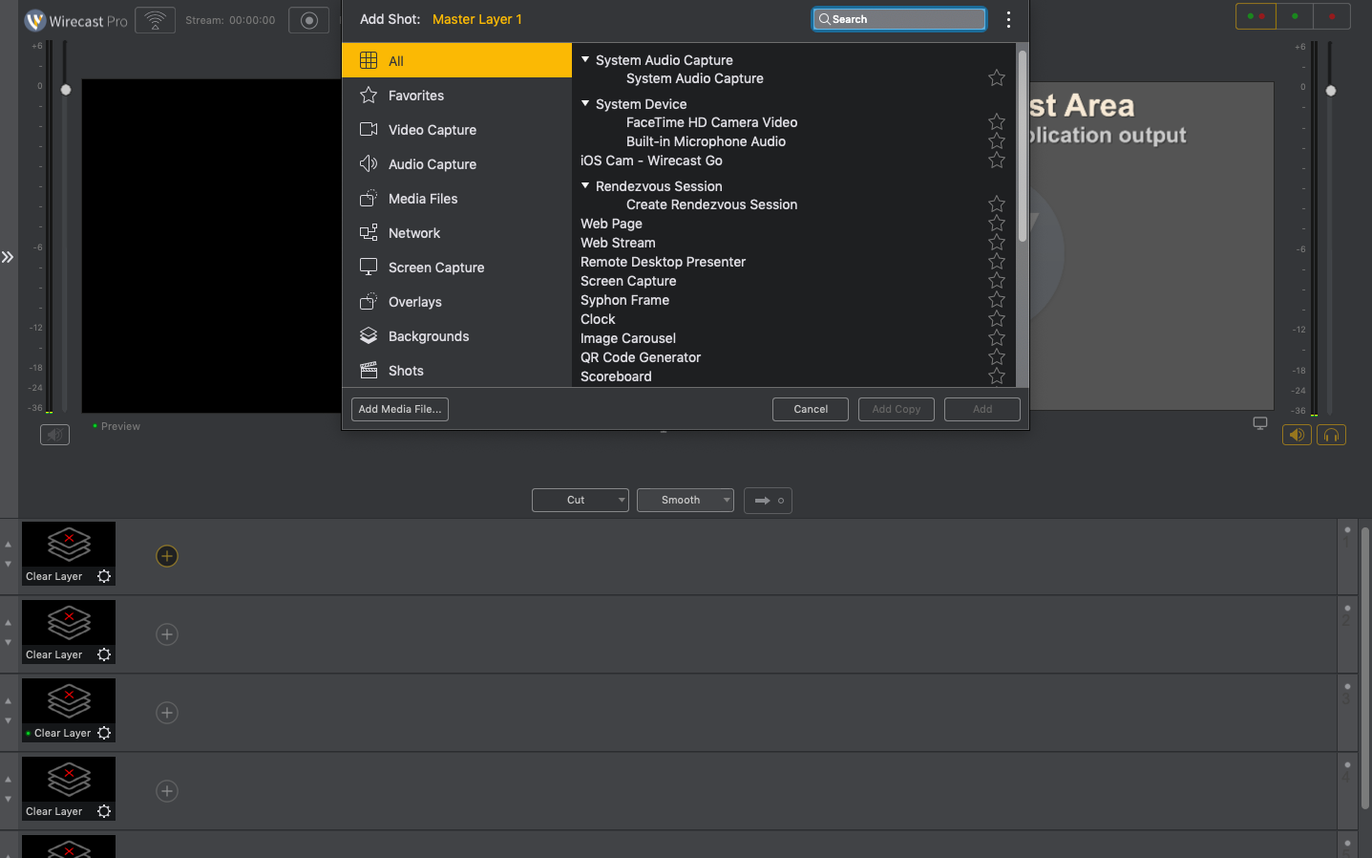
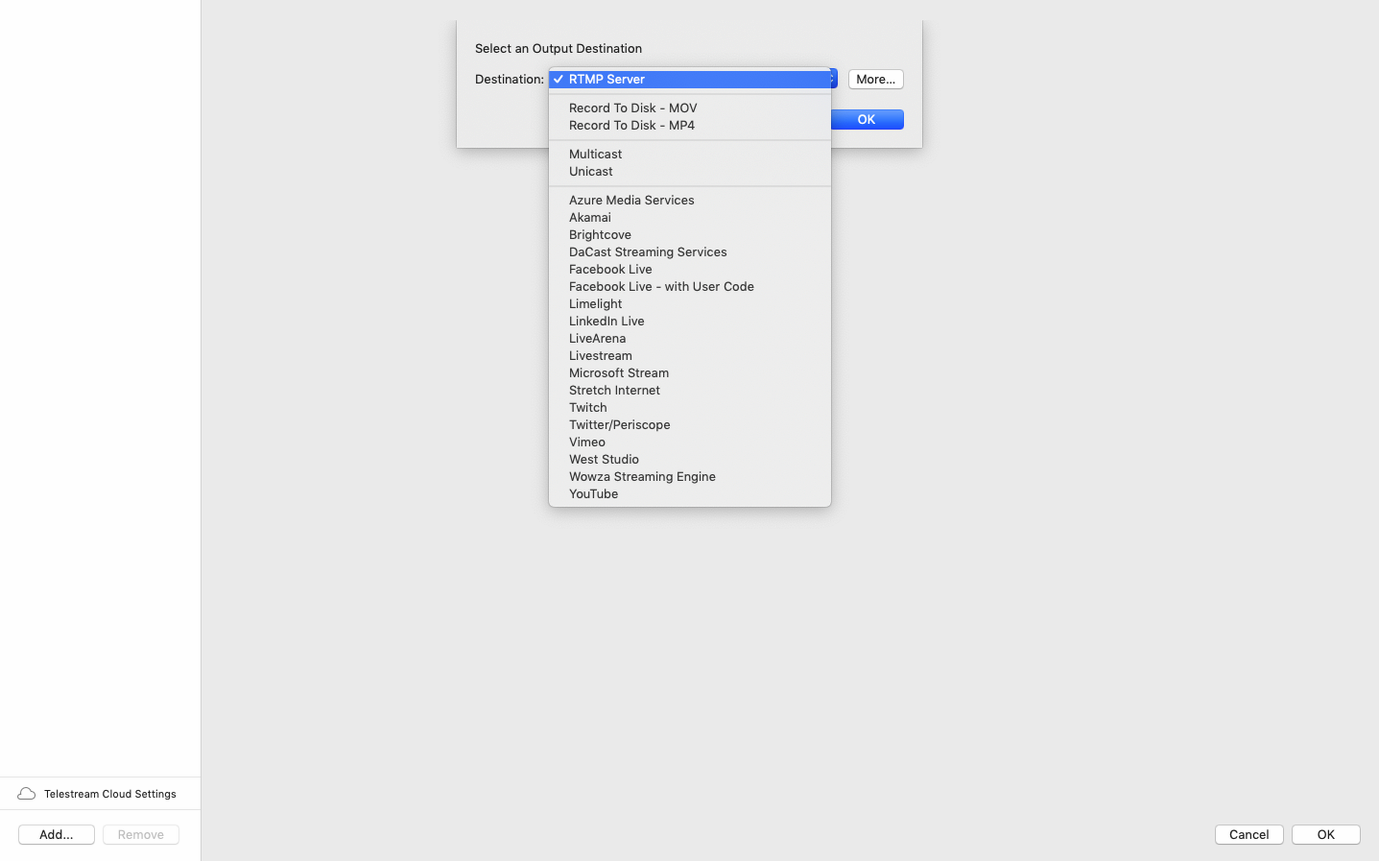
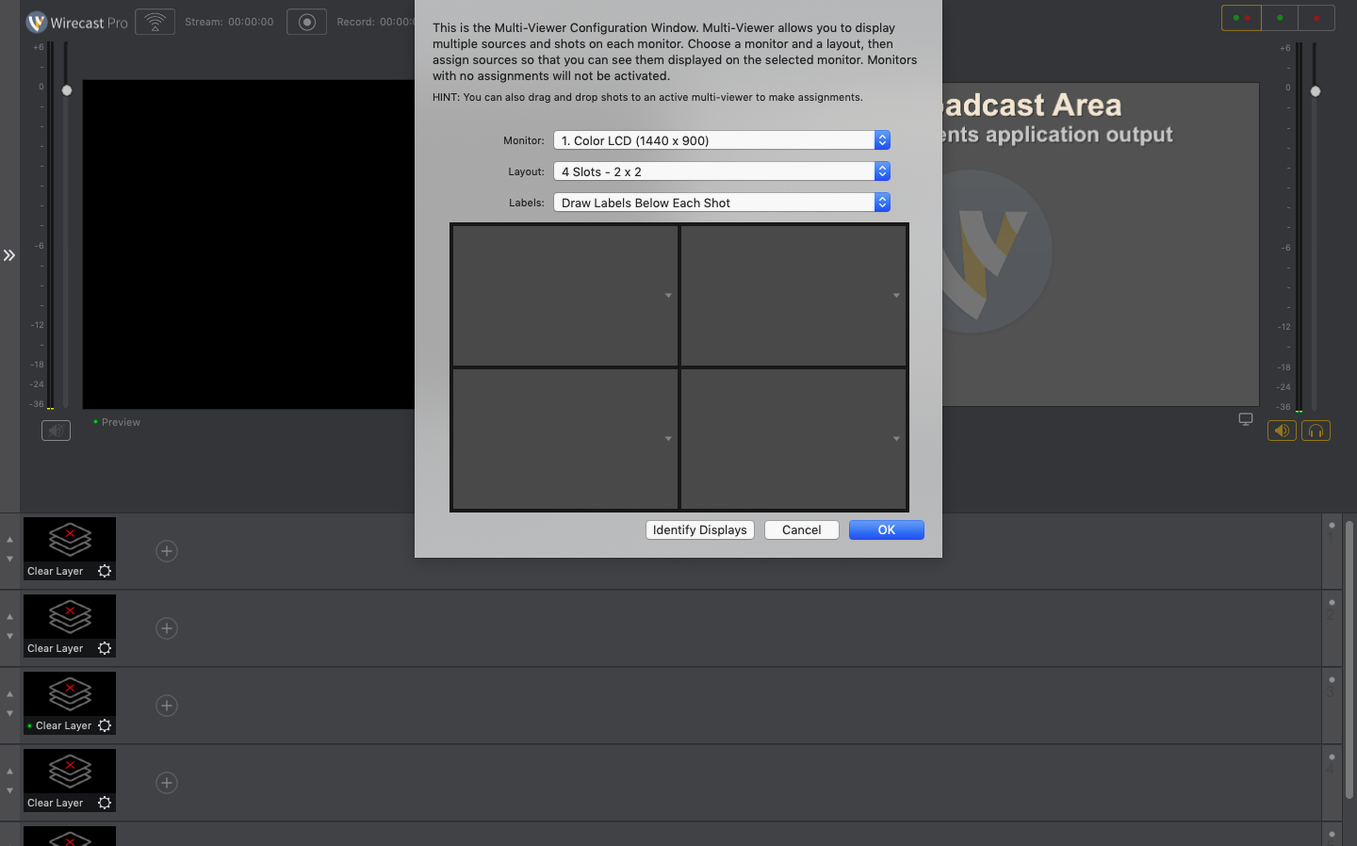
The catalogue note
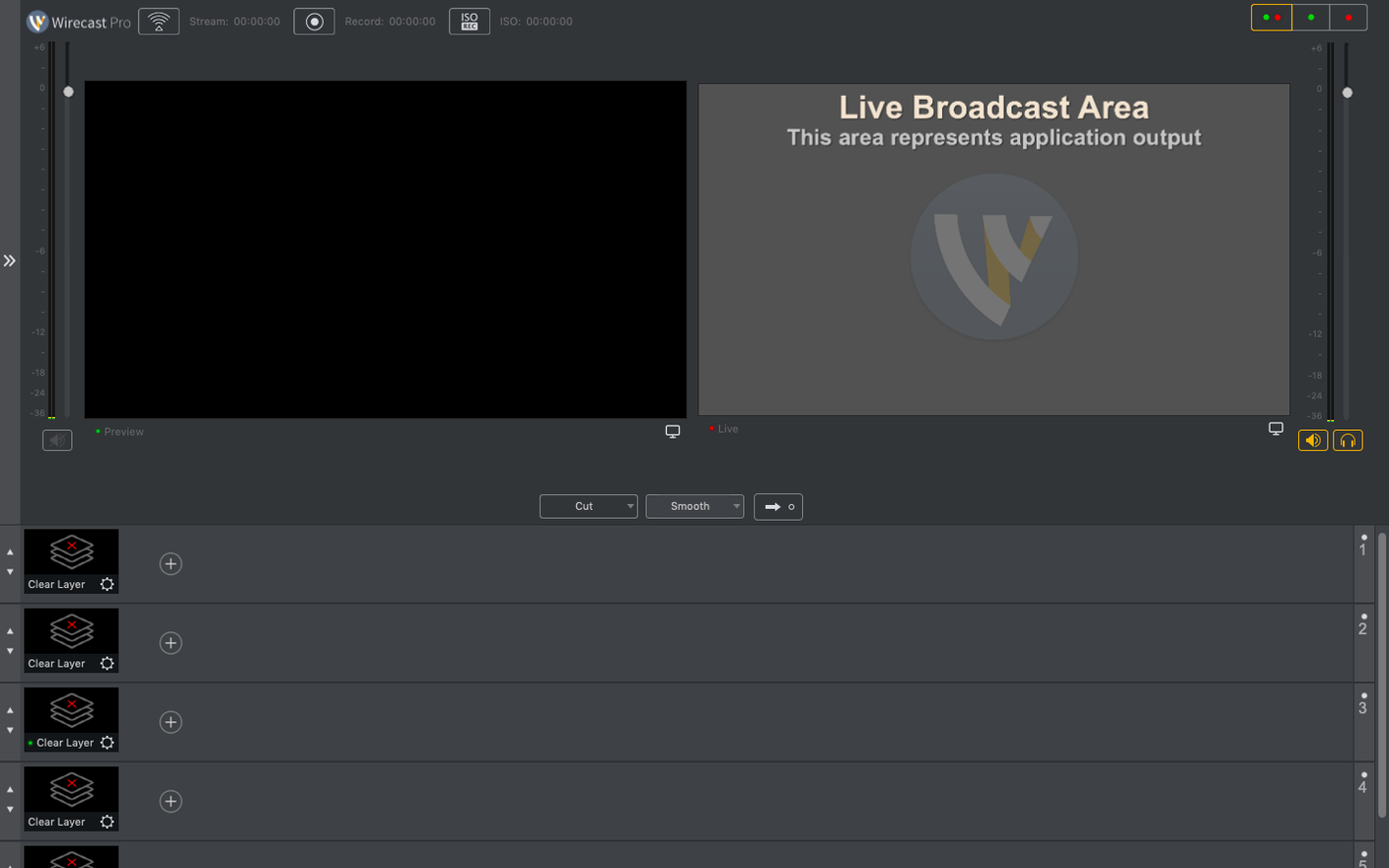
Live streaming on a Mac often means juggling multiple apps: one for the camera feed, another for overlays, and a third for encoding. Wirecast 16.5 pulls that together into a single production surface, so you can switch sources, add titles, and push the output to your streaming platform without leaving the timeline.
Why does Wirecast work well alongside other Mac studio tools?
Wirecast fits the typical studio workflow: it accepts NDI sources from other software, outputs a virtual camera for apps like Zoom, and lets you drop a logo on the outgoing signal. The 16.5.4 fix for PTZ NDI camera detection matters if you run a multi-camera setup.
Edit text and graphics live with built-in templates
You can edit text live, which is useful for lower thirds or breaking news. The 30 built-in title and caption styles plus sports score templates cover most needs without custom design work.
Discontinuous-frame NDI flag and virtual camera fixes
The release adds a discontinuous-frame flag for NDI sources, fixes virtual camera use when the microphone driver is blocked, and corrects PTZ NDI camera detection on macOS.
Three groups that benefit from Wirecast on a Mac
Wirecast is not a casual streaming tool. It assumes you have sources to manage, transitions to time, and an audience that expects production value. The people who get the most out of it tend to fall into three groups.
Event streamers — conferences, weddings, church services, or corporate town halls. These users need multiple camera angles, a clean lower-third title, and the ability to cut to a presentation or a pre-recorded clip without fumbling. Wirecast handles the switching and encoding in one place, which removes the risk of a mismatched audio delay or a dropped frame from a separate encoder.
Small production studios — the kind that records interviews, music videos, or television programmes with a crew of two or three. They value the built-in title styles and the ability to place a logo on the outgoing signal without rendering it in a separate compositor. The multi-language interface (twelve languages in total) also helps when the studio works with international crew or clients.
Sports and live-event producers who need score overlays and rapid text updates. The sports score templates save minutes between plays, and the live text editing means you can correct a player name or a scoreline while the camera stays on the action. The PTZ NDI camera fix in 16.5.4 is directly aimed at this crowd, since many sports setups rely on remote-controlled cameras over NDI.
Casual streamers who only use one camera and no overlays will find Wirecast heavy. A simpler tool or even the built-in camera output from OBS would be a better fit. Wirecast rewards the user who has a show to run, not just a screen to share.
Feed Wirecast into Zoom or Meet via virtual camera
Wirecast works alongside macOS rather than against it. The virtual camera output lets you feed the Wirecast production into Zoom, Google Meet, or any app that accepts a standard camera input. This is how many corporate streamers handle hybrid events: the physical audience sees the live production on a projector, while remote attendees receive the same feed through their meeting software.
NDI is the other bridge. Wirecast can send and receive NDI signals, so you can bring in a feed from a second Mac running a graphics package or a remote camera operator. The discontinuous-frame flag added in 16.5.4 improves how Wirecast communicates with NDI sources that may not send every frame at a steady rate — useful when the source is a wireless camera or a network-encoded stream that occasionally drops a frame.
On the system side, Wirecast respects macOS Gatekeeper during installation. The provided install steps include a Terminal command to bypass Gatekeeper for the initial launch, which is a standard approach for pro applications that need kernel-level or driver access. The virtual camera and microphone drivers integrate with the system's audio and video subsystem, and the 16.5.4 fix addresses a specific case where corporate IT policies block the microphone driver — the virtual camera still works independently in that scenario.
Wirecast also plays well with the macOS colour pipeline and display management. If you run a Retina or external 4K display, the interface scales cleanly. The app does not fight with Mission Control or Spaces; you can assign Wirecast to a dedicated desktop and switch to it without stutter.
Start with one camera to avoid a crowded source list
Most newcomers overcomplicate the source setup. They add every camera, every screen capture, and every media file before they have a single working output. The result is a crowded source list and a confusing preview window. Start with one camera and one audio input. Get the stream to your platform. Add complexity only after the baseline works.
Another common error is ignoring audio routing. Wirecast treats audio sources independently, so you can have a microphone on one channel and system audio on another. Beginners often leave everything on the default stereo mix, then wonder why their stream has echo or background noise. Take the time to assign each audio source to its own bus and mute what you do not need.
Beginners also tend to treat the built-in title styles as final. The 30 templates are a starting point, not a constraint. You can customise colours, fonts, and positions within each template, or import your own graphics. The mistake is picking a template and leaving it untouched, which gives the stream an off-the-shelf look. Spend ten minutes adjusting the title to match your brand colours.
Finally, many new users do not test the virtual camera output before going live. They assume that if Wirecast shows a picture, the virtual camera will too. Test it in a private Zoom call or in QuickTime Player. The 16.5.4 fix for the virtual camera when the microphone driver is blocked is a good reminder that the virtual camera and the microphone are separate components — one can fail while the other works.
Drop to 720p at 30 fps before streaming if upload is limited
Before you stream anything, adjust these settings in Wirecast.
If your internet upload is limited, drop to 1280x720 at 30 fps before you start. Changing it mid-stream can cause a disconnect.
Audio sample rate and bit depth. Set it to 48 kHz / 16-bit if your platform supports it. This matches the standard for most professional microphones and audio interfaces. Lower rates save bandwidth but degrade clarity noticeably on voice content.
Keyboard shortcuts for switching. Wirecast lets you assign hotkeys to each source. Do this before the event, not during it. Assigning shortcuts for the most-used sources (camera one, camera two, screen share, break slide) reduces the chance of hitting the wrong button live.
Recording path. If you record locally while streaming, set the recording destination to a fast drive — internal SSD, not a USB 2.0 external drive. Wirecast records in a compressed format, but a slow drive can still cause dropped frames if the bitrate is high.
NDI settings. If you use NDI sources, check the NDI discovery method in the preferences. The default works on most local networks, but if your network is segmented or uses VLANs, you may need to enter the source IP manually.
These changes take five minutes and prevent the kind of problems that appear only when you are live.
Changes in this build
- Fixed detection of certain PTZ NDI cameras on macOS.
- Fixed virtual camera use when the virtual microphone driver is blocked by corporate IT policy.
- Added a discontinuous-frame flag for NDI sources.
Before it goes on the Mac
- macOS 11 or later
- 64-bit processor (Intel or Apple Silicon)
Questions from the room
Can Wirecast 16.5 handle NDI sources?
Yes, Wirecast supports NDI sources, and the 16.5.4 update adds a discontinuous-frame flag for smoother handling of certain NDI feeds.
Does Wirecast include built-in graphics?
It includes 30 title and caption styles, plus overlays and sports score templates, so you can add graphics without external software.
Is Wirecast 16.5 compatible with Intel Macs?
Yes, Wirecast 16.5 runs on both Intel and Apple Silicon Macs, requiring macOS 11 or later.
Installing it on the Mac
- Mount the disk image and run Open Gatekeeper friendly.
- Press Enter in Terminal to bypass Gatekeeper.
- Drag the app to the Applications folder.
- Launch the app when installation is complete.
Notes from the control room
Sign in or open a catalogue account to leave a note.
No notes from the room yet. If you have used this build for a week, a short note helps the next person.