
Home › Utilities › Tuxera NTFS
Tuxera NTFS 2023.1 (Mac)
Updated
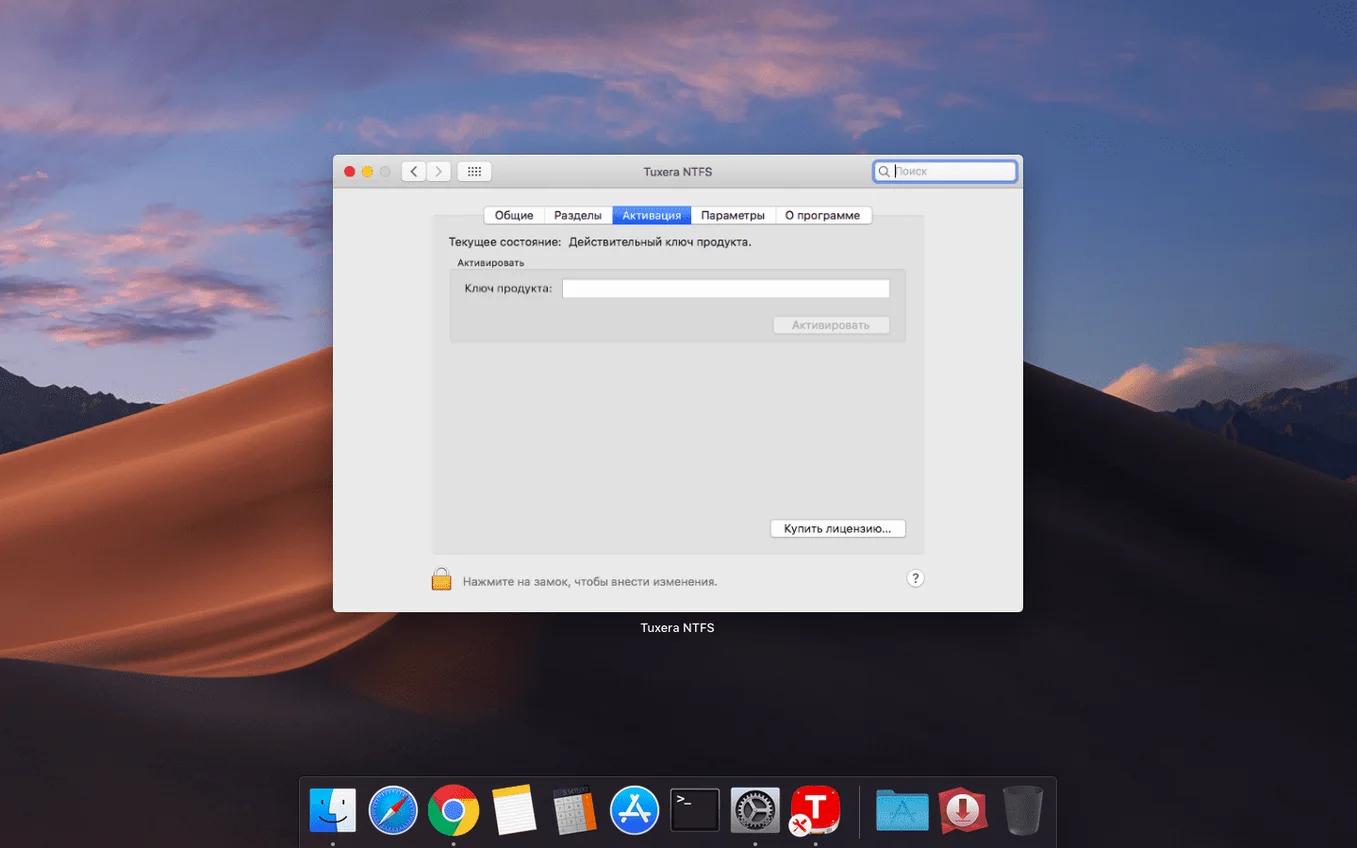
The catalogue note
Version 2023.1 of Tuxera NTFS fixes a nagging issue: files copied to NTFS volumes could land with incorrect date or time stamps. That’s the kind of quiet bug that bites when you’re archiving sessions or moving project folders between machines, so it’s good to see it gone.
What does it do that macOS doesn’t?
Macs can read NTFS-formatted USB drives out of the box, but that’s it. Editing, copying, moving or deleting files on them needs a driver. Tuxera NTFS is that driver, and it handles all versions of NTFS.
Why would I need it?
If you regularly shuttle drives between a PC and a Mac — client deliverables, sample libraries, backup disks — this removes the read-only wall. You can work with the drive as if it were native.
Create NTFS volumes and disk images from macOS
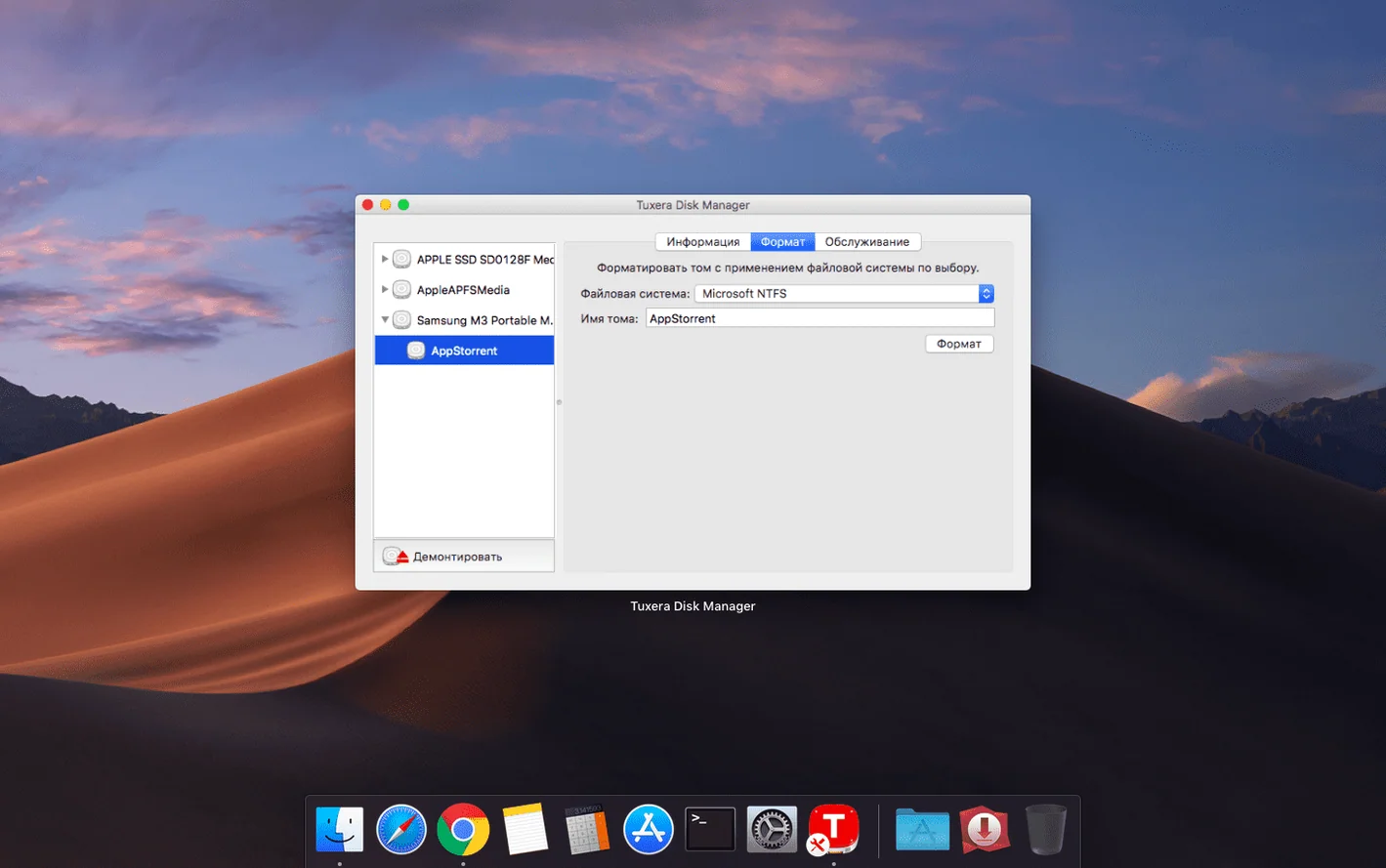
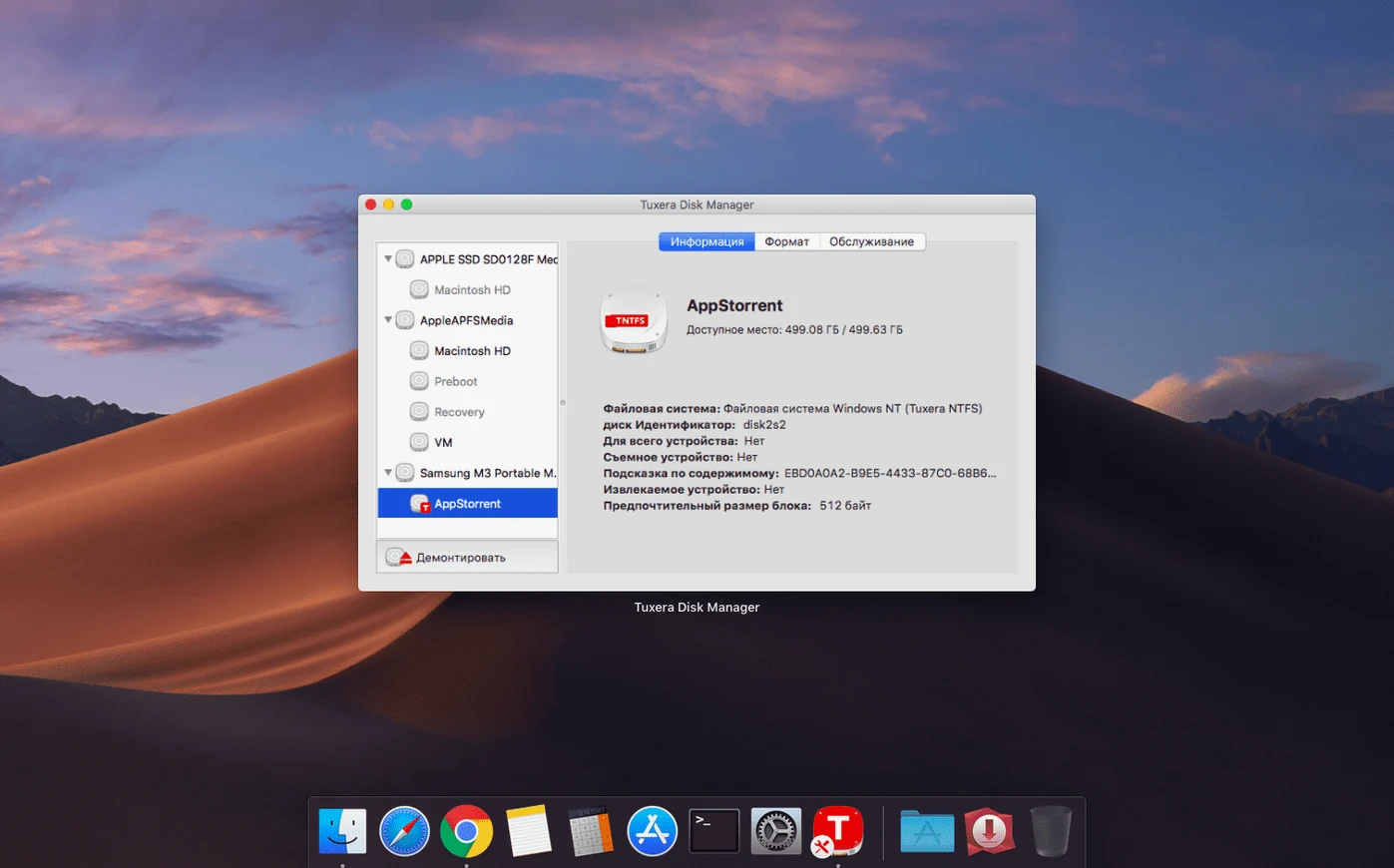
Beyond the core read-write ability, Tuxera NTFS includes a few things that aren't obvious until you need them. The driver can create NTFS volumes and disk images directly from macOS, which saves reaching for a Windows machine or a third-party formatting tool when you need to prepare a fresh drive for a PC user. It can also verify and repair NTFS volumes — the kind of maintenance that normally requires a Windows check disk utility. If a drive starts behaving oddly or macOS complains about it, the repair function is worth trying before assuming the hardware has failed.
The driver supports all versions of NTFS, so older drives formatted under Windows XP or Windows 7 work the same as ones created on Windows 11. There is no distinction between consumer and enterprise NTFS variants; the driver handles them all.
Won't break existing Mac-formatted drives
Will it break my existing Mac-formatted drives? No. The driver only activates when it sees an NTFS volume. Your APFS, HFS+ and exFAT drives remain untouched.
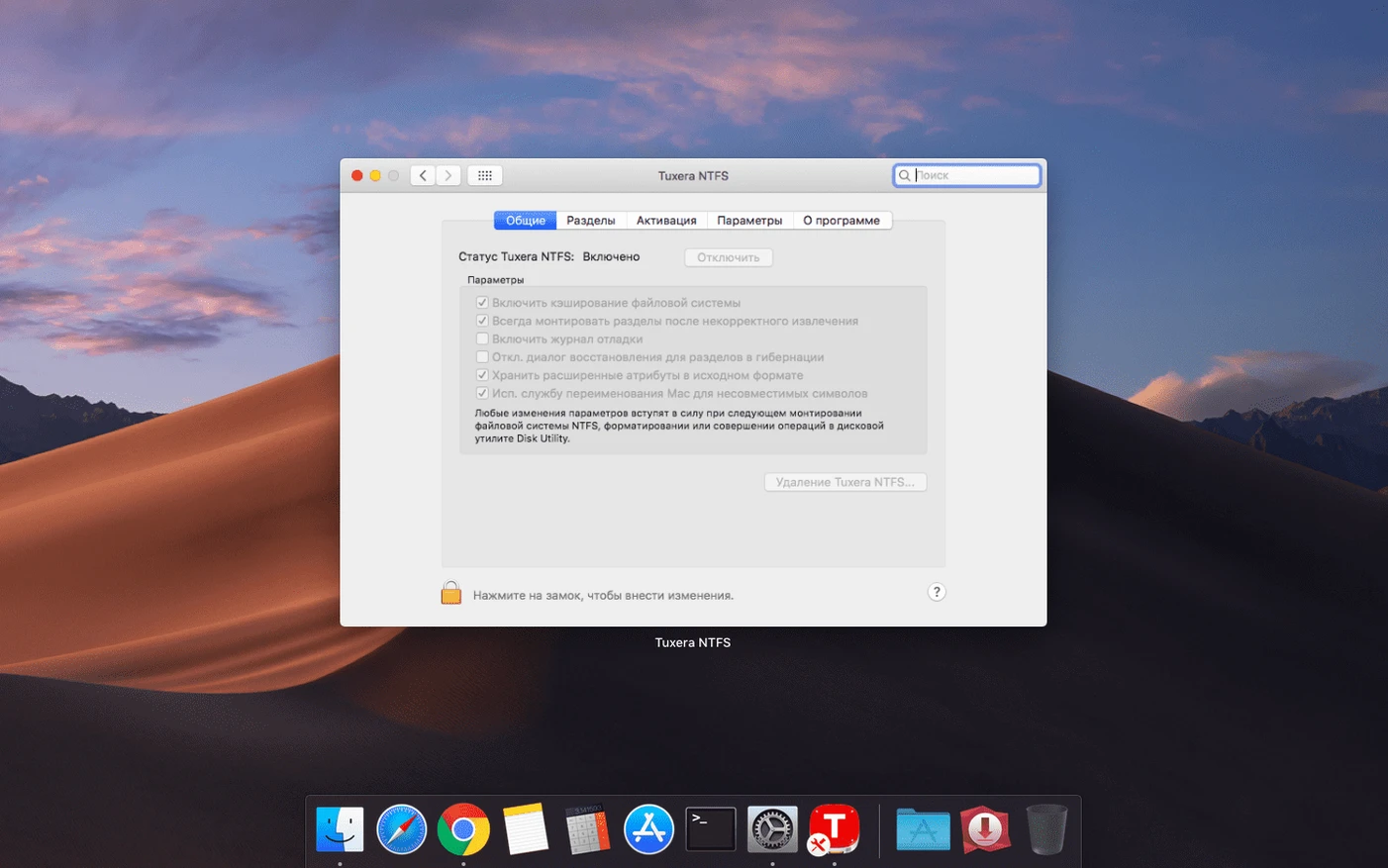
Do I need to change any system settings after installation? Not for basic use. Once the driver is installed and the Mac has restarted, NTFS drives appear in the Finder with full read and write access. No terminal commands or preference pane tweaks are required.
Can I remove it later if I don't like it? Yes. The driver comes with an uninstaller in the disk image, or you can remove it manually by deleting the kernel extension and related files. A restart is needed either way.
Does it affect performance on non-NTFS drives? No. The driver only loads when an NTFS volume is mounted. Other file system operations run exactly as they did before.
Will it work with a drive that has BitLocker encryption? No. Tuxera NTFS handles the file system layer, not the encryption layer. BitLocker-protected drives need to be unlocked in Windows first.
Sits alongside Paragon NTFS and Apple's hidden write support
Tuxera NTFS sits alongside two other common approaches for NTFS writing on macOS: Paragon NTFS for Mac and the built-in but hidden Apple NTFS write support.
Paragon NTFS for Mac is the closest equivalent in terms of feature set. Both are commercial drivers that install as a system extension and provide Finder-level read and write access. Paragon offers a slightly different set of maintenance tools and a different preference pane layout, but the day-to-day experience is similar. The choice often comes down to which driver behaves more predictably with a particular combination of drive firmware and macOS version.
Apple's native NTFS write support exists in macOS but is disabled by default. Enabling it requires editing /etc/fstab or using terminal commands, and it only works with drives that are already mounted. It has no repair tools, no disk image creation and no official support from Apple. It works for basic transfers but feels unfinished — Tuxera NTFS is the more complete, supported solution.
Neither of these alternatives offers the same range of localised interfaces. Tuxera NTFS ships in over thirty languages, which matters in shared studio or office environments where not everyone works in English.
Best for moving files between Windows and Mac regularly
The obvious group is anyone who moves files between a Windows PC and a Mac on a regular basis. That includes photographers handing off drives to clients, video editors receiving project media from PC-based collaborators, and IT staff who manage a mixed-platform office.
A less obvious group is users running Windows in a virtual machine. If you use Parallels Desktop, VMware Fusion or VirtualBox, having the NTFS driver on the macOS side means the same USB drive is writable from both the host and the guest without unmounting and remounting. That saves time when you are exporting a file from Windows and need to access it from a Mac app immediately after.
Dual-boot users with Boot Camp also benefit. The Windows partition is NTFS by default, and macOS can normally only read it. With Tuxera NTFS installed, you can copy files to the Windows partition from macOS, which is useful when you want to grab a document without rebooting.
Archivists and backup managers who keep long-term backups on NTFS drives — common in corporate environments where Windows is the primary OS — will appreciate that the driver handles large volumes and deep directory trees without the time-stamp corruption that earlier versions occasionally introduced. The 2023.1 release specifically addresses that.
Not restarting after installation leaves drives read-only
Not restarting after installation. The driver is a kernel extension. It does not become active until the Mac reboots. Plugging in an NTFS drive immediately after running the installer and finding it still read-only is a common moment of confusion.
Forgetting to eject drives properly. This applies to any external drive, but NTFS volumes are less forgiving than APFS or HFS+ if they are disconnected without being ejected first. The driver writes to the volume in a way that assumes a clean dismount, and pulling the cable mid-write can leave the drive in a state that requires Windows to repair it.
Assuming it works with network drives. Tuxera NTFS is a driver for locally attached drives — USB, Thunderbolt, FireWire, SATA via adapter. It does not provide NTFS write access over SMB, AFP or NFS. If you need to write to an NTFS volume shared over a network, the server must handle the write permissions itself.
Using it with drives formatted by the Windows Disk Management tool that have hidden system partitions. Some external drives ship with a small FAT32 partition for drivers or utilities alongside the main NTFS partition. The driver sees both. Beginners sometimes accidentally write to the wrong volume or wonder why a drive shows up as two icons in the Finder.
Expecting it to fix a corrupted NTFS drive completely. The verify and repair functions handle common file system inconsistencies, but they are not a substitute for proper Windows-based recovery tools if the drive has severe damage. It is a maintenance tool, not a data recovery application.
Yes. The driver supports NTFS access when Windows runs in a VM, so the same volumes stay writable from both sides of the virtual fence.
Changes in this build
- Fixed an issue that could cause incorrect date or time stamps for files copied to NTFS volumes.
Before it goes on the Mac
- macOS OS X 10.9 or later
- Intel or Apple Silicon
- Interface languages: Russian, English, German, Arabic, Hungarian, Vietnamese, Greek, Danish, Hebrew, Indonesian, Spanish, Italian, Catalan, Chinese (Simplified), Korean, Malay, Dutch, Norwegian, Polish, Portuguese, Romanian, Slovak, Thai, Turkish, Ukrainian, Finnish, French, Croatian, Czech, Swedish, Japanese
Questions from the room
Does Tuxera NTFS support all versions of NTFS?
Yes, it supports all versions of NTFS, so older and newer Windows-formatted drives are covered.
Installing it on the Mac
- Launch the downloaded disk image and follow the standard installation procedure.
- Download the registration keys from the provided link.
- Official updates do not remove activation.
Notes from the control room
Sign in or open a catalogue account to leave a note.
No notes from the room yet. If you have used this build for a week, a short note helps the next person.
Also filed under Utilities
The whole Utilities rack TunesKit iPhone Unlocker2.7.0 Utilities 64 MB
 Transmit5.11.7 Utilities 34 MB
 Updatest2.4.2 Utilities 10 MB
 VideoProc Converter6.6 Utilities 86 MB
 ViWizard Spotify Music Converter2.17.0 Utilities 7 MB
 VMware Fusion Pro26H1 Utilities 479 MB
 WALTR PRO4.0.122 Utilities 29 MB
 Tenorshare UltData9.5.0 Utilities 29 MB