

Transmit 5.11.7 (Mac)
Updated
The catalogue note
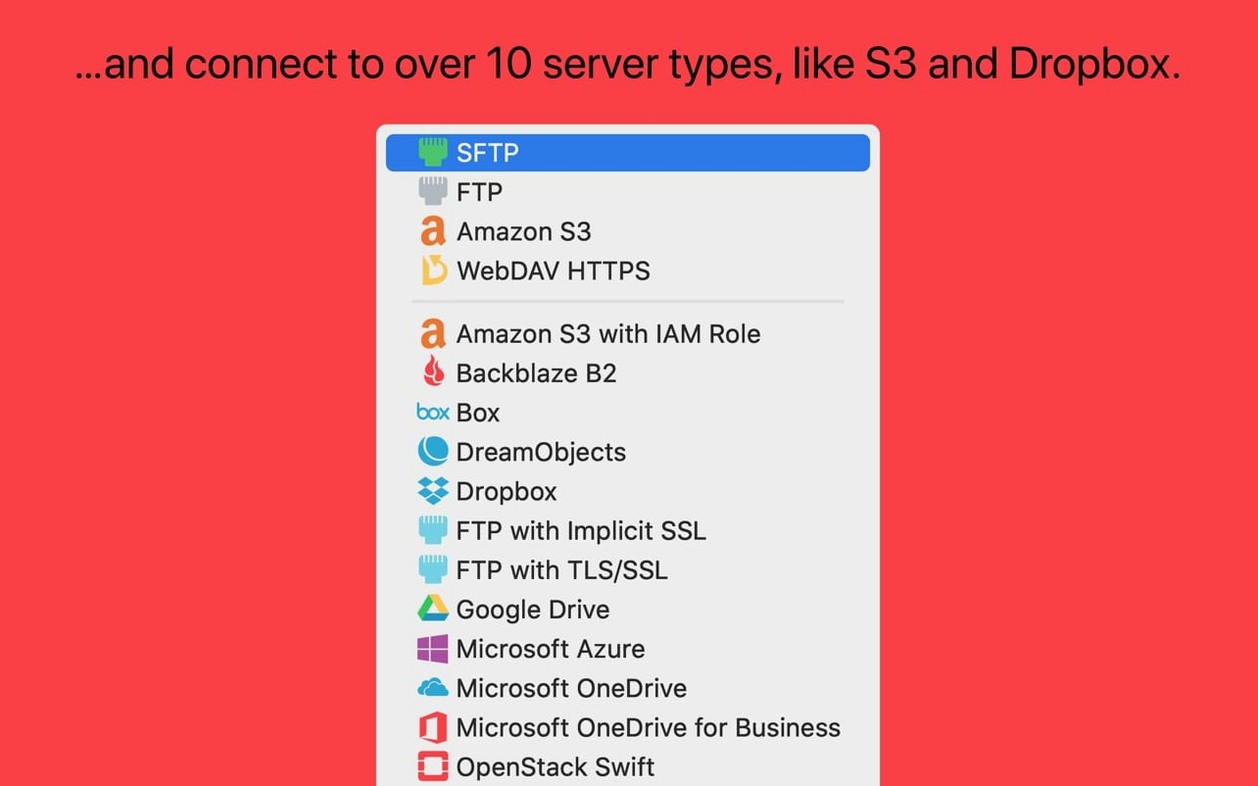
If you have used a file transfer client like Cyberduck or FileZilla, Transmit from Panic will feel familiar. It connects to FTP, SFTP, S3, and WebDAV servers, and also handles Backblaze B2, Box, Google Drive, Dropbox, and a handful of other cloud services. Here is what a newcomer should look at first.
Set up your first connection with server address and credentials
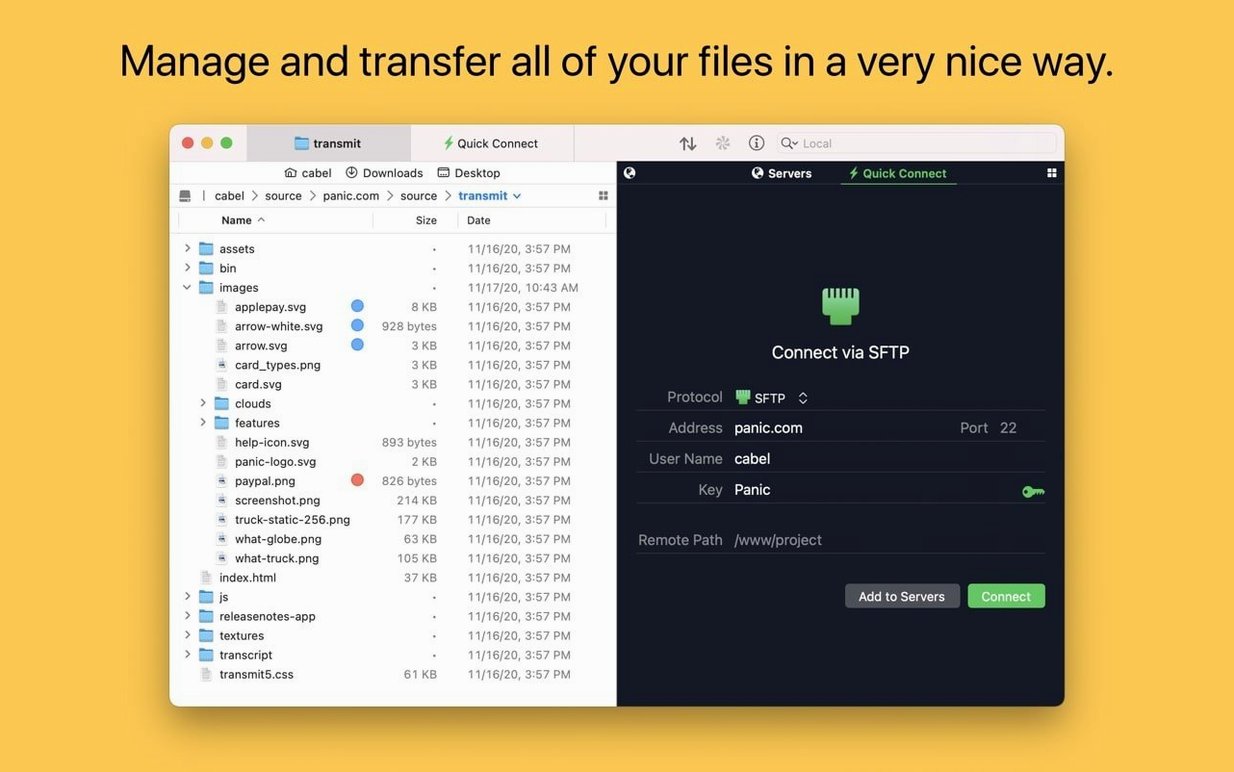
Open Transmit and click the + icon in the toolbar. Choose a protocol (FTP, SFTP, S3, or WebDAV), then enter your server address and credentials. For SSH-based connections, you can generate and manage keys directly inside the app.
Can I synchronise folders between my Mac and a remote server?
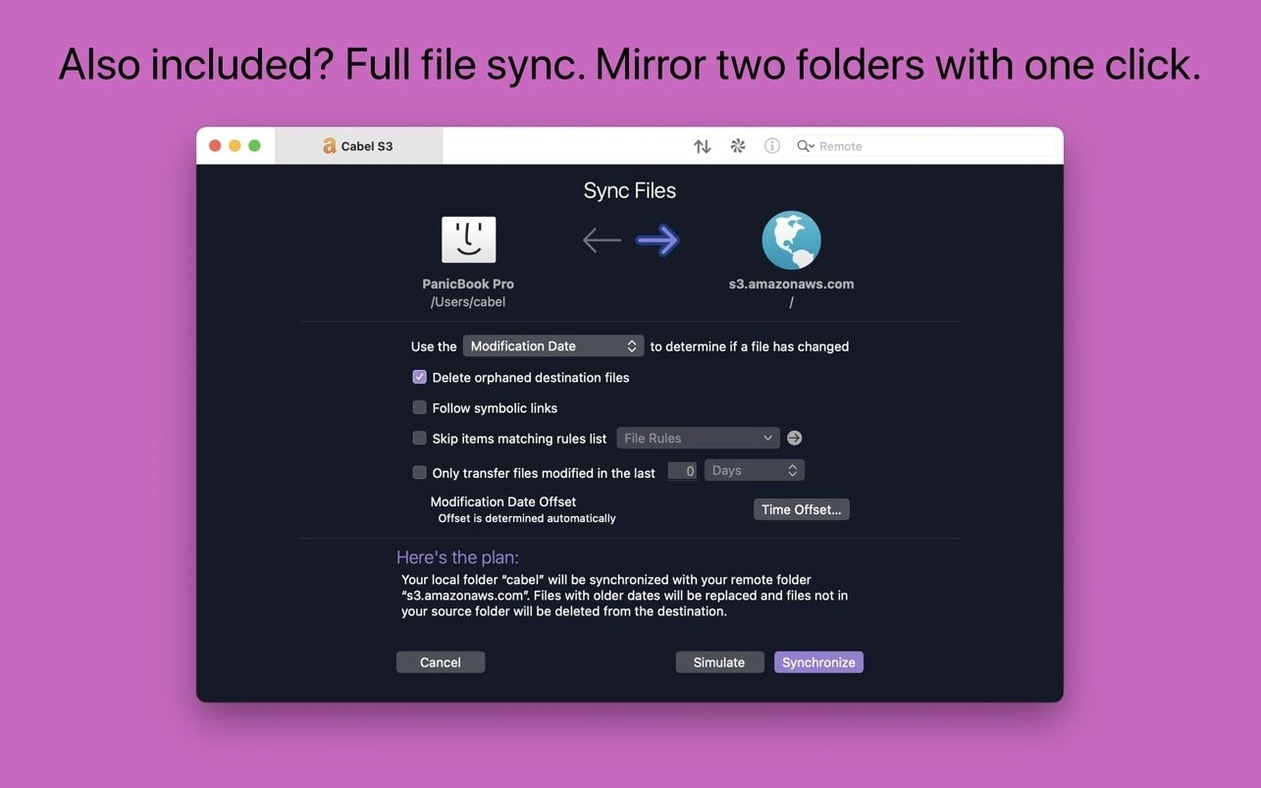
Yes. Transmit supports local and remote file synchronisation. Select two folders — one local, one remote — and Transmit will compare them and let you copy only the files that differ.
What about keeping my site list across Macs?
Transmit includes Panic Sync, which stores your server list in the cloud so it stays in sync across your own machines. No account needed beyond a Panic ID.
Workflow: publish a static site from scratch
Let me walk through one common scenario — updating a small static site hosted on an SFTP server. This is the kind of task Transmit handles without ceremony.
- Open the site entry. Double-click the saved server in the sidebar, or use the Places Bar if you have pinned the folder. The remote root appears on the right side of the window.
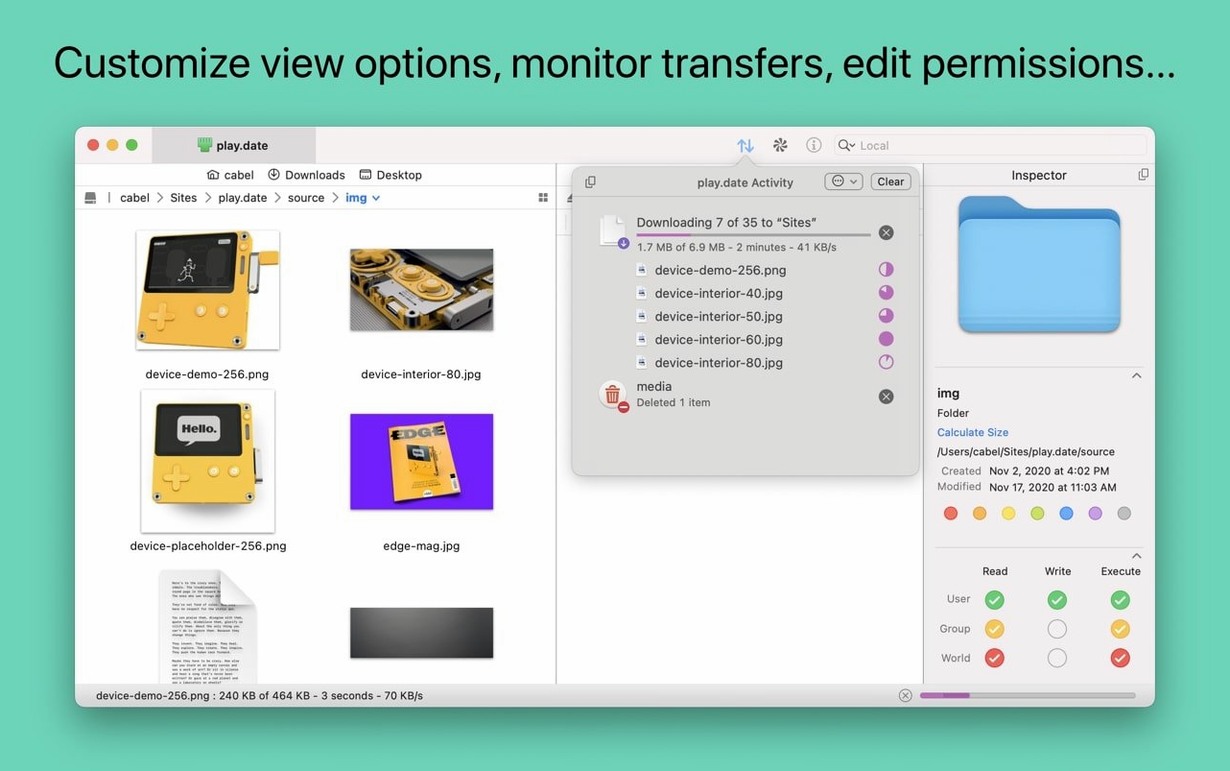
- Navigate to your project folder. On the local side, drag the folder from Finder onto the left panel, or use cmd+L to browse to it. The information sidebar on the far right shows file sizes and modification dates — useful when you are checking what changed since the last upload.
- Compare and synchronise. Select the local folder, then cmd-click the remote folder so both are highlighted. Click the synchronise button in the toolbar. Transmit compares timestamps and sizes, then presents a list of files that differ. You can choose to upload only the changed files, download them, or mirror the whole folder.
- Rename files in bulk if needed. Before uploading, I often use batch renaming to strip development suffixes from filenames. Select the local files, right-click and choose Rename Files. The dialog lets you search and replace, add prefixes, or renumber sequences. Version 5.11.6 made the German text entry fields wider — a small but welcome fix if you work in that locale.
- Upload. Press the Upload button or drag the selected files onto the remote panel. Transmit queues the transfers and shows progress in a slim bar at the bottom. For S3 uploads, if a file exceeds the size limit, version 5.11.6 now reports the error with a clearer message instead of failing silently.
- Verify with the Info panel. Click any uploaded file and the Get Info button in the toolbar becomes active immediately after launch — a change in 5.11.6 that saves a click. The panel shows permissions, MIME type, and checksums where available.
One habit I picked up: when the server list grows beyond ten entries, tag them. Tags are colour-coded labels you can assign to any saved connection. I tag personal sites green, client work blue, and staging servers yellow. The filter bar at the top of the site list then narrows the view to one colour. That is faster than scrolling through thirty servers every morning.
Avoid delays by setting passive FTP explicitly
- Default transfer mode. Transmit defaults to automatic protocol detection, but if you know a server only supports passive FTP, set it explicitly in the site settings. It avoids the small delay Transmit spends testing the connection type.
- Panic Sync. Enable it from Preferences → Sync. It is not required, but if you work from a desktop and a laptop, it keeps your site list, tags, and passwords (stored in the macOS keychain) identical on both machines. The sync happens in the background whenever you save a change.
- Two-factor login. For any server that supports it, turn on two-factor authentication in the site settings. Transmit will prompt for the second code after you enter the password. This is straightforward to set up and prevents credential leaks from becoming a server breach.
- Information sidebar visibility. If the right panel feels cramped, go to View → Show Info Panel and toggle it off. You can bring it back with cmd+I when you need to inspect a file. The sidebar is most useful when browsing large directory trees — it shows thumbnails for images and play lengths for audio files without downloading them.
Generate and manage SSH keys directly in the app
Does Transmit work with macOS 13 Ventura and newer?
Yes. Version 5.11.6 requires macOS 13.0 or later, and runs natively on both Apple Silicon and Intel Macs. The same binary handles both architectures — no separate download for ARM or x86.
Can I use Transmit to transfer files between two remote servers directly?
No. Transmit is built for local-to-remote or remote-to-local transfers. For server-to-server moves, you would download to your Mac first and then upload to the second destination. That adds a pass through your local machine, but it keeps the workflow simple and avoids the complexity of a mediated transfer.
What cloud services does it support beyond FTP and SFTP?
Transmit connects to Amazon S3, Backblaze B2, Box, Google Drive, DreamObjects, Dropbox, Microsoft Azure, and Rackspace Cloud Files. Each service appears as a separate protocol choice when you create a new site. Credentials are stored in the macOS keychain, not in a plain text file.
Is it possible to open a Terminal session at the current remote directory?
Yes. Right-click any folder in the remote panel and choose “Open in Terminal.” A new Terminal window opens with an SSH session already logged into that path, assuming your server supports shell access. This is useful when you need to run a git command or check server logs without leaving Transmit.
Changes in this build
- Fixed a crash when dragging files into IntelliJ.
- Improved error reporting for files too large to upload to S3.
- Get Info toolbar button is now active immediately after launch.
- German File Rename text entry fields are larger.
Before it goes on the Mac
- macOS 13.0 Ventura or later
- Intel or Apple Silicon Mac
Questions from the room
What macOS version does Transmit 5.11.6 require?
Transmit 5.11.6 requires macOS 13.0 Ventura or later.
Which cloud storage services does Transmit support?
It connects to Backblaze B2, Box, Google Drive, DreamObjects, Dropbox, Microsoft Azure, and Rackspace Cloud Files.
Does Transmit support file tags?
Yes, Transmit includes support for macOS file tags.
Installing it on the Mac
- Open the downloaded disk image.
- Drag the Transmit app to the Applications folder alias.
- Launch the app from Launchpad after copying finishes.
Notes from the control room
Sign in or open a catalogue account to leave a note.
No notes from the room yet. If you have used this build for a week, a short note helps the next person.
Also filed under Utilities
The whole Utilities rack TunesKit iPhone Unlocker2.7.0 Utilities 64 MB
 Tuxera NTFS2023.1 Utilities 111 MB
 Updatest2.4.2 Utilities 10 MB
 Tenorshare UltData9.5.0 Utilities 29 MB
 VideoProc Converter6.6 Utilities 86 MB
 TechSmith Snagit2027.0.0 Utilities 195 MB Updated
 ViWizard Spotify Music Converter2.17.0 Utilities 7 MB
 VMware Fusion Pro26H1 Utilities 479 MB