Home › Utilities › TechSmith Snagit

TechSmith Snagit 2027.0.0 (Mac)
Updated
The catalogue note
The 2026.3.3 update brings a few macOS 27 fixes, including arrow keys in QuickLook and movable capture toolbars. Beyond that, Snagit remains a solid choice for quick, dependable screen work.
| Detail | Value |
|---|---|
| Developer | TechSmith Corporation |
| Current version | 2026.3.3 |
| Category | Utilities |
| Requirements | macOS 15, Intel or Apple Silicon |
| Interface languages | English, German, Spanish, Portuguese, French, Japanese |
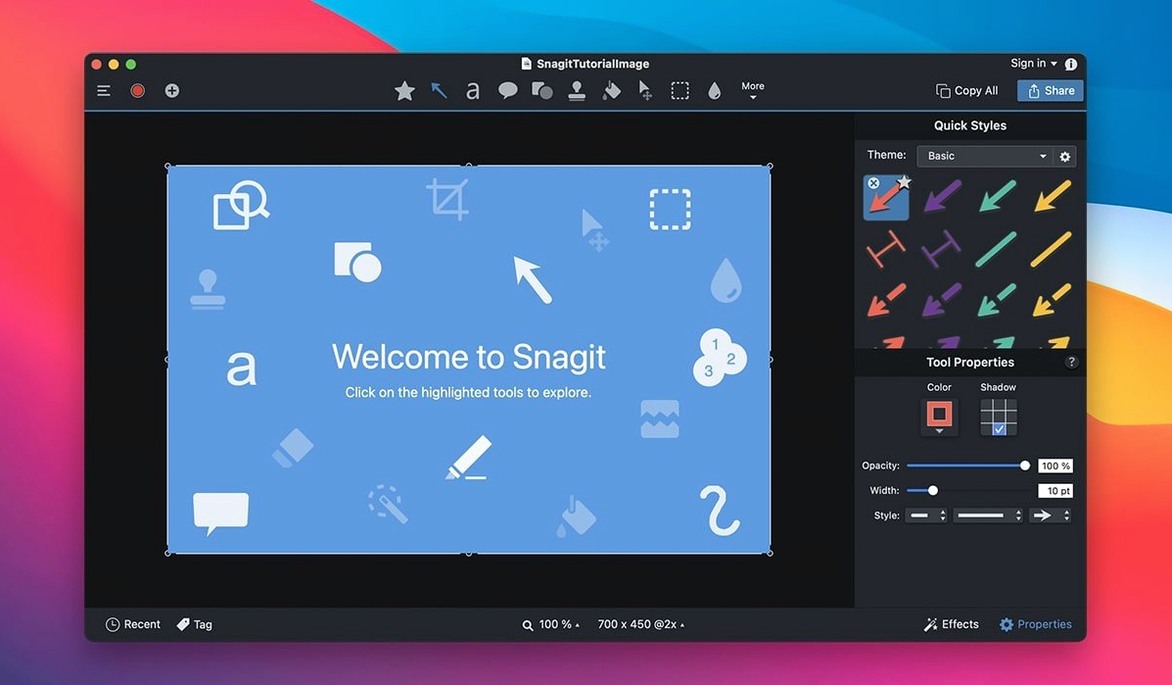
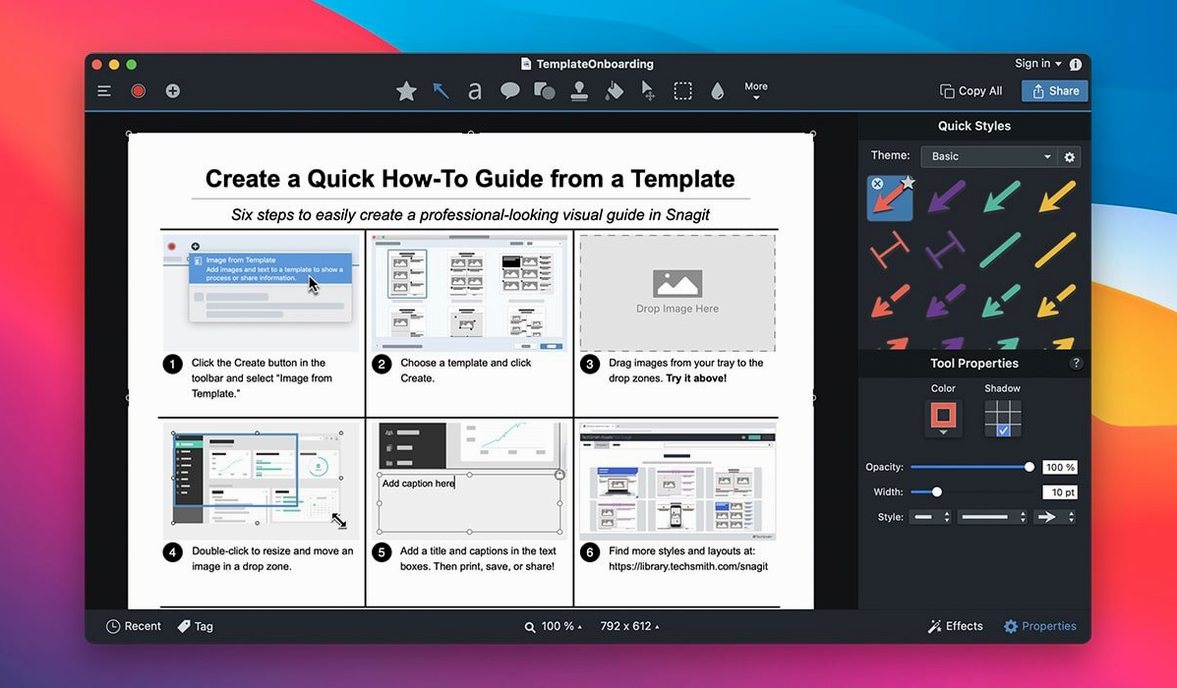
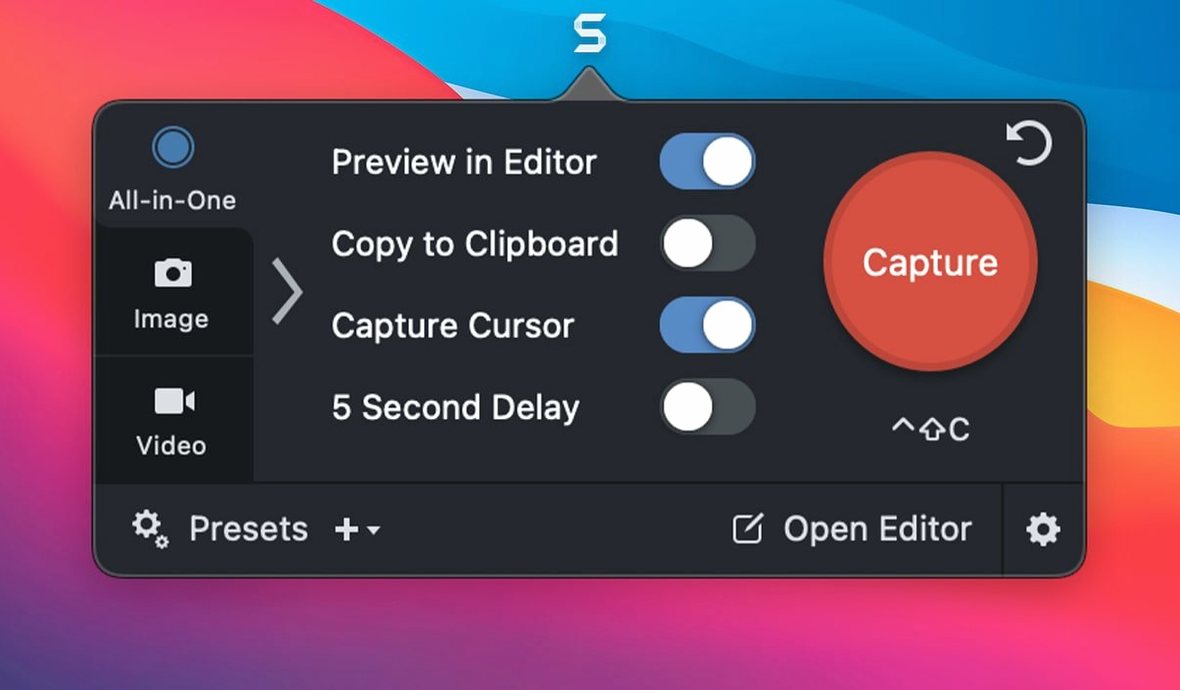
Snagit's standout features each solve a specific problem. The capture presets let you bind keyboard shortcuts to your most-used shots, so you don't dig through menus mid-task. Custom presets cover repeated setups, like a fixed window region with a specific effect. The library automatically files every capture, and you can search by date or source, which beats hunting through the desktop. Text capture pulls selectable text from web pages, handy for quoting without retyping. The collage tool combines several images into one layout when you need a quick before-and-after. Removing part of an image or swapping the background handles cleanup without opening a full editor. Publishing goes beyond local saving, with direct exports to OneNote, MindManager, Office Project, a blog, or FTP. Rounded corners give a polished look when you don't want harsh edges. All of it is built to get a capture out the door fast.
Runs on macOS 15 or later with six interface languages
Snagit runs on macOS 15 or later and works on both Intel and Apple Silicon machines. The interface languages cover English, German, Spanish, Portuguese, French, and Japanese, so localisation is adequate for European and Asian teams. The 2026.3.3 build is the current release, and the developers at TechSmith Corporation have kept the footprint sensible. Given the capture engine and the built-in editor, you are looking at an app that starts quickly enough for ad-hoc grabs. No background services running wild between captures. The library database lives locally, which keeps your search and tagging responsive. If you are on macOS 27, the latest fixes are directly relevant — more on that below.
Video playback controls and QuickLook arrow keys fixed
The 2026.3.3 update addressed three specific problems found on macOS 27. Video playback controls in the Snagit editor now respond properly, so you can scrub through recordings without the controls freezing. The arrow keys in the library's QuickLook preview work again, which matters when you flip through a batch of captures to find the right one. And the capture toolbars and controls can be moved on screen again — a fix that restores the ability to drag them out of the way when you are framing a shot. None of these are flashy additions, but they remove friction for anyone who moved to macOS 27 early. If you are still on macOS 15 or 16, these changes do not affect you, but the same build includes them anyway. The custom presets, keyboard shortcuts, and library search all behave the same as before.
Start by pressing the default capture shortcut for a support article
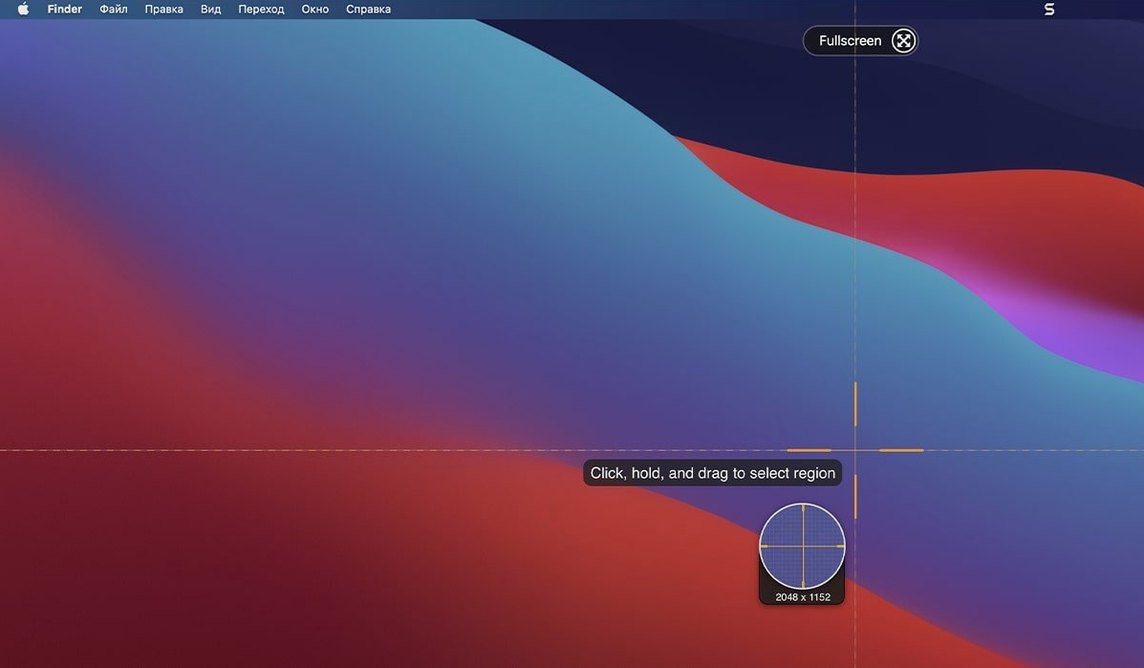
You start the session by deciding what to grab. Say you are documenting a support article for a software update. Open the app and press the default capture shortcut — the toolbars appear at the top of the screen. You select a custom preset called "Application Window with Shadow" that you set up last week. The capture fires, and the image opens in the Snagit editor.
First, you crop out a redundant sidebar. Then you add a callout — an arrow pointing to the new button, with a short label. The shadow effect on the image edges comes from the preset, so you skip that step. You use the highlight tool to emphasise a text field. The image needs a background change because the original is too cluttered, so you swap it to a solid white. Next, you combine two related captures into a collage, side by side, with a thin border between them. You remove a distracting icon from one part using the image removal tool. Finally, you give the whole thing rounded corners for a cleaner look.
Back in the library, you tag the capture with the version number and add today's date. You search by source to verify it matches the previous batch from the same application. You press the publish button and send it to the company blog via FTP. The whole process takes a few minutes, and you never opened Photoshop or a separate text editor. The library files the original and the edited version automatically.
Ignoring capture presets wastes seconds on each shot
The most common misstep is ignoring capture presets. New users fire up the default full-screen capture every time and crop later. That works, but you waste seconds on each shot. Setting a custom preset for "Window with Delay" or "Selection with Shadow" saves time and keeps the output consistent.
Another habit is not using keyboard shortcuts for presets. Clicking through the menu each time defeats the purpose of a quick-grab tool. Assign a key combination to your three most-used presets and you will reach for Snagit much more often.
Beginners also tend to skip the library entirely. They save captures to the desktop or a project folder and rely on file names. After a few weeks, finding an old screenshot becomes a hunt. The library's search by date and source works, and tags make retrieval near-instant. A few tags per capture now saves you digging later.
A subtle one is over-editing. Snagit's editor is fast, but it is not Photoshop. People try to remove complex backgrounds or composite multiple images with transparency. The tool is built for clean, simple edits. If you need layer-based work, take the capture into a proper image editor. Snagit shines when you keep it to cropping, callouts, highlights, and basic background swaps.
Finally, the capture toolbar position matters. The recent fix for macOS 27 reminds everyone that you can move the toolbar out of the way. New users sometimes record an entire video with the toolbar blocking the bottom of the frame. Drag it to a corner or a second monitor before you start. Small habit, big difference.
Changes in this build
Snagit 2027.0.0 has arrived. The release notes are up on the TechSmith support portal, covering the full change list for this version.
Before it goes on the Mac
- macOS 15 or later
- Apple Silicon and Intel 64-bit
Questions from the room
Can I capture text from a webpage with Snagit?
Yes, Snagit supports text capture from web pages, so you can copy selectable text without retyping it.
Does Snagit work on Apple Silicon Macs?
Yes, Snagit supports both Intel and Apple Silicon Macs.
Installing it on the Mac
- Mount the disk image and run Open Gatekeeper friendly.
- Press Enter in Terminal to bypass Gatekeeper.
- Drag the app to the Applications folder.
- Open the app when installation is complete.
Notes from the control room
Sign in or open a catalogue account to leave a note.
No notes from the room yet. If you have used this build for a week, a short note helps the next person.