
SwitchResX 4.14.2 (Mac)
Updated
The catalogue note
If you have ever used the built-in Displays pane and wished it offered a few more resolutions, SwitchResX is the tool that gets mentioned in studio circles. It is a macOS utility that extends what macOS lets you do with monitors, and a few questions tend to come up before people install it.
External displays and custom resolutions supported
- Does it work with external displays? Yes. Plasma panels, HDTVs, third-party monitors and projectors are all supported, which makes it useful for checking video output on non-computer screens.
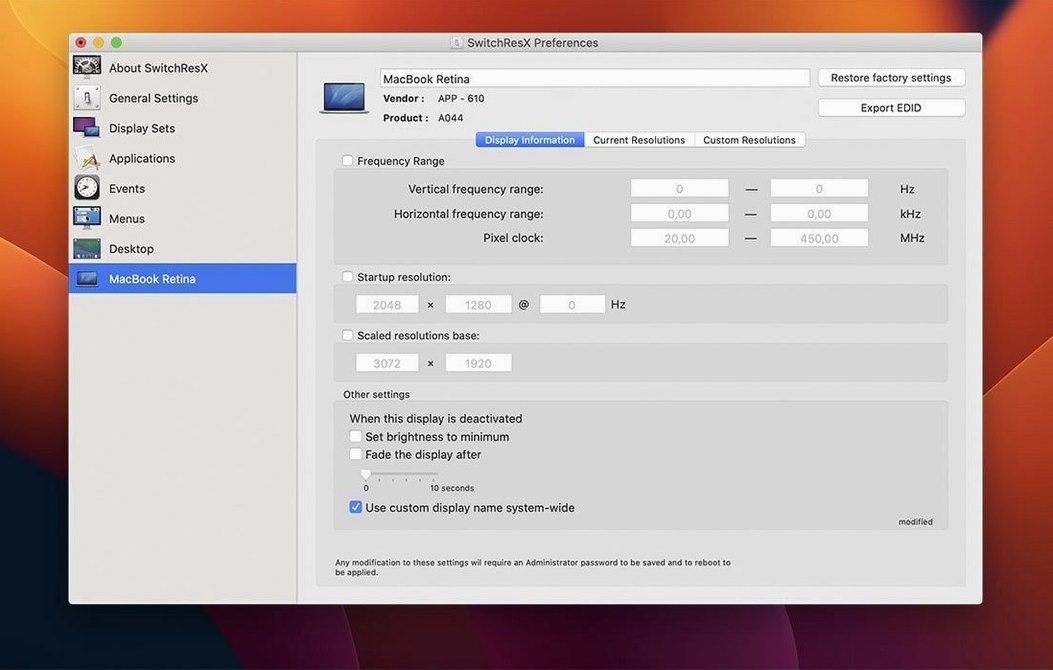
- Can it create resolutions macOS does not offer? It can. You define custom modes and apply them, including on Retina displays.
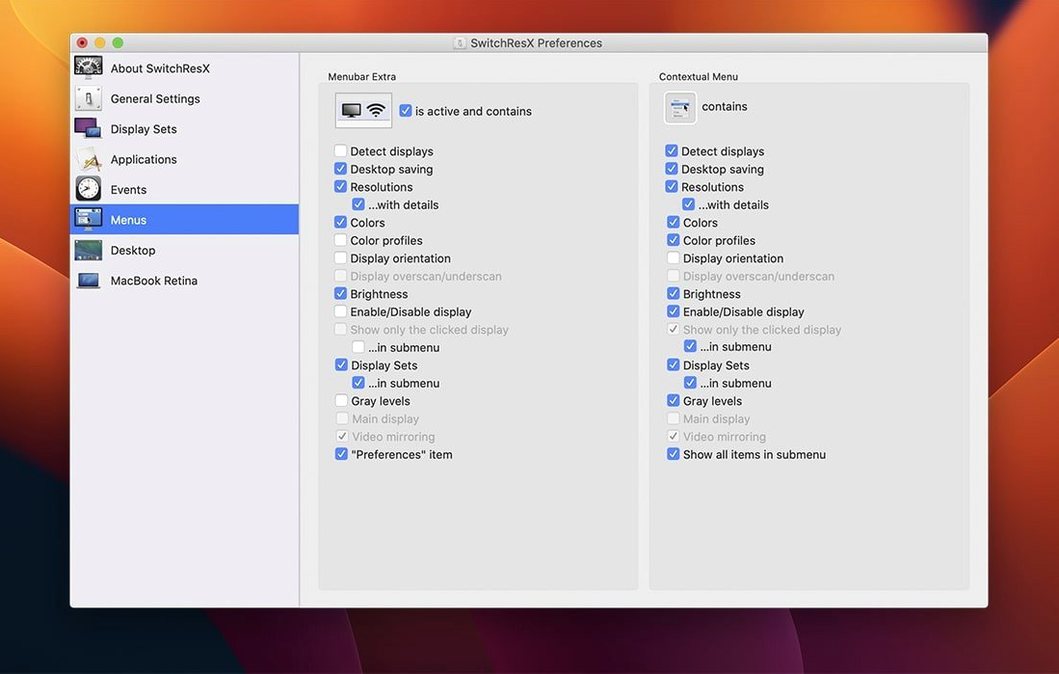
- Does it only handle resolution? No. It also controls monitor colour, rotation, mirroring to a second display, and lets you save colour-plus-resolution profiles.
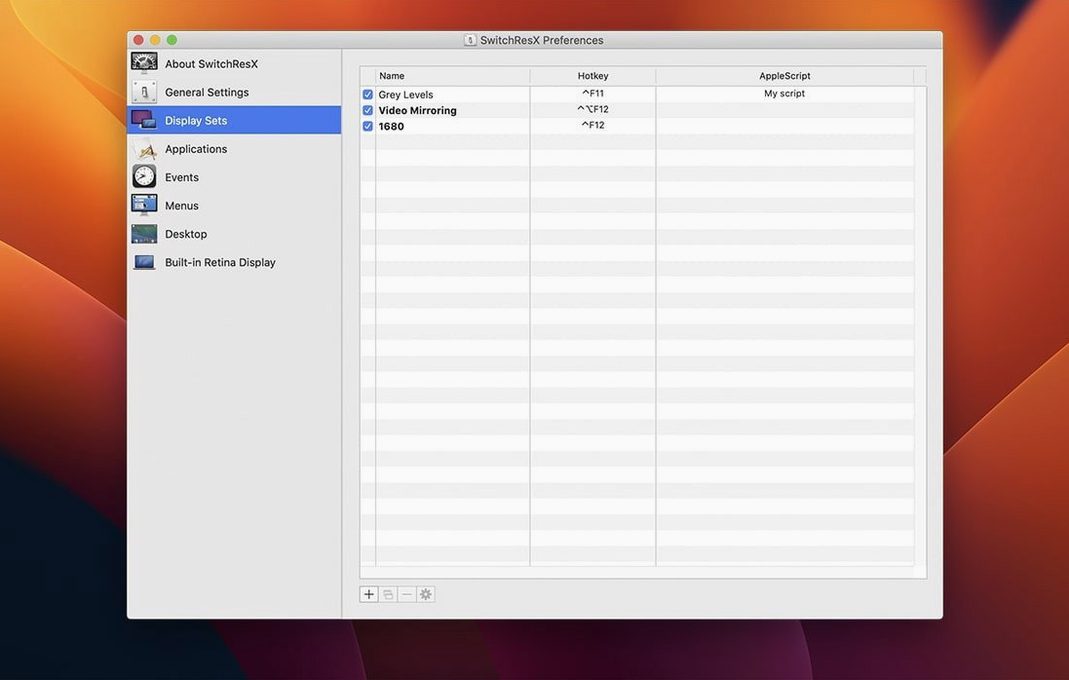
- Can it be automated? It is AppleScript compatible, so you can tie display changes into scripts or other studio tools.
What the serial is for
SwitchResX is a paid utility, and the serial file included with the download is what activates it after installation. The current version, 4.14.2, also fixes a few edge cases: repeated self-updating of settings when no display is attached, displays without a name in macOS, and an issue deleting a Display Set used after another. On Apple Silicon Macs, disabling a display can now also quit the Dock, which matters if you switch between a MacBook screen and an external monitor frequently.
How SwitchResX fits with other apps and macOS features
SwitchResX lives in the menu bar and in System Preferences, so it does not fight with the built-in Displays pane — it supplements it. You can still use Mission Control, Spaces and Stage Manager as normal; the resolution changes happen at the driver level, not by rearranging windows. If you run Final Cut Pro, DaVinci Resolve or any colour-grading tool, creating a custom resolution that matches a broadcast monitor’s native timing is straightforward, and the colour-plus-resolution profiles let you recall a specific monitor calibration alongside the resolution change in one step.
AppleScript support means you can chain SwitchResX actions into a wider automation. For example, a script that opens a project, sets the external display to a specific resolution and then launches a colour checker. It also plays well with keyboard shortcut apps such as Keyboard Maestro or BetterTouchTool — you assign a hotkey to a SwitchResX preset, and the display changes without touching the menu bar. The utility does not interfere with macOS’s built-in display sleep or clamshell mode; those still work as Apple designed them.
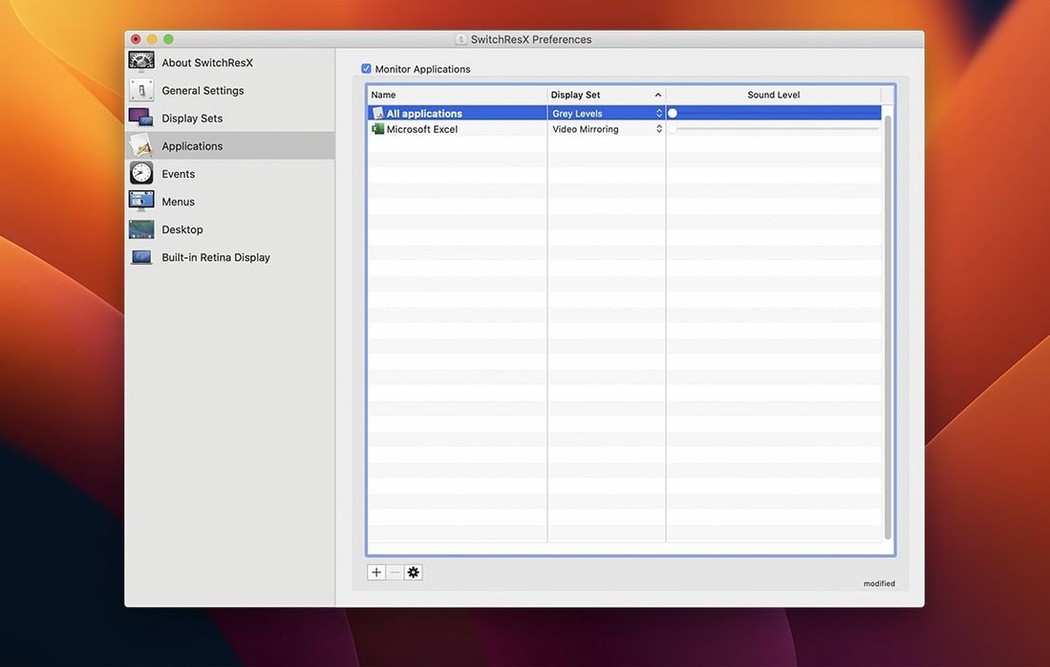
For studio setups where the same Mac drives a projector for client reviews and a reference monitor for editing, the ability to assign resolutions to specific applications becomes useful. Launch the review app, and the projector switches to its native 1080p; switch back to the editor, and the monitor returns to its working resolution. The Display Sets feature (which received a deletion fix in 4.14.2) lets you save entire display configurations — which monitors are active, at what resolution, rotation and mirroring state — and recall them on demand.
Settings churn stops when display is disconnected
- No more settings churn when a display is disconnected. Earlier versions could repeatedly save and update their own preferences when the Mac had no external display attached. This stopped after 4.14.2, so the utility stays quiet when it has nothing to do.
- Displays without a name now behave correctly. Some monitors and adapters show up in macOS with a blank or generic name. The fix means SwitchResX can identify and apply custom resolutions to them without you having to guess which entry is which.
- Display Set deletion order is handled properly. If you had a Display Set that referenced another set and tried to delete the first one, the app could get confused. That edge case is resolved.
- Dock quits when you disable a display on Apple Silicon. On M-series Macs, turning off the internal display (for example, when working in clamshell mode) previously left the Dock running in the background. Now it can quit cleanly, which reduces unnecessary process count when you are driving only an external monitor.
None of these changes add new features, but they remove friction that users with multi-display setups or headless Macs would have felt daily.
Runs on macOS 10.10 or later for Intel and Apple Silicon
SwitchResX 4.14.2 runs on any Mac with OS X 10.10 (Yosemite) or later, and supports both Intel (x86 64-bit) and Apple Silicon (ARM) architectures. The installer is a standard disk image — mount it, run the installer, then use the included serial file for activation. There is no separate download for Intel versus Apple Silicon; the same package works on both.
Because it operates at the system level by installing a preference pane and a background helper, you will see it in System Settings (or System Preferences on older macOS) alongside the native Displays pane. It does not require Rosetta on Apple Silicon — it runs natively. The utility itself is lightweight; it does not install kernel extensions or kexts, so it will not trigger macOS’s security prompts about third-party system software. On machines with multiple user accounts, each user can set their own resolution preferences, but the custom resolutions and Display Sets are stored globally and available to all users.
The language is English only, which matches the developer’s documentation and the interface. If you are running macOS on a MacBook with a built-in display plus one or two external monitors, or on a Mac mini or Mac Studio driving several screens, the requirements stay the same: any Mac from 2014 onward, any macOS version from 10.10 upward. The serial activation is a one-time step — after that, the utility is unlocked and does not phone home or require an internet connection to work.
Changes in this build
- Fixes repeated self-updating of settings when no display is attached.
- Fixes an issue with displays that have no name in macOS.
- Fixes an issue deleting a Display Set used after another Display Set.
- Allows quitting the Dock when disabling a display on Apple Silicon Macs.
Before it goes on the Mac
- macOS OS X 10.10 or later
- Intel or Apple Silicon
- English interface
Questions from the room
Does SwitchResX work with Apple Silicon Macs?
Yes, the current version runs on both Intel and Apple Silicon. It includes a fix for quitting the Dock when disabling a display on Apple Silicon Macs.
Do I need a serial to use SwitchResX?
The download includes a serials file that you use for activation during installation.
Installing it on the Mac
- Mount the downloaded disk image.
- Run the standard installer and follow the prompts.
- Use the included serials file to activate the app.
Notes from the control room
Sign in or open a catalogue account to leave a note.
No notes from the room yet. If you have used this build for a week, a short note helps the next person.
Also filed under Utilities
The whole Utilities rack SuperDuper!4.0.7 Utilities 10 MB
 TechSmith Snagit2027.0.0 Utilities 195 MB Updated
 Tenorshare UltData9.5.0 Utilities 29 MB
 Transmit5.11.7 Utilities 34 MB
 TunesKit iPhone Unlocker2.7.0 Utilities 64 MB
 Tuxera NTFS2023.1 Utilities 111 MB
 SiteSucker Pro6.2.2 Utilities 6 MB
 Shadowrocket2.2.92 Utilities 36 MB