
Home › Logic Pro Plugins › Soundtheory Gullfoss

Soundtheory Gullfoss 1.11.7 (Mac)
Updated
The catalogue note
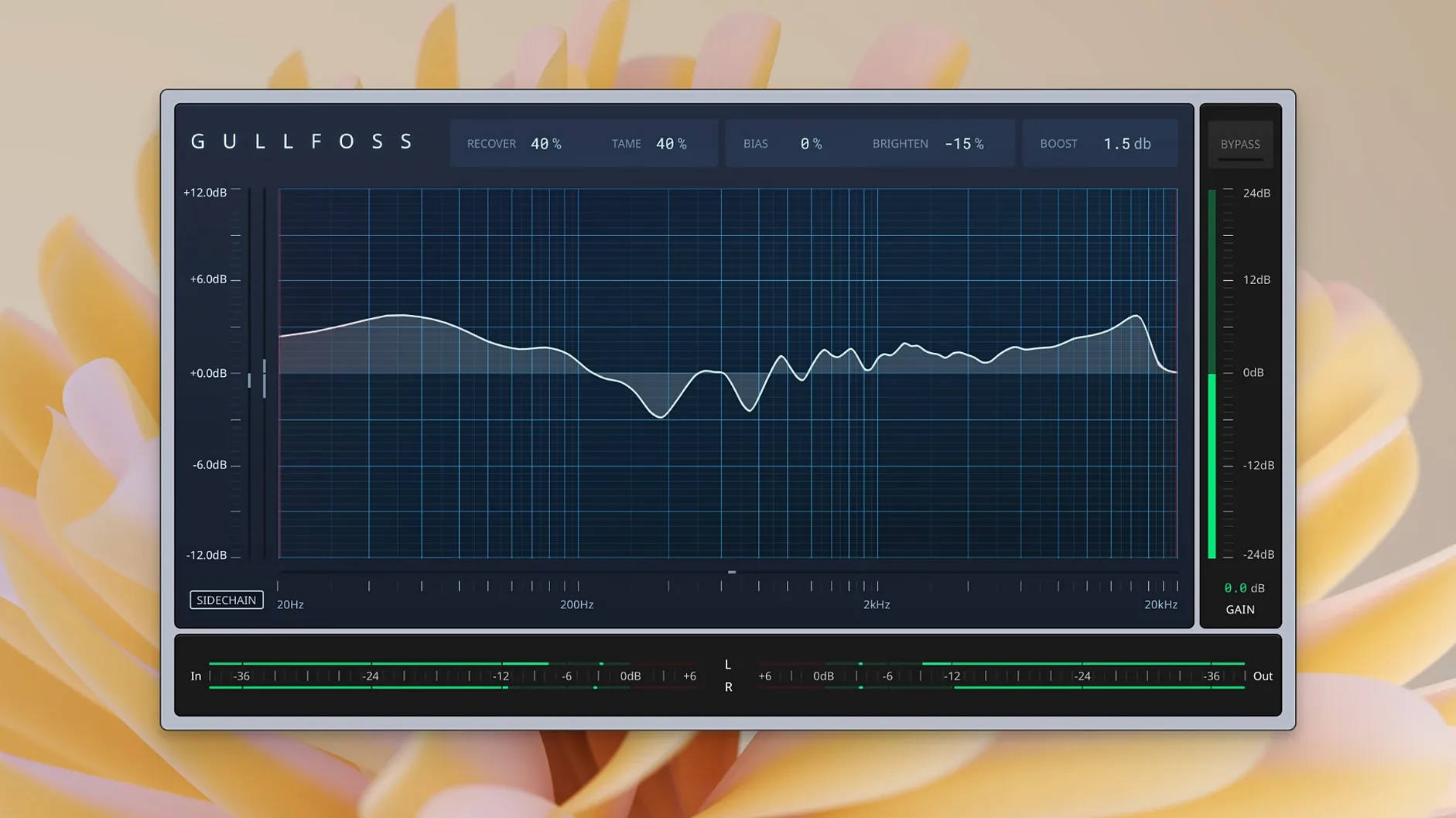
If you already use Logic’s stock EQ or FabFilter Pro‑Q for manual cuts and boosts, Gullfoss works differently. It analyses the audio in real time and adjusts the EQ to reduce frequency masking — the muddiness that happens when competing frequencies blur together. It doesn’t replace your surgical EQ; it sits alongside it, catching what static EQ can’t.
Cleans up masking when vocal cuts through guitars and kick through bass
- Cleaning up a mix where instruments mask each other — vocal cutting through guitars, kick cutting through bass.
- Individual tracks: taming harshness on cymbals or recovering presence on dull recordings.
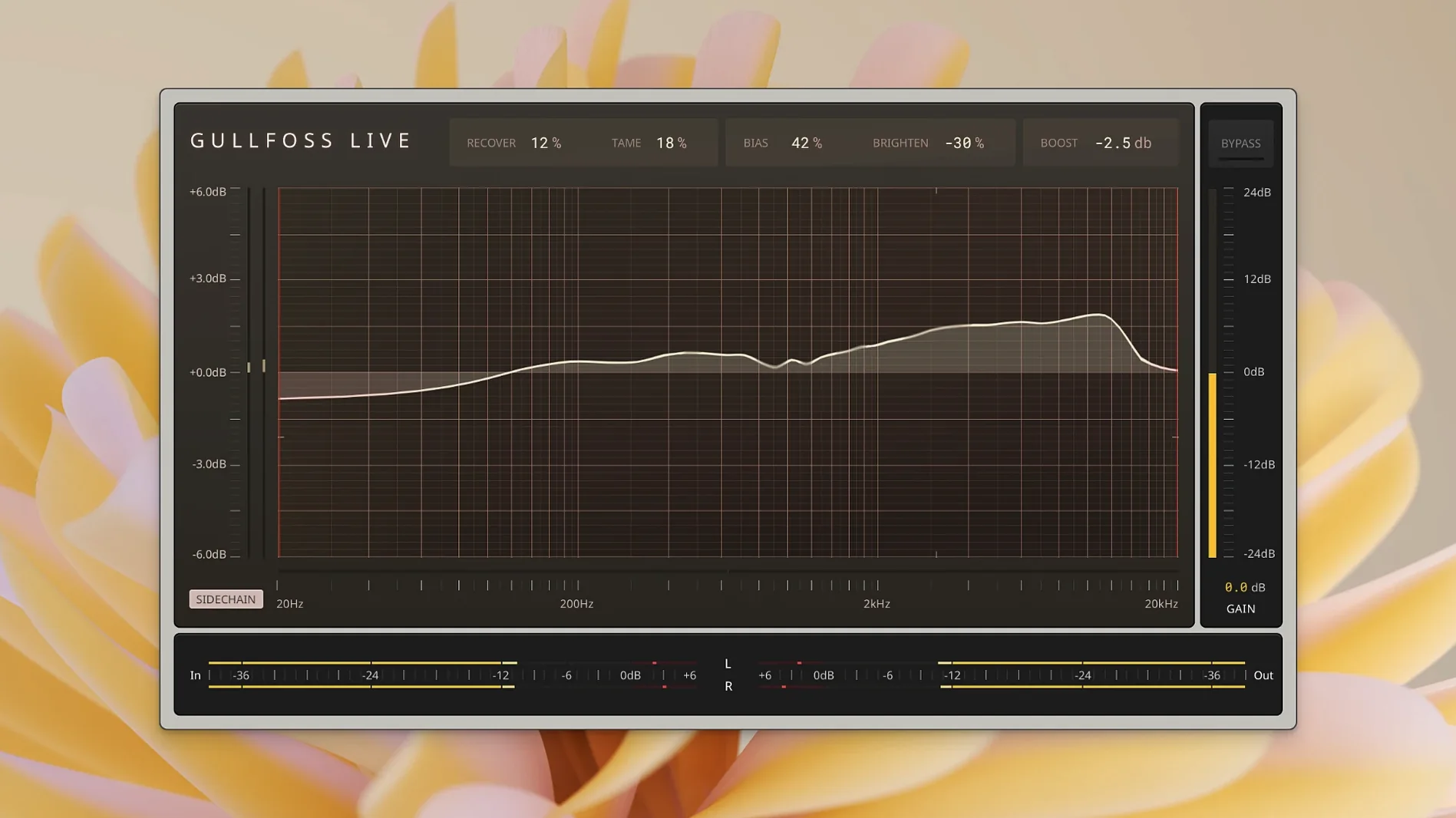
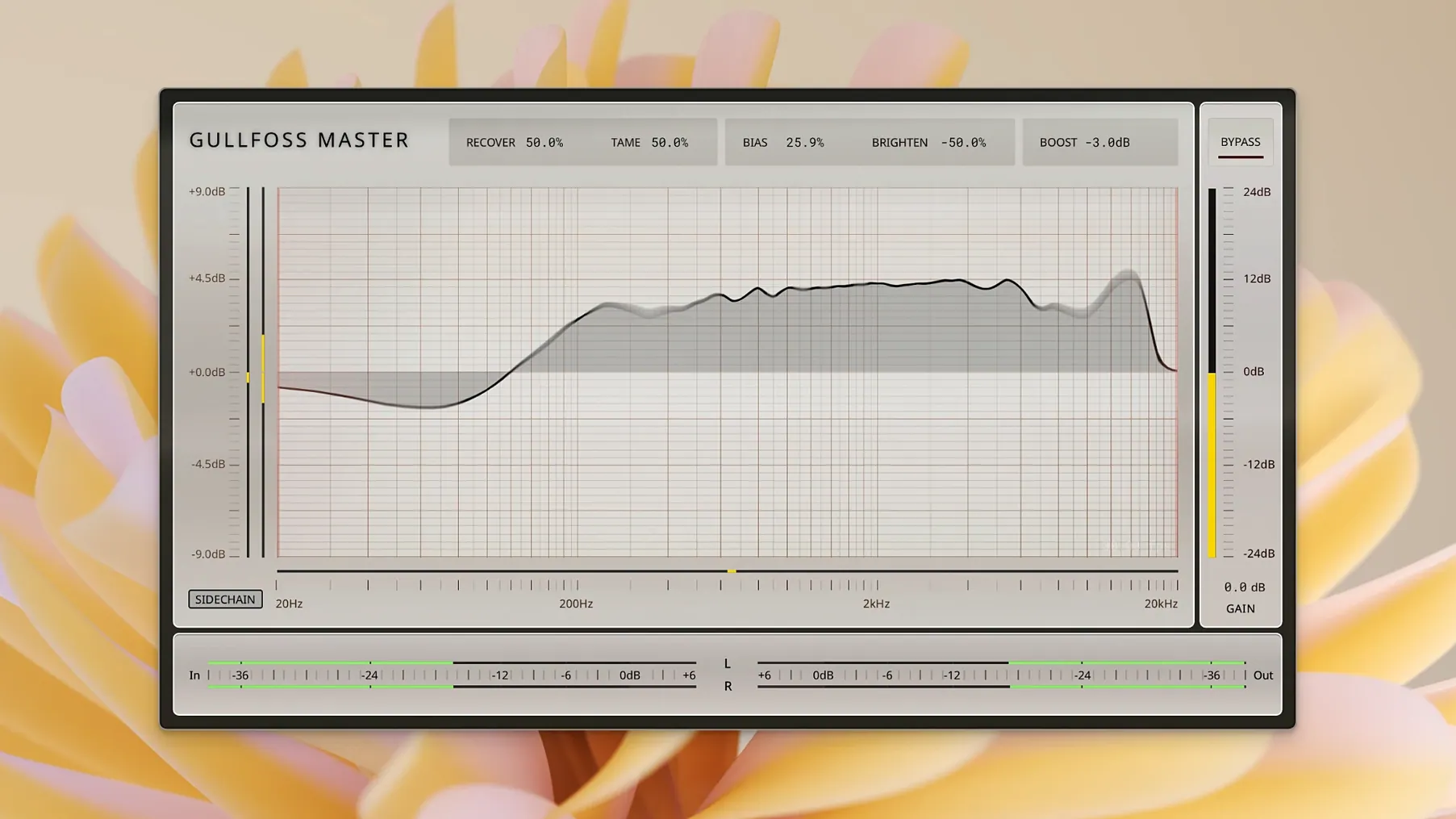
- Three variants in one installer: Gullfoss (standard), Gullfoss Live (low‑latency for tracking or live work), and Gullfoss Master (more subtle processing for the master bus).
- The Bias control lets you lean the balance between Recover (bringing back information) and Tame (cutting problematic energy).
Needs macOS 11, Apple Silicon, and OpenGL 3.2 or later
- Requires macOS 11 (Big Sur) or later and a 64‑bit host. Apple Silicon native.
- Graphics processor must support OpenGL 3.2 or later.
- Activation uses iLok License Manager (physical iLok not required).
- Version 1.11.7 fixes GarageBand compatibility on Intel Macs — relevant if you run an older Intel machine.
- Not a replacement for a parametric EQ; it’s a corrective tool that works in real time.
Start on mix bus bypassed, then listen to the busiest section
Start with Gullfoss on your mix bus, bypassed. Pull the mix up to a moderate listening level — loud enough to hear detail, not so loud that ear fatigue sets in. Listen to the chorus or the busiest section first. You should hear the low end tighten and the vocal slot open slightly without losing body.
Now go track by track. Insert Gullfoss on a vocal bus, set Recover a touch higher than Tame (Bias slightly right), and automate the plugin bypass so it’s active only during verses where the vocal fights the pad. On drum overheads, set Tame a little higher than Recover to pull back cymbal splash. On the bass bus, try the opposite: more Recover to bring out the fundamental, less Tame so you don’t lose weight.
This gives the master bus a more corrective role. Bypass and engage a few times to confirm the overall balance holds.
Open on a single track first with a loop to learn each control
Open Gullfoss on a single track first, not the master bus. Solo the track and play a loop. Then return it to 0. This quick test teaches your ears what each control does without guessing.
Keep a reference track loaded on another bus for comparison. Gullfoss can change the tonal balance enough that your reference loses relevance — A/B with the reference bypassed, not just the plugin.
If you use Gullfoss Live for tracking, enable it on the headphone mix only, not the recorded track. The low‑latency version introduces less phase shift, but it still alters the signal. Record dry, monitor with Gullfoss Live engaged.
Fixes thin or bright mix by lowering Recover and checking monitoring level
Gullfoss makes the mix sound too bright or thin.
This usually means Recover is too high. If the problem persists, check your monitoring level — Gullfoss can exaggerate high frequencies at low listening volumes because of the Fletcher‑Munson curve.
The plugin causes pumping or breathing on the master bus.
Gullfoss reacts to the loudest elements in real time. On a dense master bus, this can sound like compression. If pumping remains, use Gullfoss Master instead of the standard version — its processing is gentler and better suited for the master bus.
No sound or the plugin doesn’t show up in your host.
Verify your host supports AU, VST, VST3, or AAX Native. If you’re on an Intel Mac running GarageBand, version 1.11.7 specifically addressed that compatibility issue — update to the latest installer. Also confirm your Mac’s GPU supports OpenGL 3.2 or later; older Macs with integrated graphics may fail to render the interface.
iLok activation fails or the plugin stays in demo mode.
Install the latest iLok License Manager from PACE’s site. You don’t need a physical dongle, but you must have an iLok account and authorise your machine. Restart your DAW after activation. If it still doesn’t authorise, check that your system date and time are correct — iLok can reject sessions with mismatched clocks.
Changes in this build
- Fixed GarageBand compatibility on Intel Macs.
Before it goes on the Mac
- macOS 11 (Big Sur) or later
- Apple Silicon or Intel (64‑bit)
- 64‑bit plug‑in host (AU, VST, VST3, or AAX Native)
- Graphics processor with OpenGL 3.2 or later
- iLok License Manager for activation
- Interface language: English
Questions from the room
Does Gullfoss work with GarageBand on Intel Macs?
Version 1.11.7 fixes GarageBand compatibility on Intel Macs, so it now works on both Apple Silicon and Intel machines running macOS 11 or later.
Installing it on the Mac
- Run the standard installer provided by Soundtheory.
- Follow the on‑screen prompts to complete installation.
Notes from the control room
Sign in or open a catalogue account to leave a note.
No notes from the room yet. If you have used this build for a week, a short note helps the next person.
Also filed under Logic Pro Plugins
The whole Logic Pro Plugins rack Spire1.5.19 Logic Pro Plugins 158 MB
 Sonible pure:level1.0.2 Logic Pro Plugins 59 MB
 Slate Digital Submerge1.0.5 Logic Pro Plugins 38 MB
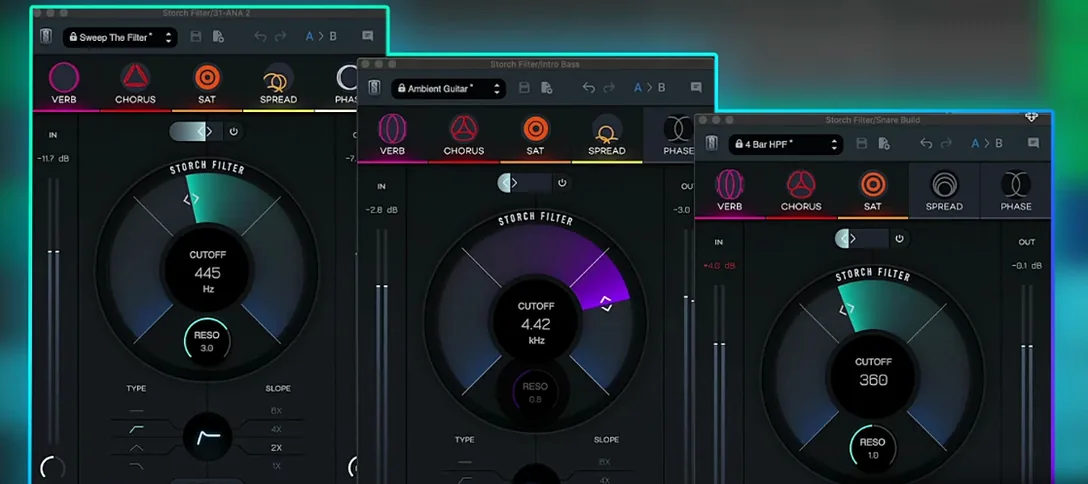 Slate Digital Storch Filter1.0.6 Logic Pro Plugins 69 MB
 Slate Digital Murda Melodies1.1.1 Logic Pro Plugins 179 MB
 Slate Digital Fresh Air1.0.9 Logic Pro Plugins 40 MB
 Supertone Air1.0.1 Logic Pro Plugins 408 MB
 Serato Sample2.2.0 Logic Pro Plugins 612 MB