
Home › Logic Pro Plugins › MiniMeters
MiniMeters 1.0.30 (Mac)
Updated
The catalogue note
MiniMeters is a compact audio metering application and plug-in suite for macOS that gives you real-time visual feedback on your mix without clutter.
What does it show about my mix?
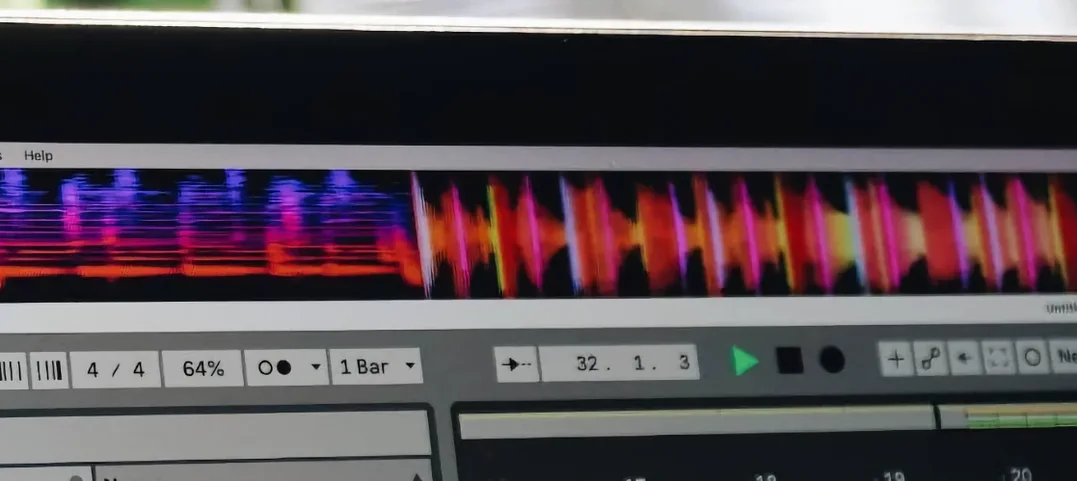
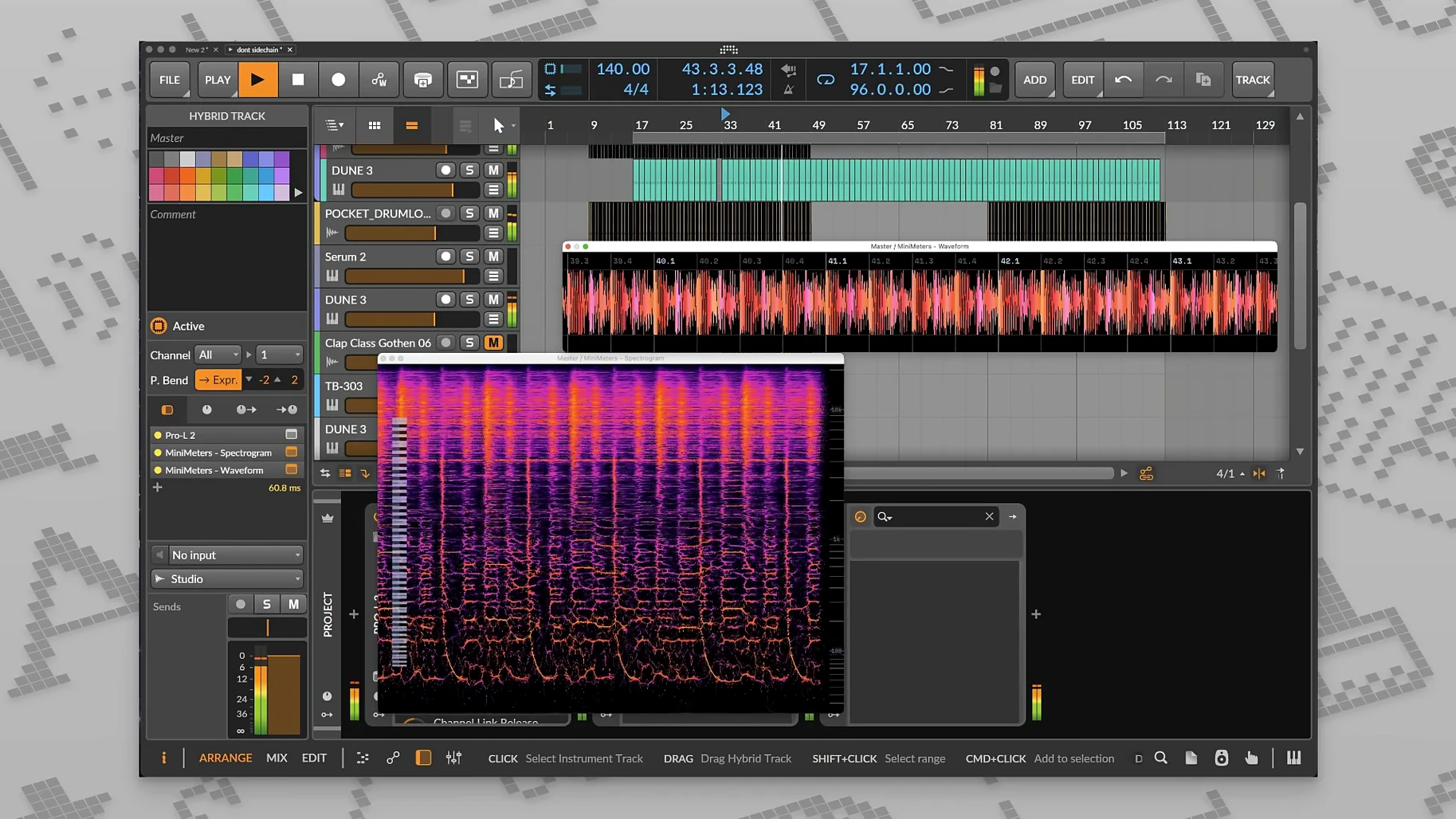
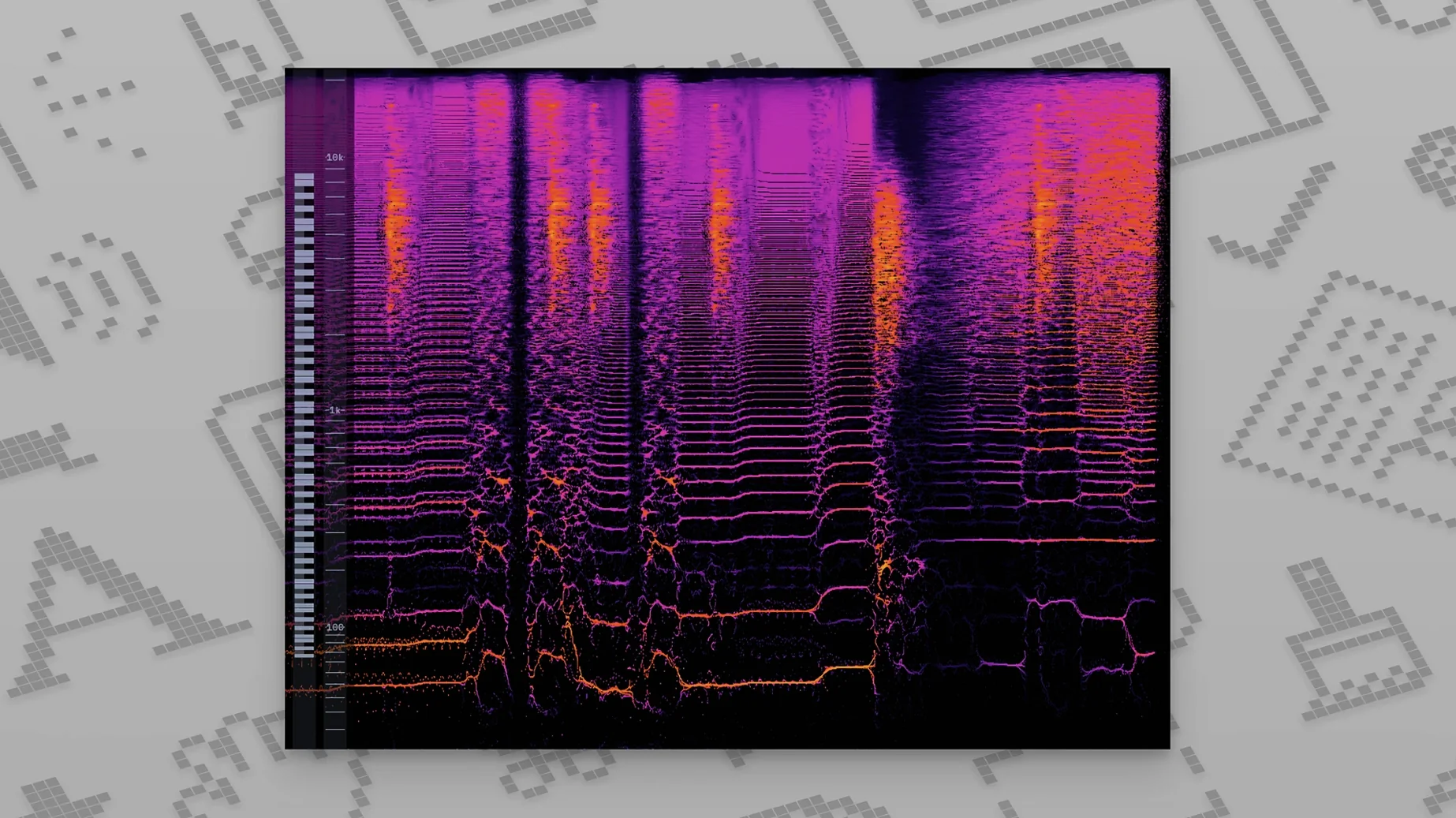
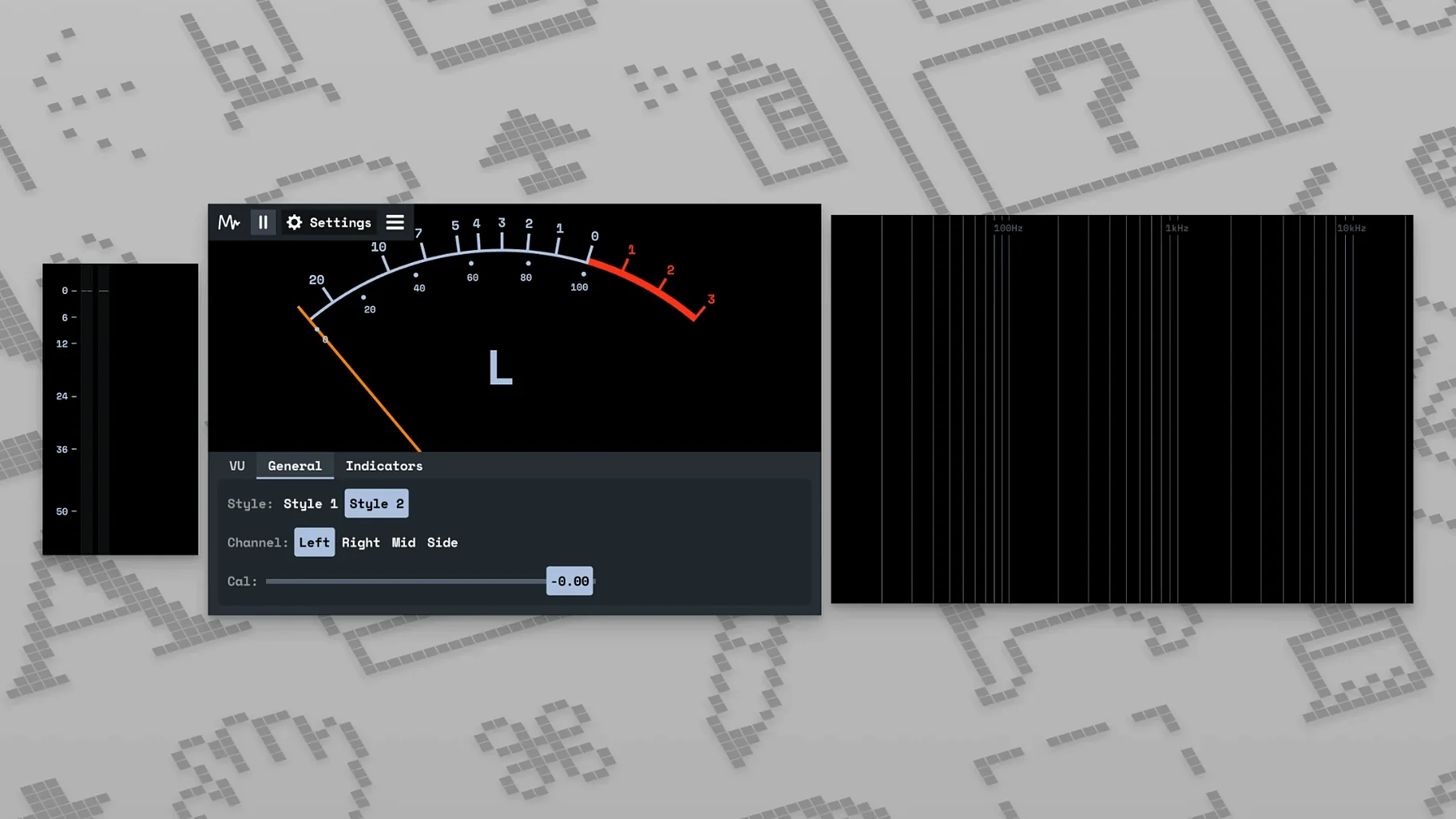
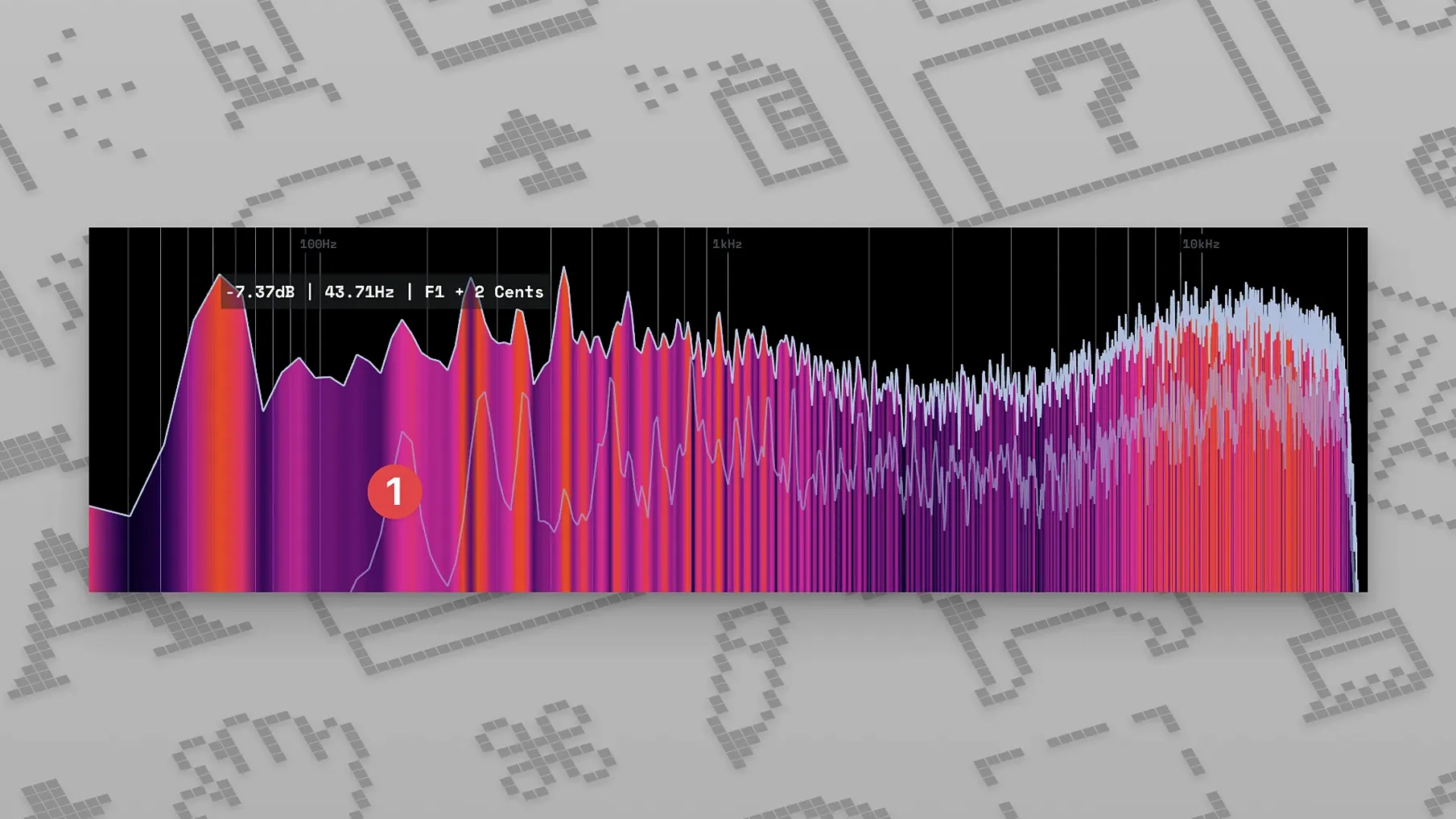
It displays loudness levels including overall and peak LUFS, plus a waveform and a spectrogram. The v0.8.0 release added an updated spectrogram, making frequency content easier to read at a glance.
Send audio from any DAW using the MiniMetersServer
Yes. The MiniMetersServer, included with the product, transfers signal to the meter display from your DAW. You can also run it as a standalone app to check system audio.
Spectrogram and LUFS meter on a second display before playback
I open MiniMeters before I start playback in Logic. The standalone window sits on my second display, docked to the side, showing the spectrogram and the LUFS meter. The first thing I do is drag the reference track into the session — a commercial mix I know well — and watch the overall loudness reading climb. The spectrogram updates in real time, and the v0.8.0 update makes the frequency bands clearer than earlier builds.
For a full mix session, I route the master output through MiniMetersServer. The server runs in the background, sending the stereo bus to the meter display without adding latency or eating CPU cycles in the DAW. I keep the stereo meter visible to check channel balance: if the waveform tilts to one side, I adjust pan positions before committing to further processing.
When I work on a single stem — say, a vocal take — I switch to the waveform display and watch the peaks. The peak LUFS reading tells me if the vocal hits too hard before compression. I tweak the input gain in my channel strip, and the meter responds immediately. No guessing, no soloing to check levels.
At the mastering stage, I keep the loudness meter front and centre. The spec-compliant LUFS meter from v0.7.0 gives me integrated, short-term and momentary readings. I run the full track, note the integrated LUFS value, then compare it against the reference. If the difference is more than 1 LU, I go back to the mix bus and adjust.
Set the layout to spectrogram and stereo meter side by side first
After you run the installer from the MiniMeters macOS.dmg and complete the .pkg steps, launch the standalone app first. Set the layout to show the spectrogram and the stereo meter side by side — it gives you the most information per screen inch. Play a familiar track and watch how the meters behave. You will notice that the spectrogram shows sibilance as a bright band around 6–8 kHz; the waveform confirms it with narrow spikes.
If you use a DAW, install MiniMetersServer and add it to your audio preferences as an output. Most DAWs list it as an available audio device. Route your master bus to it, not your main output, so the metering app receives the signal while your monitors stay silent. This avoids double monitoring and keeps the meters accurate.
Spend ten minutes adjusting the colour scheme. The interface lets you pick tool and background colours, so choose a palette that does not fatigue your eyes during long sessions. Dark grey with muted orange works well for most rooms.
Keep an eye on the MiniMetersServer icon in the menu bar. It confirms the server is running. If the meter display stops updating, restart the server before restarting the app.
What people ask before downloading the installer
Works with Pro Tools, Logic, Ableton, Reaper, Cubase and more
It works with any DAW that can route audio to a system audio device. The MiniMetersServer appears as an output option, so you select it in your DAW's audio preferences. Pro Tools, Logic, Ableton Live, Reaper, Cubase — all of them can send audio to the server. The app itself is DAW-agnostic; it only sees the signal the server delivers.
GPU-accelerated rendering keeps MiniMeters lightweight on your Mac
The application and the server are lightweight. The software is optimised for current hardware, as the system requirements specify macOS 10.15 or newer and compatibility with both Intel and Apple Silicon Macs. The spectrogram and waveform displays use GPU-accelerated rendering, but the load is minimal compared to a typical mixing session with dozens of plug-ins.
Meter YouTube, Spotify and system audio in standalone mode
Yes. Run MiniMeters in standalone mode and select your system audio input. It will meter any audio playing through your Mac — YouTube, Spotify, video calls, system sounds. This is useful for checking how commercial tracks measure up against your mixes without importing them into a DAW.
Is the LUFS meter accurate enough for mastering?
The LUFS meter became spec-compliant in v0.7.0, which means it follows the ITU-R BS.1770 standard. It shows integrated, short-term and momentary loudness, plus true peak. For mastering work, that is sufficient to check compliance with streaming platform targets.
Everything you need is inside the .dmg — no extra installs
No. The .dmg contains everything: the application, the server and the plug-in suite. The installer places them in your Applications folder and the appropriate system locations. No extra downloads, no background services from third parties.
A mastering engineer uses it for classical music's wide dynamic range
A mastering engineer I know works mostly with classical music. The dynamic range is wide, and the loudness targets are lower than pop. He uses MiniMeters on a secondary display during the entire session. Before he starts, he loads three reference tracks into a playlist and runs them through the meter. He notes the integrated LUFS and true peak values, then adjusts his monitoring level to match.
During the session, he keeps the waveform display visible. Classical recordings often have quiet passages that sit at -30 LUFS and sudden fortissimo sections that peak at -8 LUFS. The waveform shows the dynamic contour at a glance, so he knows when to reach for compression or limiting. The spectrogram helps him spot resonant frequencies in the hall recording — a build-up around 200 Hz that the microphone captured. He notches it out with a dynamic EQ before the client hears the master.
After the session, he exports the track and runs it through MiniMeters one last time in standalone mode, comparing the integrated loudness against the references. The numbers match within 0.3 LU. He sends the file to the client with confidence.
Runs on macOS 10.15+ with universal binaries for Intel and Apple Silicon
MiniMeters runs on macOS 10.15 and newer. The installer contains universal binaries, ensuring compatibility with Intel and Apple Silicon Macs. Build 1.0.30.358, the present release, resolved persistent errors and minor interface problems. The .dmg file contains the installer; after opening it, double-click MiniMeters.pkg and proceed with the on-screen prompts. The application and MiniMetersServer are installed together. No separate licence activation or account creation is needed. The interface language is English. The developer calls it a straightforward audio metering tool and plug-in collection, and the software's size aligns with that characterization.
The interface lets you choose tools, colours, and layout, so you can set it up for your monitoring preferences without extra steps.
Changes in this build
Before it goes on the Mac
- macOS 10.15 or newer
- Intel or Apple Silicon
Installing it on the Mac
- Open the downloaded disk image.
- Double-click MiniMeters.pkg.
- Follow the on-screen installation instructions.
Notes from the control room
Sign in or open a catalogue account to leave a note.
No notes from the room yet. If you have used this build for a week, a short note helps the next person.
Also filed under Logic Pro Plugins
The whole Logic Pro Plugins rack Minuit Solstice1.2.0 Logic Pro Plugins 117 MB
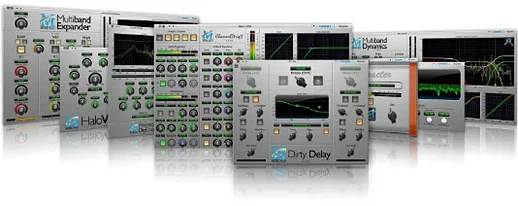 Metric Halo Production Bundle2025.05 Logic Pro Plugins 318 MB
 Melatonin Sine Machine27.4.9 Logic Pro Plugins 98 MB
 Mastering The Mix Bundle2026.09.11 Logic Pro Plugins 681 MB
 Native Instruments Massive X2.0.0 Logic Pro Plugins 2.3 GB Updated
 Neural DSP Archetype Petrucci1.0.0 Logic Pro Plugins 745 MB
 Neural DSP Archetype Rabea X1.0.1 Logic Pro Plugins 742 MB
 Neural DSP Parallax X1.0.0 Logic Pro Plugins 179 MB