Swinsian 3.0.8 (Mac)
Updated
The catalogue note
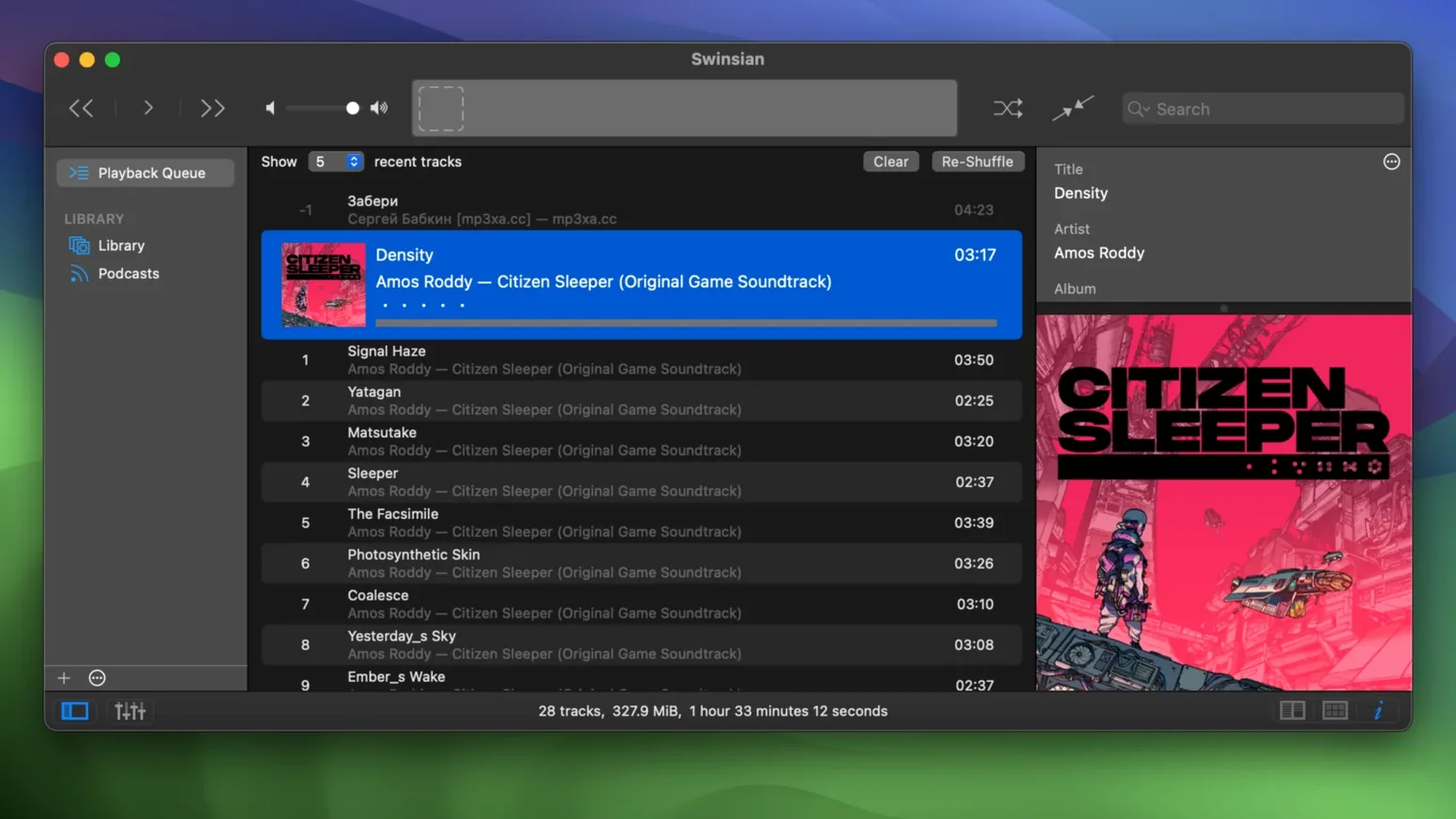
Swinsian is for people who have accumulated a music library across several external drives, download folders, and old backups. The kind of library where album art is missing, genre tags are all over the place, and you don't trust iTunes to sort it out. Version 3.0.8 keeps the same lean approach while quietly fixing a few irritating bugs.
The one task that covers most of it
Importing a messy library into Swinsian and leaving it under control.
- Folder watching – point Swinsian at the folders where music actually lives. Add a folder, enable folder watching, and any new file dropped in gets picked up automatically. No manual re-scan.
- Tag editing – the Complete Tags window handles batch edits. Fix genre, year, or artwork across a selection. Swinsian fetches album art from its own source or you can paste in your own.
- Smart playlists – set rules like “last played more than 6 months ago” or “rating above 3 stars”. They update live as the library changes.
- Global keyboard shortcuts – control playback from any app. Useful when you’re working in Logic or a DAW and don’t want to switch windows.
Staying responsive with a large library
Swinsian is built to handle libraries with tens of thousands of tracks without lagging. The interface doesn't redraw the whole list every time you scroll. The library file is SQLite-based, so searching and sorting is fast even on older Intel Macs. Version 3.0.8 also adds hidden options to increase interface text size if the default feels cramped on a 5K display. And the quadraphonic FLAC fix means those 4-channel classical recordings finally play back correctly instead of stuttering or dropping channels.
Folder watching fails when you move the parent folder
A few things tend to trip people up when they first set up Swinsian, even if the basics are straightforward.
- Folder watching doesn't pick up new files – the most frequent cause is moving or renaming the parent folder after it was added. Remove the folder from the library and re-add it, then re-enable folder watching. Also check that the files themselves aren't inside a package or bundle directory – Swinsian ignores those by default.
- Tag edits don't stick – if you batch-edit tags and they revert after reopening the app, the files might be set to read-only in the Finder. Select them, press ⌘I, and make sure "Locked" is unchecked. Another cause is editing files stored on a network volume that disconnects mid-write.
- Gapless playback isn't working – Swinsian supports gapless playback for formats that carry the necessary metadata (FLAC, ALAC, MP3 with gapless header). If tracks still have a gap, open the track info and confirm that "Gapless" is checked. Some transcoded files lose the gapless flag; re-encoding from the source usually fixes it.
- AirPlay drops out or stutters – this is usually a network issue rather than a Swinsian one. Swinsian's automatic sample rate switching can also cause a brief drop when the track changes; turning that off in the playback settings helps if you hear clicks between songs.
Control Swinsian with AppleScript from Automator or Keyboard Maestro
Swinsian doesn't try to replace every audio tool on your Mac, but it works alongside them in useful ways.
- AppleScript control – you can script Swinsian from Automator, Keyboard Maestro, or a terminal script. Common uses: pausing playback when a certain app opens, queueing tracks from the Finder, or logging the currently playing track to a text file. The dictionary is straightforward – open Script Editor and look under File → Open Dictionary → Swinsian.
- Last.fm scrobbling – enable it in Swinsian's preferences and enter your Last.fm credentials. It scrobbles automatically in the background, no need to run a separate helper app. The scrobble delay is adjustable if you prefer not to count tracks you skip before the 30-second mark.
- iTunes library import – Swinsian reads the iTunes Music Library.xml file and preserves play counts, ratings, and playlists. It does not modify the original iTunes library, so you can keep both running side by side during the transition.
- macOS notifications – playback notifications appear in the Notification Center. You can set them to show artwork and track info, or turn them off entirely if you prefer not to be interrupted. They respect Do Not Disturb.
Don't let Swinsian move files to an unchecked destination
Most of these come from expecting Swinsian to behave like a cloud-based streaming service or like iTunes with its automatic organisation.
- Letting Swinsian move files without checking the destination – the app can copy or move files into a structured folder layout, but if you don't set the folder naming scheme first, tracks end up in generic folders like "Unknown Artist/Unknown Album". Spend a minute in the library preferences to define your preferred pattern before enabling the feature.
- Not backing up the library file – Swinsian stores its library database in
~/Music/Swinsian/Library.sqlite. If you lose it, you lose play counts, smart playlists, and playback history. The audio files survive, but the metadata you've built up doesn't. A regular Time Machine backup covers it, or you can copy the file manually after a major tag-editing session. - Using smart playlists with "date added" rules on imported iTunes data – when you import from iTunes, Swinsian sets the date added to the import time, not the original iTunes date added. Smart playlists that rely on "date added is in the last week" will show everything you imported, not just recent downloads. Check the "date modified" field instead if you need a more accurate timeline.
- Ignoring the find-and-replace tag editor – beginners manually retype tags one by one when a regular-expression find-and-replace could fix an entire genre or artist field in seconds. For example, replacing
^ElectronicwithElectronic / Ambientacross a selection takes a single pass. The regex syntax is standard ICU, so patterns from other tools work here too.
Changes in this build
- Adds more customization options for art grid labels.
- Adds hidden options to make interface text larger.
- Fixes playback of quadraphonic FLAC files.
- Fixes transcoding rules not being saved correctly.
- Fixes problems removing tracks from iPod playlists.
- Fixes sorting in the Complete Tags window.
Before it goes on the Mac
- macOS 10.13 or later
- Intel or Apple Silicon processor
- Interface language: English
Questions from the room
Can Swinsian fetch album artwork automatically?
Yes, it can fetch album artwork from its own source, or you can paste in artwork manually in the tag editor.
Does Swinsian support AppleScript?
Yes, Swinsian supports AppleScript control for automation and integration with other apps.
What macOS versions does Swinsian run on?
Swinsian requires macOS 10.13 or later and runs on both Intel and Apple Silicon Macs.
Installing it on the Mac
- Mount the downloaded disk image.
- Drag the app to the Applications folder alias.
- Open the app from Launchpad after copying finishes.
Notes from the control room
Sign in or open a catalogue account to leave a note.
No notes from the room yet. If you have used this build for a week, a short note helps the next person.