Home › Audio › Fender Studio Pro
Fender Studio Pro 8.1.1 (Mac)
Updated
The catalogue note
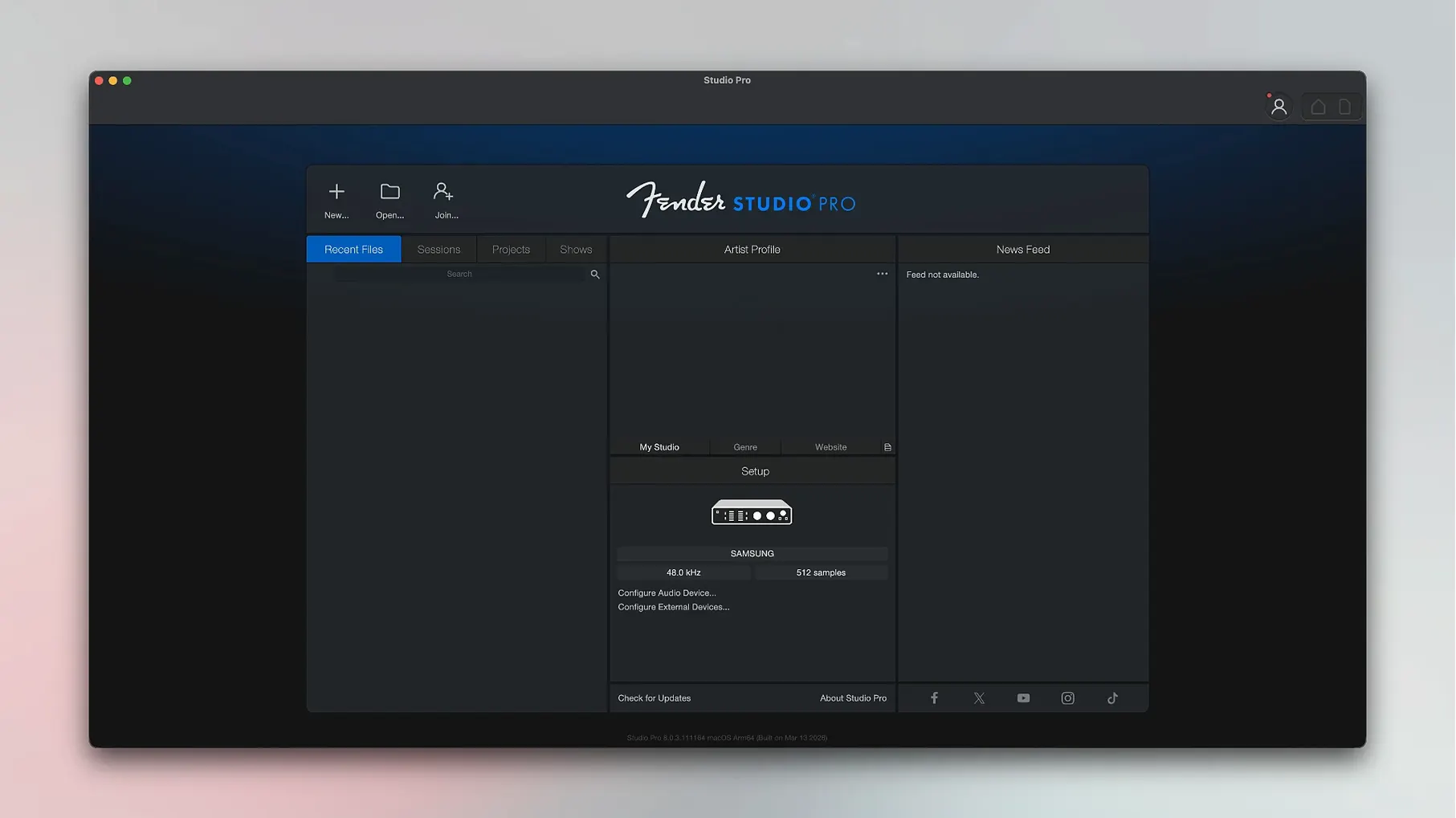
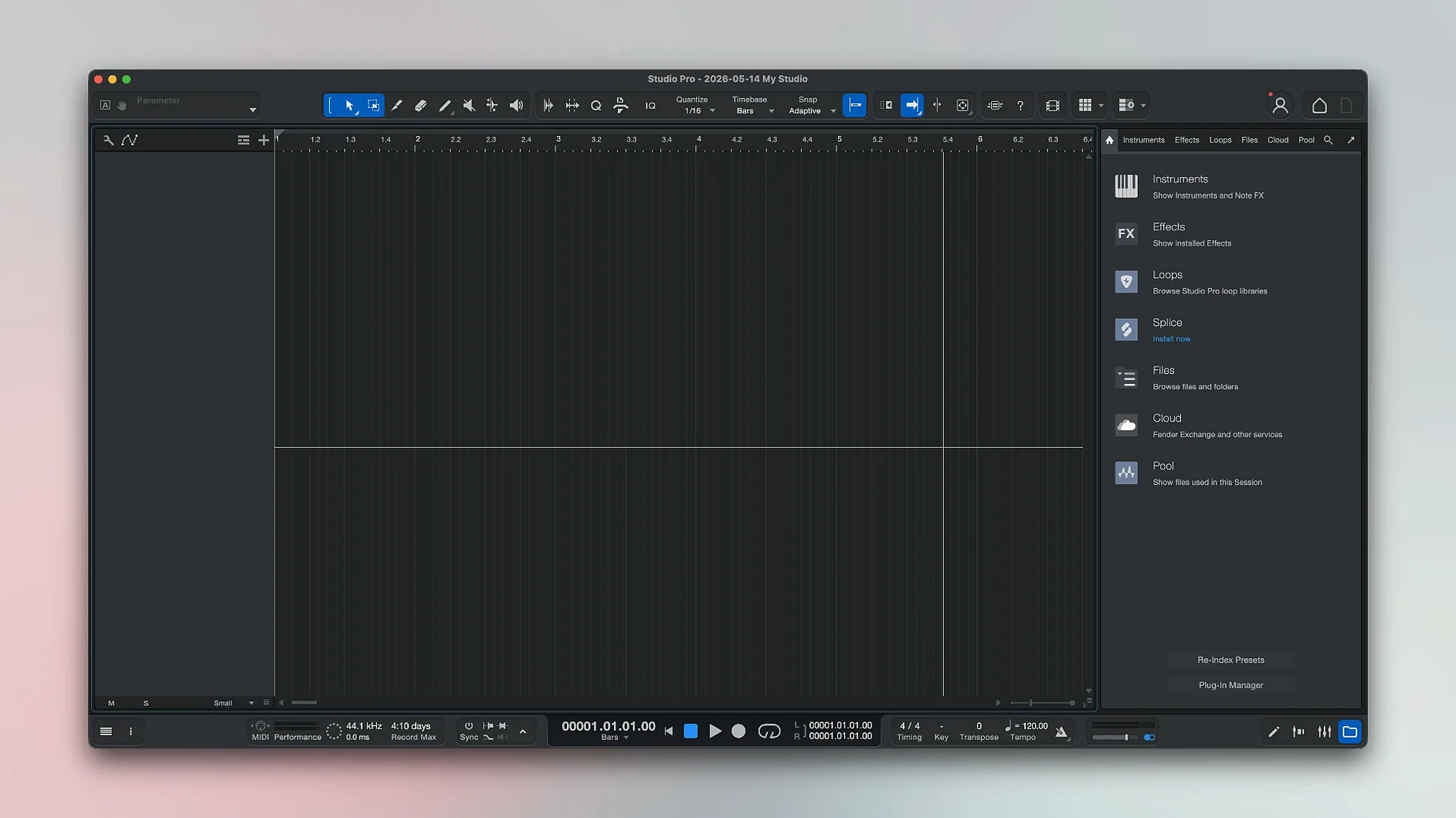
Fender Studio Pro 8 can handle up to 64 audio tracks simultaneously. Here is one realistic workflow from start to finish.
Recording a vocal and guitar track
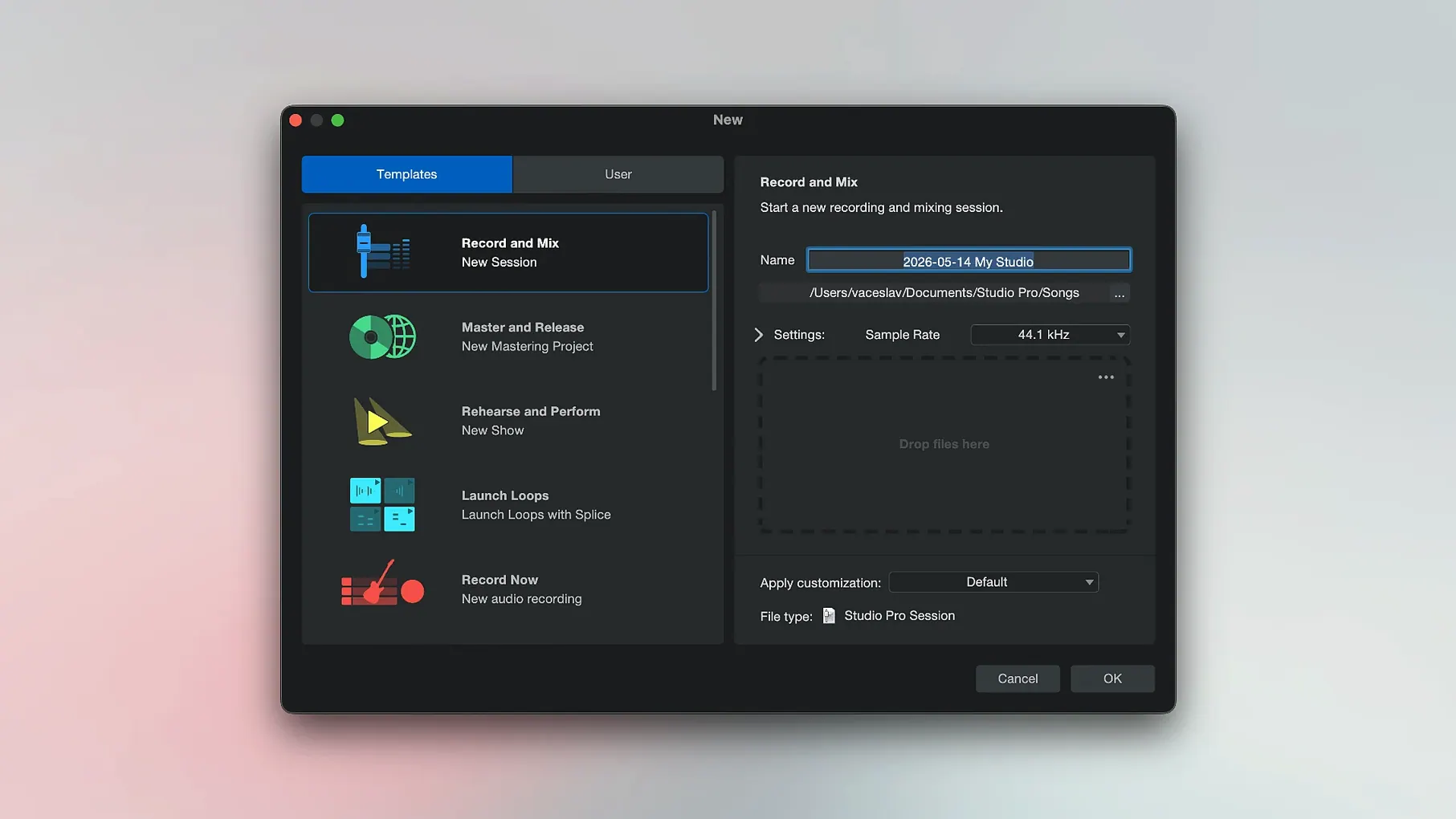
- Create a new project and add an audio track for your microphone and another for your instrument input. Set the sample rate to 48 kHz in Project Settings.
- Arm both tracks for recording and set a comfortable input level. Record a few takes of guitar, then a vocal pass over the top.
- Open the Audio Batch Converter to normalise the recorded clips. If you have any latency-inducing plug-ins in the chain, version 8.1.1 compensates for their delay automatically.
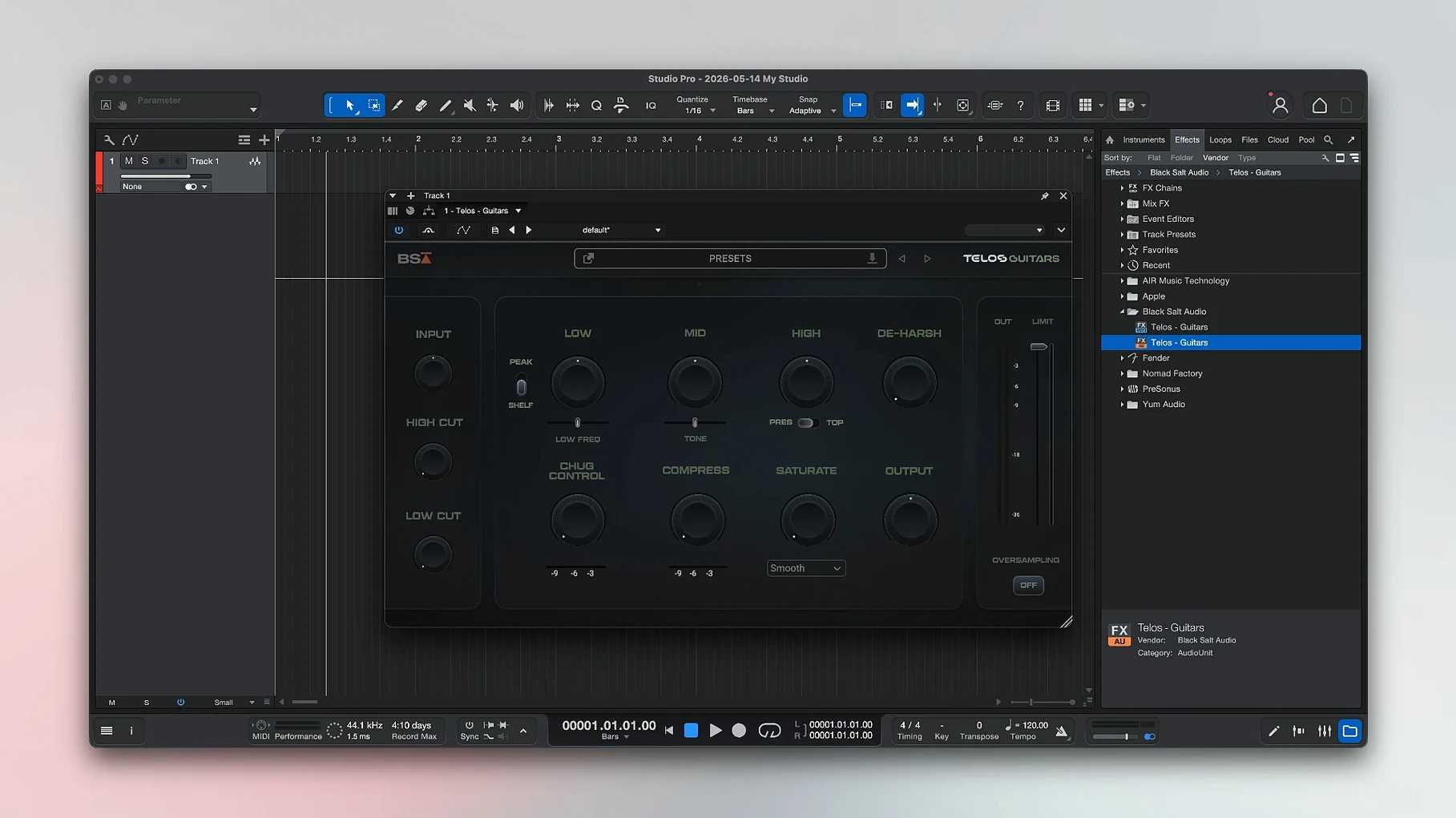
- Add a Fender guitar amp simulator to the guitar track and tweak one of the ready-made presets. On the vocal track, insert a compressor and a reverb from the included effect pedal collection.
- Use the chord suggestion tool to check your harmonic structure, then convert the vocal audio to MIDI notes if you want to double the melody with a virtual instrument.
- Freeze the instrument track from the Launcher to free up CPU cycles — a new option in 8.1.1 that keeps the sound intact while lowering processing load.
- Balance levels, add a master limiter, and export your mix.
Home studio musicians working alone or with one collaborator benefit most
Home studio musicians who work alone or with one or two collaborators benefit most directly. The single-window design keeps everything — recording, editing, mixing — in front of you without bouncing between separate applications. Songwriters who start with a guitar or vocal idea and build arrangements around it will find the chord suggestion and audio-to-MIDI features particularly useful, since they turn a rough recording into a workable score in a few clicks.
Producers who record real instruments rather than working entirely inside the box also gain from the included Fender amps and pedal effects. There is no need to buy third-party guitar simulations or a separate amp modeller. For podcasters and voice-over artists who occasionally need to edit music beds, the same recording and mixing tools work with spoken audio, and the batch converter handles normalising dialogue clips efficiently.
Live sound engineers who prepare backing tracks or demo recordings between shows can appreciate the familiar Fender tonal palette and the fact that the Mustang and Rumble plug-ins follow automation correctly in version 8.1.1, saving manual re-routing when direct monitoring is on.
Starts a folk-rock arrangement with acoustic guitar, vocal, and keyboard bass
I start a new project late on a Tuesday evening. The idea is a simple folk-rock arrangement: one acoustic guitar, one vocal, and a bass line played on a keyboard. I add two audio tracks and one instrument track. The guitar goes through a direct box into my interface, the vocal mic is a dynamic on a stand.
I set levels, arm the tracks, and record a few passes of the guitar part. The chord suggestion tool shows I have been playing variations around G and Em, which is fine. I keep the second take. Then I record the vocal in one long take, knowing I can comp the best sections later.
For the bass line, I select a Fender electric piano sound from the virtual instruments and record a simple pattern. The audio-to-MIDI conversion would work here too, but I prefer playing it in. Halfway through, I realise the guitar track has a slight buzz, so I open the Audio Batch Converter, trim the clip, and let version 8.1.1 compensate for the plug-in latency on the compressor I inserted earlier.
I add a Fender amp sim to the guitar, choose a clean preset, and adjust the tone. The vocal gets a light compressor and a short reverb from the effect pedal library. I freeze the instrument track from the Launcher — the new freeze option in 8.1.1 — to keep the CPU headroom for mixing. A quick balance check, a limiter on the master, and I export a rough mix to listen on headphones before bed.
The whole process takes about two hours. No external plug-ins, no switching between windows.
Skipping input level setup causes clipped or quiet takes
- Skipping the setup of input levels. Beginners often arm tracks and record straight away, ending up with clipped or quiet takes that need heavy normalisation. A few seconds checking the input meter prevents most problems.
- Applying effects during recording instead of after. Recording with a reverb or amp sim printed to the track makes it impossible to change the sound later. Record dry, add effects in the mix.
- Ignoring the chord suggestion tool. It is not just for beginners. Even experienced writers can miss a passing chord that would lift a section. The tool is fast and worth glancing at.
- Overloading tracks with effects before freezing. Stacking plug-ins on every track without freezing instrument parts can bog down a session. Freezing from the Launcher is simple and keeps the sound intact.
- Not updating to version 8.1.1. The batch converter latency compensation and the Mustang/Rumble automation fix solve specific annoyances. Sticking on an older version means living with those issues.
Keeps recording, mixing, and processing in one window unlike Logic Pro
Logic Pro. Apple's DAW has a deeper library of virtual instruments and a larger user base, but it also assumes familiarity with Apple's workflow conventions. Fender Studio Pro keeps recording, mixing, and processing in one window without extra windows for the mixer or editor, which some users find more straightforward. Logic does not include Fender-branded amps out of the box.
GarageBand. GarageBand is free and covers basic recording and editing, but its track count and routing options are limited. Fender Studio Pro offers a full mixer, batch processing, and the ability to handle larger projects without hitting a ceiling. GarageBand also lacks audio-to-MIDI conversion and chord suggestion features.
Reaper. Reaper is highly customisable and runs on low system resources, but its default layout requires configuration to feel productive. Fender Studio Pro arrives with a clear, preset-driven interface and a focused set of included instruments and effects. For users who prefer to open a project and start working immediately rather than building their own environment, it is a more direct option.
The result is a clean, recorded track that uses the studio’s built-in Fender sounds and recent efficiency improvements. No external plug-ins required.
Changes in this build
- Audio Batch Converter now compensates plug-in latency.
- Mustang/Rumble native plug-ins follow automation when Direct Monitoring is enabled.
- Freeze Instrument Track is now available in the Launcher.
Before it goes on the Mac
- macOS 13.5 Ventura or later
- Intel or Apple Silicon processor
- Interface language: English
Questions from the room
Can Fender Studio Pro 8 convert recorded audio into MIDI notes?
Yes, it can convert recorded audio into notes, allowing you to reharmonise or double a melody with virtual instruments.
What new features does version 8.1.1 add?
Version 8.1.1 introduces Freeze Instrument Track in the Launcher, Audio Batch Converter latency compensation, and fixes for Mustang/Rumble native plug-in automation.
Installing it on the Mac
- Use the included installation and activation instructions provided in the package.
- Follow the steps in that guide to complete setup.
Notes from the control room
Sign in or open a catalogue account to leave a note.
No notes from the room yet. If you have used this build for a week, a short note helps the next person.