Home › Audio › Cycling '74 Max
Cycling '74 Max 9.0.9 (Mac)
Updated
The catalogue note
If you have used a synthesiser, a sampler, or a live performance tool that listens to an external controller, you have likely encountered something built with Max. Cycling '74's visual programming environment lets you create your own audio, MIDI, and multimedia tools without writing code in the traditional sense.
Visual programming language
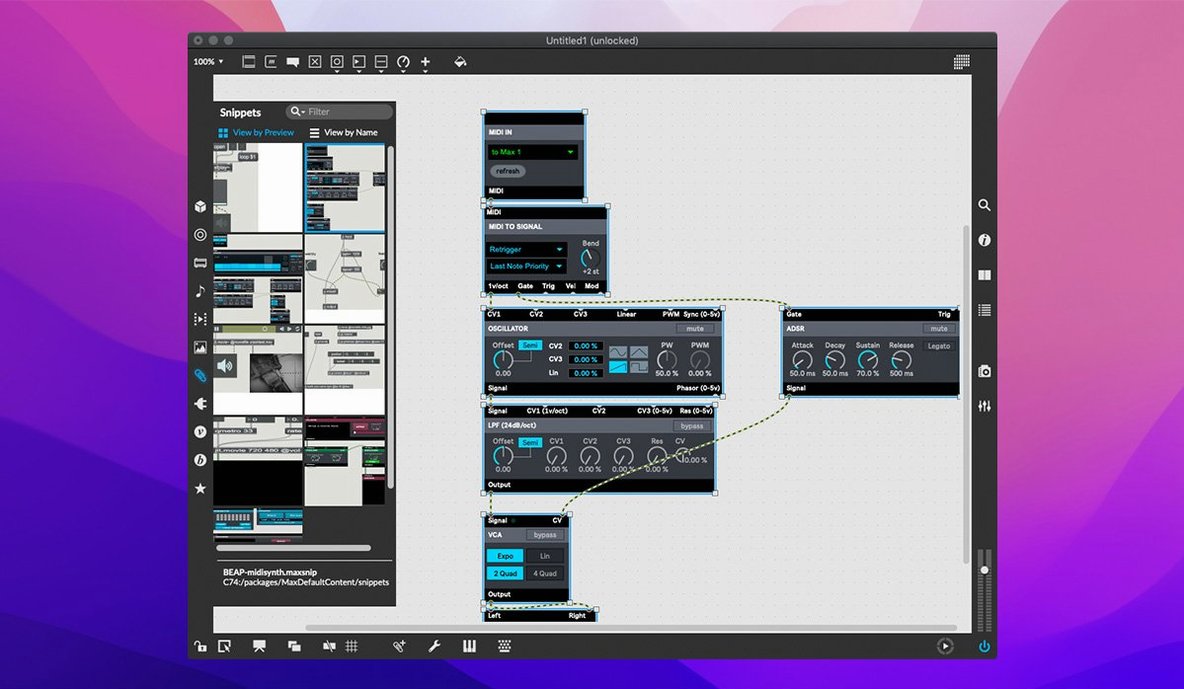
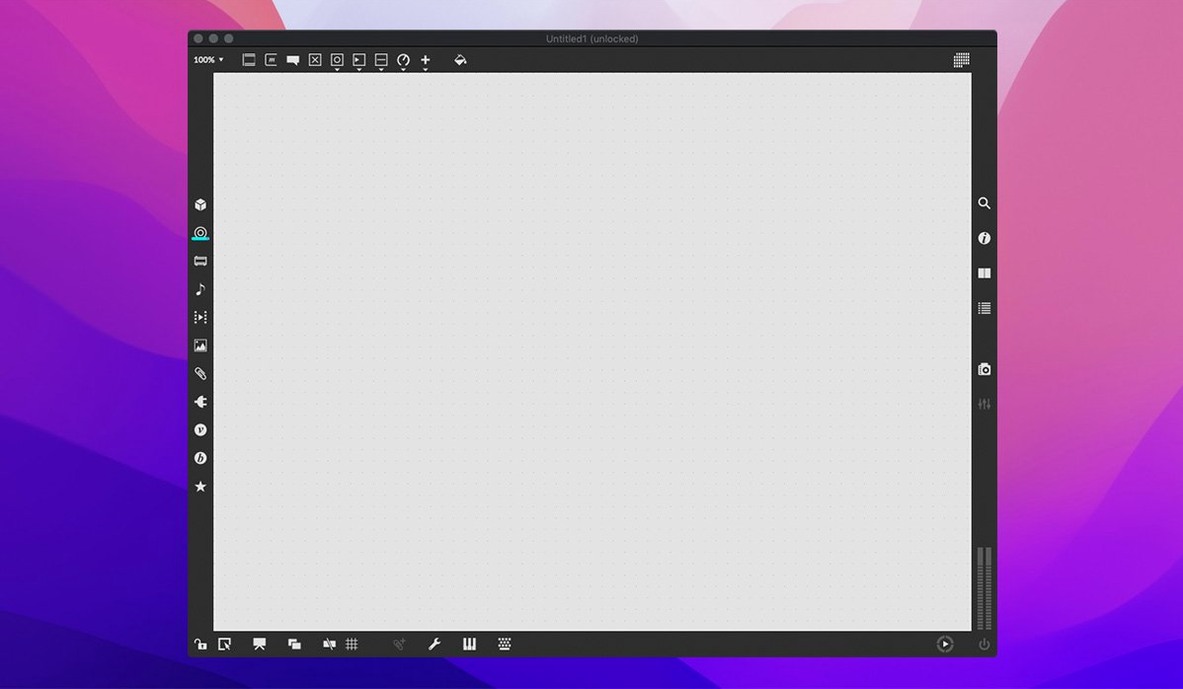
Max uses a graphical patching paradigm. Objects are placed on a canvas and connected with patch cords to pass messages and audio signals. The result can be anything from a simple metronome to a multi-channel granular synthesiser that responds to video input.
Custom instruments and real-time processing beyond plugins
Composers, sound designers, installation artists, and electronic musicians who need custom instruments or real-time processing that off-the-shelf plugins cannot deliver. The learning curve is real, but the package includes more than 40 interactive tutorials and object-level live demonstrations to help you get started.
Debugging and editing tools
The environment includes a dedicated debugger with foreground/background execution control, message tracking, an object inspector, and smart copy and paste. These make it possible to work on complex patches without losing your place.
Integration with other applications and macOS features
Max can exchange data with other software through several standard channels. MIDI input and output streams are built in, so you can control a patch from a hardware controller, a MIDI keyboard, or another application via virtual MIDI buses. Serial device support lets you talk to Arduino boards, sensor interfaces, or custom hardware without extra middleware.
QuickTime movie playback is included directly in the patcher environment. This means video can drive audio processes, synchronise with generative visuals, or serve as a timeline for installation work. On the macOS side, mouse cursor tracking is available as an input source, useful for interactive installations or screen-based instruments.
The cross-platform SDK allows you to extend Max with your own objects written in C or C++. If you need a specific function that does not exist in the object library, you can write it and then use it like any other object in a patch. RNBO v1.3.5 is bundled with version 9.0.9, which lets you export patches to run on other platforms or embed them in other applications.
Inspector shows live object demonstrations
The Inspector is more than a property panel. It provides a working demonstration for each object and its features — click an object, open the Inspector, and you can see what its inputs and outputs do without leaving the patcher. The smart copy and paste function preserves connections when you duplicate objects, saving time when building repetitive structures.
Foreground and background execution control is useful for debugging. You can pause the main patch while letting a subpatch continue running, or vice versa. Message tracking shows you the exact flow of data through your patch cords, which helps when a value arrives at the wrong time or not at all.
The interactive help system covers each object individually. If you forget what a particular object does, you can open its help patch from the object itself. These help patches are working demonstrations, not static documentation — you can edit them, copy parts, and test variations immediately.
Avoiding audio feedback loops with the *~ object
One frequent issue for new users is audio feedback loops. When you connect an audio output back into an input without attenuation, the result is often a loud, uncontrolled tone. The fix is to insert an object such as *~ 0.5 or use an envelope follower to control the feedback gain. Max will not warn you about feedback by default, so keep an eye on your patch cord paths.
Another common problem: objects that expect a specific data type. If you send a list where a float is expected, the object may silently do nothing. The message tracking feature in the debugger is the quickest way to spot this — watch the inlet and see what actually arrives.
MIDI timing jitter can occur when running many objects in the same patch. If your timing is not tight enough for a sequencer or arpeggiator, consider using the transport object or moving time-critical operations to a separate scheduler. The foreground/background execution control lets you isolate real-time tasks from heavier processing.
New users sometimes forget that the patcher window scrolls. If you cannot find an object you placed earlier, check whether you are zoomed in or out. The Inspector panel shows the current view coordinates, and the object inspector can locate specific objects by name.
Max vs Pure Data: built-in objects and system resources
Pure Data (Pd) is the closest relative. It is also a visual programming language for audio and multimedia, and it is open source. Pd is lighter on system resources and has a smaller library of built-in objects. Max offers a more polished editing environment, the Inspector with live demonstrations, and a larger collection of UI widgets. Pd is free, while Max provides the SDK and RNBO integration. If you need to build commercial or exhibition-ready tools quickly, Max is more practical; if you want to learn the concepts and have full control over the source, Pd is a valid alternative.
Reaktor by Native Instruments is a modular synthesiser and effects environment. It is more focused on sound generation and processing than Max, and it integrates tightly with the Komplete ecosystem. Reaktor does not support video, serial devices, or mouse tracking. Its patching paradigm is similar, but the object library is narrower and geared toward synthesis rather than general multimedia. Max is the better choice if your work crosses audio, video, and hardware boundaries.
AudioMulch is a real-time audio patching tool with a more rigid structure. It is simpler to learn for basic audio routing and effects, but it lacks Max's flexibility for creating instruments, controlling external hardware, or handling video. AudioMulch is a tool for audio processing; Max is a complete multimedia development environment.
Start with the 40 interactive tutorials first
Start with the interactive tutorials. The package includes more than 40 of them, and working through the first ten will give you a solid grasp of how messages, signals, and objects interact. Do not skip the object-level help patches — every time you encounter a new object, open its help patch and experiment with it.
Create a simple test patch on day one. Connect a metro object to a print object and watch the Max Console window. Then add a random object and a number box. This takes five minutes and confirms that audio, MIDI, and patching all work on your Mac.
Use the debugger early. Set a breakpoint on an object and step through the messages. This habit will save you hours of guesswork later. The message tracking feature is especially useful for understanding how data flows through a patch that you did not write yourself.
Keep a backup of your Max application folder. If you later install externals or modify the object library, having a clean copy of the original installation means you can revert without reinstalling. The disk image you mount during installation contains the full app — keep it on an external drive or a cloud storage folder.
Max 9 download is straightforward: mount the disk image, drag the app to the Applications folder alias, and launch from Launchpad. If you are migrating from an older version, note that patches from Max 8 or earlier may need minor adjustments for the Inspector changes in 9.0.9. The release notes for 9.0.9 also mention fixes for the Web Based Text Editor's File > List Externals and Subpatcher Files menu item, so check that if you use the text editor extensively.
Max 9.0.9 runs on both ARM and 64-bit x86 Intel Macs. It requires macOS 11 or later. The interface language is English.
Changes in this build
- Support for button assignments for parameter banks in live.banks.
- RNBO v1.3.5 is bundled.
- Fixed a potential crash in the Inspector when editing or closing a text field.
- Fixed File > List Externals and Subpatcher Files in the Web Based Text Editor.
Before it goes on the Mac
- macOS 11 or later
- Apple Silicon or 64-bit Intel processor
- 64-bit operating system
Questions from the room
What is Max used for?
Max is a visual programming language for creating music, sound, and multimedia applications. It is used by composers, sound designers, and installation artists to build custom instruments, effects, and interactive systems.
Does Max include tutorials?
Yes. Max includes more than 40 interactive tutorials and provides interactive help through working demonstrations for each object and its features.
Which Macs does Max 9.0.9 support?
Max 9.0.9 supports both Apple Silicon (ARM) and 64-bit Intel x86 Macs. It requires macOS 11 or later.
Installing it on the Mac
- Mount the downloaded disk image.
- Drag the app to the Applications folder alias.
- After copying finishes, launch the app from Launchpad.
Notes from the control room
Sign in or open a catalogue account to leave a note.
No notes from the room yet. If you have used this build for a week, a short note helps the next person.