Home › Mac Apps › PlistEdit Pro
PlistEdit Pro 1.10.0 (Mac)
Updated
The catalogue note
PlistEdit Pro 1.10.0 runs on any Mac with macOS 14 or later, both Intel and Apple Silicon. That covers most machines from the last few years, and it means the app stays usable on older hardware while keeping up with current system updates.
| Detail | Value |
|---|---|
| Developer | Fat Cat Software |
| Version | 1.10.0 |
| Category | Apps |
| macOS | 14 or later |
| Architecture | Universal |
| Language | English |
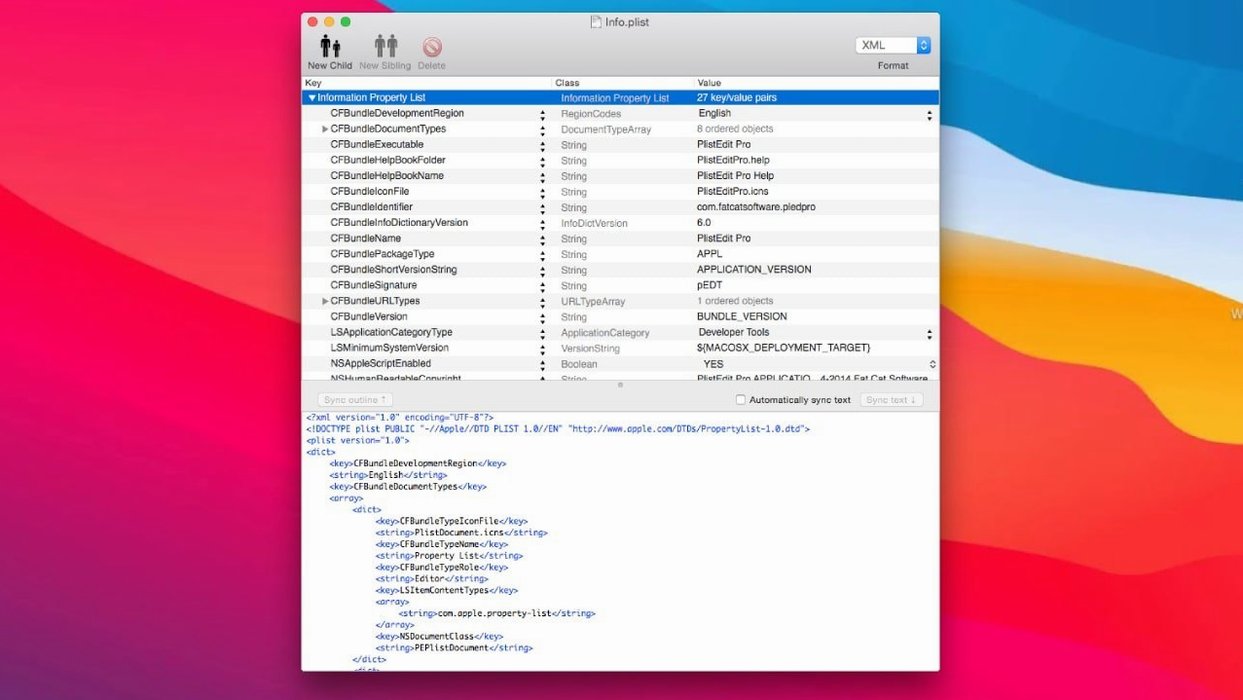
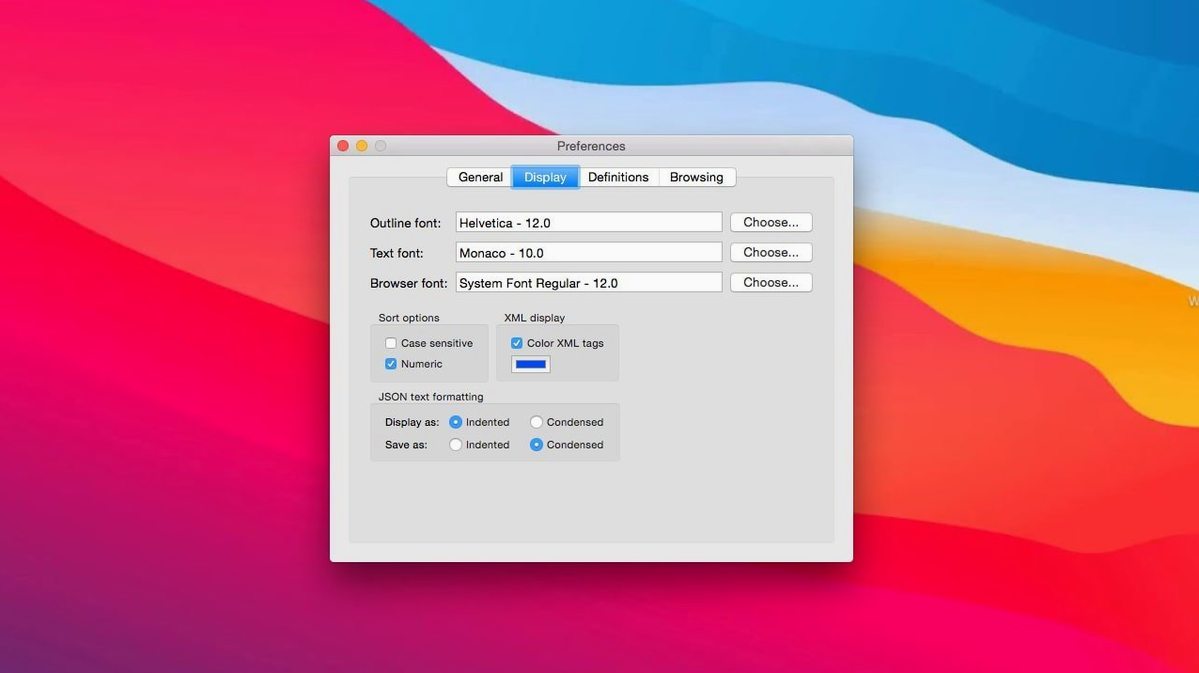
The current version keeps the core editing tools that make PlistEdit Pro useful for Mac and iOS developers: multi-level undo, find and replace, keyboard navigation, and drag-and-drop reordering of property list entries. JSON support is still there, so you can work with both formats without switching apps. AppleScript automation remains available for scripting repetitive tasks, and the preferences browser still gives you a direct look at macOS preference plists. What has changed is the interface: version 1.1 moved the prefs browser options into a toolbar menu and turned the file-change revert prompt into a popover. These are small adjustments, but they make the daily workflow a bit tidier.
Property lists and JSON are not interchangeable
New users of PlistEdit Pro often assume a property list file and a JSON file are interchangeable in structure. They are not. PlistEdit Pro handles both formats, but the internal representation of data — especially binary blobs and date values — differs. Beginners who copy a value from a JSON file and paste it directly into a plist file without checking the type field can end up with entries that the system ignores or misreads.
Another frequent error is editing a preference plist while the associated application is still running. The preferences browser in PlistEdit Pro lets you open and modify these files directly, but macOS may overwrite your changes when the app writes its own settings on quit. A safer workflow is to quit the application first, make the edit, then restart. The same applies to system-level plists that the OS reads at login.
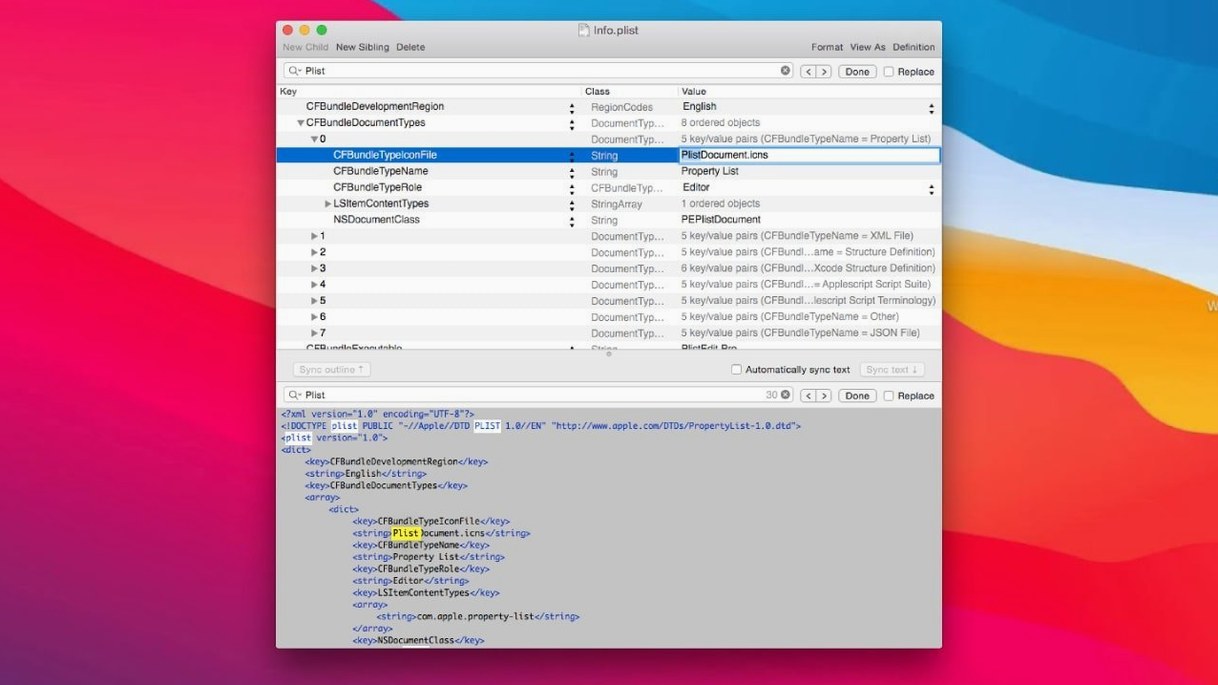
Some beginners also overlook the folder search feature. They manually open each file in a directory to find a specific key or value, not realising that PlistEdit Pro can search an entire folder for that data in one go. Using that search upfront saves time and avoids accidental edits to the wrong file.
Finally, the command-line tool pledit goes unused by many. It can perform edits and conversions without launching the GUI, which is useful for batch processing or scripting. Ignoring it means missing one of the app's most efficient features.
Requires macOS 14 or later on Intel and Apple Silicon
PlistEdit Pro version 1.10.0 requires macOS 14 or later and runs on both Intel (x86 64-bit) and Apple Silicon Macs. The app is provided as a disk image that you mount, then drag into your Applications folder. The Gatekeeper bypass step is a one-time command in Terminal; after that, the app is ready to use. No additional installers or background services are needed.
Because the minimum system requirement is macOS 14, the app will not open on Mojave, Catalina, Big Sur, Monterey, Ventura or any earlier release. That includes all Intel Macs that cannot run macOS 14, as well as Apple Silicon machines still on older macOS versions. The architecture support is universal, so the same build works on both processor types.
The interface is English-only. There is no localisation for other languages, which is typical for developer tools of this kind.
Built for macOS developers editing .plist files daily
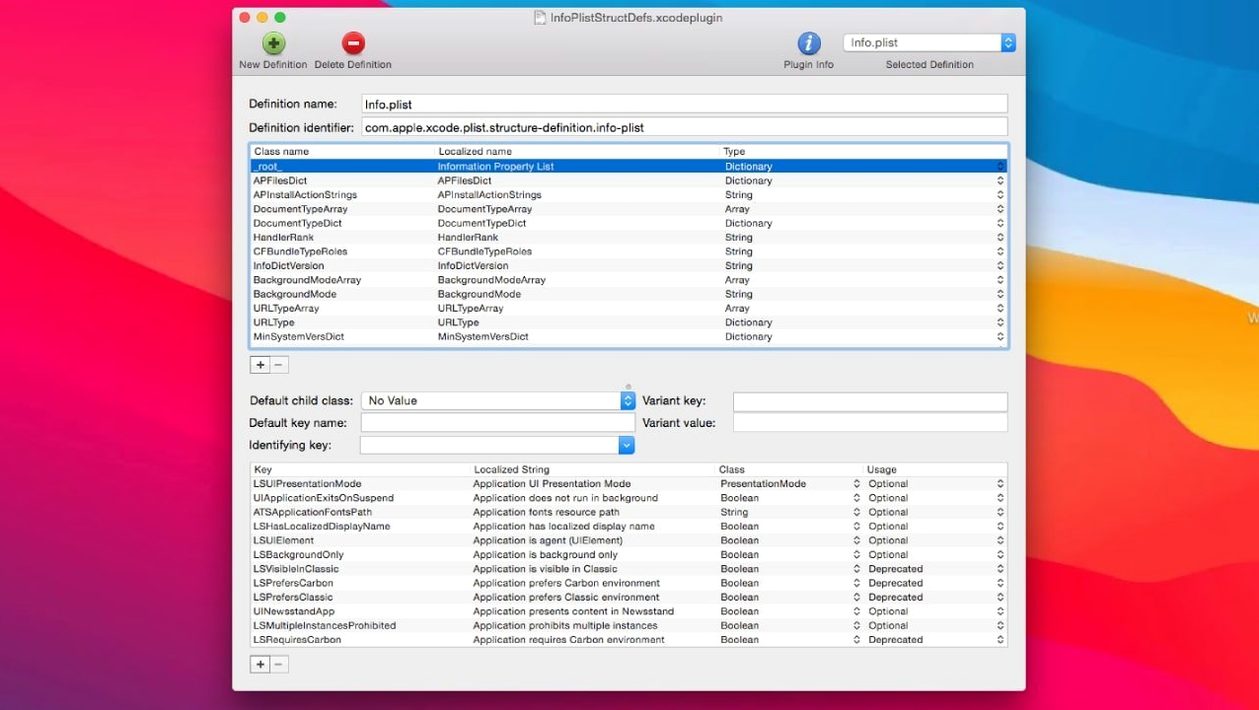
The primary audience is macOS developers who routinely edit property list files for system configuration, application preferences or custom build scripts. If you regularly open .plist files to adjust a key or debug a setting, PlistEdit Pro gives you structure highlighting, drag-and-drop reordering and a dedicated outline view that plain text editors cannot replicate.
iOS developers also benefit. Many tools in the iOS development chain use plist files for metadata and configuration. Being able to browse and edit those files with a purpose-built editor instead of a generic text editor reduces the chance of breaking the file structure.
Users who manage multiple Macs or write automation scripts will find the AppleScript support and the pledit command-line tool useful. You can integrate plist edits into a wider build or deployment pipeline without opening the GUI for each file.
For users who only need to open a single plist file once a month, a plain text editor may suffice. PlistEdit Pro's value becomes clear when you work with plist files regularly, especially when searching across folders, editing nested structures or maintaining consistency across multiple files.
Opens .plist files from Finder with dual outline and text views
PlistEdit Pro integrates with the Finder through standard file associations. Double-clicking a .plist file opens it in the editor, assuming you have set the default. The outline view and the plain text view give you two ways to read the same data, which is useful when you want to check the raw format of a value.
The preferences browser gives you direct access to macOS preference plists that are normally hidden away in ~/Library/Preferences or system-level paths. This is not a feature that Finder offers natively. You can browse application preferences, locate a specific key and modify it without needing to navigate the filesystem manually.
For automation, AppleScript support means you can control PlistEdit Pro from other scripting environments on macOS. Combined with the pledit command-line tool, this allows plist editing to become a step in a larger pipeline — for example, a post-build script that updates version numbers in a plist file before packaging an application.
The app also works alongside version control systems. If you keep plist files in a Git repository, PlistEdit Pro's multi-level undo helps recover from accidental changes before you commit. Nothing in the editor interferes with the filesystem, so you can diff and commit normally.
Changes in this build
- Requires macOS 14 or later.
- Updated user interface elements for macOS Tahoe.
- Prefs browser options checkboxes moved into a toolbar menu.
- 'Ask to revert when file changes on disk' option is now a small popover.
Before it goes on the Mac
- macOS 14 or later
- Intel or Apple Silicon
- English interface
Installing it on the Mac
- Mount the disk image and run the installer with Gatekeeper-friendly mode.
- Press Enter in Terminal to allow the app through Gatekeeper.
- Drag the app into the Applications folder.
- The app is ready to use.
Notes from the control room
Sign in or open a catalogue account to leave a note.
No notes from the room yet. If you have used this build for a week, a short note helps the next person.