
PowerPhotos 3.4.9 (Mac)
Updated
The catalogue note
If you have accumulated several Photos libraries over the years, switching between them and hunting down duplicates becomes tedious. PowerPhotos addresses that directly.
Switches between Photos libraries without reopening
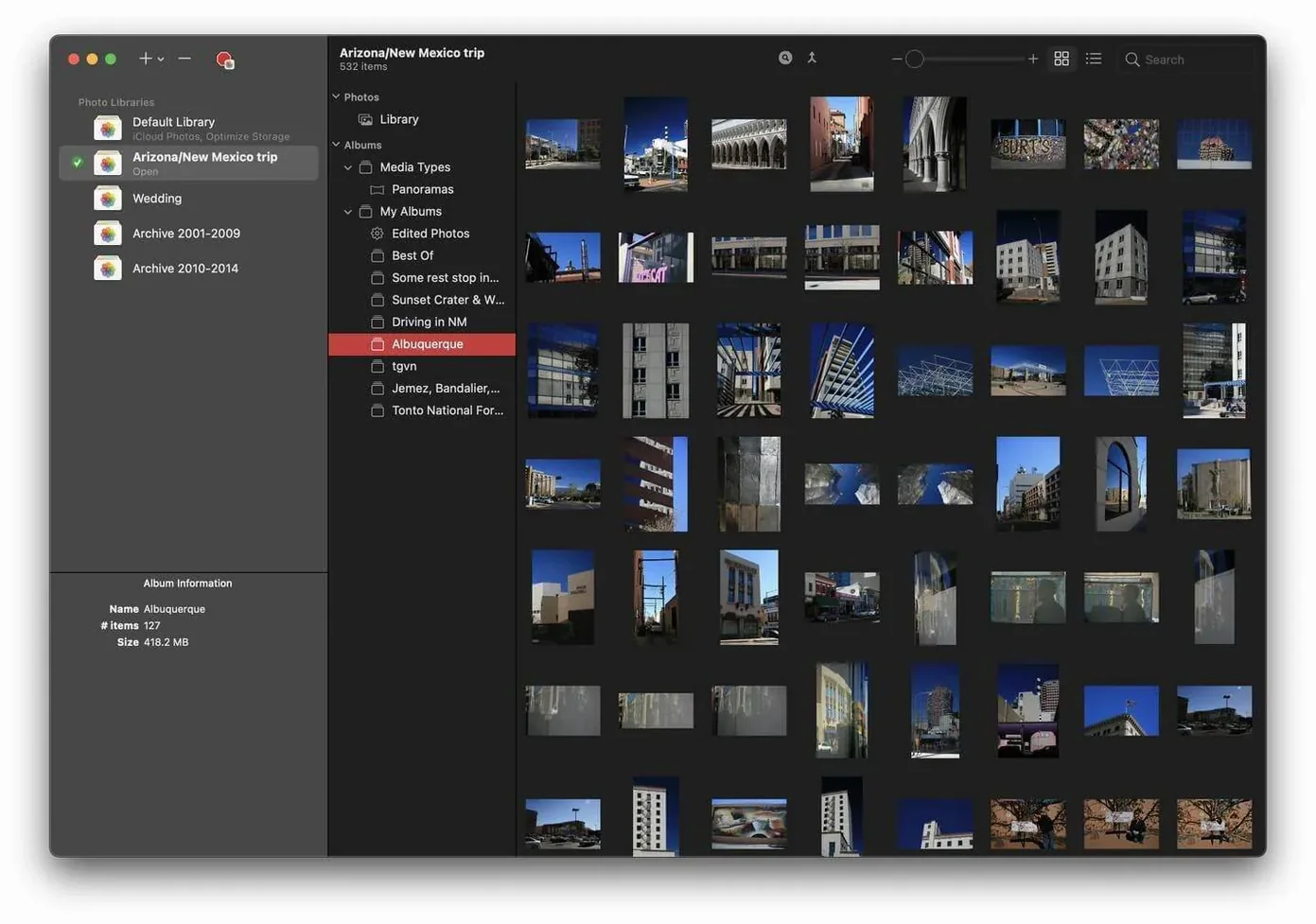
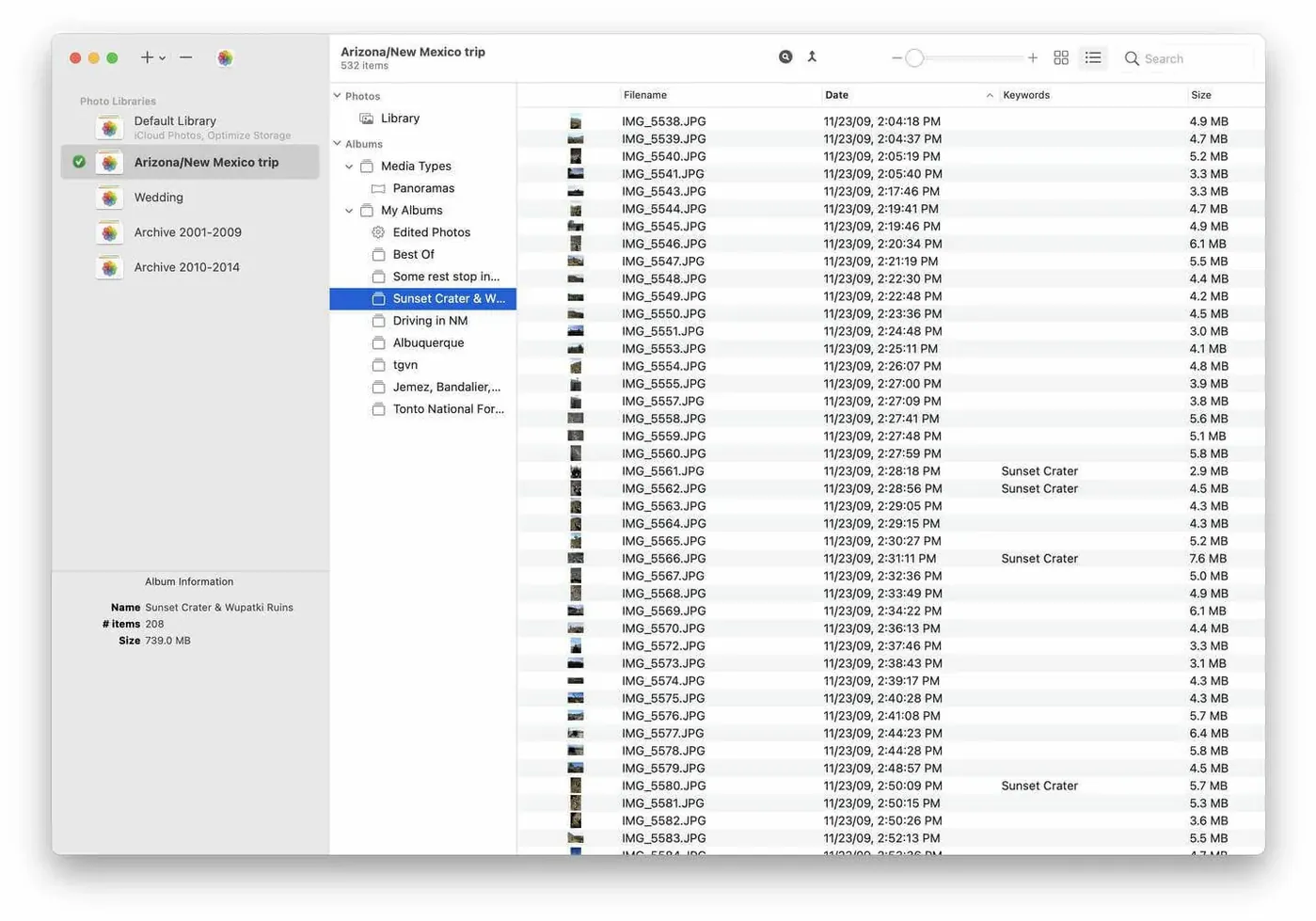
Multi-library management — PowerPhotos works with Apple’s built-in Photos app, letting you switch between libraries without quitting and reopening.
Cross-library search — You can search across all your libraries at once, saving time when you need to locate a specific image.
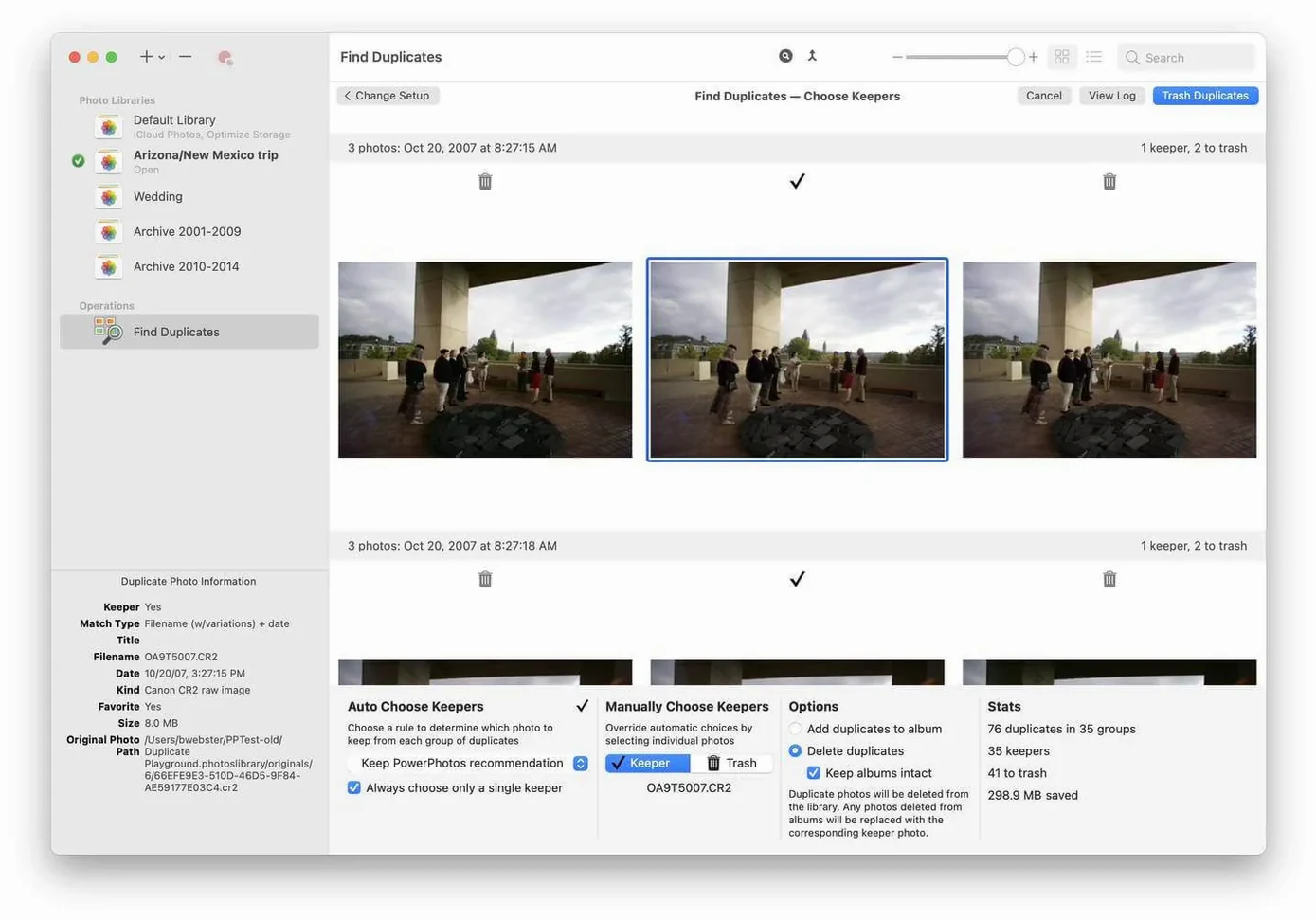
Duplicate removal — The app identifies extra copies of photos you no longer need, helping you reclaim storage.
Single library view — Despite working with multiple libraries, the interface keeps things straightforward, showing one library at a time.
Language and requirements — The interface is in English. PowerPhotos 3.4.8 requires macOS 14 or later and runs on both Intel and Apple Silicon Macs.
Reflects library changes in Apple Photos automatically
PowerPhotos stays close to the Photos app rather than replacing it. When you switch libraries from within PowerPhotos, the change is reflected in Photos itself the next time you open it. This means you don’t have to learn a separate workflow for importing or editing — you still use the standard Photos tools for adjustments, albums and sharing.
The app also respects iCloud Photos settings. If you keep one library synced to iCloud and others local, PowerPhotos lets you switch to the local library without triggering a mass upload or download. This is useful if you archive older years in separate libraries and only want your current collection on iCloud. The duplicate analysis can also flag photos that are in both your iCloud-synced library and an offline backup, so you can decide which copies to keep.
Spotlight integration works as expected. PowerPhotos does not interfere with Spotlight’s indexing of your Photos libraries, so searching from the menu bar or Finder still finds images regardless of which library is currently set as the system library.
Focused on library management, not just duplicate detection
There are a few other utilities that touch on the same problems, though each approaches them differently.
PhotoSweeper focuses heavily on finding duplicates. It shows a side-by-side comparison view and lets you mark photos for deletion, but it does not manage multiple libraries. If you already keep everything in one library and only need to clean up duplicates, PhotoSweeper works well. PowerPhotos adds the library switching and cross-library search on top of duplicate detection.
Gemini 2 is a general duplicate file finder that also handles images. It can scan folders and external drives for identical files, but it does not understand Photos libraries as structured databases. It sees the underlying image files, not the albums, keywords or face data. PowerPhotos works at the Photos library level, so it respects how you have organised your pictures inside the app.
iPhoto Library Manager (also from Fat Cat Software) was the predecessor for iPhoto-era libraries. PowerPhotos is the current version for the Photos app, so if you have migrated from iPhoto to Photos, PowerPhotos is the relevant tool. The two are separate products and do not share a codebase.
A workflow for consolidating two libraries
Imagine you have a main library called “Current.photoslibrary” and an older archive called “Archived 2022.photoslibrary”. You want to move a few dozen holiday photos from the archive into the current library and remove duplicates.
- Open PowerPhotos and select “Current.photoslibrary” from the library list. Browse to confirm the photos you want to keep are already there.
- Switch to “Archived 2022.photoslibrary” and use the search field to find the holiday photos by date or keyword.
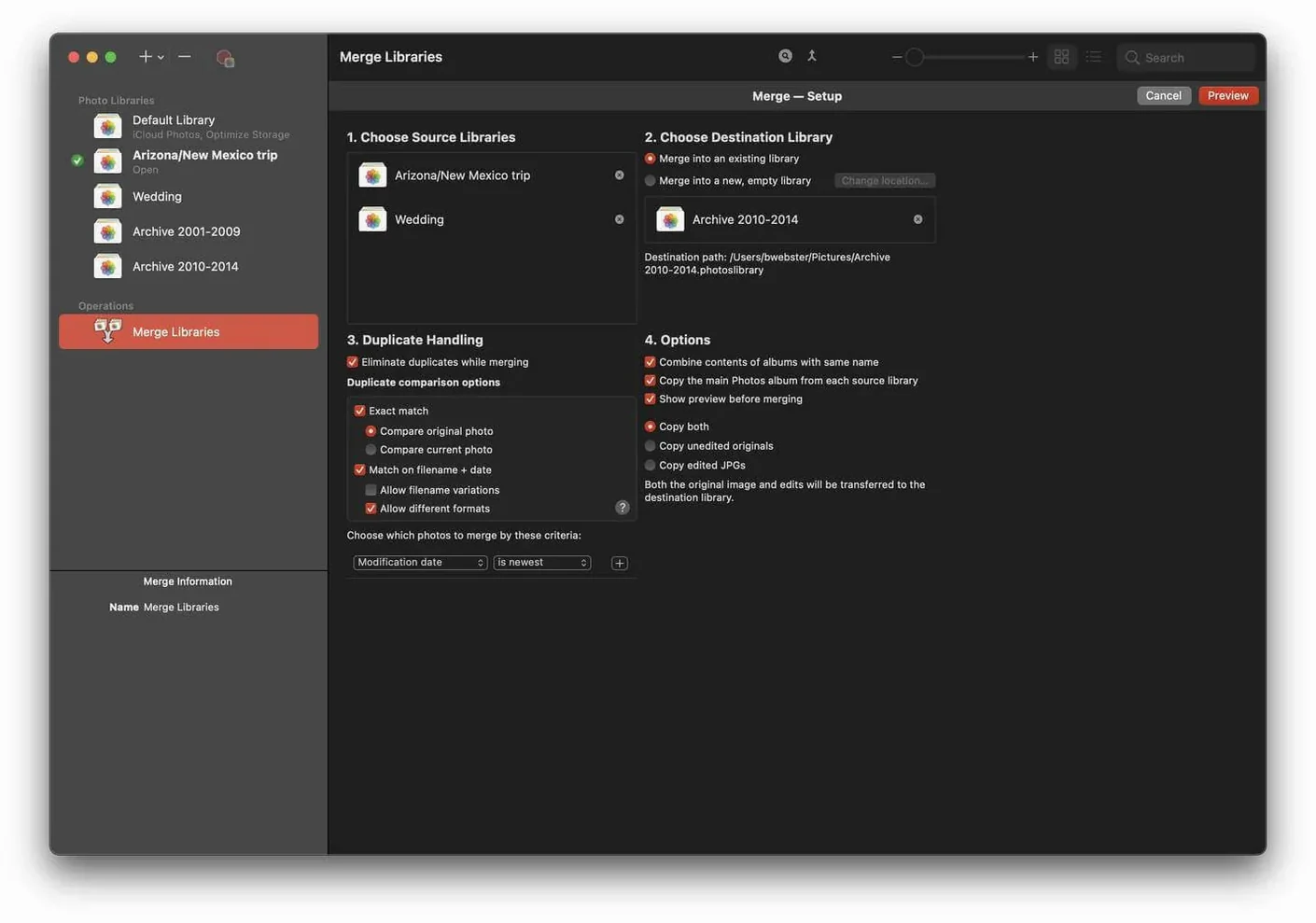
- Use PowerPhotos’ copy or move command to transfer the selected photos into “Current.photoslibrary”. The app handles the import without opening the Photos app separately.
- Run the duplicate analysis on “Current.photoslibrary”. PowerPhotos scans the library and presents any identical or near-identical photos side by side.
- Review the duplicates and remove the ones you no longer need. The freed storage is returned to the library file.
This avoids the manual process of opening each library in Photos, exporting photos to the Finder, re-importing them, and then checking for duplicates by eye.
Only writes changes when you explicitly merge or delete
Does PowerPhotos modify my original library files? The app reads from your libraries but only writes changes when you explicitly perform an action — merging, moving, deleting duplicates or switching the system library. It does not alter libraries in the background.
Can I use it with a library stored on an external drive? Yes. PowerPhotos can open libraries on external volumes or network shares, as long as the drive is mounted and macOS has read/write access. Performance depends on the drive speed, but the workflow is the same.
Will it work with libraries created in older versions of macOS? If the library has been opened and upgraded by the Photos app on macOS 14 or later, PowerPhotos can read it. Libraries that have never been opened on a compatible system may need to be opened in Photos first to update the database format.
Do I need to close Photos before using PowerPhotos? It is recommended. PowerPhotos can switch the system library while Photos is running, but some operations — particularly merging or moving large numbers of photos — are more reliable when Photos is closed. The app will warn you if it detects a conflict.
Before it goes on the Mac
- macOS 14 or later
- Apple Silicon or Intel 64-bit
Questions from the room
What version of macOS does PowerPhotos need?
PowerPhotos 3.4.8 requires macOS 14 or later. It works on both Intel and Apple Silicon Macs.
Can I search across all my Photos libraries at once?
Yes, PowerPhotos supports searching across all connected libraries simultaneously.
Does PowerPhotos work with the standard Mac Photos app?
Yes, it is designed to work with Apple's built-in Photos app.
Installing it on the Mac
A small 40 MB package covers both Apple Silicon and Intel 64‑bit Macs, needing only macOS 14 or later. Four steps get it in place.
- Mount the disk image and open the Open Gatekeeper friendly file.
- Press Enter in the Terminal window that appears to bypass Gatekeeper.
- Drag the PowerPhotos application into your Applications folder.
- The application is ready to use.
Notes from the control room
Sign in or open a catalogue account to leave a note.
No notes from the room yet. If you have used this build for a week, a short note helps the next person.