Home › Mac Apps › PhotoScape X Pro

PhotoScape X Pro 4.3 (Mac)
Updated
The catalogue note
You open a folder of raw test shots and start flagging keepers, rotating losslessly, and checking metadata in the loupe view — all before a single edit. That browsing-and-sorting workflow is where PhotoScape X Pro first distinguishes itself for anyone who handles more than a few images at a time. The built-in file manager handles video and audio previews too, so you can triage an entire shoot without switching apps.
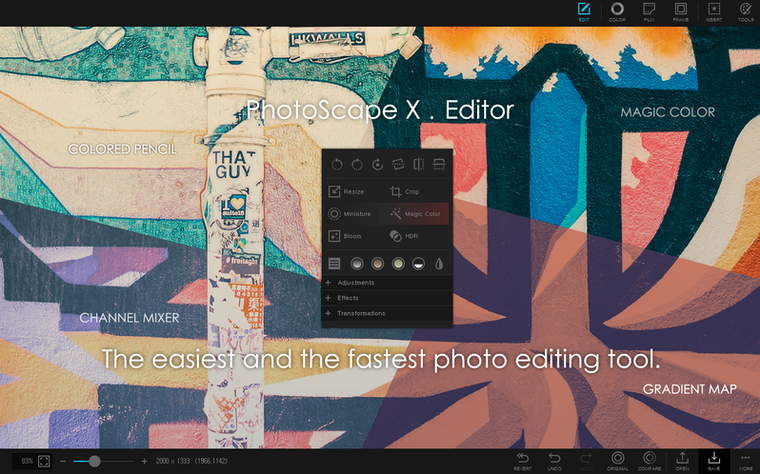
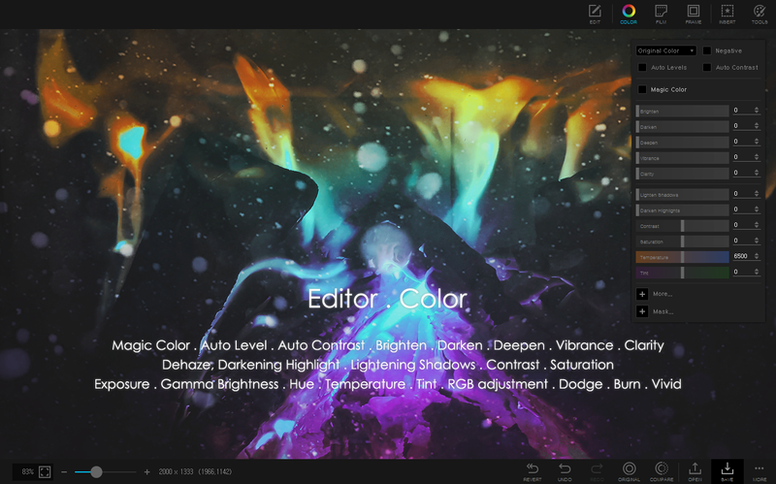
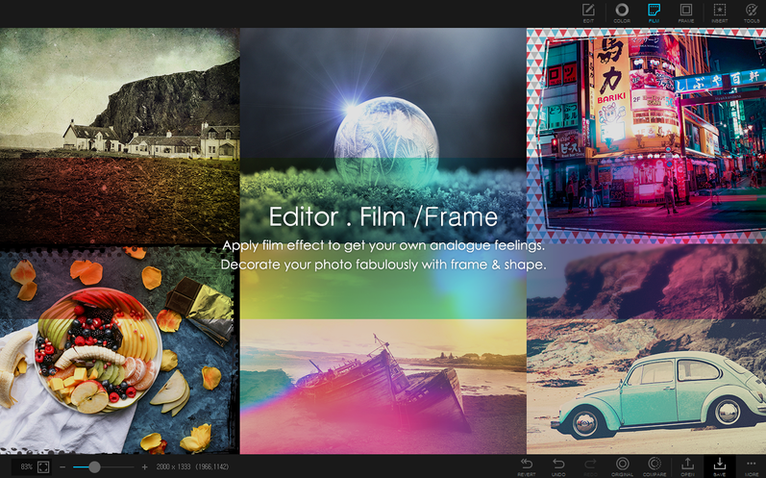
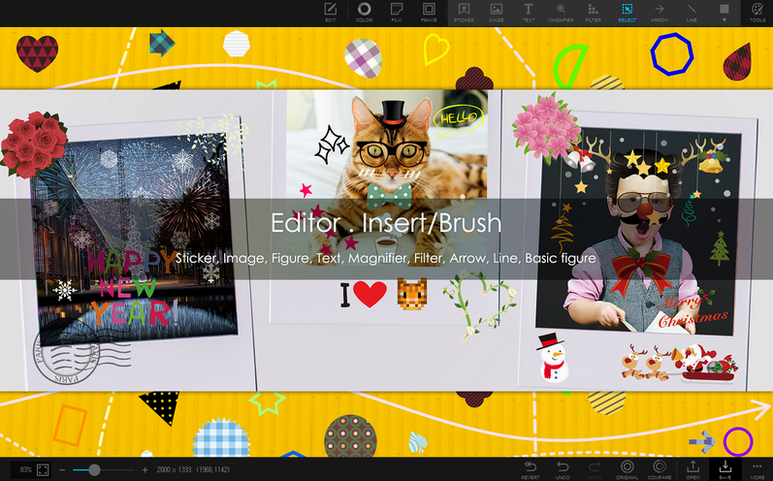
When you do move to editing, the tools that matter for real work are there: clone stamp, healing brush, liquify, and red-eye correction. The magic eraser with lasso and brush options handles background removal competently. There is a colour picker, split-photo grids, and over 290 frames if you need them — but the app does not force the decorative stuff on you. The 1,000+ filters and effects are there for when you want them, not as the main event.
Batch processing works across resize, rename, format conversion, and applying effects. Animated GIF creation is straightforward. The app runs natively on Apple Silicon — no translation layer — and feels responsive even with larger files.
Set startup mode to browser view in preferences
Before you start editing or sorting, open the preferences. The defaults are sensible for a general audience, but a studio engineer's habits benefit from a few tweaks. Under the general tab, set the startup mode to the browser view rather than the editor — it saves a click every time you launch the app and matches the triage-first workflow described above.
In the file handling section, enable lossless JPEG rotation if it is not already active. That lets you rotate images in the browser without re-encoding, preserving quality and keeping the operation instant. While you are there, switch the star rating and flag shortcuts to something your left hand can reach easily. I use the number row for stars and a single key for flags, but the point is to customise it before muscle memory sets in.
The loupe view has its own preferences. Set the overlay information to show exposure data and file size by default. If you shoot in raw, make sure the app is set to display the embedded preview rather than decoding the full raw file for every thumbnail — it keeps folder browsing fast.
Finally, check the batch export preset before you need it. Define a folder, a file-naming pattern, and a target format (I keep PNG and JPEG presets separate). Doing this now means the first time you finish a set of edits you are exporting in two clicks, not six.
Sort 1,200 wedding raws with loupe and arrow keys
A client delivers a memory card with 1,200 raw files from a wedding. I open PhotoScape X Pro and the browser loads the folder. I switch to the loupe view and start moving through shots with the arrow keys. Every image that is in focus and well-composed gets a flag. Soft duplicates, closed eyes, and test shots get skipped. After the first pass, I filter the browser to show only flagged files — that drops the count to roughly 400.
Now I assign star ratings: one star for the ceremony, two for portraits, three for reception details. The metadata panel shows me the lens and focal length for each shot, which helps when the client asks about consistency later. I rotate a handful of vertical shots that came in the wrong orientation using the lossless rotation — no quality loss, no re-export needed.
From the filtered and rated selection I pull the best 80 images into a collage layout for the client preview. The collage tool lets me choose a grid, drag images into cells, and adjust spacing. I save that as a single high-resolution PNG, ready to email. The whole process, from card insertion to export, takes under an hour. I have not opened a pixel editor once.
Working with other apps and macOS features
PhotoScape X Pro fits into a broader Mac workflow without demanding to be the centre of it. I use it alongside the Finder for file organisation and Apple Photos for final archiving. The app writes standard XMP sidecar data for ratings and flags, so when I later import the same folder into Capture One or Lightroom, the star ratings carry over. That alone saves re-tagging hundreds of images.
The colour picker tool is useful when I need to match a colour from a reference image for a web graphic. I open the reference in PhotoScape, pick the colour, and paste the hex value directly into my CSS or design tool. No third-party colour utility needed.
For batch work, I sometimes drag a folder of screenshots from the desktop directly into the batch conversion panel. The app picks them up, I choose a target format and size, and it processes them while I work in another application. The Apple Silicon build handles this in the background without slowing down the rest of the system noticeably.
Quick Look integration is another small convenience. I can select an image in the Finder, press space, and see the same metadata that PhotoScape displays — but if I need to flag or rate it, I open it in the app from the Quick Look preview. The two tools complement each other rather than overlap.
For anyone who keeps a photo library organised across multiple folders, the browser view works as a lightweight alternative to Bridge or Photo Mechanic.
Before it goes on the Mac
- macOS 13 Ventura
- Apple Silicon
- In-app purchases available
Questions from the room
Does PhotoScape X Pro run on Intel Macs?
No, the current version requires macOS 13 Ventura and is built for Apple Silicon only.
What languages does the interface support?
It supports English, German, Spanish, Italian, Traditional Chinese, Simplified Chinese, Korean, Dutch, Polish, Portuguese, French, and Japanese.
Installing it on the Mac
- Open the downloaded disk image.
- Drag the app into the Applications folder shortcut.
- Launch the app from Launchpad after copying finishes.
Notes from the control room
Sign in or open a catalogue account to leave a note.
No notes from the room yet. If you have used this build for a week, a short note helps the next person.