PDF Expert 3.13.4 (Mac)
Updated
The catalogue note
Version 3.11.1 (1146) of PDF Expert keeps things stable – no new headline features, just the same dependable toolset for handling PDFs on a Mac. This update is about consistency, which matters when you work with documents daily.
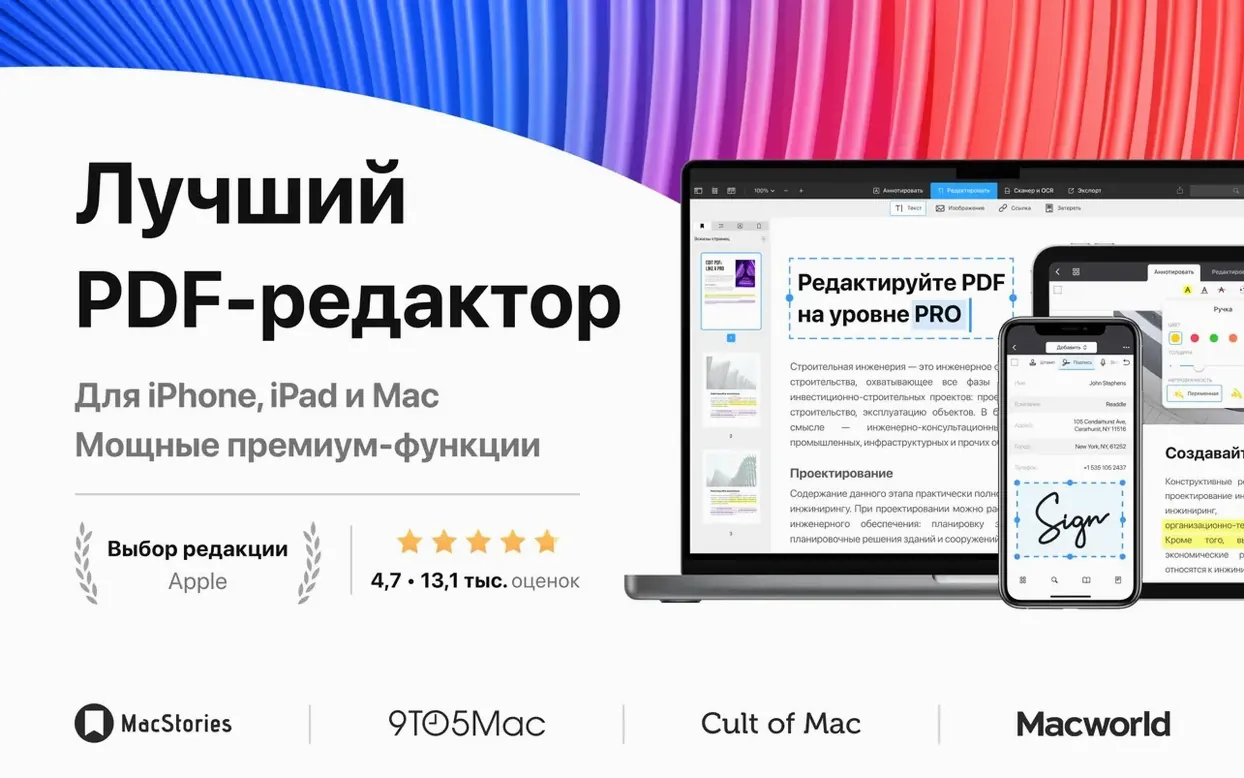
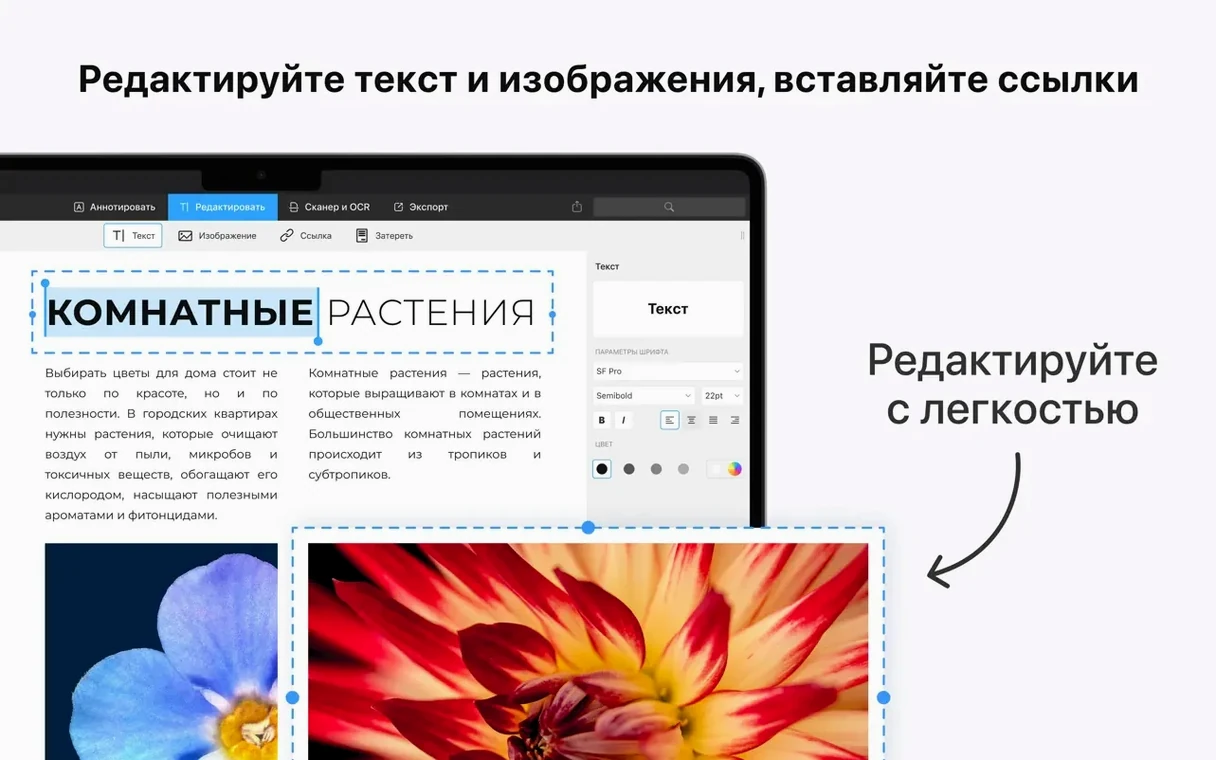
Edit PDF text directly without converting to a word processor
- Editing PDF text directly, without needing to convert back to a word processor.
- Merging multiple documents into a single file, useful for combining related contracts or reports.
- Annotating and adding links, so your feedback and references stay in the document.
- Signing forms and saving signatures for repeated use.
- Converting Word, Pages, and Docs files to PDF, handy when you need a universal format.
- Creating a table of contents for longer documents, making navigation easier.
Requires macOS 12 or later and runs on both Intel and Apple Silicon
- Requires macOS 12 or later, runs on both Intel and Apple Silicon.
- Interface is available in ten languages, including English, German, Spanish, and Japanese.
- No activation required – the app works after copying to Applications.
Drop into Applications, close the sign-in screen, and it activates automatically
Drop PDF Expert into Applications from the disk image, launch it, and close the sign-in screen if it appears. The app activates automatically on the next launch, so there is no need to hunt for a licence file or create an account immediately. Spend the first session opening a few different PDFs — a filled form, a scanned document, a multi-page report — to see how each behaves with the default settings.
Try the text edit tool on a simple PDF first. Double-click a paragraph, make a small change, and check that the reflow looks right on screen. Then move to a document with images; select one and replace it with a screenshot or a logo from your drive. The image replacement works without exporting the whole page, which saves time compared to going back to the source file.
Set up a saved signature early. Open a form that needs a signature, draw or type your name once, and store it. The next time you open any PDF that requires signing, the saved signature appears without re-drawing. This is the sort of repetitive task that benefits from a one-time setup.
If you work with the same folder hierarchy every day, drag a few PDFs into Expert and use the merge tool to combine weekly reports or project briefs. The merge result is a clean single file that you can then annotate or convert. Doing this on day one shows you how the app handles your real documents, not the demo files.
Best for editing PDF forms, contracts, tax documents, and HR paperwork
PDF Expert suits a wide range of Mac users, but a few groups benefit more than others. People who edit PDF forms — contracts, tax documents, HR paperwork — will appreciate the direct text editing and signature storage. You can fill a field, sign, and save without printing or switching to another tool.
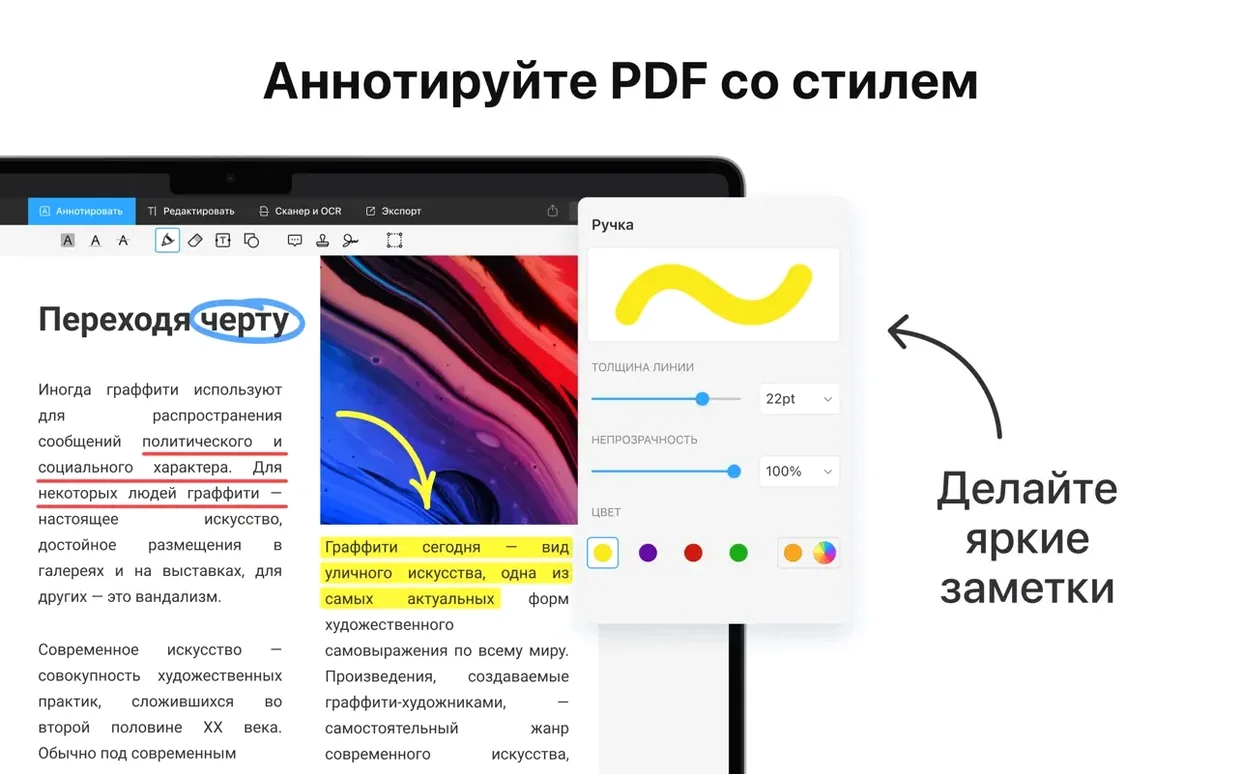
Anyone who annotates documents regularly, such as reviewers marking up drafts or lecturers preparing course materials, will find the annotation tools straightforward. Adding highlights, underlines, or sticky notes doesn't require extra steps; the toolbar keeps the common actions visible.
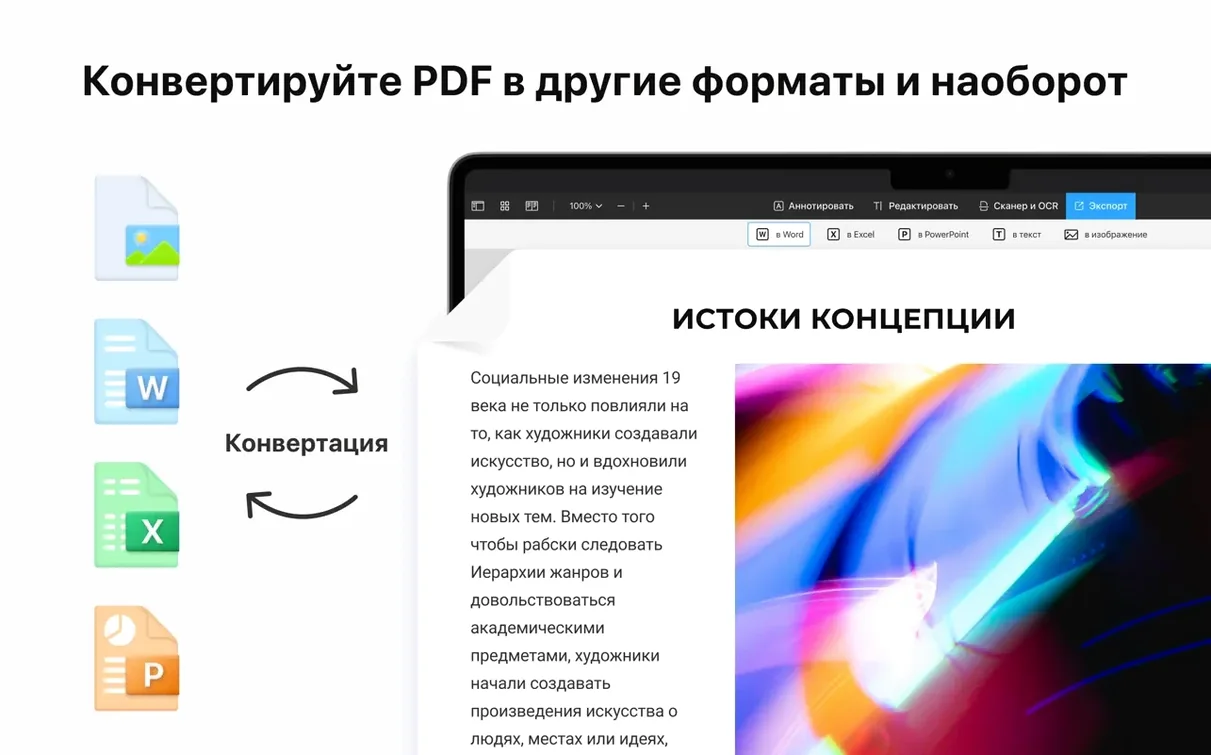
Users who convert files to PDF will find the Word, Pages, and Docs support useful. If you receive a .docx from a colleague and need a clean PDF for distribution, the conversion happens inside Expert without opening a separate office suite. That saves a few clicks per file, which adds up over a week.
People who manage multi-page documents — merging chapters, splitting large reports, or compressing files for email — will get consistent results. The split and compress features are not hidden in a submenu; they are accessible from the same toolbar as the other document actions. Handoff between Mac, iPhone, and iPad also matters if you start reading on one device and need to continue on another.
Modest install footprint with no extra background processes or services
PDF Expert requires macOS 12 or later and runs on both Intel and Apple Silicon Macs. The install footprint is modest — the disk image copies over and leaves no extra background processes or services. No activation is required, so the app launches immediately after copying to Applications.
The interface loads in one of ten languages, set either by system locale or manually. Languages include English, Russian, German, Spanish, Italian, Simplified Chinese, Portuguese, Ukrainian, French, and Japanese. The language selection does not affect the underlying features; all tools work identically regardless of the UI language.
Since the app works with standard PDF files, there are no proprietary formats or conversion steps to learn. Files open as you would expect from any PDF reader, with the extra editing and annotation tools available once the document is loaded. The app integrates with macOS file handling, so you can open a PDF from Finder or drag it onto the Expert icon.
Set PDF Expert as the default reader in preferences for all PDFs
Open the preferences or settings panel and check the default file association. If you want PDF Expert to handle all PDFs on your Mac, set it as the default reader there. This makes double-clicking a PDF in Finder open straight into Expert instead of Preview or another app.
If you work with documents in a language other than the system default, switch the UI language to your preference. The setting is persistent across launches, so you only need to do it once. Japanese, Ukrainian, and Simplified Chinese users, for example, will find the translated interface consistent with the English version's layout.
Review the signature options. If you plan to sign documents regularly, store two or three variations of your signature — a typed version and a drawn version, for example. The app remembers them, so you don't have to re-create them each time.
For anyone who frequently converts files, set the default output folder to your working directory. That way converted PDFs land where you need them, not in the source file's location or the Downloads folder.
Version 3.11.1 improves stability and compatibility on macOS 12 and later
Version 3.11.1 (1146) is a maintenance update. There are no new tools or interface redesigns in this release. What changed is the underlying stability and compatibility. Users on macOS 12 and later will find that the app opens documents consistently, without the occasional blank page or delayed toolbar response that earlier versions showed on some systems.
The update also polishes the interaction between the app and macOS file handling. If you use Handoff between Mac and iPhone or iPad, the sync behaviour is more predictable — files you annotated on the iPad appear on the Mac without manual re-downloading. This matters most for people who edit on the go and finalise on the desktop.
For those who keep a library of signed documents or filled forms, the saved data — signatures, form entries, annotation presets — remains intact after updating. The app reads your existing profile without reconfiguration, so the first launch after installing 3.11.1 looks exactly like the previous session, just with the underlying fixes applied.
Changes in this build
- Version 3.11.1 (1146) – maintenance update, no new features listed.
Before it goes on the Mac
- macOS 12 or later
- Intel or Apple Silicon
- No activation required
Questions from the room
Can I edit the text in a PDF with PDF Expert?
Yes, PDF Expert lets you edit PDF text directly, so you can fix typos or update content without leaving the file.
Does PDF Expert work on Apple Silicon Macs?
Yes, it supports both Intel and Apple Silicon architectures, and requires macOS 12 or later.
Installing it on the Mac
- Open the downloaded disk image.
- Drag the app to the Applications folder shortcut.
- After copying finishes, launch the app from Launchpad.
- On first launch, close the sign-in screen if it appears; it will activate automatically on the next launch.
Notes from the control room
Sign in or open a catalogue account to leave a note.
No notes from the room yet. If you have used this build for a week, a short note helps the next person.