Home › Mac Apps › PDF Reader Pro
PDF Reader Pro 6.5.0 (Mac)
Updated
The catalogue note
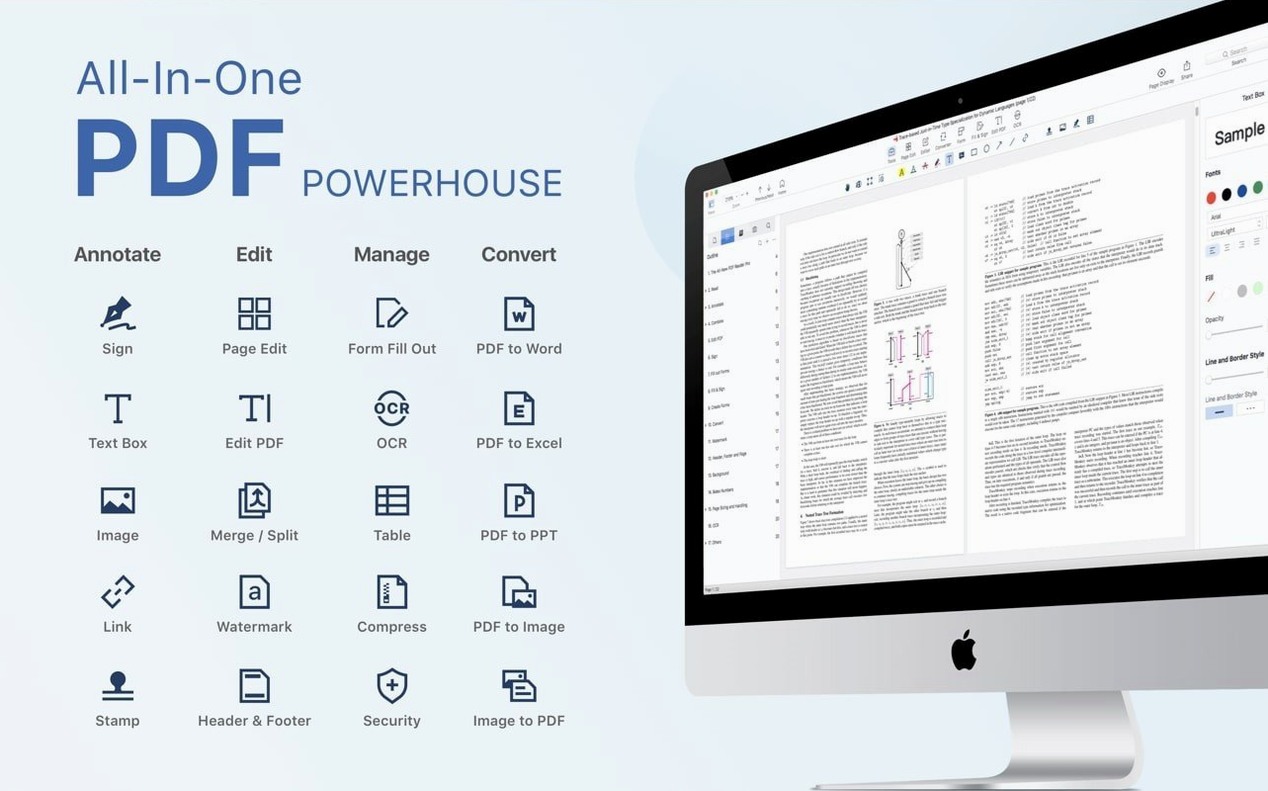
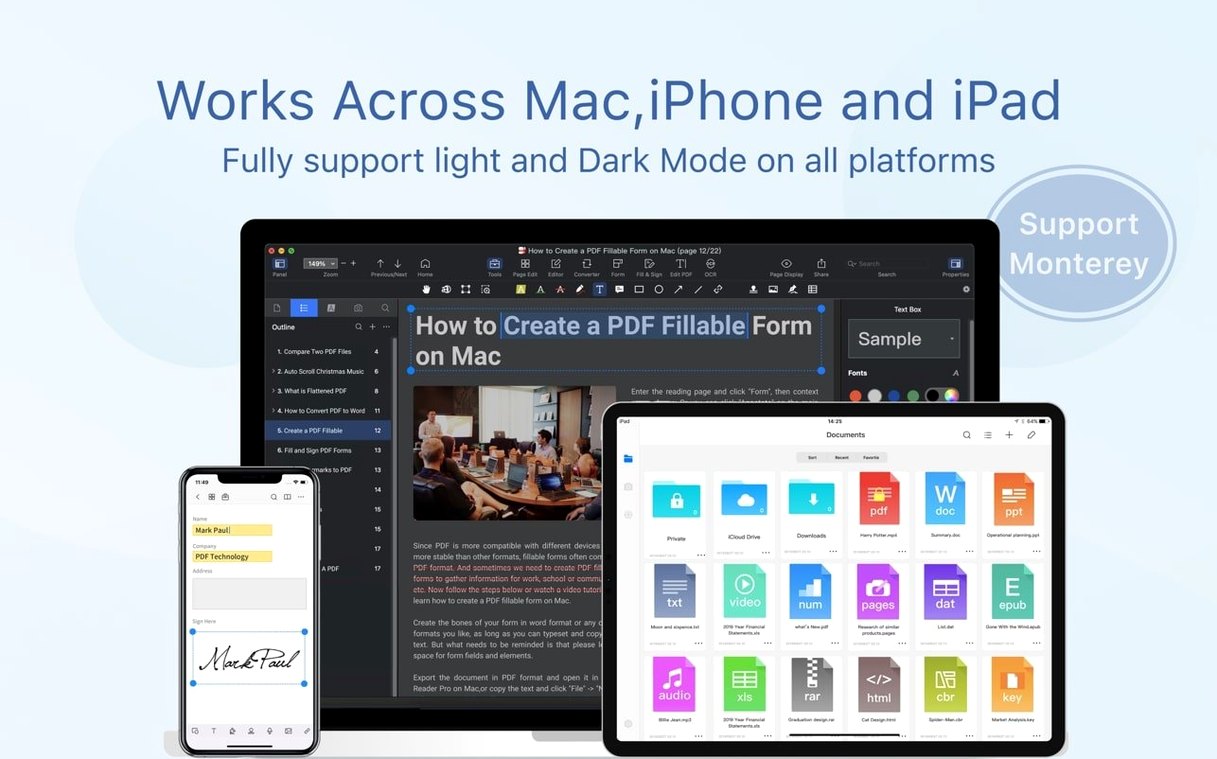
PDF Reader Pro 6.0.0 runs on any Mac with macOS 11 or later — Intel and Apple Silicon both work. It is a PDF editor for Mac that does not need an internet connection for its core tasks.
- Reading and annotation
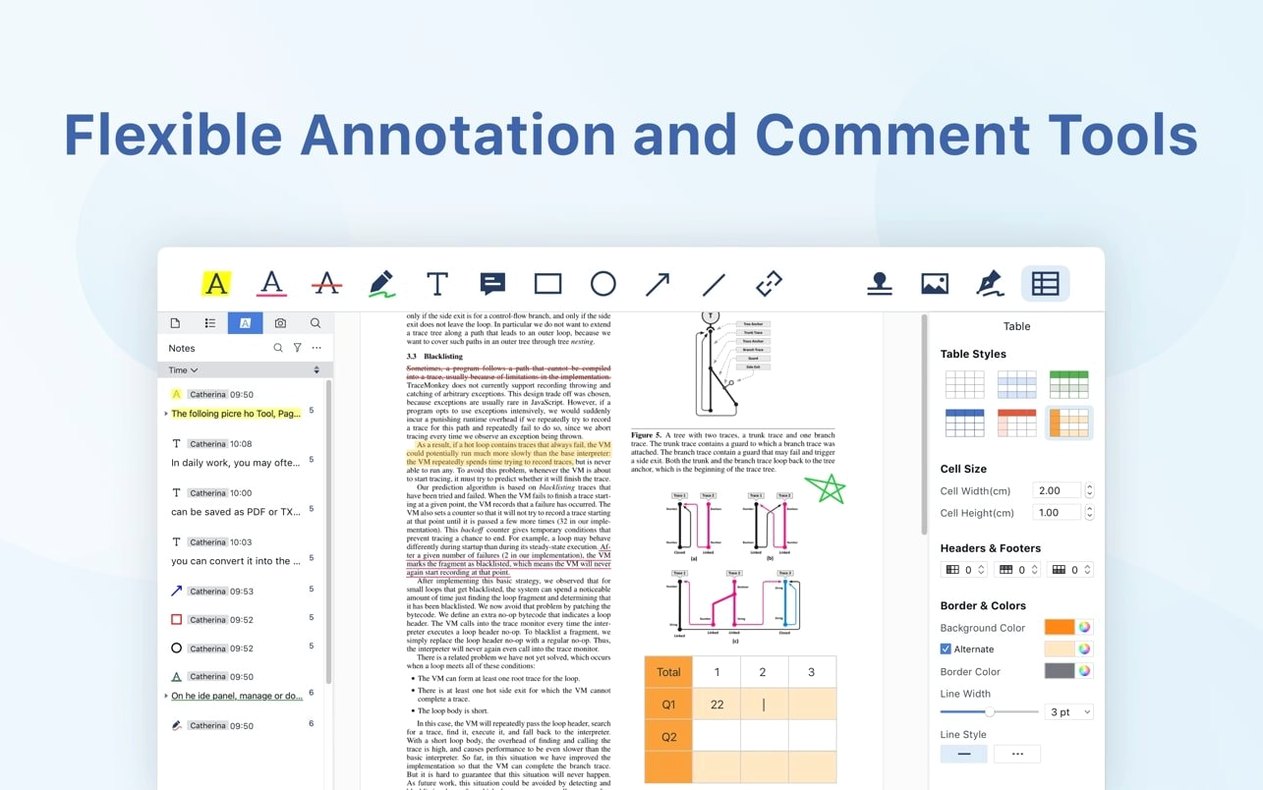
- Open, scroll and mark up PDFs with highlights, notes and stamps. A presentation mode turns documents into full-screen slides.
- Editing and organisation
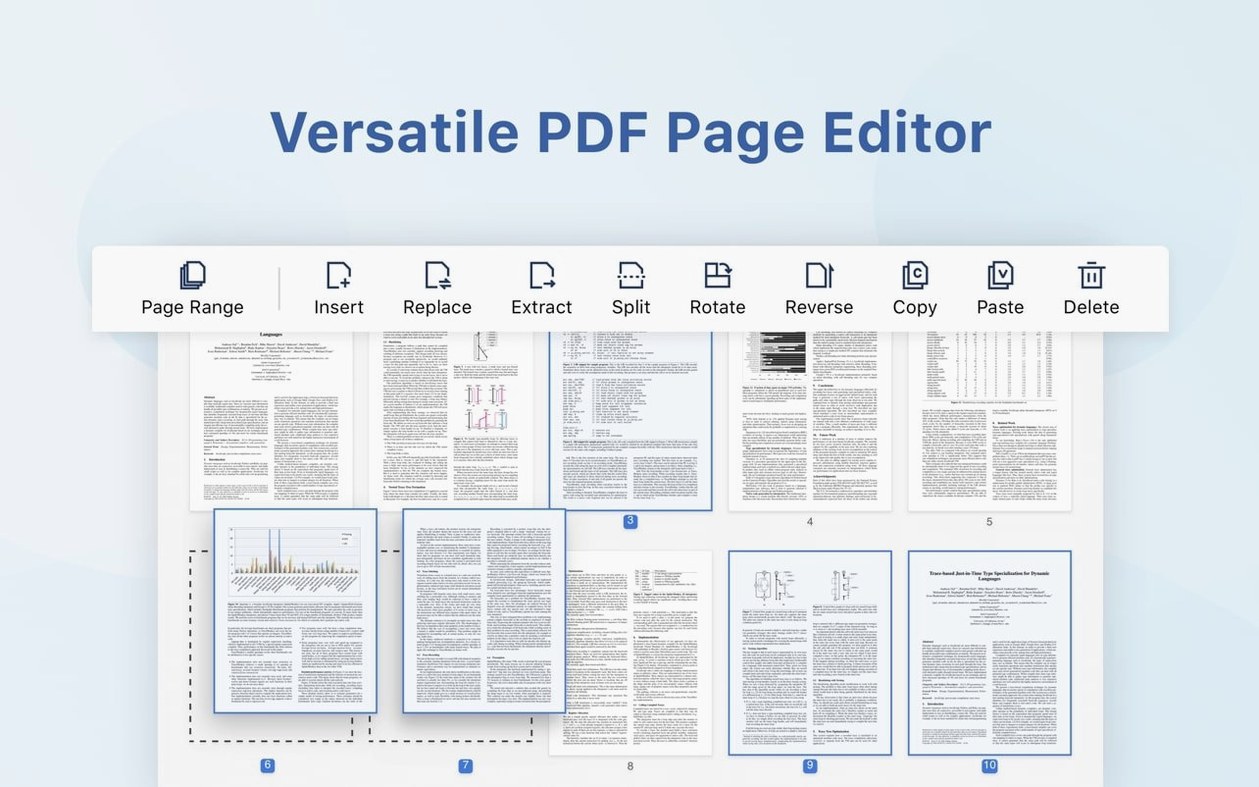
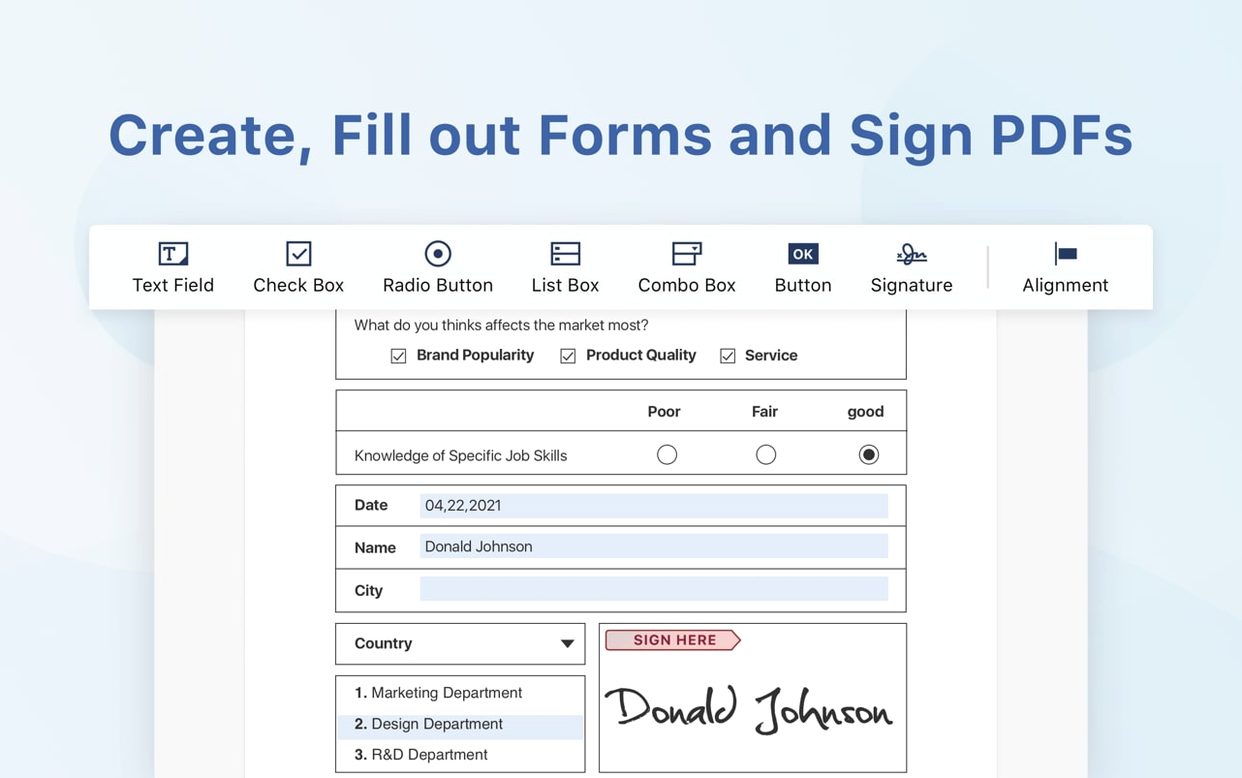
- Insert pages from another PDF, merge several documents into one, or split a file into separate pages. Form filling works on interactive forms and simple flat layouts.
- Conversion and export
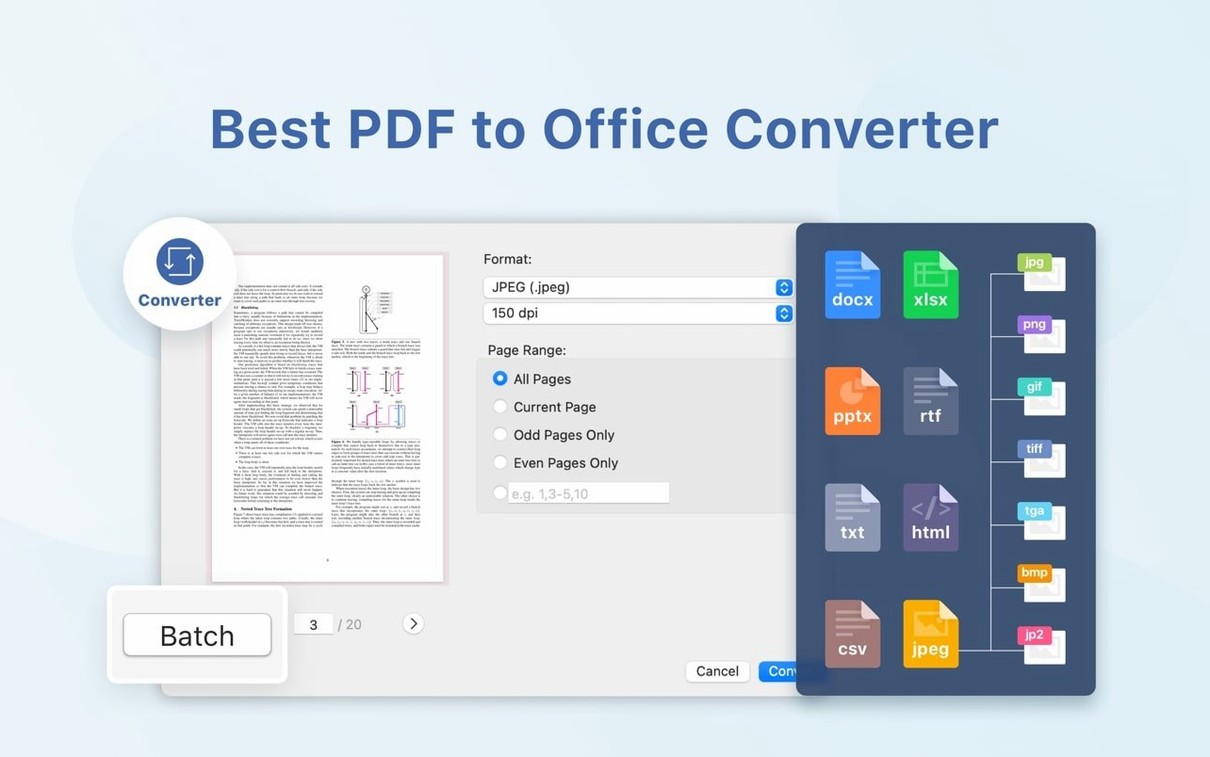
- Export PDF content to Word, PowerPoint, Excel, RTF, HTML, plain text, images or CSV. The conversion engine also handles multi-document merges without extra steps.
- Text recognition
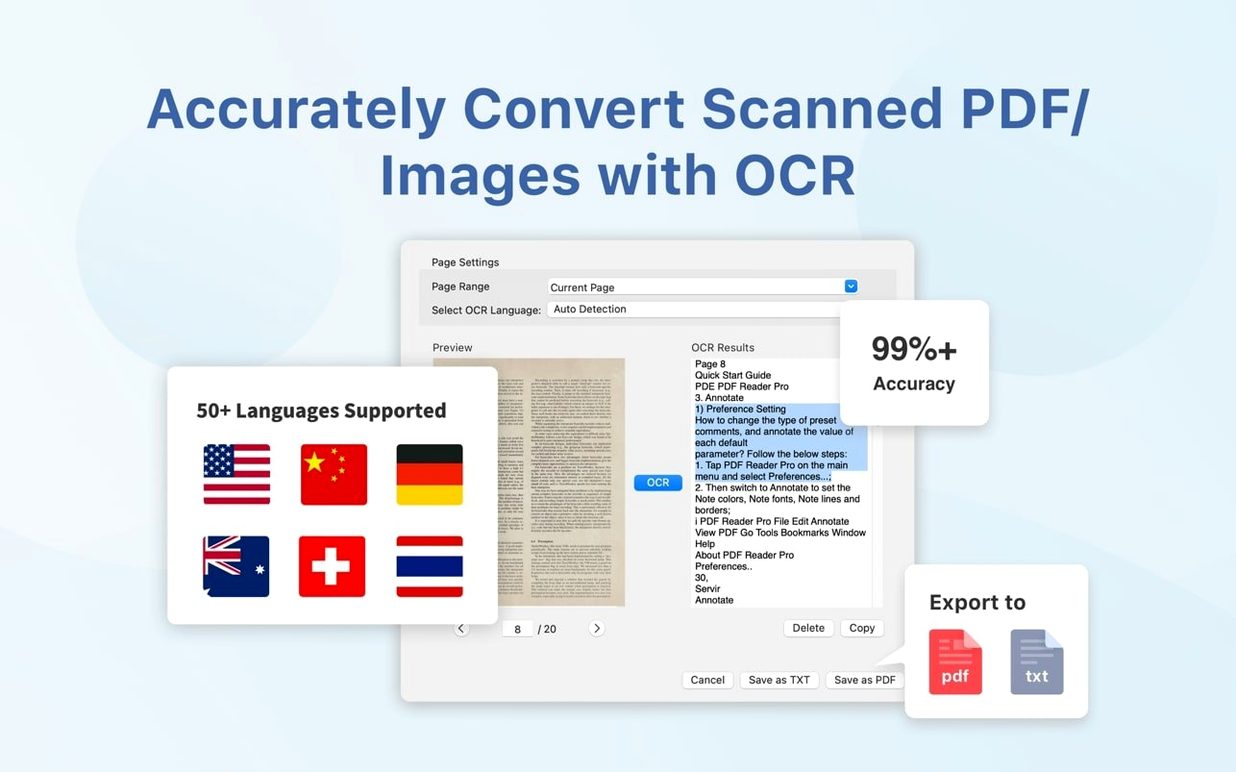
- Built-in OCR turns scanned pages into selectable text. Version 5.3.0 (March 2026) improved recognition accuracy and speed.
- Interface languages
- English, German, Spanish, French, Italian, Dutch, Polish, Russian, Japanese, Traditional Chinese and Simplified Chinese.
Getting started after installation
Once you drag the app into Applications and launch it, the first thing to check is the language selector. PDF Reader Pro starts in English by default, but you can switch to one of the other ten languages from the Preferences panel before you open any documents. If you work with multilingual files, the OCR engine respects the language you choose — setting it to Polish or German before a batch of scanned invoices saves you re-running the recognition later.
Open a short test file first, something you know well. Try the annotation tools: highlight a line, add a sticky note, draw a rectangle. Then test the text-to-speech on a paragraph — the voice reads aloud the selected text, which is useful for proofreading long documents. None of this requires an account or a cloud connection.
If you plan to use the app for form filling, open a form you have filled before in another reader and compare how the fields appear. PDF Reader Pro handles both AcroForms and XFA forms, though XFA support is limited to what the engine can flatten. For simple flat forms, the text and checkbox tools work without fuss.
Sign contracts without a separate app
The March 2026 release (version 5.3.0) added eSign workflows, signature fields, and online signing. In practice, this means you no longer need a separate app to sign contracts. You create a signature once — drawn, typed or imported from an image — and the app stores it for reuse. The signature field tool places a resizable box where you want the signature to appear, and you apply the saved signature with one click. The online signing option sends the signed document to a recipient directly from the app, assuming you have configured a mail client on your Mac.
The same update improved OCR and conversion accuracy. If you work with scanned documents regularly, the difference is visible on pages with small print or uneven contrast. Text extraction from scans now preserves more of the original layout, which helps when you export to Word or Excel and need columns and tables to stay in order.
Send documents via macOS sharing menu or Dropbox
PDF Reader Pro uses the standard macOS sharing menu, so you can send a document from the app to Mail, Messages, Notes or AirDrop without saving a copy first. The Dropbox sync works as a two-way folder — any PDF you save to the synced folder on your Mac appears in the app's file browser, and changes made on another device are visible after a refresh.
For users who rely on Spotlight to find documents, PDF Reader Pro's files are indexed normally as long as the app saves them to the standard file system. The built-in text recognition does not interfere with Spotlight indexing, so scanned PDFs become searchable through the system search once the OCR has run.
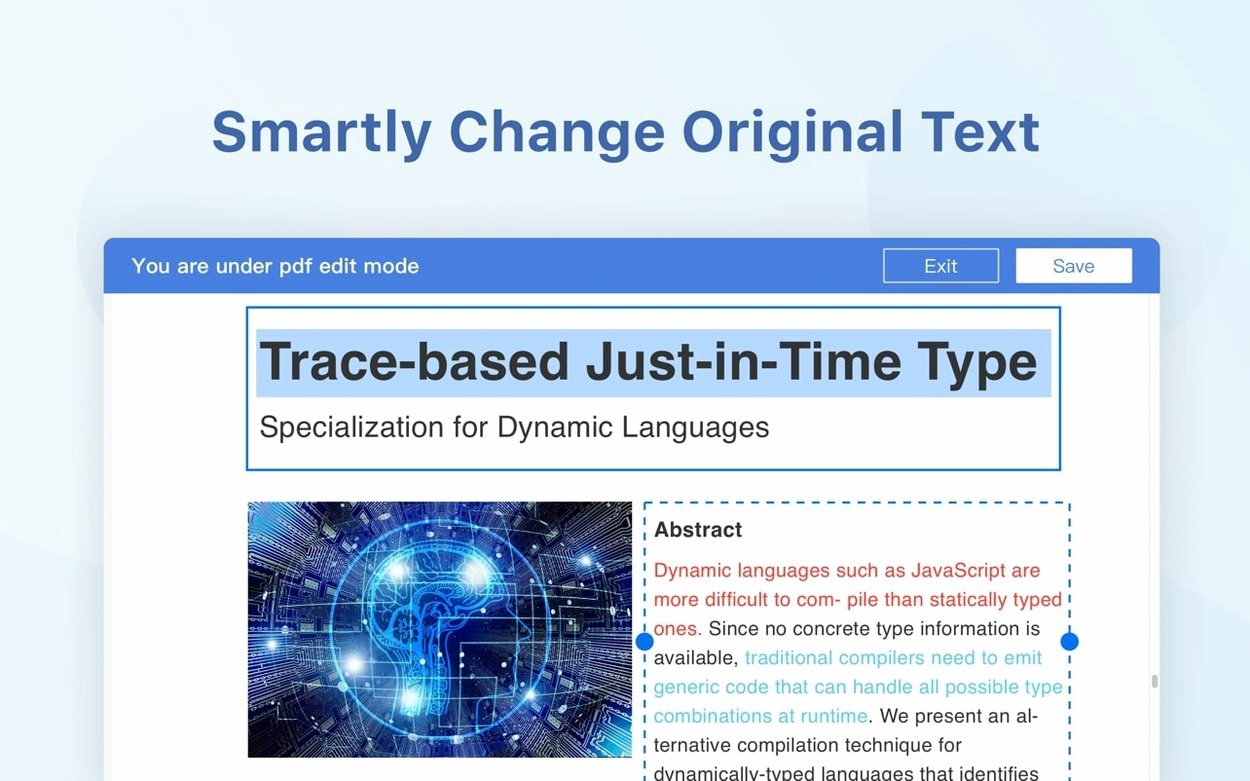
The export to Office formats integrates well with iWork and Microsoft Office for Mac. You can export a PDF to .docx and open it directly in Pages or Word — the formatting survives for straightforward documents with headings, paragraphs and simple tables. Complex multi-column layouts may need manual adjustment, but that is true of any PDF-to-Word converter.
Office workers handle forms, signatures and exports in one app
Office workers who handle contracts, forms and reports daily get the most from the annotation and eSign features. Being able to fill a form, sign it and export to PDF in one app removes the back-and-forth between a viewer and a separate signer.
Academic users who annotate papers and collect notes from multiple PDFs will appreciate the bookmark system and the merge function. You can bookmark key sections across a dozen articles, then merge the relevant pages into a single compiled document for reference.
Freelancers and small business owners who receive signed documents from clients benefit from the eSign workflow and Dropbox sync. A signed contract lands in the synced folder, and you can open it on another Mac without email attachments.
Users who work with scanned archives — invoices, receipts, historical documents — gain the most from the improved OCR in version 5.3.0. The recognition engine now handles smaller fonts and slightly rotated text better than before, which reduces the time spent correcting misread characters.
Read books or reports full-screen with keyboard navigation
The presentation mode is not just for slides. If you open a PDF of a book or a long report and switch to presentation view, the app displays each page full-screen and lets you advance with the keyboard arrows. This works offline and does not require a projector — useful for reading dense material without distractions.
Text-to-speech reads the visible page content aloud. The voice follows the system's accessibility settings, so you can change the rate and voice in macOS System Settings. This is not a full read-aloud of the entire document — it reads the current page or the selected text, which is enough for spot-checking paragraphs without reading them on screen.
The page insertion tool accepts PDF files from any folder, not just from the app's recent documents list. Drag a PDF from Finder into the page panel and the app inserts it at the chosen position. The same panel handles splitting and reordering pages with simple drag actions.
If you search for a specific tool and cannot find it, the interface languages include Polish, Dutch and Japanese among others — the menu labels change accordingly, but the keyboard shortcuts remain the same. Users who switch between languages can keep the English shortcut habits regardless of the UI language.
Before it goes on the Mac
- macOS 11 or later
- Intel or Apple Silicon processor
Questions from the room
Does PDF Reader Pro support Apple Silicon natively?
Yes, it runs on both Intel and Apple Silicon Macs. No emulation layer is needed.
Can I fill in forms that are not interactive?
The app includes form filling for interactive forms and basic flat PDF layouts, though complex non-interactive forms may need OCR or manual text tools.
Installing it on the Mac
- Mount the disk image and open Gatekeeper friendly.
- Press Enter in Terminal to bypass Gatekeeper.
- Drag the app into the Applications folder.
- Launch the app from Applications.
Notes from the control room
Sign in or open a catalogue account to leave a note.
No notes from the room yet. If you have used this build for a week, a short note helps the next person.