Home › Mac Apps › Microsoft PowerPoint

Microsoft PowerPoint 16.93 (Mac)
Updated
The catalogue note
You already know how to build slides in Keynote. PowerPoint 16.93 for Mac is the other side of that coin — familiar enough to pick up quickly, different enough to matter when the client sends a .pptx file with corporate templates and embedded video.
Start a presentation from scratch
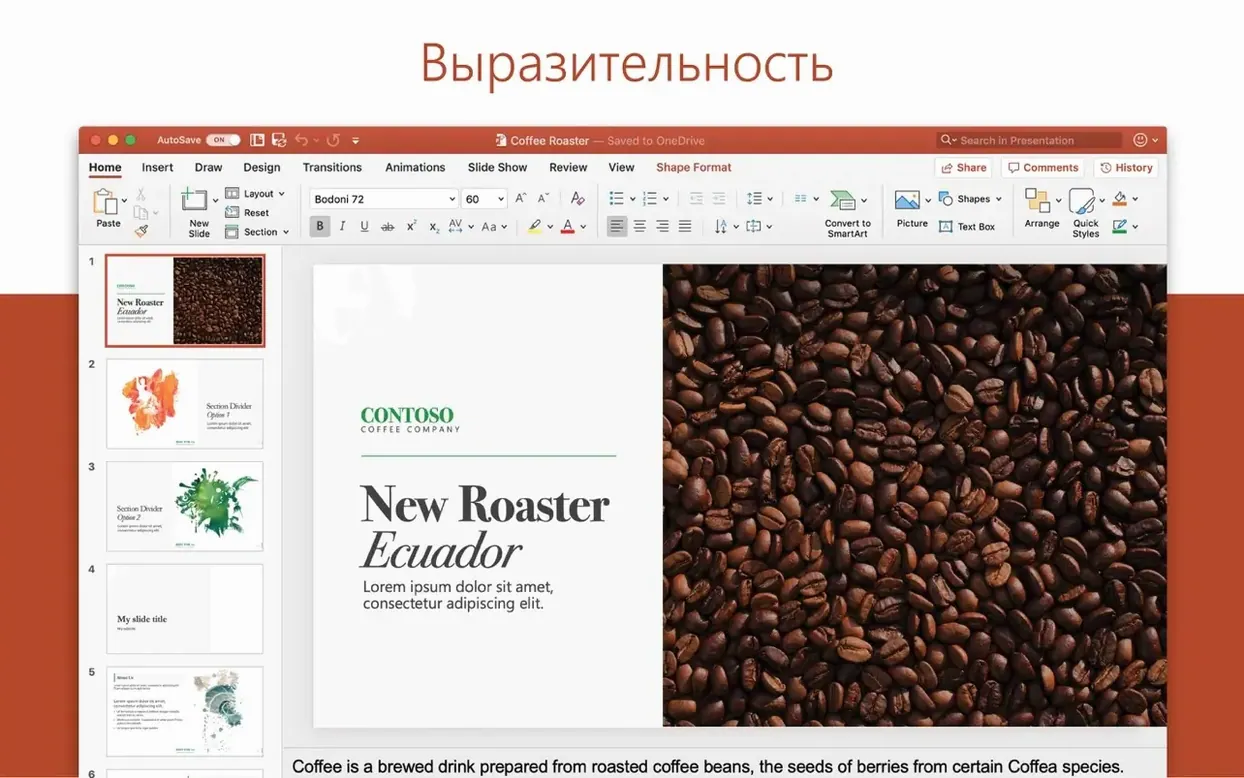
New blank presentation — File > New Presentation, or Cmd+N. The slide master panel sits on the right, same as in Word's style gallery. Choose a layout, add a title, type notes in the pane below.
Add media and transitions
Insert picture — drag a .png or .jpg from Finder onto the slide. PowerPoint places it centre; grab a corner handle to scale it. For video, Insert > Movie > Movie from File works with .mp4 and .mov files. Transitions live under the Transitions tab, not the Animations tab — a distinction that trips people up once.
Export for the client
Export to PDF — File > Export, choose PDF. For video export, File > Export > Movie (MP4). Both respect the slide timings you set under Transitions. The resulting file plays in QuickTime Player without extra codecs.
PowerPoint sits inside the Office 2024 suite alongside Word, Excel, Outlook, OneNote, and OneDrive. Interface languages cover English, Polish, German, French, and seventeen others. It runs on macOS 13 and later, Intel and Apple Silicon.
Font rendering differences between Mac and Windows versions
A few things tend to catch people out when they move to PowerPoint 16.93 on Mac. Font rendering can look different from the Windows version — if a client says the slides "don't match," check that the font is installed on your Mac and not substituted by a system fallback. Embedding fonts (PowerPoint > Preferences > Save) reduces this problem, though it increases file size.
Video playback is another frequent issue. If an inserted .mp4 won't play during a slideshow, the codec is likely the culprit. PowerPoint on Mac uses QuickTime for playback, so files that rely on Windows Media Foundation codecs need converting. HandBrake to H.264 or HEVC usually resolves it.
Animation timing drifts when you move a slide between Mac and Windows — the two versions calculate easing differently. Stick to basic Fade, Push, or Morph transitions if the deck travels. Custom motion paths look fine on both but test them before a live presentation.
If the ribbon feels cramped, double-click any tab name to collapse it permanently. The space gained is modest but helpful on a 13-inch screen.
Keynote handles typography better but chokes on complex .pptx files
Keynote is the obvious alternative. It handles typography and alignment with a lightness PowerPoint lacks — snapping objects to guides, for instance, feels more intuitive in Keynote. But Keynote struggles with complex .pptx files that contain embedded OLE objects or VBA macros; PowerPoint reads those natively. If your workflow involves corporate templates with locked masters, PowerPoint is the safer choice.
Google Slides works entirely in a browser. It handles collaboration well — multiple people editing the same slide in real time — but its animation engine is limited. You cannot create custom motion paths or fine-tune timing curves. PowerPoint on Mac gives you those tools locally, and you can still share via OneDrive for co-authoring if needed.
LibreOffice Impress opens .pptx files reliably and costs nothing, but its rendering of complex charts and SmartArt is hit-and-miss. Gradients often look banded, and embedded fonts rarely load correctly. For quick edits on a borrowed machine it works; for final delivery, stick with PowerPoint.
Runs natively on Apple Silicon and Intel with no Rosetta needed
The macOS 13 or newer is needed for PowerPoint 16.93. It operates without emulation on Apple Silicon and Intel 64-bit systems, requiring no Rosetta on the first and incurring no speed loss on the second. Included in the Office LTSC Standard for Mac 2024 bundle, which contains Word, Excel, Outlook, and OneNote, is the installer. You download a single bundle and activate it with the VL Serializer; Microsoft AutoUpdate (MAU) handles future patches.
Disk space is the main consideration — RAM and CPU demands are moderate. A MacBook Air with 8 GB of RAM handles slide editing and basic transitions without issue. Heavy 4K video exports or presentations with dozens of embedded 3D models benefit from 16 GB or more, but that applies to any presentation app.
Interface languages are plentiful: Russian, English, German, Hungarian, Greek, Danish, Indonesian, Spanish, Italian, Korean, Dutch, Polish, Portuguese, Slovak, Thai, Turkish, Finnish, French, Czech, Swedish, and Japanese. The language is set system-wide via System Settings, not within PowerPoint itself.
Rotate 3D models live during a slide show with .usdz and .obj files
PowerPoint 16.93 includes 3D model support — you can insert a .usdz or .obj file and rotate it in three dimensions during a slide show. This is useful for product demos or architectural walkthroughs. Icons are also built in; Insert > Icons gives you access to a library of scalable vector graphics that match Office's visual style. They are free to use and don't require an internet connection after the first download.
The Morph transition is worth knowing about. It animates objects smoothly between slides — a shape that moves from left to right, for example, without manual keyframing. Apply it to a duplicate slide after moving or resizing elements. It works best with simple shapes and text, less reliably with grouped objects.
Presenter view shows your notes, a timer, and the next slide on the Mac screen while the audience sees only the current slide on the projector. It activates automatically when a second display is connected. The controls are basic but functional — you can zoom into a specific part of a slide during the presentation by clicking the magnifying glass icon.
Set default save format and disable personalized ribbon suggestions first
Before you build your first deck, open PowerPoint > Preferences and adjust these:
- Save — set the default format to .pptx (it already is, but confirm). The default is buried inside ~/Library/Containers.
- General — under "Personalize," uncheck "Show the Home screen when opening PowerPoint" if you prefer a blank document immediately. This saves one click per session.
- Editing — increase the "Undo levels" from the default 20 to the maximum 150. You will thank yourself after a sequence of accidental deletions.
- View — enable "Show all windows in the menu bar." It makes switching between open presentations faster, especially when comparing two versions side by side.
That covers the initial setup. The rest is down to the content you put on the slides.
Changes in this build
- Office suite release 16.93 includes PowerPoint.
Before it goes on the Mac
- macOS 13 or later
- Intel or Apple Silicon processor
Installing it on the Mac
- Install the standard Office 2024 package.
- Or download the required package using the links for Word, Excel, PowerPoint, Outlook, and OneNote.
- All packages come from official Microsoft servers and require activation.
- To activate, install Microsoft Office LTSC 2024 VL Serializer.
- To receive updates, install Microsoft AutoUpdate (MAU).
Notes from the control room
Sign in or open a catalogue account to leave a note.
No notes from the room yet. If you have used this build for a week, a short note helps the next person.