
Mellel 6 6.7.1 (Mac)
Updated
The catalogue note
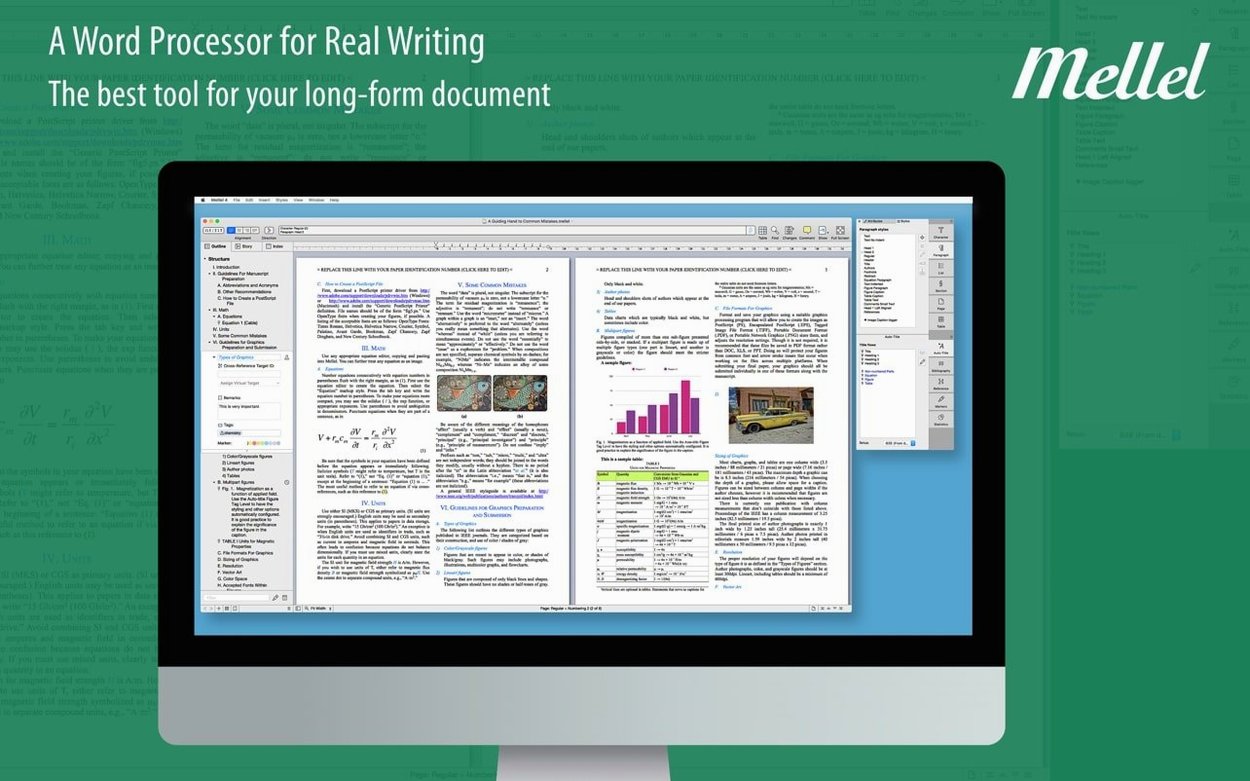
Mellel 6 is a word processor built for long documents, with the sort of depth that only shows up once you start wrestling with a thesis or a multilingual manuscript. RedleX has been at this for years, and version 6.7.1 keeps the core promise: fast, stable, and easy to use, even when your document runs into hundreds of pages.
For a newcomer, the first thing to try is the split view. It lets you look at two parts of the same document side by side, which is invaluable when you need to cross-reference a chapter heading while editing the body text. Dark appearance is another immediate win if you work late; it’s not just a skin, it touches every palette and panel consistently.
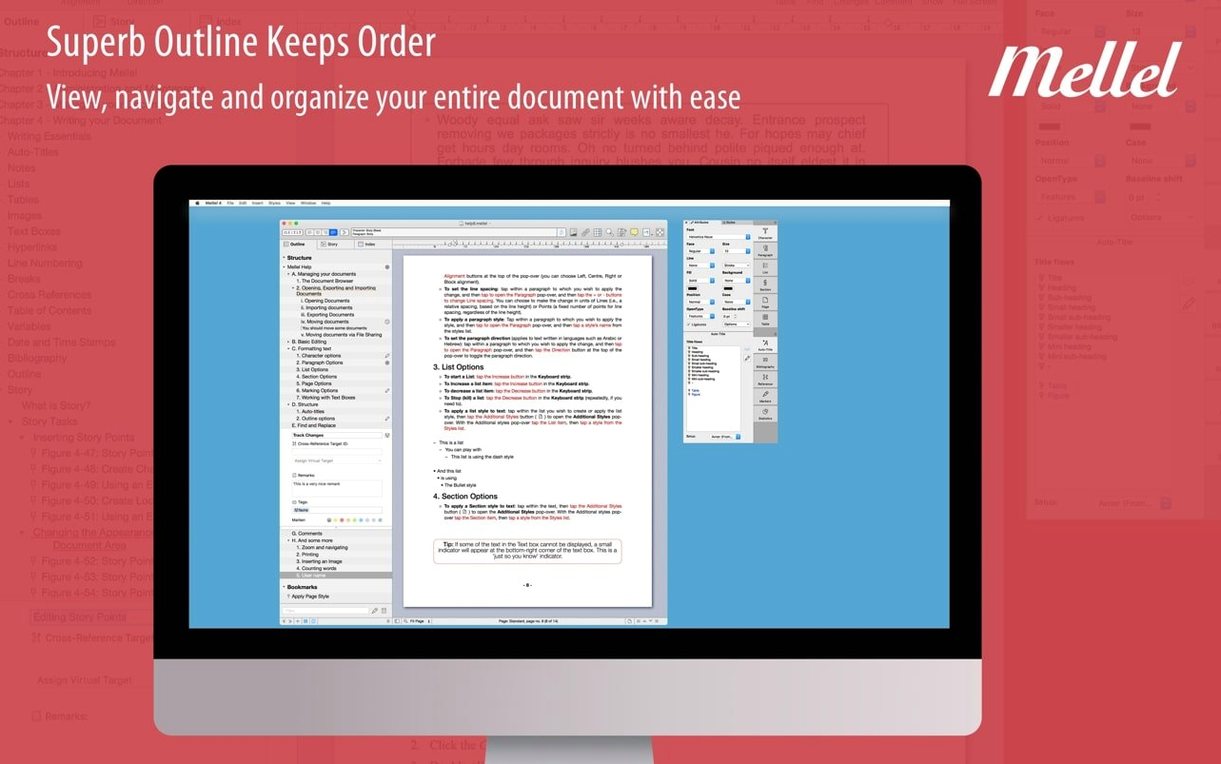
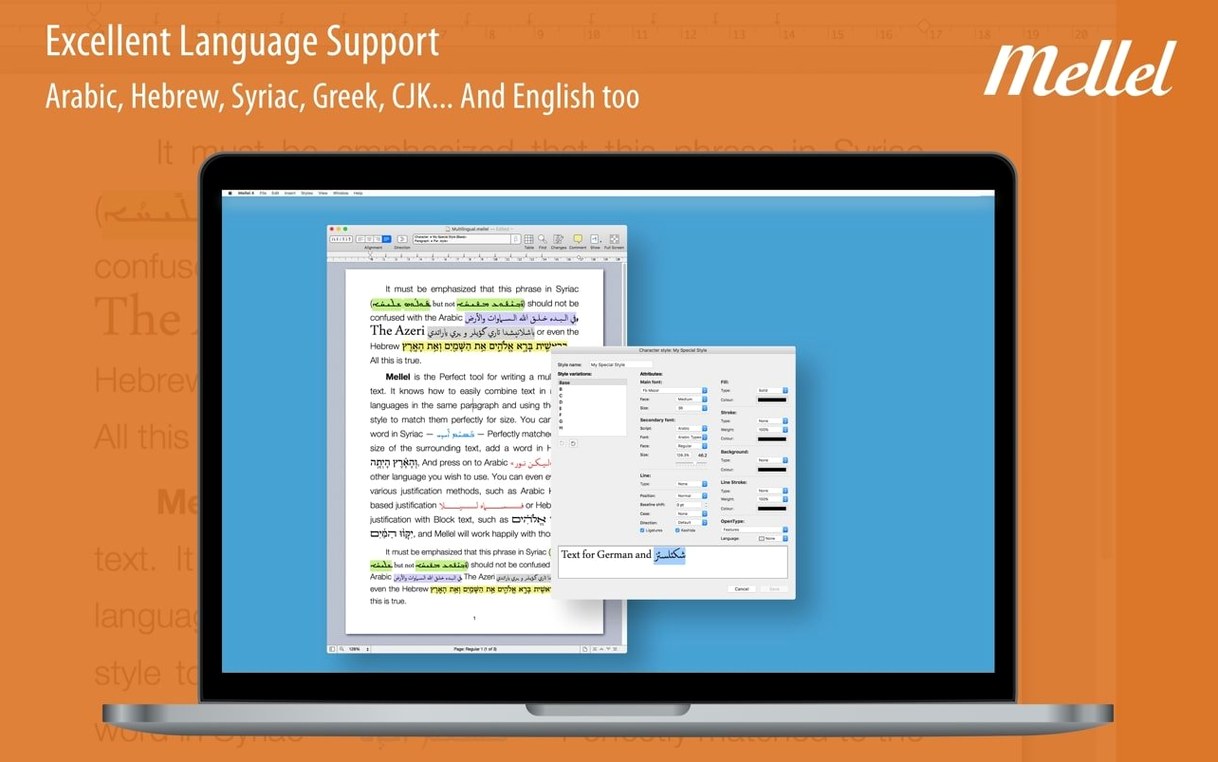
Next, spend time with find and replace. Version 6 added significant improvements here, and it’s the kind of feature that saves you hours on a long piece. The outline is also worth opening early; it gives you a structural view that makes navigation feel effortless. And if you write in Arabic, Persian, Hebrew, or Syriac, Mellel’s right-to-left support is the real deal, not an afterthought.
Mellel 6.7.1 fixes a few crashes, including one tied to memory leaks and another when closing the last document with the auto-title styles palette open. It’s a solid point release. Whether you’re a student, a translator, or a technical writer, Mellel deserves a slot on your Mac.
Index tools that build automatically as you write
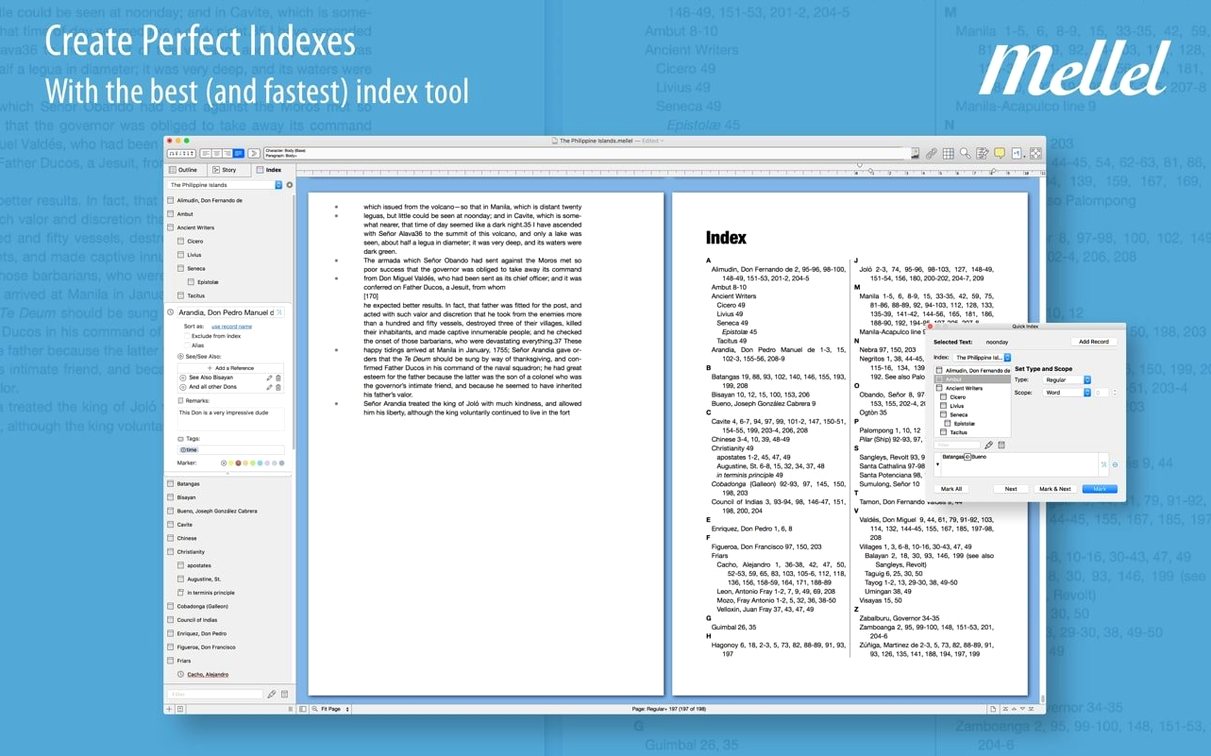
A few details in Mellel 6 are easy to miss, but they add up over a long writing session. The indexing tools are one: you can mark entries as you go, and the index builds automatically when you’re ready. It’s not flashy, but for anyone assembling a reference work or a textbook, it saves the kind of time you only notice when it’s gone.
Another is the way Mellel handles multilingual text. It remembers your keyboard layout per style, so you can set a heading style to switch to Hebrew and a body style to stay in English. No manual toggling, no frustration. The interface itself is available in fourteen languages, which means the menus and palettes speak your language even when the document content does not.
The auto-title styles palette, when enabled, keeps your headings consistent without extra clicks. Version 6.7.1 also improved how the markers palette looks when it is disabled, a small visual polish that keeps the workspace tidy.
Real-world scenario: an academic translator
Imagine a translator working on a dual-language edition of a philosophical text. One page carries the original French, the facing page the English translation. Split view in Mellel 6 lets them keep both halves open at once, with the outline showing the chapter structure for quick jumps. Find and replace handles the recurring terms that need standardising across the whole document. When the project reaches two hundred pages, the indexing tool marks every key concept without breaking the flow. The translator never needs to leave the app to check a glossary or switch layouts; Mellel’s right-to-left support is there if the source text includes Arabic footnotes. It’s one app for a job that would otherwise require three.
Starting with the outline to avoid fifty pages of clutter
The most common slip is treating Mellel like a simple typewriter. New users often ignore the outline until they have fifty pages of unstructured text and no way to navigate it. Opening the outline from the start and using it to build a skeleton saves a lot of scrolling later.
Another mistake is diving into formatting without first setting up auto-title styles. People manually adjust each heading’s font and size, then wonder why the table of contents looks wrong. Defining styles early keeps everything consistent and makes the find and replace tool much more powerful, since you can search by style, not just by text.
Beginners also forget that Mellel’s dark appearance is system-wide and palette-deep. They toggle the macOS dark mode and expect it to work, but Mellel respects the setting fully. If the palette looks off, checking the app’s own dark mode preference usually resolves it. And on the subject of crashes: version 6.7.1 fixed a crash related to the system color panel, so picking a colour mid-session is now safer than it used to be.
Finally, some people skip the disk image installer and try to copy the app from a mounted volume without dragging it to Applications. That works for a single launch, but Mellel expects to find itself in the standard location. Drag it, launch from Launchpad, and the license check stays happy.
Changes in this build
- Improved multi-cell table selection display in dark mode.
- Fixed crashes related to memory leaks and several palette-related actions.
- Improved the default styles display when the Character palette is disabled.
Before it goes on the Mac
- macOS 10.13 High Sierra or later
- Intel or Apple Silicon
Questions from the room
What are the system requirements for Mellel 6?
Mellel 6 runs on macOS 10.13 High Sierra or later and supports both Intel and Apple Silicon Macs.
Installing it on the Mac
- Mount the downloaded disk image.
- Drag the app to the Applications folder alias.
- Once copying finishes, open the app from Launchpad.
Notes from the control room
Sign in or open a catalogue account to leave a note.
No notes from the room yet. If you have used this build for a week, a short note helps the next person.