
Updated
The catalogue note
Host ordering and per-host server configuration are where MAMP PRO earns its keep. Version 6.9.0 still ships as a 64-bit Intel build, so it will run on both Intel Macs and Apple Silicon via Rosetta 2. The listed requirement is macOS 10.12 or later, which covers a wide range of older machines.
Requirements and compatibility first
Before anything else, check the basics. MAMP PRO 6.9.0 needs macOS 10.12 Sierra or newer. The interface is English only.
Bundles Apache, Nginx, PHP and MySQL with one-click WordPress installs
MAMP PRO is the professional front end for MAMP, bundling a complete web server stack for local development. You get Apache, Nginx, PHP and MySQL managed through a single interface, with host ordering to keep multiple sites tidy. WordPress installs with one click, and once a site is ready, you can publish it directly to a live server from the same window.
Version 6.9.0 fixes a crash when editing host-specific server configurations and sorts out network issues in MAMP Cloud. PHP installation is smoother, and opening phpMyAdmin 5 via alias behaves better. If you manage several local hosts, these are the patches that matter.
Crash fix when editing host-specific server configurations
The fixes in 6.9.0 address things that surface during regular work, not edge cases. The crash when editing host-specific server configurations was the kind of problem that would appear exactly when you needed to adjust a document root or swap PHP versions for a client project. That is gone now.
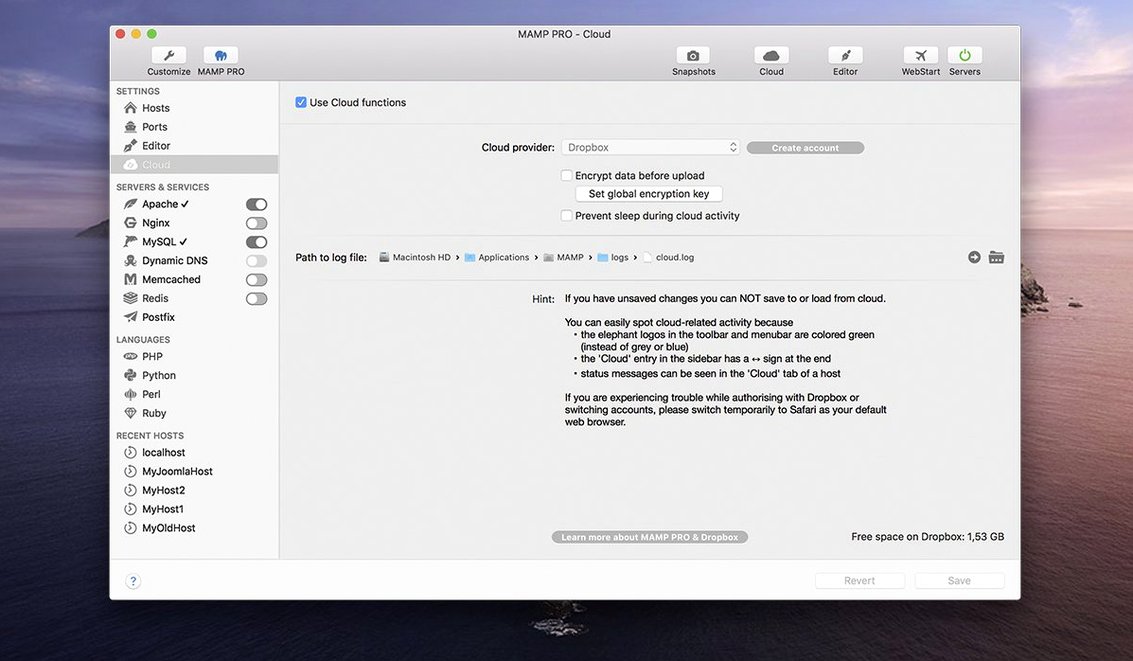
MAMP Cloud network issues meant that synchronising a local site to a remote server could stall or fail without a clear reason. The 6.9.0 release notes call them out specifically, and in practice that means fewer retries when you push a WordPress site live. PHP version installation now works more reliably — previous versions sometimes left a partially installed interpreter that would not show up in the host settings dropdown. phpMyAdmin 5 opening via alias no longer throws a blank page or a wrong-route error, which is a small but welcome improvement for anyone who still uses it for quick database edits.
Runs natively on Intel Macs and under Rosetta 2 on Apple Silicon
The application is a 64-bit Intel build. On an Intel Mac running macOS 10.12 or later, it runs natively. On Apple Silicon, it runs under Rosetta 2 — the system translates the Intel instructions, and for a server management tool that spends most of its time waiting for Apache or MySQL to respond, the performance difference is not noticeable in normal use. The ARM version requires macOS 11.0 or later, so if you are on an M-series Mac with Big Sur or newer, you get the native build.
Memory and disk usage depend entirely on how many hosts you define, which services you enable, and how many PHP versions you keep installed. A single host with Apache and MySQL running uses modest resources; a dozen hosts with Nginx, multiple PHP versions, Redis and Memcached all active will obviously take more. MAMP PRO itself is not a lightweight launcher — it is a management interface with a server stack behind it — but it behaves predictably on any Mac that meets the requirements.
WordPress developers juggling multiple client sites save time daily
WordPress developers who juggle several client sites are the primary audience. The one-click WordPress install, per-host PHP configuration, and direct publish-to-live workflow save time when you switch between projects daily. If you build custom WordPress themes or plugins locally and deploy them, MAMP PRO removes the need to configure Apache or Nginx manually for each site.
Developers who work with multiple PHP versions will also find it useful. MAMP PRO manages PHP and Python versions per host, so you can test a legacy site on PHP 7.4 and a new project on PHP 8.x without leaving the interface. Remote editing and site migration are bonuses for anyone who moves sites between staging and production regularly.
Casual users who just want WordPress running on their Mac for a single blog will probably be fine with the free MAMP. MAMP PRO is for people who need host ordering, separate server configs per site, and the ability to push or pull sites from live servers without touching a command line.
Redesigned toolbar puts start, stop, and create hosts where you expect them
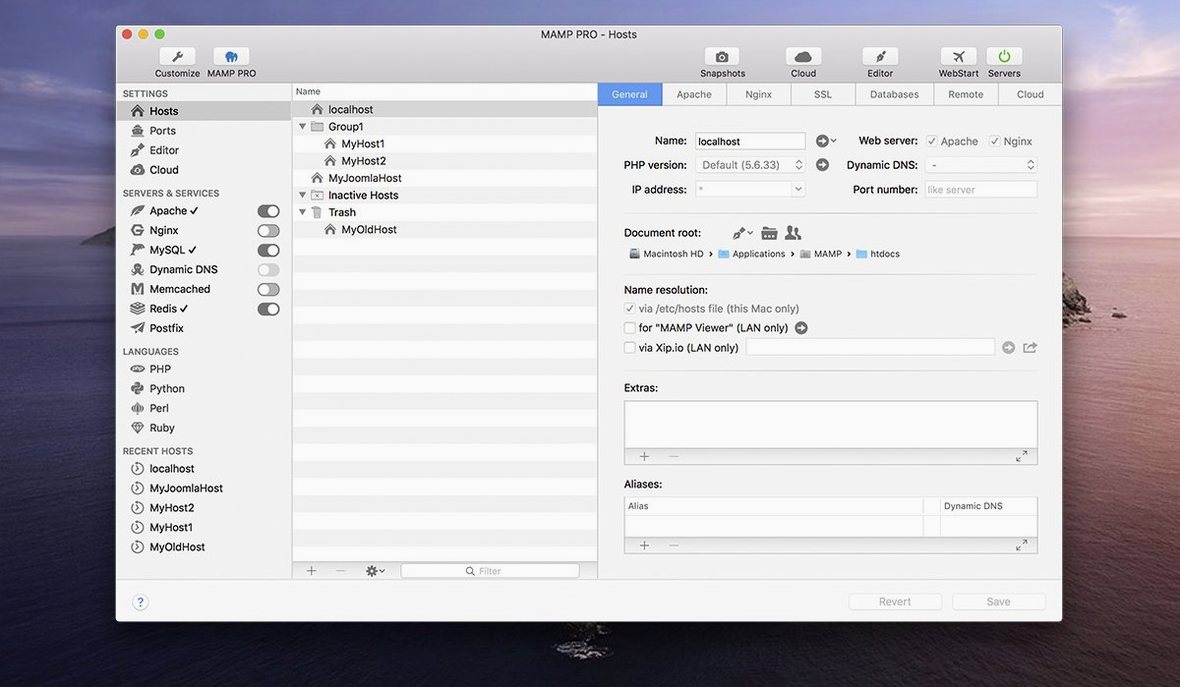
You open MAMP PRO and see the host list with your existing projects. The redesigned toolbar in 6.9.0 puts the common actions — start servers, stop servers, open the host create dialog — where you expect them. You click the plus icon to add a new host for a client site. The optimised host create dialog asks for the project name, the document root, and the server type. You choose Nginx because the client uses it in production, set PHP to 8.1, and tick the box for MySQL 5.7. MAMP PRO creates the virtual host and starts the services.
Next, you click the WordPress install button. The app downloads the latest WordPress, sets up the database, and opens the site in your browser. You work on the theme locally, making changes in your editor and refreshing the browser. When the site is ready, you right-click the host in the list and choose Publish. MAMP PRO pushes the files and database to the live server, using the credentials you saved earlier. If you need to pull a live site down for debugging, the import function does the reverse — it fetches files and database and sets up a local host automatically.
Later in the session, you need to check a database table. You click the phpMyAdmin alias in MAMP PRO — it opens without the alias error that plagued earlier versions. You make your edit and close it. Before shutting down, you reorder the host list so the active project sits at the top. That is a small thing, but when you manage ten or fifteen hosts, it keeps the interface clean.
Changes in this build
- Fixed a crash when editing host-specific server configurations.
- Fixed network issues in MAMP Cloud.
- Improved PHP version installation.
- Improved opening phpMyAdmin 5 via alias.
Before it goes on the Mac
- macOS 10.12 or later
- Intel Mac or Apple Silicon via Rosetta 2
- Interface language: English
Questions from the room
Will MAMP PRO run on an Apple Silicon Mac?
Yes, because the app is a 64-bit Intel build, it runs on Apple Silicon Macs through Rosetta 2.
Installing it on the Mac
- Mount the disk image and run the installer. If Gatekeeper blocks it, choose Open anyway from the right-click menu.
- If the app is still blocked, open Terminal and press Enter to bypass Gatekeeper for that download.
- Drag MAMP PRO to your Applications folder.
- Launch the app once the copy finishes.
Notes from the control room
Sign in or open a catalogue account to leave a note.
No notes from the room yet. If you have used this build for a week, a short note helps the next person.