Home › Mac Apps › Jump Desktop
Jump Desktop 10.15.46 (Mac)
Updated
The catalogue note
You open Jump Desktop to take over a colleague's Windows workstation from your Mac, or to check a file on your home Linux machine while you're at the studio. It handles RDP and VNC connections, so the protocol depends on what the target runs — no guesswork.
Connects via RDP or VNC, with an optional companion host
The app connects to any host running RDP or VNC. For tighter remote access, you install a companion host component on the target machine. Signing in with a Google account or any email address completes the initial setup.
Can I remap keyboard shortcuts between Mac and Windows?
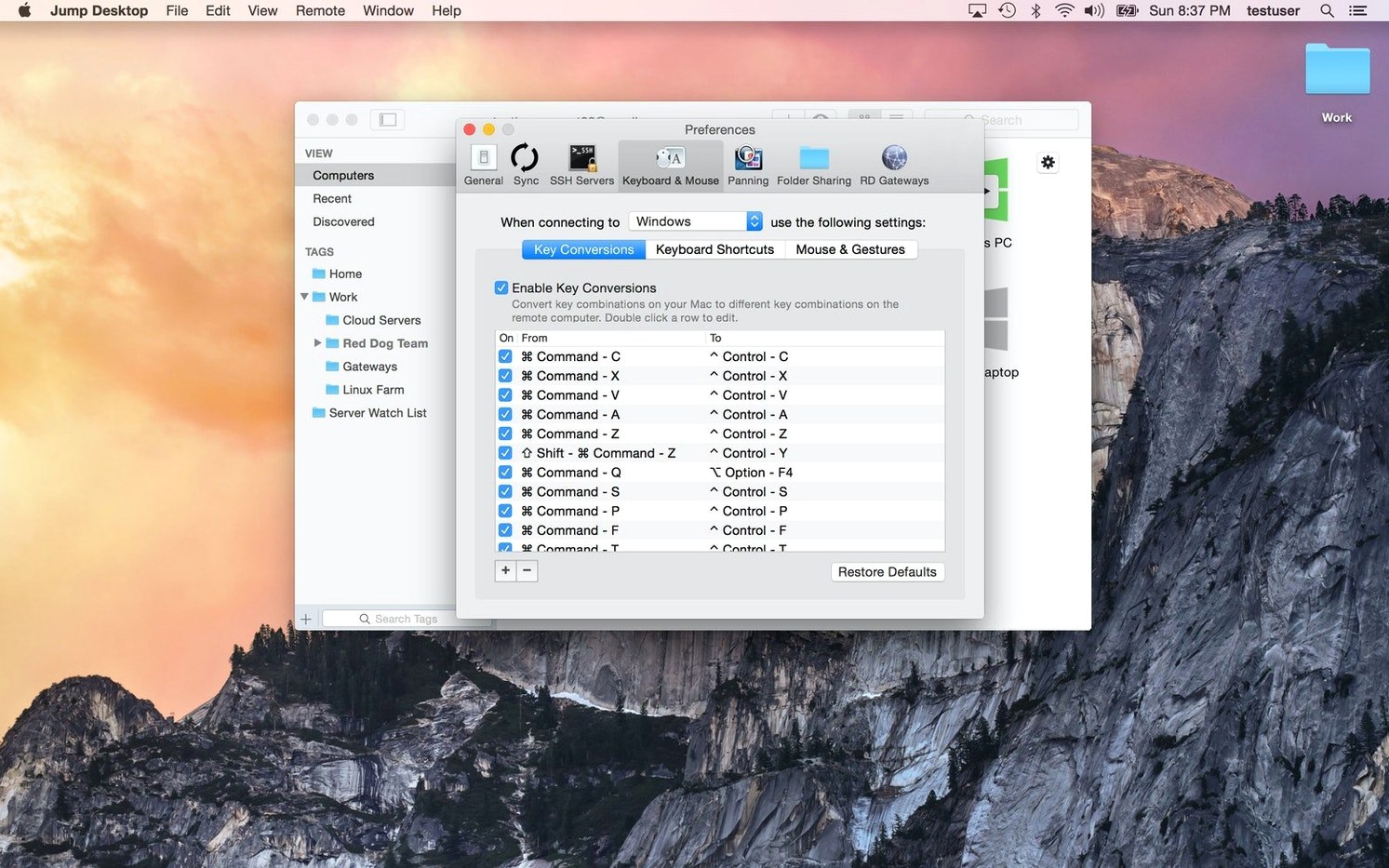
Yes. The keyboard shortcut remapping lets you match a Mac layout to a Windows host, so Cmd+C still copies text and you don't end up with a jumble of modifier keys.
What kinds of remote hosts does it support?
It connects to Macs, PCs, and any computer that presents a VNC or RDP server. That covers everything from a headless Mac mini in a server room to a client's Windows laptop.
Works with or without the companion host component
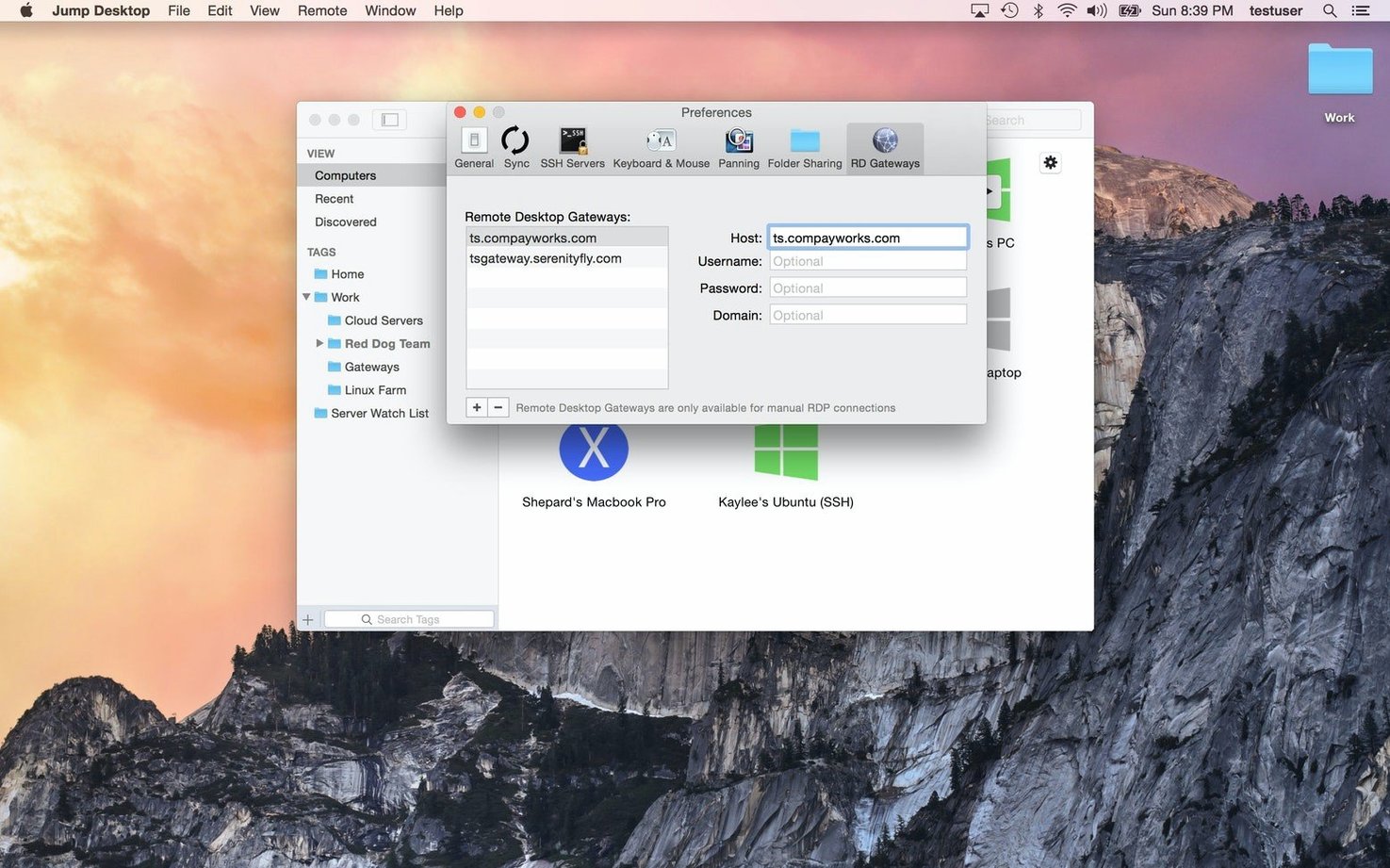
One of the first things people wonder is whether Jump Desktop works without the companion host component. It does — you can connect directly to any machine that already runs an RDP or VNC server. The companion host simply makes the remote computer discoverable and removes the need to configure port forwarding or your router's NAT settings.
Another common question is about the setup process itself. The disk image mounts, you bypass Gatekeeper via Terminal, drag the app into Applications, and open it. That's it.
People also ask whether the app keeps running after the window closes. It doesn't. Jump Desktop is a client — when you quit it, the connection drops.
Best for remote workers accessing a company PC from a Mac
Remote workers who need to access a company PC from a Mac benefit the most. The RDP support means you can connect to a Windows domain machine, remap the keyboard layout so that Cmd becomes Ctrl, and work without carrying two keyboards on your desk.
IT support staff find it useful for the same reason, but also for the VNC side. When a headless server or a colleague's Mac needs troubleshooting, Jump Desktop connects quickly without extra configuration. The companion host helps here because you can set it up once and reach that machine from anywhere.
Audio engineers and video editors rarely need remote desktop, but when they do, it's usually to grab a file from a studio PC or check a mix on a different system. The file transfer capability means you can pull that session backup without walking back to the control room.
Forgetting to install the companion host is the most common mistake
The most common mistake is forgetting to install the companion host on the target computer. Without it, you need to know the target's IP address and have the right ports open on the router. Beginners often expect the app to discover their home computer automatically — it does, but only if both sides have the companion component installed and signed in to the same account.
Another mistake is ignoring keyboard remapping. If you connect to a Windows PC from a Mac and leave the default layout, shortcuts like Cmd+C and Cmd+V do nothing useful. The remote machine interprets them as Windows key combinations or ignores them. Setting up the remapping in the connection settings before you connect saves frustration.
Some users also try to connect to a machine that is asleep or shut down. Jump Desktop cannot wake a computer over the internet unless the host's BIOS or network card supports Wake-on-LAN and the companion host is configured to handle it. Checking that the target is powered on and connected to the network is a step that gets skipped surprisingly often.
Stays compatible with macOS Mission Control and Spaces
Jump Desktop works alongside macOS Mission Control and Spaces without issues. You can keep the remote desktop window on one space and your local apps on another, switching with a trackpad gesture. The app does not interfere with keyboard shortcuts that belong to the system, provided you have configured the remapping properly.
If you use a third-party clipboard manager like Paste or CopyClip, Jump Desktop respects the macOS clipboard. Copying text from the remote machine pastes it into your local clipboard manager, and vice versa — useful when you need to grab a log snippet from a server and paste it into a Slack message.
The app also coexists with VPN software. If your organisation uses a VPN to access internal networks, you can run Jump Desktop inside the VPN tunnel. The connection traffic goes through the encrypted tunnel, and the app itself doesn't need its own VPN configuration.
Before it goes on the Mac
- macOS 11 or later
- Intel or Apple Silicon
- English interface
Questions from the room
Does Jump Desktop require a subscription?
The app is a straightforward client that connects to RDP or VNC hosts without recurring fees.
Installing it on the Mac
- Mount the disk image and launch Open Gatekeeper friendly.
- Press Enter in Terminal to bypass Gatekeeper.
- Drag the app to the Applications folder.
- Open the app when installation is complete.
Notes from the control room
Sign in or open a catalogue account to leave a note.
No notes from the room yet. If you have used this build for a week, a short note helps the next person.