
Home › Mac Apps › Imagenomic Portraiture

Imagenomic Portraiture 4.5 (Mac)
Updated
The catalogue note
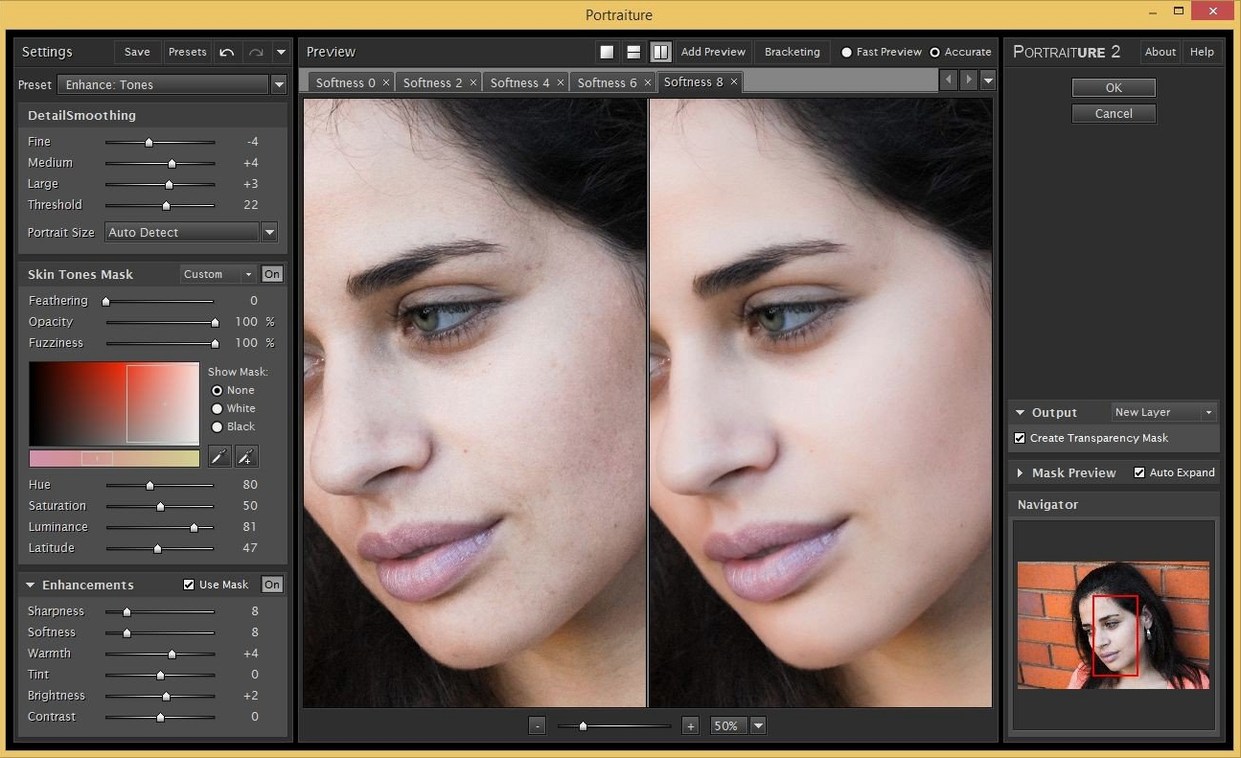
The plugin is a single-purpose tool: it automates skin retouching so you don't mask pores and blemishes by hand. Version 4.5 Build 4501 uses a next-generation AI smoothing engine that analyses skin tones and texture, then applies the correction only where you want it. It sits on a layer or as a filter in the pixel chain, not on a track or bus — this is a Photoshop and Lightroom Classic plugin, not a mixing tool.
Where does Portraiture sit in a Photoshop session?
On a duplicate layer or as a smart filter. You dial in the smoothing strength, detail preservation and skin-tone range, then paint the mask to limit the effect. The AI handles the initial selection of skin regions.
Can you use it on a video track?
No. Portraiture is built for still images in Photoshop, Lightroom Classic and Affinity Photo. It has no timeline or video support.
What about Lightroom Classic?
It runs as an external editor or via the plug-in extras menu. The same AI engine applies, but the workflow differs because Lightroom is non-destructive by design.
Beauty Box and Retouch4me take different approaches
Portraiture shares its category with a handful of other skin-retouching tools, each taking a different approach to the same problem. On Mac, the most direct comparisons are with Beauty Box (from Alien Skin / Exposure Software) and Retouch4me (a set of separate plugins for different retouching steps).
Beauty Box works as a standalone filter and as a plugin. It also uses automatic skin detection, but its smoothing tends to be more aggressive out of the box. Where Portraiture gives you three separate sliders for smoothing, detail and skin-tone range, Beauty Box offers a simpler strength control and a separate blemish-removal toggle. The mask refinement feels less precise — you get a threshold slider rather than the eyedropper-plus-range approach Portraiture uses.
Retouch4me breaks retouching into several small plugins: one for skin smoothing, one for blemish removal, one for white balance on skin, and so on. Each plugin runs as a separate Photoshop filter. This modular design gives you fine-grained control, but it also means you need to run three or four filters in sequence for a full retouch. Portraiture does more in one pass: the single plugin handles smoothing, texture preservation and mask control together. Retouch4me also requires a separate installer for each module, whereas Portraiture ships as one package with separate builds for Photoshop and Lightroom Classic.
Portraiture's advantage is the mask workflow. Both competitors offer automatic skin detection, but Portraiture lets you refine the mask with multiple eyedropper samples and a real-time preview overlay. The AI smoothing engine in version 4.5 is also noticeably better at preserving eyelashes, hair strands and fabric texture compared with earlier versions of Beauty Box, which sometimes blurs edges indiscriminately.
Affinity Photo live filter layer works non-destructively
The product page lists compatibility with Photoshop, Lightroom Classic and Affinity Photo. What isn't obvious until you use it is that the Affinity Photo build works as a live filter layer — you can adjust the smoothing settings non-destructively even in Affinity, which is a workflow detail the documentation doesn't emphasise.
Portraiture remembers the last-used skin-tone range between sessions. If you regularly retouch the same subject or skin type, you don't need to re-sample every time. The mask preview toggle (showing the selection as a greyscale overlay) is useful for spotting areas the AI missed, such as hands or neck that fall outside the default skin-tone range.
The plugin also respects Photoshop's layer masks. If you already have a selection or a layer mask before launching Portraiture, the plugin uses that as the starting point rather than running a fresh auto-detection. This lets you combine a rough manual selection with the AI smoothing inside the same filter.
New AI engine handles uneven lighting better
The main change in this build is the next-generation AI smoothing engine. In earlier versions, the engine sometimes struggled with uneven lighting across a face — shadows under the chin or bright highlights on the nose could confuse the skin detection. The new engine handles these transitions better, maintaining the mask boundary more consistently around the jawline and hairline.
Another change is in the detail preservation. The previous engine had a tendency to soften pores and fine lines evenly across the skin, which could make the result look plasticky if you pushed the smoothing too far. Version 4.5 keeps more micro-texture at the same smoothing strength, so skin looks like skin even at higher settings.
The build also updated the compatibility with macOS 15. Earlier versions required a Gatekeeper bypass on newer systems; this build still needs the Terminal step during installation, but it runs without additional permissions workarounds once installed.
Detail preservation slider is the first thing to adjust
When you first open Portraiture, the default smoothing strength is set to a moderate value that works for general portraiture. For most work, the first setting to adjust is the detail preservation slider. Leave it at the default to see the AI's baseline, then increase it gradually until you see pores and skin texture coming back.
The skin-tone range is worth adjusting immediately if your subject has skin tones that differ from the default sample. Click the eyedropper on a mid-tone area of the forehead or cheek, then shift-click on a shadow area (under the chin) and a highlight (nose bridge) to widen the range. This prevents the AI from treating shadows as non-skin areas.
If you work in Lightroom Classic, set the plugin to open as a TIFF with a ProPhoto RGB colour space and 16-bit depth. The default settings sometimes clip skin tones during the round-trip; ProPhoto gives the AI more headroom to work with.
Plugin missing from Photoshop? Install the correct build
Snag: the plugin doesn't appear in Photoshop's filter menu.
Portraiture installs separate builds for Photoshop and Lightroom Classic. If you installed the Lightroom Classic build, it won't show in Photoshop. Re-run the installer and select the Photoshop build. The two builds are in separate disk images on the download page.
Snag: the skin detection selects the background or clothing.
Reduce the skin-tone range by narrowing the upper and lower boundaries in the colour-range panel. If the background has colours similar to skin (warm wood tones, beige fabrics), you may need to paint a layer mask in Photoshop after the filter. The AI does its best, but it cannot read context.
Snag: the result looks too smooth on one side of the face.
This usually happens when the lighting is directional — one side of the face is brighter and the AI treats the shadows differently.
Snag: the installer prompts about Gatekeeper on macOS 14 or 15.
This is expected. Mount the disk image, run the installer, and when Gatekeeper blocks it, press Enter in Terminal as the instructions specify. The plugin itself runs without restrictions after installation.
Snag: the effect disappears when you close and reopen the file in Photoshop.
Portraiture applied as a non-smart filter is destructive by default. To keep the effect editable, apply it as a smart filter: convert the layer to a smart object before running Portraiture. The filter settings remain adjustable in the Layers panel.
Snag: the Lightroom Classic workflow exports a large TIFF every time.
This is by design — Lightroom Classic sends the file to an external editor, Portraiture processes it, and Lightroom imports the result. To reduce file size, set the export resolution to match your output needs rather than the full raw resolution. A 240 ppi TIFF at the required pixel dimensions is usually sufficient for web and print.
For users searching for alternative ways to obtain the plugin, common search terms include imagenomic portraiture mac free download, portraiture torrent, portraiture mac, imagenomic portraiture for mac crack and portraiture mac crack. The current version 4.5 Build 4501 is the release to look for on compatible systems.
Changes in this build
- Version 4.5 Build 4501
- Next-generation AI smoothing engine
Before it goes on the Mac
- macOS 13 or later
- Intel or Apple Silicon Mac
- Interface language: English
Questions from the room
Does Imagenomic Portraiture work with Affinity Photo?
Yes, the product page lists Affinity Photo as a supported host alongside Photoshop and Lightroom Classic.
Installing it on the Mac
- Mount the disk image and run Open Gatekeeper friendly.
- Press Enter in Terminal to bypass Gatekeeper.
- Run the installer and follow the standard installation procedure.
- Launch the app after installation.
Notes from the control room
Sign in or open a catalogue account to leave a note.
No notes from the room yet. If you have used this build for a week, a short note helps the next person.
Also filed under Mac Apps
The whole Mac Apps rack Imagenomic Plugin Suite2027 Mac Apps 71 MB
 Iconize1.8.8 Mac Apps 5 MB
 iA Writer8.1.3 Mac Apps 23 MB Updated
 HitPaw Watermark Remover2.4.7 Mac Apps 290 MB
 HitPaw Video Converter4.5.0 Mac Apps 577 MB
 HitPaw Univd4.7.0 Mac Apps 525 MB
 HitPaw Edimakor2.6.0 Mac Apps 487 MB
 Jump Desktop10.15.46 Mac Apps 62 MB