Home › Mac Apps › HitPaw Watermark Remover

Updated
The catalogue note
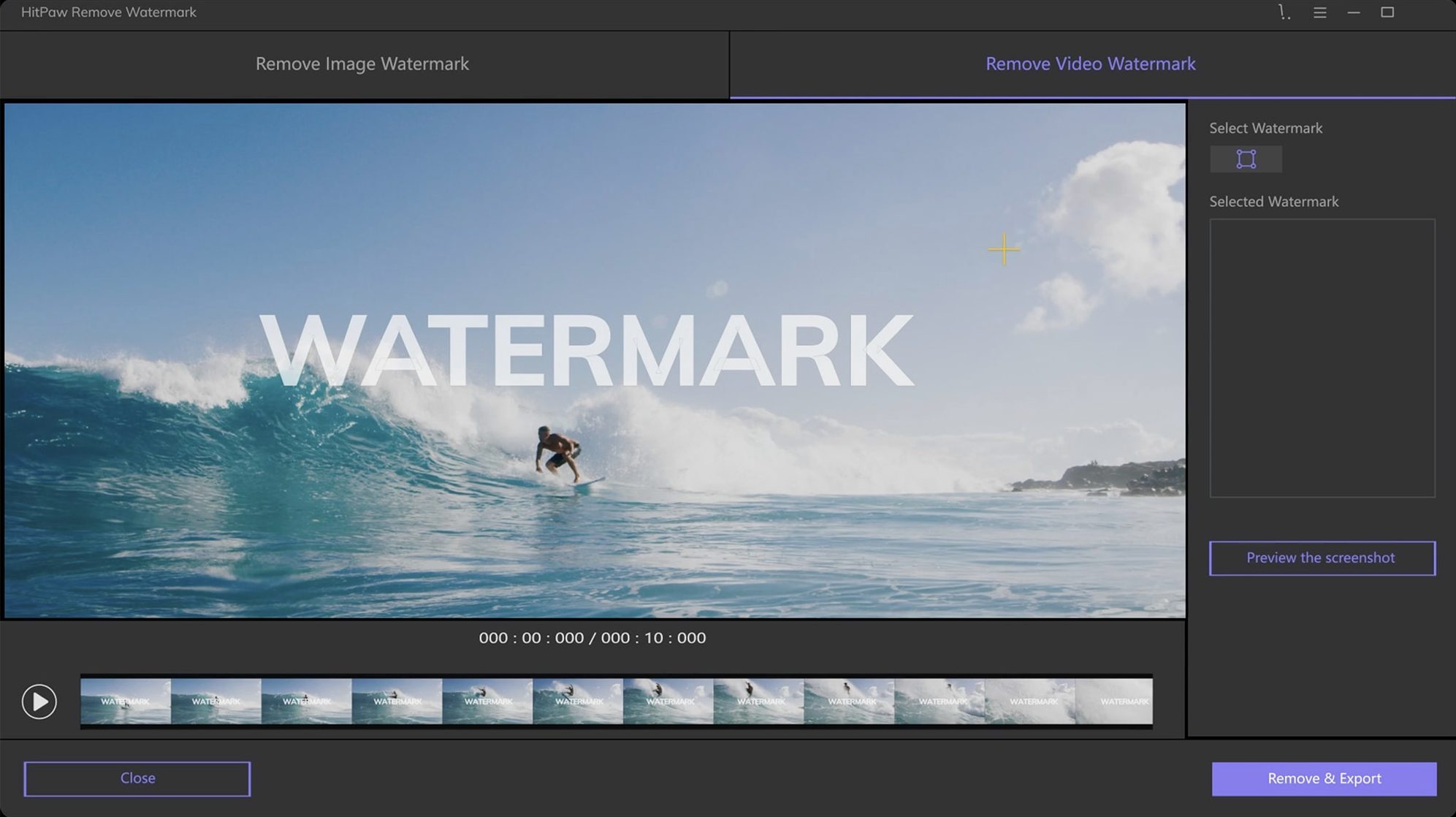
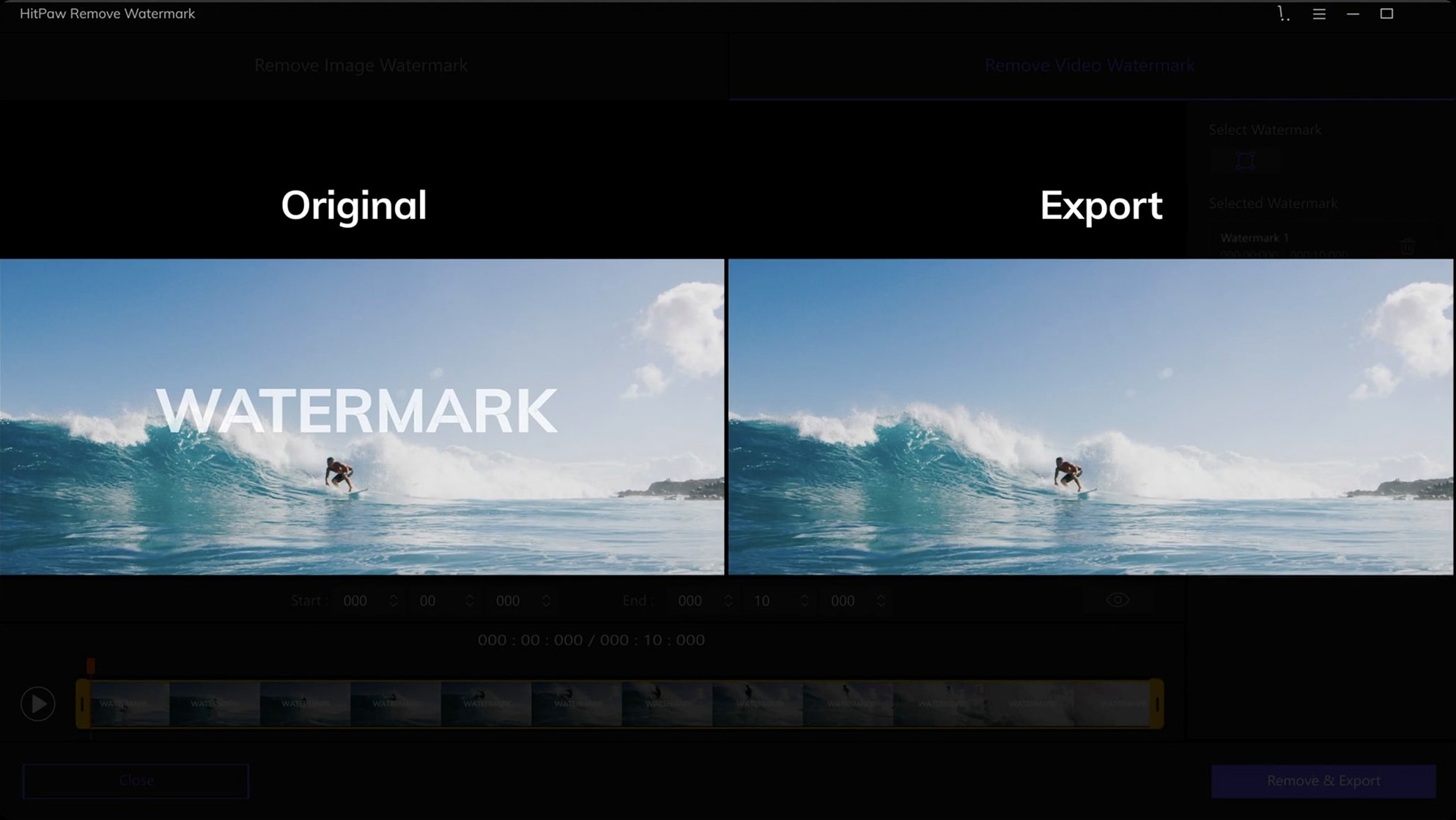
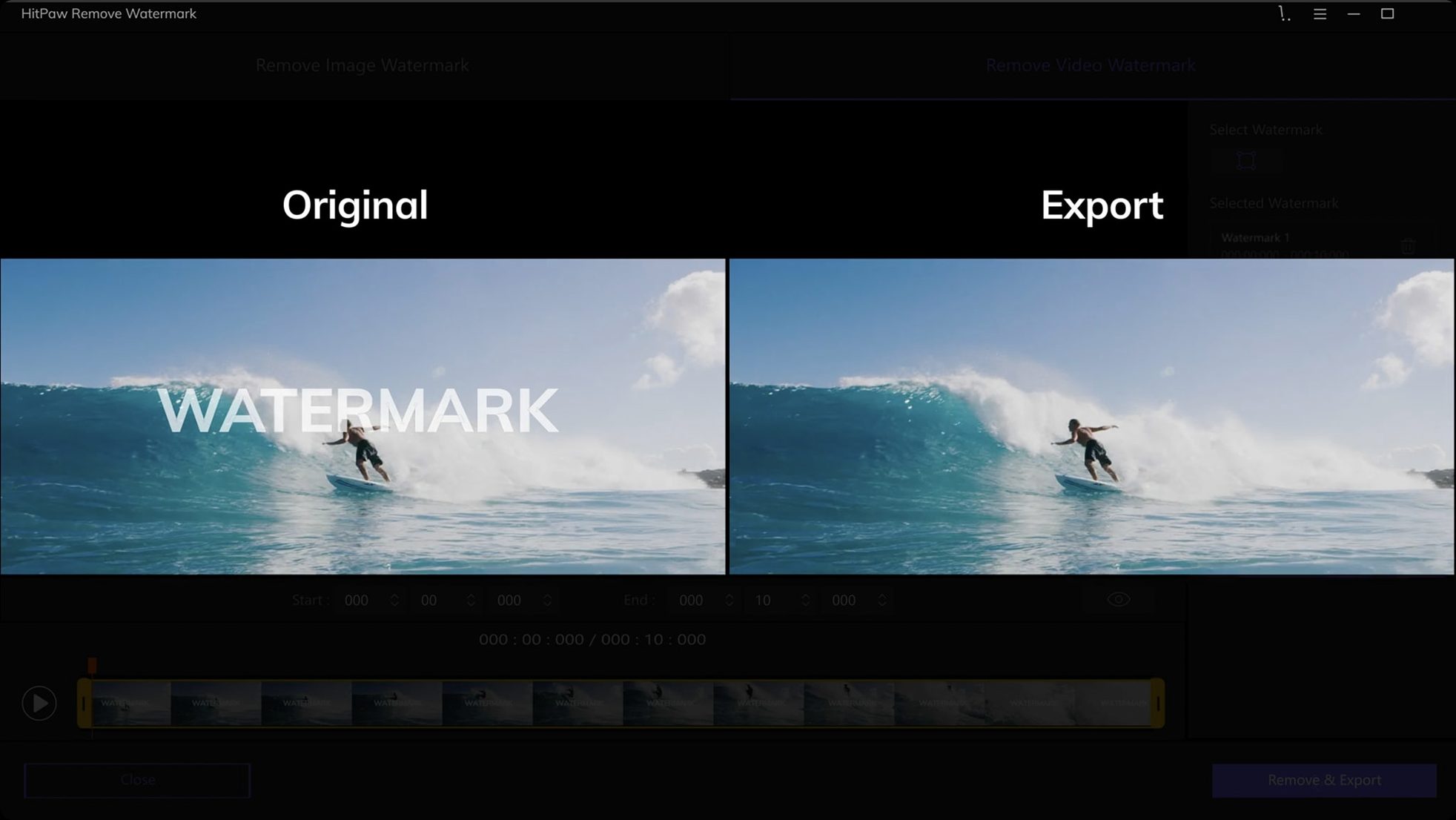
Watermarks are a fact of life when you pull assets from stock sites, grab a frame from a client’s video, or rework someone else’s material. HitPaw Watermark Remover exists to get rid of them without leaving a visible scar. The current version, 2.4.7, keeps the same core approach: you mark the offending area, and the app fills it in using one of three methods — smooth filling, edge filling, or texture repair.
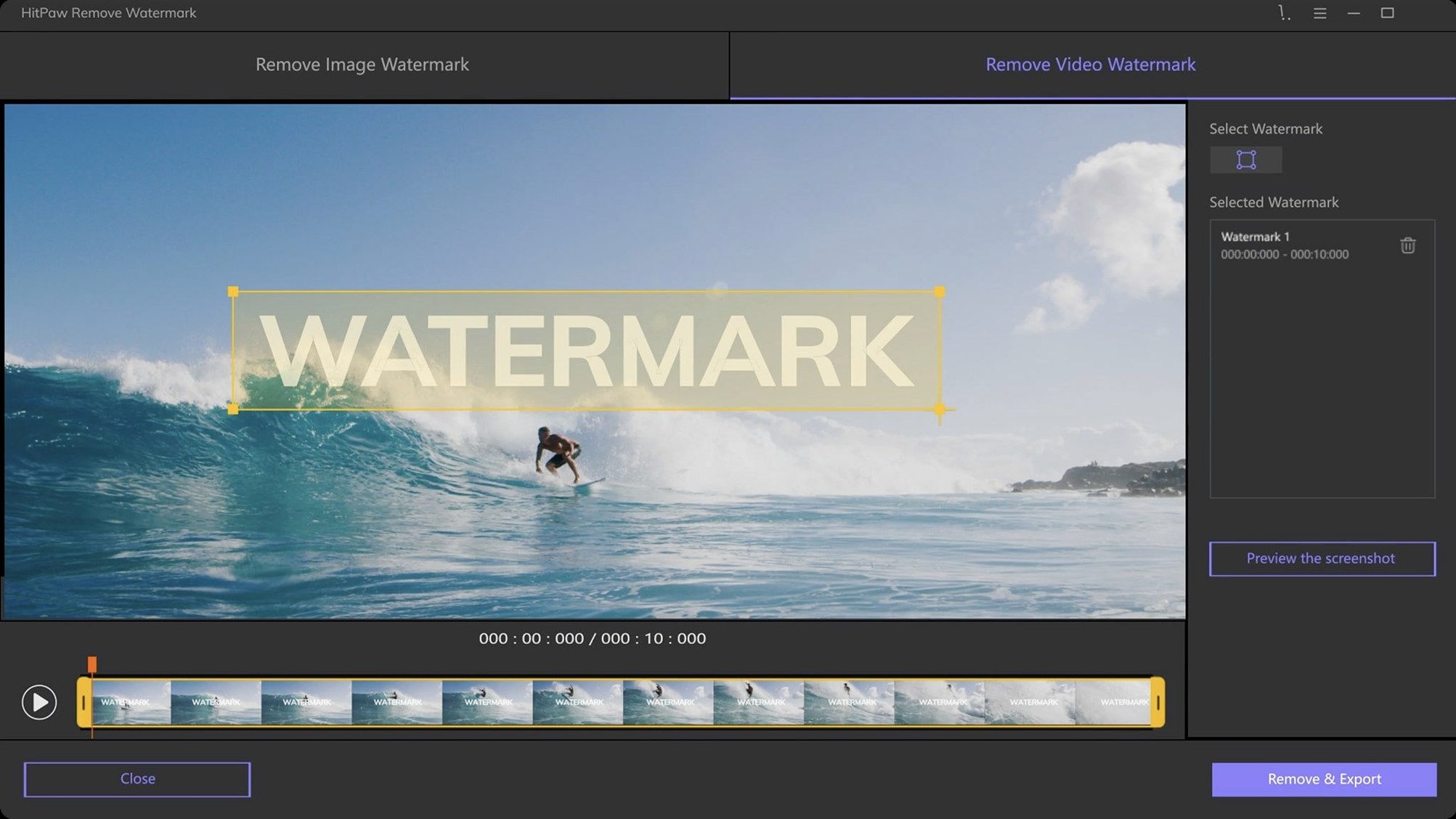
The selection tools are straightforward: rectangle, triangle, and freeform, so a logo, a timestamp, or an awkwardly placed caption can be circled in a couple of passes. Drag-and-drop importing covers still images, and video support extends across the usual formats — MP4, MOV, MKV, AVI, plus a long tail of others like WebM, FLV, and MTS. The Mac version runs on macOS 10.15 or later and has a graphical interface that doesn’t get in the way.
What stayed the same in this release is the workflow, and that’s fine. No new modes, no reworked UI — just the same reliable removal engine for those jobs where a clone stamp would take forever. If you work with mixed media, the separate Mac and Windows products mean you pick the build that matches your machine.
Workflow for removing a timestamp from a video file
I work with footage from a local production company that overlays timecode in the top-right corner. The client decided they want a clean version for a sizzle reel. Here is the step-by-step workflow I follow with HitPaw Watermark Remover 2.4.7:
- Drag the MP4 file from Finder straight into the app window — the video loads in the preview area.
- Pause playback at the first frame where the timestamp is fully visible.
- Select the rectangle tool and draw a box around the timestamp. The box stays small, just covering the digits and the colon.
- Choose texture repair from the removal mode dropdown — timestamps sit over complex backgrounds like brick walls or foliage, and texture repair handles that better than smooth filling.
- Click Apply and let the app process the first frame. If the fill looks acceptable, I let it process the whole clip.
The whole process takes under two minutes for a 30-second clip. The key is to keep the selection tight: a larger box gives the fill algorithm more area to guess from, and that can introduce visible smudges on motion-heavy scenes.
Draw the selection too loose and lose background detail
The most frequent error is drawing the selection too loosely. Beginners tend to trace a generous rectangle around the watermark, hoping the app will figure out the edges. In practice, a loose selection includes background detail that the fill engine then tries to replicate, leading to blurry patches. Keep the selection as close to the watermark boundary as you can.
Another mistake is ignoring the removal mode. New users often leave the default smooth filling for every job. That works well for solid backgrounds or gradients, but for footage with grass, brickwork, or fabric patterns, texture repair yields a more natural result. Edge filling sits somewhere between the two and is useful when the watermark touches a hard edge, like a logo overlapping a horizon line.
A third issue is processing the full video before checking a single frame. HitPaw Watermark Remover lets you preview the fill on one frame. Running the entire clip blind means you might end up with a result that needs redoing. Preview first, then commit.
Marta removes studio logos from wedding highlight reels
Marta edits wedding highlight reels for a small studio in Warsaw. She frequently receives raw footage from different videographers, and some of them embed their studio logo in the corner of every clip. The studio wants a clean edit without those logos, but they cannot afford to reshoot.
Marta uses HitPaw Watermark Remover for Mac on her Intel MacBook Pro. She imports a folder of MOV files, selects the rectangle tool, and marks the logo position on the first clip. Because the logo appears in the same spot across all files, she can apply the same selection area and removal mode — texture repair, as the logo sits over grass and sky — to the entire batch. The result is a set of clean clips that she can drop directly into Final Cut Pro without extra masking work.
The alternative would be frame-by-frame masking or a complex motion-tracking setup. For her workload, HitPaw Watermark Remover saves roughly twenty minutes per wedding reel, and the output holds up on a 1080p timeline without visible artefacts.
Before it goes on the Mac
- macOS 10.15 or later
- Intel architecture
Questions from the room
What video formats does HitPaw Watermark Remover support?
It supports AVI, MKV, MP4, FLV, F4V, MOV, WMV, WebM, 3GP, RMVB, MPEG, TS, and MTS video files.
What macOS version is required?
The Mac version requires macOS 10.15 or later.
Installing it on the Mac
- Mount the disk image and launch Open Gatekeeper friendly.
- Press Enter in the Terminal window to bypass Gatekeeper.
- Drag the app to the Applications folder.
- Open the app when installation is complete.
Notes from the control room
Sign in or open a catalogue account to leave a note.
No notes from the room yet. If you have used this build for a week, a short note helps the next person.