
Home › Mac Apps › HitPaw Video Converter

Updated
The catalogue note
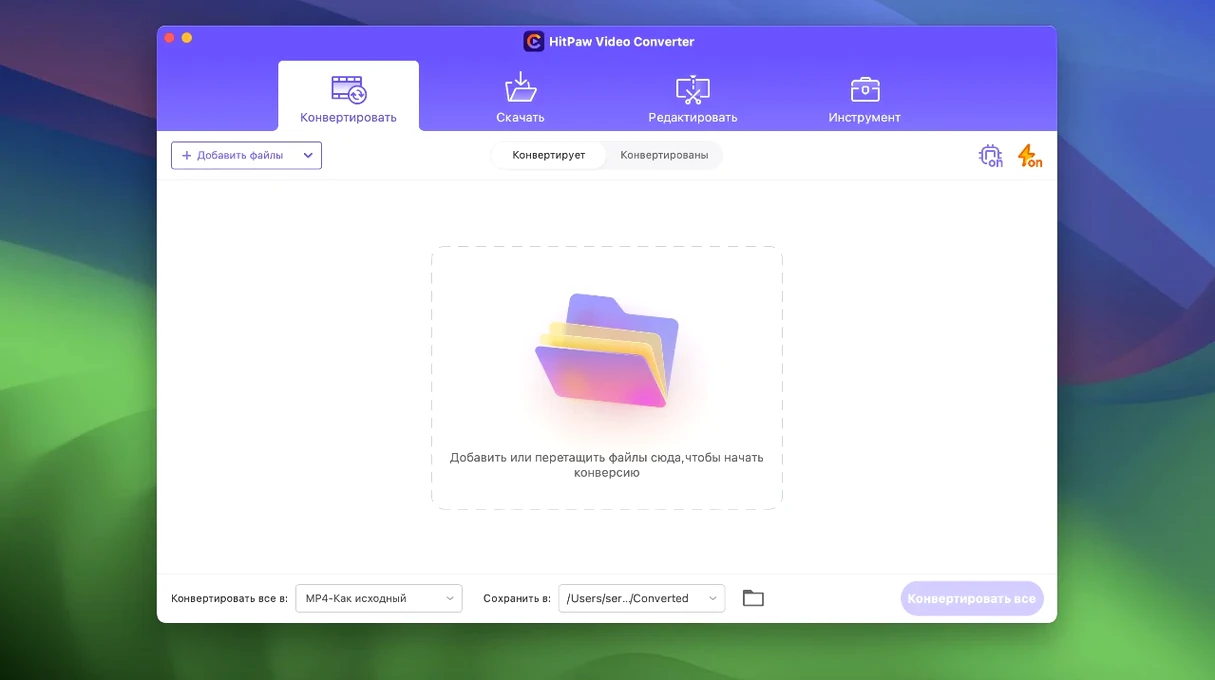
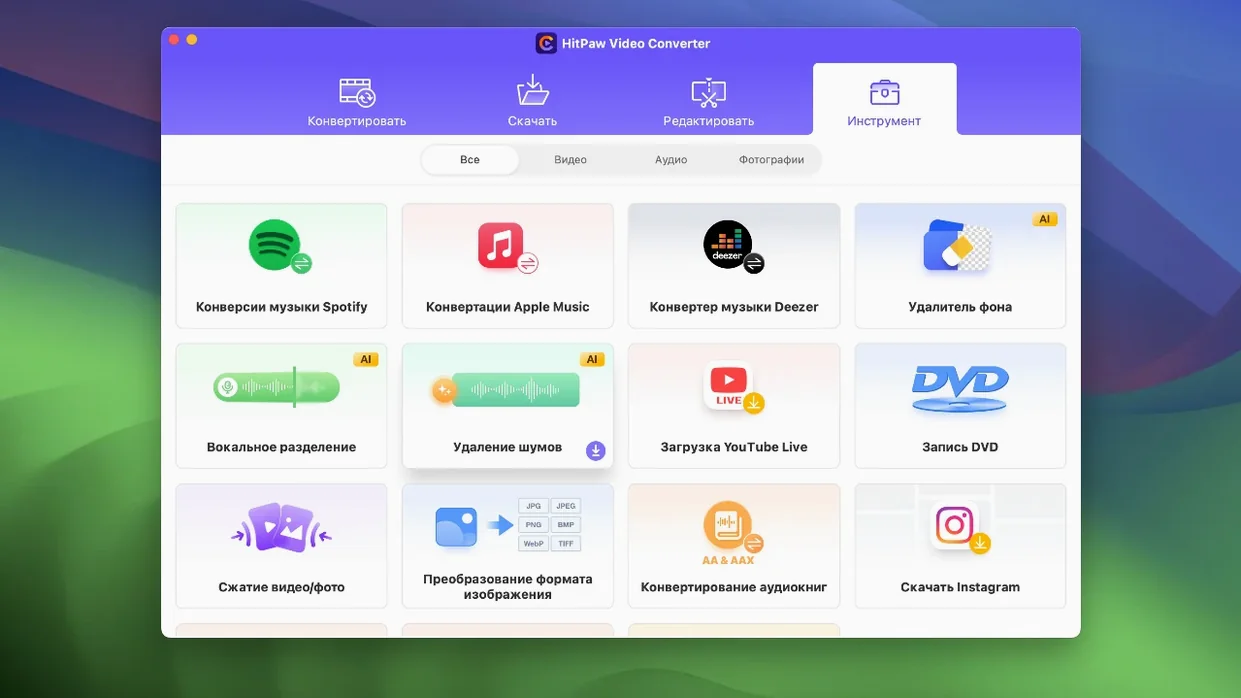
Sound engineers and video editors who juggle odd formats will find a practical ally in HitPaw Video Converter. It is not just a converter; it also downloads, compresses, and edits video and audio files, all from one window.
Runs on macOS 10.15 and later with Intel architecture
| Category | Details |
|---|---|
| Developer | HitPaw |
| Current version | 4.5.0 |
| macOS support | 10.15 and later |
| Architecture | Intel |
Converts to over 1,000 formats and downloads from 10,000+ sites
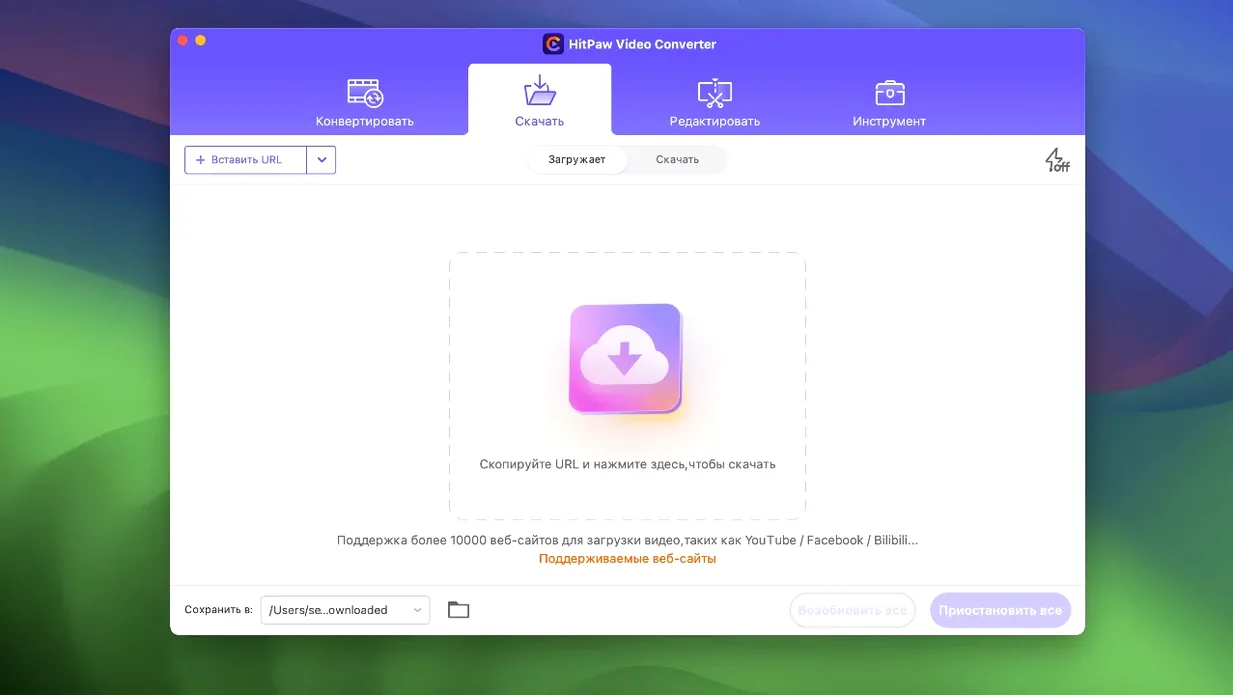
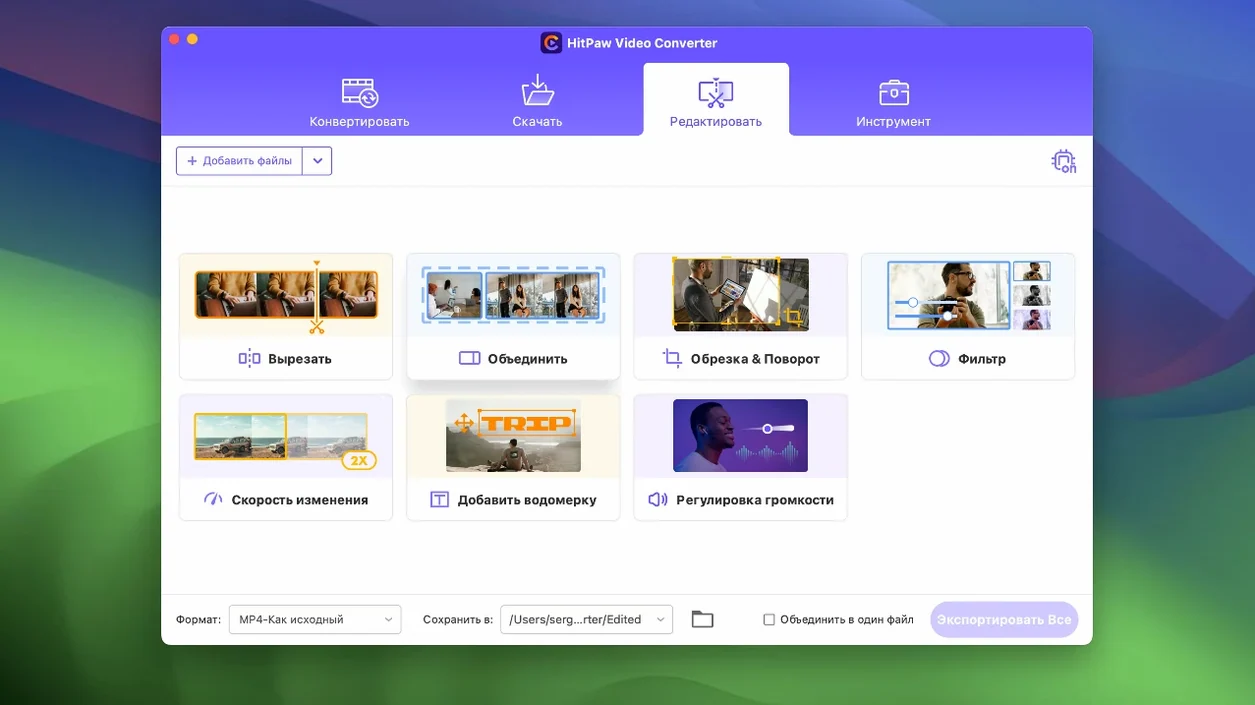
Convert video and audio to more than 1000 formats, including MP4, MOV, AVI, MKV, and MP3, with support for advanced codecs like VP9, ProRes, and Opus. The downloader grabs clips from over 10,000 websites, which covers most streaming platforms you will come across. The compression module got an optimisation in 4.5.0, so shrinking files for sharing or archiving is quicker. The editing options let you trim, crop, or merge clips before conversion, and the new auto reframe feature adapts footage for different aspect ratios automatically. DVD content and images are also handled without loss. If you work with a mix of sources, this app cuts down the back-and-forth between tools.
Built-in downloader eliminates the need for a separate utility
For editors who regularly pull clips from streaming sites, HitPaw Video Converter saves the extra step of sourcing a separate download utility.
HandBrake remains a solid free option for transcoding video, especially for ripping DVDs and batch conversions. However, it has no downloader, no compression module, and no auto reframe feature. HandBrake is also Intel-only on macOS, same as HitPaw Video Converter, but its interface is more utilitarian. If you want a tool that converts, downloads, compresses, and edits in one place without juggling multiple apps, HitPaw Video Converter covers more ground.
MacX Video Converter Pro offers similar format support and a downloader, but its AI tools are less integrated. The compression module in version 4.5.0 of HitPaw Video Converter is optimised, which makes it a practical choice when file size matters after a conversion.
Browse format presets and test with small files first
When you first launch the app, take a moment to browse the format presets. The list is long, so knowing where your common output formats sit saves time later. I would suggest converting a few small test files before tackling a batch job. That way, you can confirm the output quality and codec settings without waiting on a long queue.
For downloads, paste a URL directly into the download panel. If the source site requires login, handle that in your browser first and copy the video URL from the page. The app handles most public streams without extra steps.
The auto reframe feature is worth trying early. Drop in a landscape clip, pick a target aspect ratio like vertical or square, and let it analyse the footage. It works well for social media prep. Keep the original file backed up in case you want to tweak the crop manually later.
If you plan to compress a lot of files, run a couple through the compression module first to see how the optimised settings in 4.5.0 behave with your source material. The result should balance size and quality, but every file is different.
Gatekeeper may block the first launch on Intel Macs
One frequent issue is the app not opening on first launch. Because it uses an Intel architecture on macOS 10.15 and later, Gatekeeper may block it. The install steps include mounting the disk image, launching Open Gatekeeper friendly, pressing Enter in the Terminal window to bypass Gatekeeper, and dragging the app into the Applications folder. If you skip the Terminal step, the app may refuse to open. Re-run the bypass and try again.
Another snag is downloads failing for certain sites. The app supports over 10,000 websites, but some platforms change their streaming protocols. If a download stalls, check that the URL is direct to the video page, not a playlist or an embedded player. Refreshing the page and copying the URL again can also help.
Conversion speed can seem slow if the source file uses an uncommon codec. The app handles VP9, ProRes, and Opus, but older or obscure formats may need a pre-conversion to a standard intermediate format like MP4 before the final output. This is rare but worth knowing.
Some users report the editor module display looking off after an update. Version 4.5.0 optimised the editor module display, so if you see layout glitches, restart the app. If that does not fix it, check that your macOS is fully updated within the 10.15 or later range.
Optimized compression module cuts file-shrinking time
Version 4.5.0, dated 2024-10-28, introduced three changes that affect daily workflow:
- Optimised compression module – Shrinking files for email, archiving, or upload takes less time. If you regularly compress video after conversion, this is the most noticeable improvement.
- Optimised editor module display – The editing panel should now render more reliably. If you previously saw odd spacing or missing controls, those should be resolved.
- Added auto reframe feature – This is the headline addition. Instead of manually cropping each clip for different platforms, you can set a target aspect ratio and let the app adjust. It is useful when preparing content for social media or presentations where the frame size changes frequently.
These changes mean less time waiting on compression, fewer visual hiccups in the editor, and a new tool for resizing footage without guesswork. If you are downloading hitpaw video converter mac from a source that offers version 4.5.0, you get these updates out of the box. For anyone using a hitpaw video converter torrent or an older build, the auto reframe alone justifies the upgrade.
Changes in this build
- Optimised the compression module.
- Optimised the editor module display.
- Added auto reframe feature.
Before it goes on the Mac
- macOS 10.15 or later
- Intel architecture
Questions from the room
Is HitPaw Video Converter compatible with Apple Silicon Macs?
The official requirements list macOS 10.15 and later with Intel architecture, so it runs on Intel Macs. For Apple Silicon, it would run under Rosetta 2, though the developer does not state that explicitly.
Installing it on the Mac
- Mount the disk image and launch Open Gatekeeper friendly.
- Press Enter to bypass Gatekeeper in the Terminal window.
- Drag the app into the Applications folder.
Notes from the control room
Sign in or open a catalogue account to leave a note.
No notes from the room yet. If you have used this build for a week, a short note helps the next person.
Also filed under Mac Apps
The whole Mac Apps rack HitPaw Watermark Remover2.4.7 Mac Apps 290 MB
 HitPaw Univd4.7.0 Mac Apps 525 MB
 HitPaw Edimakor2.6.0 Mac Apps 487 MB
 iA Writer8.1.3 Mac Apps 23 MB Updated
 Iconize1.8.8 Mac Apps 5 MB
 Imagenomic Plugin Suite2027 Mac Apps 71 MB
 Imagenomic Portraiture4.5 Mac Apps 65 MB
 GraphPad Prism11.1.0 Mac Apps 68 MB