
Iconize 1.8.8 (Mac)
Updated
The catalogue note
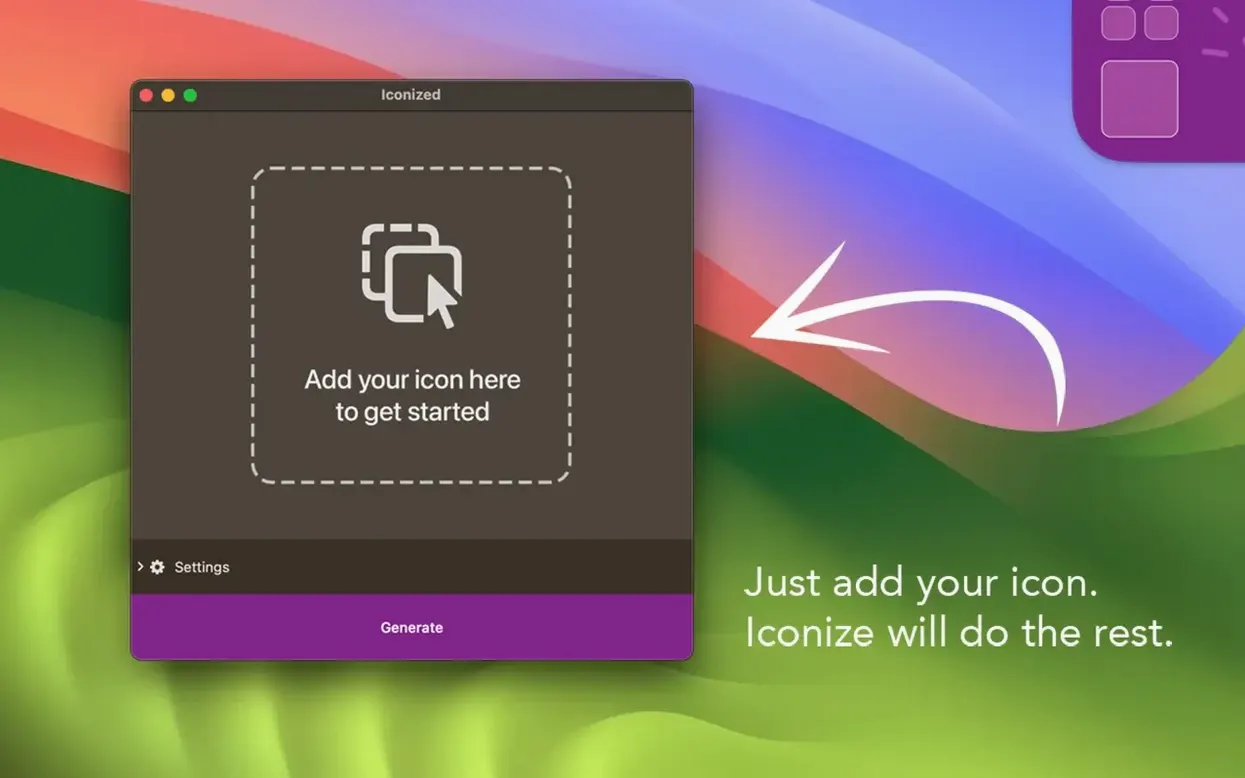
Iconize starts with a drag and a drop. The automatic generator reads the source image, applies the icon format, and writes the result to the app, folder, or file you picked. No manual masking, no export-and-swap dance.
The job it does best is replacing icons in bulk. Point it at a folder of apps, choose a style, and it processes them in one pass. Multi-platform support means the same source artwork works across macOS versions and architectures, so you are not rebuilding icons when you move between machines.
The interface stays in English and keeps the controls minimal — pick the target, pick the image, run it. That is the whole workflow. It runs on M1 through M4 and Intel 64-bit Macs, and the process is fast enough that you will not think twice about changing icons again.
Works with any image macOS can open
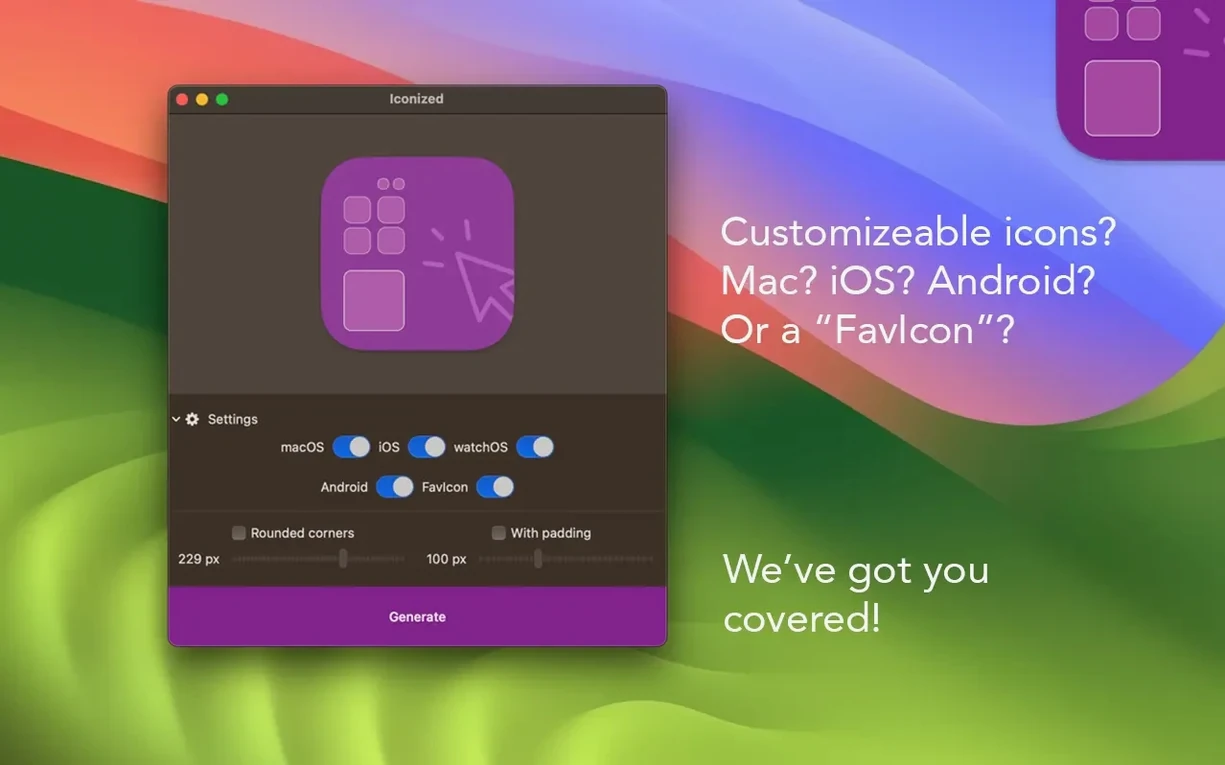
People often ask whether Iconize can work with any image they already have. The answer is straightforward: if macOS can open the file, Iconize can use it. That covers PNG, JPEG, TIFF, HEIC, PDF, and most other common formats. You do not need to convert artwork beforehand or export special icon templates — just drag what you have into the app and let it apply the padding and corners.
Another frequent question is whether the original icon gets destroyed. Iconize does not delete anything. It replaces the icon resource on the file, which macOS stores separately from the app binary or document data. If you want the original back, you can get it from a backup or reinstall the app from its source. Some users keep a folder of original icons before they start — a sensible precaution if you are working on a system you share with others.
People also ask about folder and file icons versus app icons. Iconize handles all three. The same drop-and-go process works whether you are branding a folder of project files, tagging a document type with a custom badge, or swapping out the icon on a third-party application. The only difference is that app icons sit inside the package bundle, so macOS may ask for your password the first time you change one.
Start with one small app and a simple image
Start with one app you know well. Pick something small — a utility, not a browser or a mail client — and run it through Iconize with a simple solid-background image. That gives you a feel for the padding slider and corner radius without wasting time on a complex design. Once you see the result in Launchpad and the Dock, you will know how aggressive you want the rounding to be.
Keep a source folder of your icon artwork at the same resolution. Iconize does not upscale small images well, so prepare your source images at 1024×1024 pixels if you can. The app will scale them down for smaller sizes in the icon set, but starting large avoids blurry edges on Retina displays.
If you plan to change many icons at once, group the target items in a single folder before you open Iconize. That way you can drag them in sequence without hunting through Finder windows. The process is fast, but it still requires one selection per item — reducing the navigation time adds up.
Test a few padding values on the same image before you commit to a batch. Iconize lets you run the same image through multiple times with different settings, so you can compare results side by side in the Finder. Write down the padding and radius numbers you like; they will be consistent across future jobs.
Developers who ship Mac apps get the most
Developers are the obvious first group. If you ship a Mac app, you need icons that follow the platform guidelines — rounded corners, consistent padding, clear edges at every size. Iconize automates that from any source artwork, so you can iterate on the design without manually cropping and exporting twelve sizes. The multi-platform support also means the same tool works on Intel and Apple Silicon Macs, which matters if your build pipeline runs across both.
Designers who hand off icons to clients or colleagues benefit too. You can prepare a single high-resolution image and let the other person run it through Iconize themselves, avoiding confusion about format requirements. The English interface and minimal controls mean almost no explanation is needed.
Then there are the organisers. People who colour-code folders by project, add custom badges to document templates, or maintain a library of reference files with visual tags will find Iconize faster than the manual method. The drag-and-drop workflow means you can process a dozen folders in the same time it used to take to prepare one icon in Preview.
Finally, anyone running a Mac with both Intel and Apple Silicon apps installed will appreciate the consistency. Iconize applies the same style across architectures, so your Dock and Launchpad look uniform even when the underlying binaries differ.
Before it goes on the Mac
- macOS 11 or later
- Apple Silicon or Intel 64-bit
- Interface language: English
Questions from the room
Does Iconize work on Intel Macs?
Yes. Iconize supports both Apple Silicon (M1, M2, M3, M4) and Intel 64-bit Macs.
Installing it on the Mac
- Mount the disk image and run Open Gatekeeper friendly.
- Press Enter in Terminal to bypass Gatekeeper.
- Drag the app to the Applications folder.
- Open the app when installation is complete.
Notes from the control room
Sign in or open a catalogue account to leave a note.
No notes from the room yet. If you have used this build for a week, a short note helps the next person.
Also filed under Mac Apps
The whole Mac Apps rack iA Writer8.1.2 Mac Apps 23 MB Updated
 Imagenomic Plugin Suite2027 Mac Apps 71 MB
 HitPaw Watermark Remover2.4.7 Mac Apps 290 MB
 Imagenomic Portraiture4.5 Mac Apps 65 MB
 HitPaw Video Converter4.5.0 Mac Apps 577 MB
 HitPaw Univd4.7.0 Mac Apps 525 MB
 HitPaw Edimakor2.6.0 Mac Apps 487 MB
 GraphPad Prism11.1.0 Mac Apps 68 MB