GoodNotes 5.9.8 (Mac)
Updated
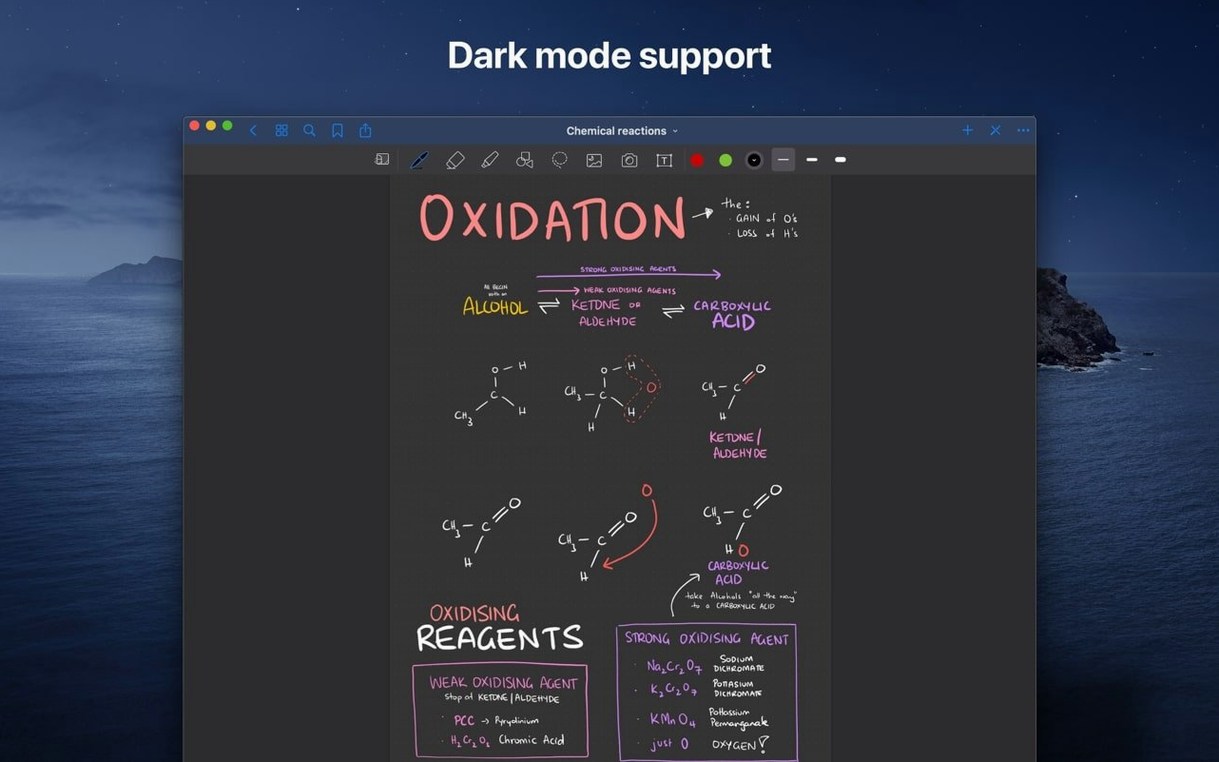
The catalogue note
Writers, lecturers, and anyone who still thinks in handwriting will find a home in GoodNotes 5. This macOS version of the popular iPad app brings the same digital notebooks to the desktop, so you can view, edit, and organize your notes without reaching for a tablet.
Handwriting that behaves and shapes that snap clean
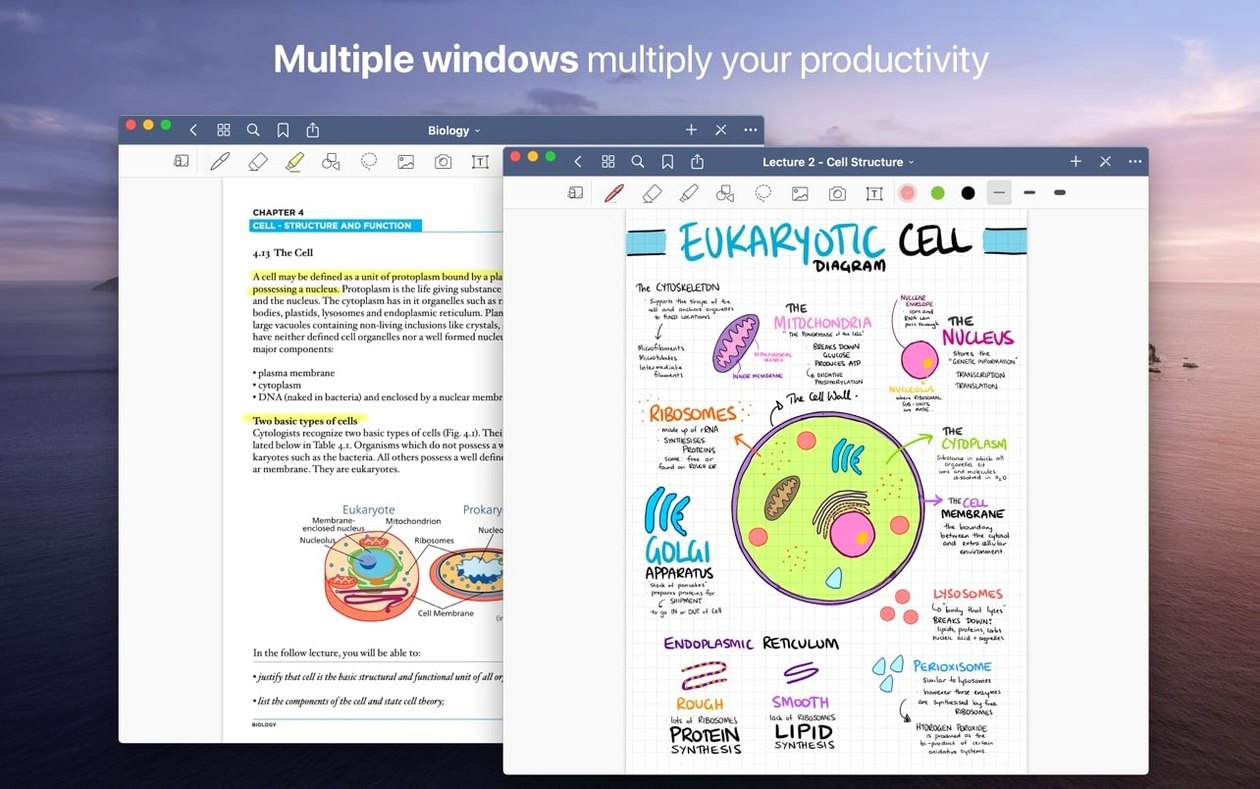
- Handwriting that behaves: Select written words and move, resize, rotate, or recolor them after the ink has dried. No need to start over.
- Shapes tool: Draw a rough circle or line, and GoodNotes snaps it to a clean shape. Useful for diagrams and quick sketches.
- Smart eraser: Erase an entire stroke or just a sliver of it, depending on how you swipe.
- Live PDF links: Imported PDFs keep their hyperlinks active, so tapping a link jumps to the target page.
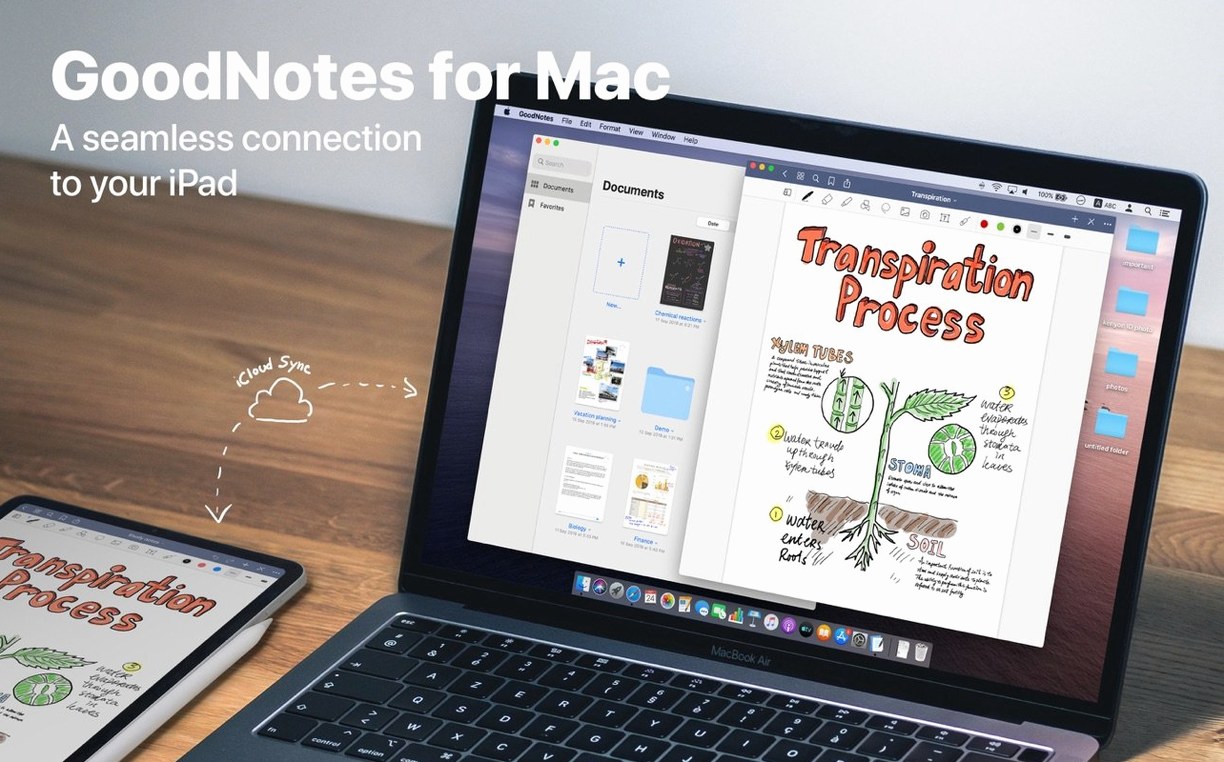
- iCloud sync: Changes made on your Mac appear on your iPad and iPhone, and the other way round.
- Drag-and-drop: Add documents from the hard drive by dragging them in; export pages or whole notebooks as PDFs by dragging them out.
How it fits a studio desk
Between session notes and plugin lists, a notebook that stays in sync beats paper any day. GoodNotes 5 on the Mac means the same notebook is on every device, and exporting a page to PDF is as fast as dropping it on the desktop. It is a quiet, dependable tool for the times when a keyboard is not the right interface.
GoodNotes 5 versus other Mac note-taking apps
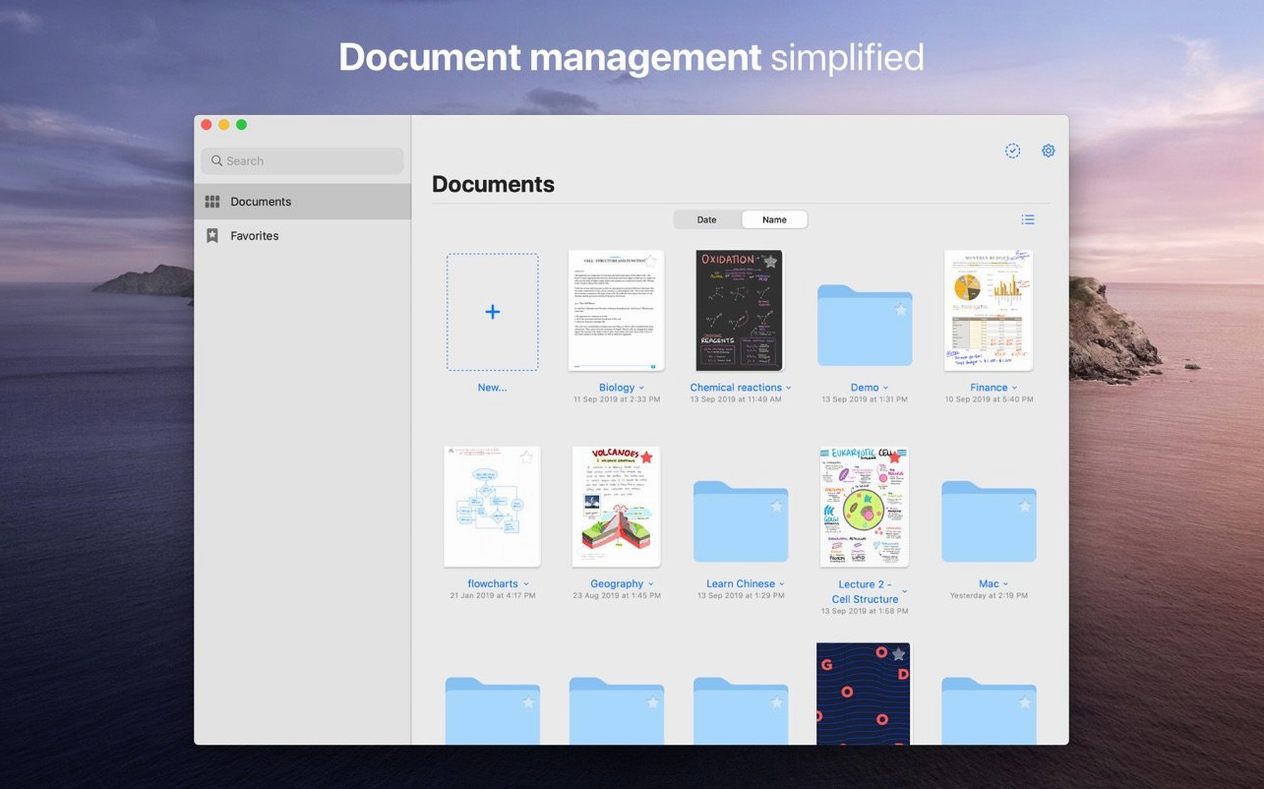
If you are comparing GoodNotes 5 with other Mac options, the main differences are in how they handle handwriting and document structure. Notability, another well-known app, focuses on a single-note layout with a continuous scroll and a recorder for audio synced to your handwriting. GoodNotes organises notebooks into covers and pages, which feels closer to a physical binder, and its folder/subfolder structure gives you more control over where documents live. Apple Notes is free and deeply integrated into the system, but its handwriting tools are basic — you cannot resize or recolor existing strokes, and there is no shapes tool that cleans up rough lines. GoodNotes 5 fills the gap for users who want real ink control and a proper filing system, without the audio-heavy workflow of Notability.
A third option is PDF Expert, which excels at PDF annotation but is not built for creating multi-page notebooks from scratch. GoodNotes imports PDFs and keeps live hyperlinks, but its core is handwriting and typed notes in a notebook format. If your work is mostly marking up PDFs, PDF Expert is a specialist; if you want a digital notebook that also annotates, GoodNotes wins on flexibility.
Runs on both Intel and Apple Silicon Macs
Does GoodNotes 5 work on both Intel and Apple Silicon Macs? Yes — the current version runs on both architectures, and the installer disk image contains a universal binary that works on any Mac from macOS 10.15 onwards.
Can I open my existing GoodNotes notebooks from an iPad on the Mac? Yes, as long as iCloud sync is enabled on both devices. The app syncs changes automatically, so a notebook started on the iPad appears on the Mac, and edits made on the desktop push back to the tablet.
Do I need an iPad to use GoodNotes on the Mac? No. You can create and manage notebooks entirely on the Mac, using the trackpad or mouse for handwriting and the keyboard for typed text. The app does not require an iOS device to function.
No. If you already own it on iOS, you can download the Mac version at no extra cost.
Set eraser to remove only marker ink first
Before you start filling notebooks, adjust a few defaults to suit your workflow. The eraser mode can be set to remove only marker ink, leaving pen strokes intact — useful if you use highlighters over text. The scrolling direction can be switched from vertical to horizontal, which some users prefer for reading slide decks or PDFs. Under handwriting recognition, you can choose your primary language from the fourteen supported ones; this improves search accuracy for handwritten notes.
The auto-deselect option, if enabled, returns the tool to the pen after you finish selecting or moving an object. That saves a tap when you are alternating between editing and writing.
Drag pages straight to Finder without menus
- Drag-and-drop export: You can drag a page or an entire notebook from the GoodNotes window straight to the Finder or to an open email — no export menu needed.
- Custom table of contents: Inside a document, you can create your own table of contents pages and link them to specific pages, bypassing the default thumbnail view.
- Favorites: Important files, folders, or individual pages can be marked as favourites and accessed from a single list, skipping the folder tree.
- Partial eraser: Swipe with the eraser across only part of a stroke, and only that section disappears — the rest stays. This works for pen and marker ink separately.
- Live PDF links: Hyperlinks inside imported PDFs remain active, so you can tap a link and jump to the referenced page within the same document.
Before it goes on the Mac
- macOS 10.15 or later
- Intel or Apple Silicon
Questions from the room
Can I edit my handwriting after writing it?
Yes. You can move, resize, rotate, and recolor handwritten content, and the eraser lets you remove a whole stroke or just part of it.
Does GoodNotes 5 sync between Mac and iPad?
Yes, it syncs through iCloud, so changes made on your Mac appear on your iPad and iPhone, and vice versa.
Installing it on the Mac
- Open the downloaded disk image.
- Drag the app to the Applications folder alias.
- After copying finishes, launch the app from Launchpad.
Notes from the control room
Sign in or open a catalogue account to leave a note.
No notes from the room yet. If you have used this build for a week, a short note helps the next person.