Home › Mac Apps › Garden Planner

Garden Planner 3.8.86 (Mac)
Updated
The catalogue note
Garden Planner is for anyone who sketches out a backyard, a balcony, or a community plot before breaking ground. It runs natively on both Apple Silicon and Intel Macs, and the current version, 3.8.86, refines the drawing tools with fresh path styles and a round of fixes.
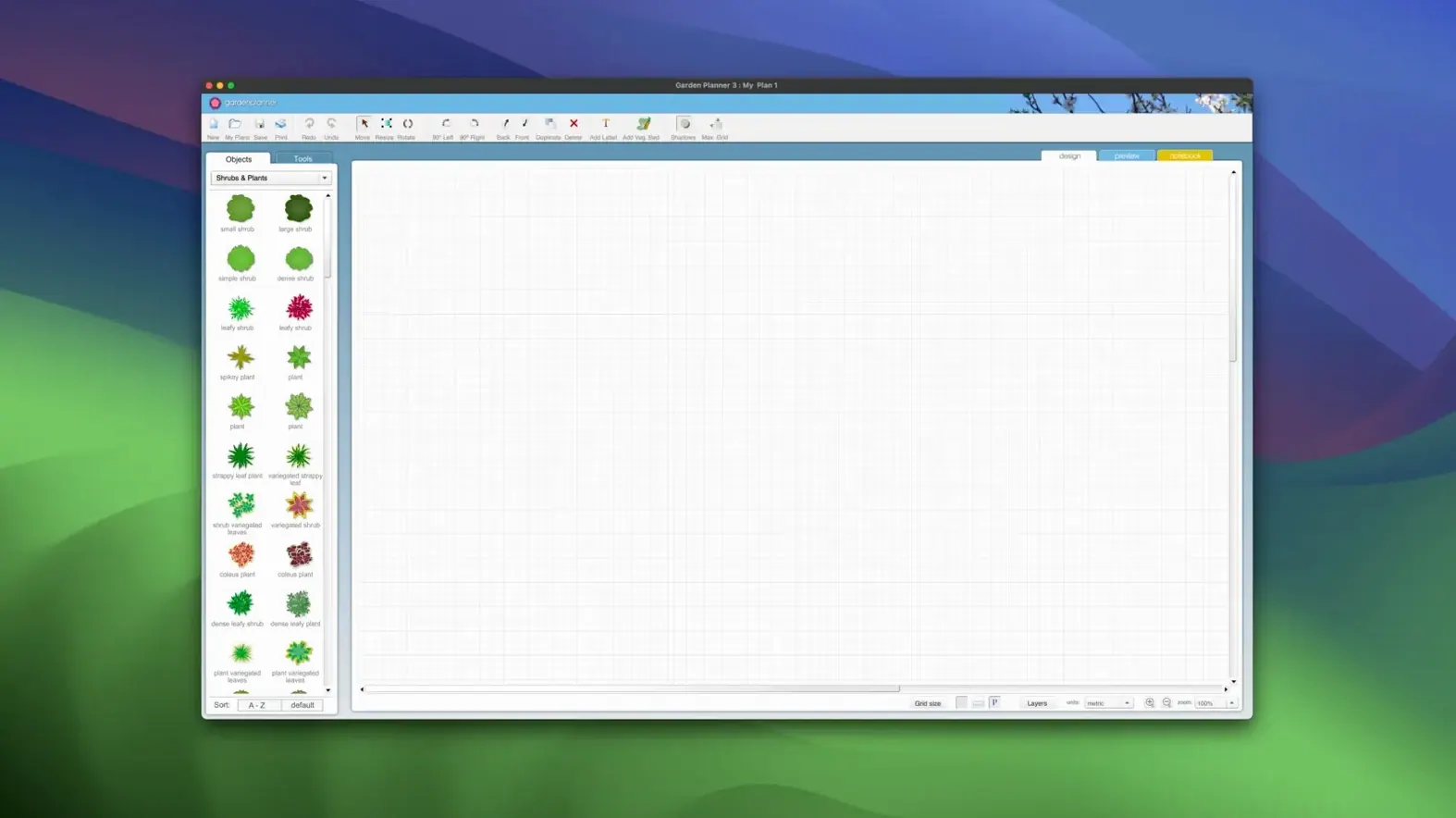
Drag-and-drop design with over 1,200 items
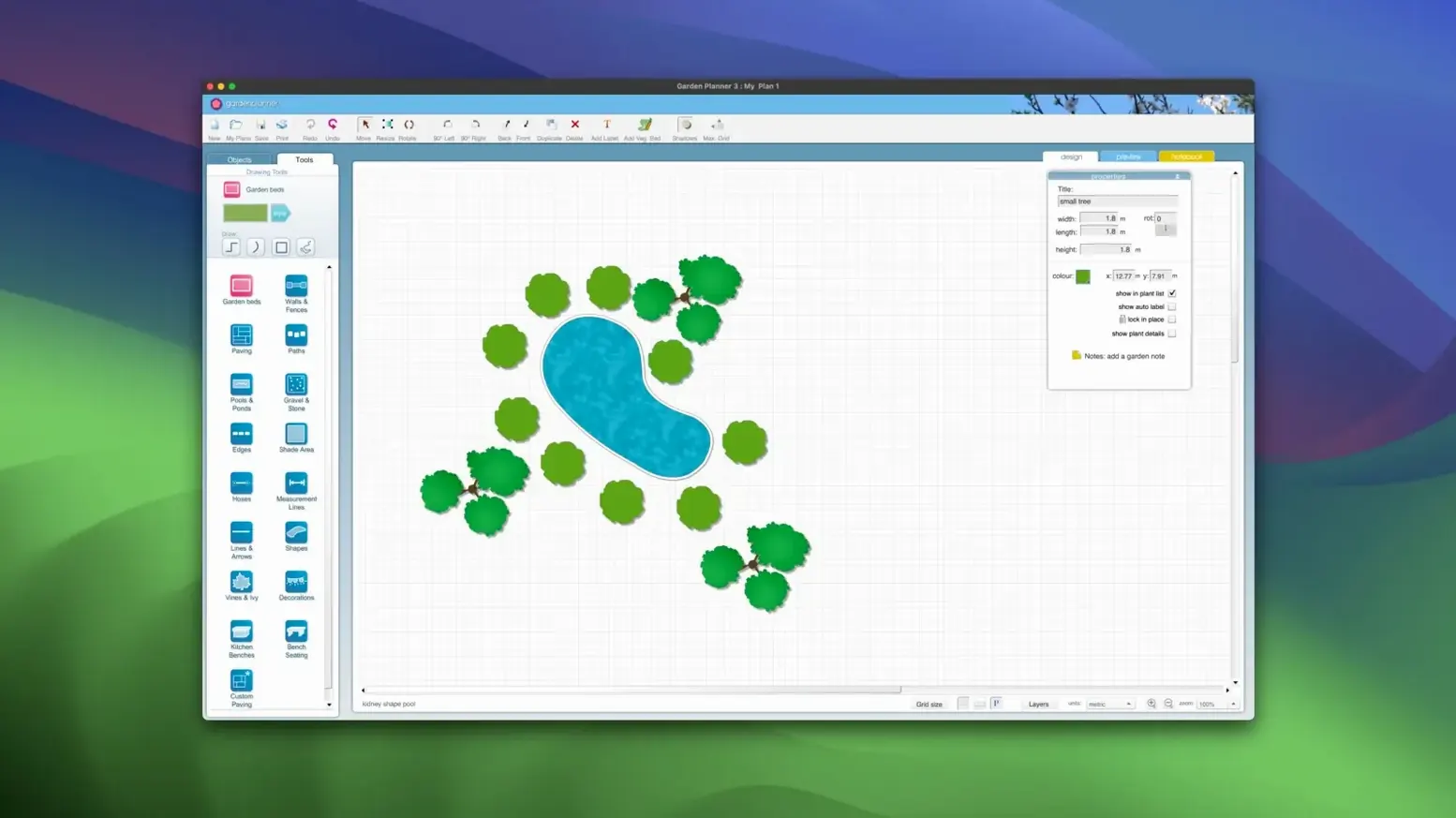
Drag-and-drop design — Place plants, trees, buildings, and objects from a library of over 1,200 items directly onto the canvas. Rotate, duplicate, scale, and reshape each element until the layout matches reality.
2D and 3D views — Work in a clean overhead plan, then switch to a 3D perspective to check sightlines and spacing before any soil is moved.
Text annotations — Add notes to elements so you remember which rose needs full sun or where the irrigation line runs.
Custom defaults — Apply your own settings to library elements, so repeated objects come in with your preferred size, colour, or label every time.
Working with other apps and macOS features
Garden Planner exports projects as standard JPEG and PNG image files, which makes it straightforward to drop a finished layout into a presentation, an email, or a shared album. The export sits on the File menu — no extra conversion step needed. If you keep reference photos, site surveys, or plant catalogues in Preview, you can have them open side by side with the Garden Planner window and copy dimensions across without switching apps.
The object report is probably the feature that connects most directly with the rest of your workflow. It lists every plant, structure, and object in the project, and you can save it as CSV or plain text. CSV opens cleanly in Numbers or Excel, so you can sort the list by quantity, cost, or sun requirement. A text file works for pasting into a notes app or a shared document if you are collaborating on a larger planting scheme. The report can also be printed directly — useful for taking a shopping list to the garden centre.
On macOS, the standard print dialog gives you control over paper size, orientation, and scaling, so the preview screen combined with system printing tools handles everything from a quick A4 sketch to a large-format plot plan. The print quality is set within the app, and the preview shows you exactly what the ink will lay down.
User-defined settings save time on repetitive projects
The built-in library of more than 1,200 plants and objects is the obvious starting point, but the ability to apply user-defined settings to those elements is what saves time on repetitive projects. If you always use a particular shrub at 80 cm spacing with a green fill, you can set that once and every subsequent drop of that shrub inherits the values. The same applies to paving blocks, fence panels, or pond shapes.
The drawing tools for paths, paving, walkways, walls, fences, pools, and ponds each have their own behaviour — a path tool draws a continuous line, while a paving tool fills an area. Reshaping an existing object after placement is possible without deleting and re-adding, which helps when a site measurement turns out to be off by half a metre. Rotation and duplication work with a single click or drag, so building a row of identical planters takes seconds.
Text descriptions are attached to individual elements, not floating labels, so they stay with the object if you move or copy it. That avoids the common annoyance of annotations drifting out of alignment after a layout change.
New path styles for gravel, stone, brick, and boardwalk
- New path styles — The 3.8 update added fresh styles for drawing garden paths. Instead of the previous limited set, you now have more visual options for gravel, stone, brick, and boardwalk appearances. The styles apply to new paths and can be used to update existing ones.
- General improvements and bug fixes — The 3.8.86 release (14 July 2026) cleaned up issues from earlier versions. The developer lists these as improvements and fixes; in practice, the drawing tools feel more predictable when snapping to grid and when switching between 2D and 3D views.
- No interface change — The layout, menus, and dialog boxes remain the same as 3.8.0, so there is no relearning required if you update from a previous version.
Sketching a 6 × 10 metre allotment plot in 2D
A home gardener with a 6 × 10 metre allotment plot starts by measuring the site and sketching the boundaries in Garden Planner’s 2D view. They drag in raised beds from the library, scale them to 1.2 × 2.4 metres, and apply a wood-texture fill. Paths between the beds use the new gravel path style from the 3.8 update. Vegetables are placed using the plant library — tomatoes, beans, carrots — and each gets a text note with the sowing date and expected harvest window.
Once the layout is done, the gardener switches to the 3D view to check that taller crops like runner beans won’t shade the lower beds in the afternoon. A few beds get rotated to align with the sun path. The object report is exported as CSV and opened in Numbers to calculate how many seed packets are needed. The final plan is saved as a PNG and emailed to a fellow allotment holder who uses a Windows machine — Garden Planner is available for both platforms, so the file opens on their side too. No manual redrawing, no guesswork with spacing.
Works on macOS 10.7 and later, Apple Silicon and Intel
Mount the downloaded disk image, run the standard installation procedure, and use the included activation code to unlock the app. The installer works on macOS OS X 10.7 and later, and supports both Apple Silicon and Intel 64-bit machines. There is no separate download for each architecture — the same disk image covers both.
Garden Planner is English-only and available for Mac OS X 10.7 or later, on both ARM and x86 64-bit systems.
Changes in this build
- New path styles added.
- Improvements and bug fixes.
Before it goes on the Mac
- macOS 10.7 or later
- Apple Silicon or Intel (x86 64-bit)
- English interface
Questions from the room
Can I use Garden Planner on an older Mac?
Yes, it runs on macOS 10.7 (Lion) and later, and supports both Intel and Apple Silicon processors.
Installing it on the Mac
- Mount the downloaded disk image.
- Run the standard installation procedure.
- Use the included activation code to activate the app.
Notes from the control room
Sign in or open a catalogue account to leave a note.
No notes from the room yet. If you have used this build for a week, a short note helps the next person.