Updated
The catalogue note
ForkLift supports connecting to over seven remote protocols: FTP, SFTP, Amazon S3, AFP, WebDAV, SMB, and NFS. That range alone makes it worth opening for anyone moving files beyond a single Mac.
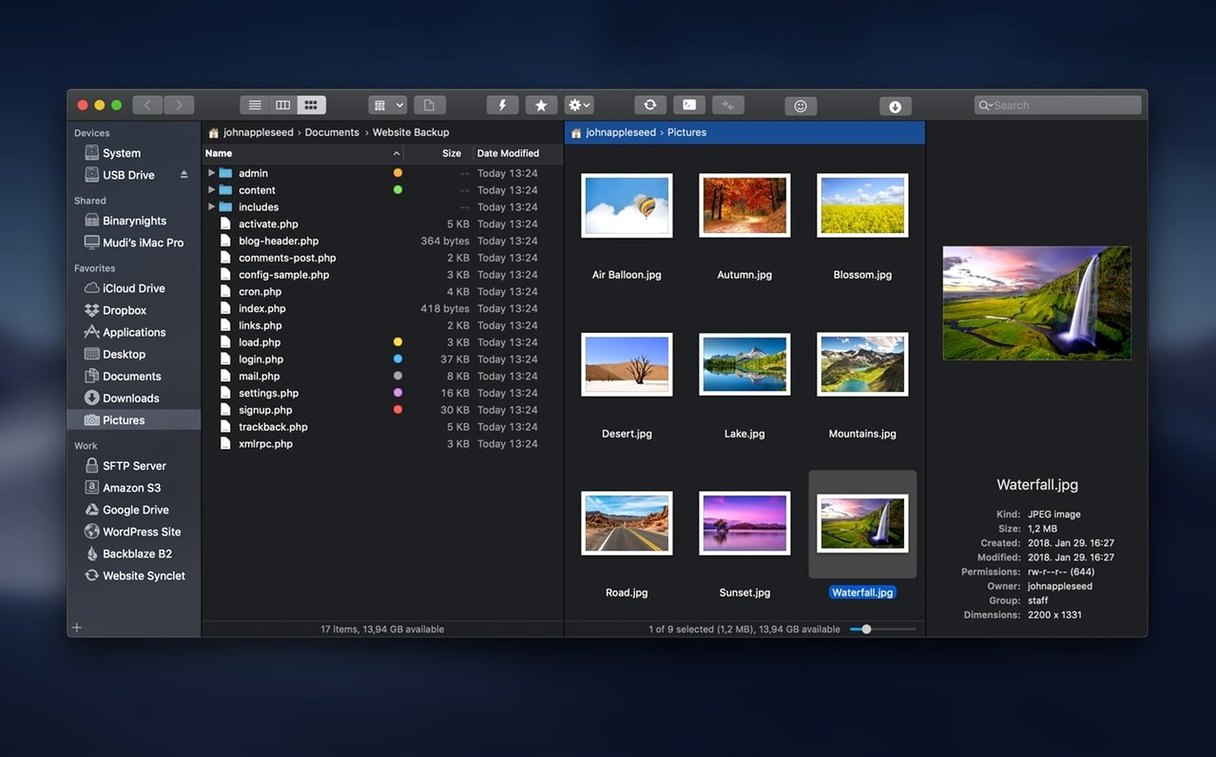
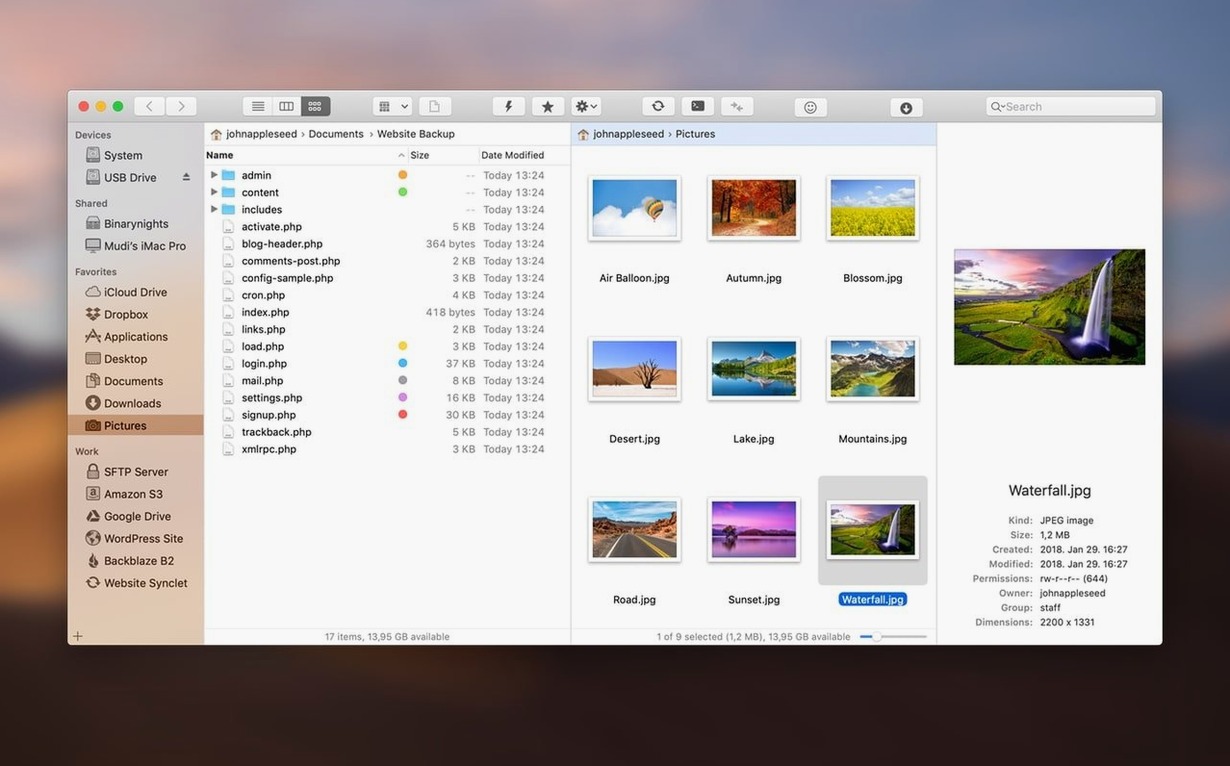
Browse two folders at once
Switch the layout between horizontal and vertical panes. Drag files from one side to the other — local to remote, or between two servers. The preview pane shows photos, PDFs, and other common types without launching another app.
Search inside remote folders
Press Command-F and search by name, extension, text content, or tags. It works on local volumes and mounted servers alike. No need to download a whole folder just to find one PDF.
Edit files directly on a server
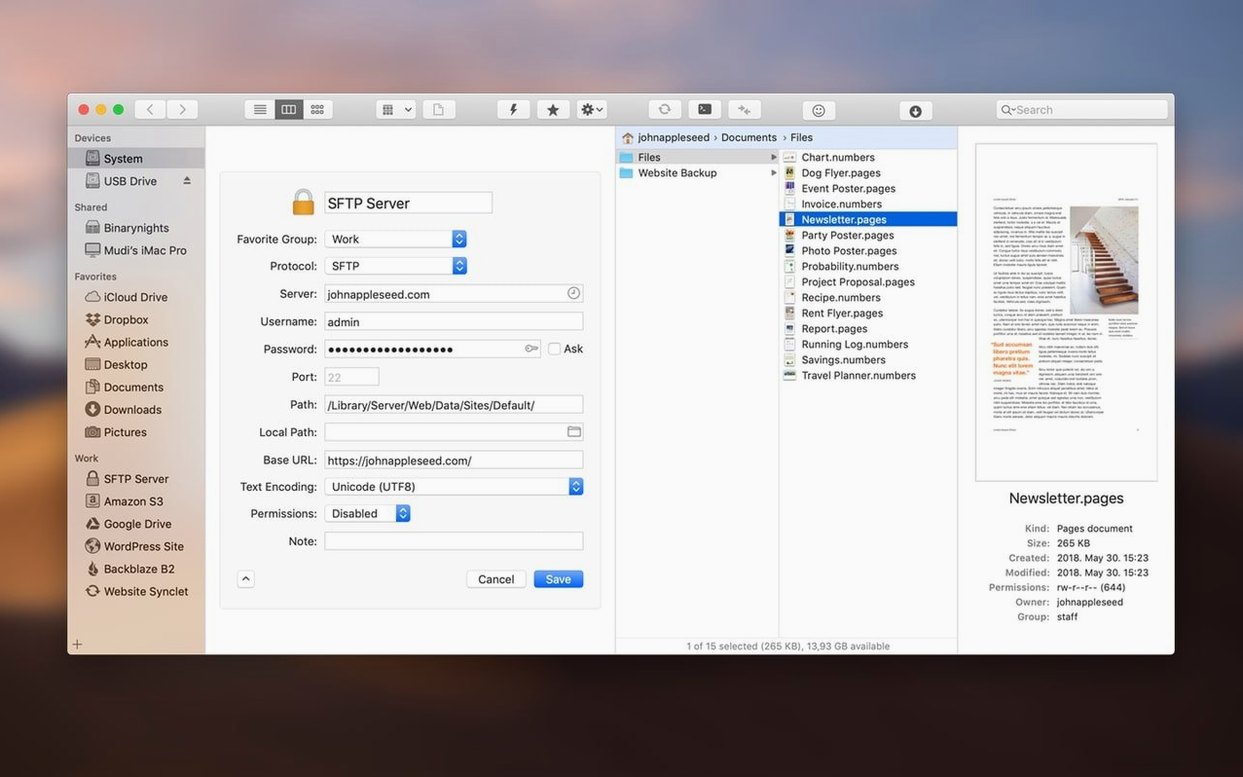
Open a text file from an FTP or SFTP connection, make changes, and save. ForkLift writes the changes back to the remote location. Useful for quick config tweaks or editing a page without a separate editor.
Shuttling audio stems between Amazon S3 and local storage
Open ForkLift and the two panes appear side by side. On the left, I connect to an Amazon S3 bucket holding audio stems from a session recorded last week. On the right, I navigate to a local project folder on the studio Mac. The vertical split works better for this — I can see the full filename of each WAV file without scrolling horizontally.
I select a handful of stems on the left, drag them to the right pane, and ForkLift queues the transfers. While that runs, I switch the left pane to an SFTP connection for the client's server. The preview pane shows a PDF of the mix notes without opening Preview. I spot a typo in the notes, so I double-click the file, edit it directly on the remote server, and save — ForkLift writes the change back over SFTP.
Next, I need to compare the local project folder with a backup on an SMB share connected to a NAS downstairs. I select both folders — one in each pane — and run a comparison. ForkLift highlights the files that differ. I choose one-way sync to push the newer local versions to the NAS. The sync runs in the background while I browse an archive of old session files: ForkLift opens the ZIP as if it were a folder, letting me peek inside without extracting.
Before closing, I search the remote server for any file containing "mix" in the name. ForkLift finds three files across subfolders. I drag one back to the local pane and quit. The whole session took maybe ten minutes and never left the app.
Ideal for audio engineers and web developers juggling multiple storage locations
ForkLift suits anyone who lives in file management day to day. Audio engineers like me use it to shuttle sessions between local storage, NAS boxes, and cloud buckets without juggling Finder tabs and separate FTP apps. Web developers edit config files directly on staging servers. Video editors compare folders of rushes between a local RAID and an S3 bucket, then sync only the changes. System administrators managing multiple servers over SFTP or AFP appreciate having all connections open in one window.
The dual-pane layout and multi-protocol support reduce context switching. If your workflow involves moving files between two locations — especially if one of them is remote — ForkLift removes steps. Casual users who only copy files to a USB drive will find Finder adequate. ForkLift rewards anyone who needs to compare, sync, or search across different volumes.
Polished file interactions and macOS fixes for daily workflows
- User experience improvements when interacting with files — the small refinements add up during a day of constant dragging, renaming, and deleting. Less friction when selecting or moving items.
- Fixes for two issues on macOS 27 Golden Gate. For anyone running that version of macOS, these fixes keep ForkLift working as expected. The changes are invisible in normal use, but they prevent crashes or misbehaviour that would otherwise interrupt a session.
No new protocols or major features here. This is a maintenance release that tightens what already works.
Opens Terminal and iTerm for remote server command-line access
ForkLift does not replace Finder entirely — it supplements it. The app can open Terminal, iTerm, or Hyper from within its interface, which is handy when you need a command line on a remote server without switching windows. Text editing works through the system's default editor or any editor you associate with text files. The preview pane uses Quick Look under the hood, so it shows the same previews you get in Finder.
Drag and drop works across apps. Drop a file from ForkLift into a Logic Pro project window, and it imports directly. Copy a path from the app and paste it into a terminal session. The dual-pane setup also works with local volumes that appear in Finder — mounted DMGs, external drives, network shares — so you can manage everything from one window without losing access to macOS's standard file services.
If you search the web for forklift torrent or forklift mac, you will find the usual places. The version discussed here is 4.7.6, and it runs on macOS 12 or later, Intel architecture. The app's real value is in how it connects the local file system with remote servers, and how it fits alongside the tools you already use.
Changes in this build
- User experience improvements when interacting with files.
- Fixes for two issues on macOS 27 Golden Gate.
Before it goes on the Mac
- macOS 12 or later
- Intel or Apple Silicon
- Interface languages: English, German, Hungarian
Questions from the room
Can ForkLift connect to multiple servers at the same time?
Yes, you can connect to several remote volumes simultaneously and display them alongside local folders in separate panes.
Installing it on the Mac
- Mount the disk image.
- Run Open Gatekeeper friendly.
- Press Enter in Terminal to bypass Gatekeeper.
- Drag the app to the Applications folder.
- Disable SIP if required.
Notes from the control room
Sign in or open a catalogue account to leave a note.
No notes from the room yet. If you have used this build for a week, a short note helps the next person.