CorelDRAW 27.2.0 (Mac)
Updated
The catalogue note
Version 27.2.0.135 requires an Apple Silicon or AVX2-capable Intel Mac, 8 GB of RAM (16 GB recommended), and an OpenCL 1.2 video card with at least 3 GB of VRAM. That means Intel Macs from roughly 2017 onward, plus any M1 or M2 machine, will work — but older Intel hardware without AVX2 support won’t.
| Detail | Value |
|---|---|
| Developer | Corel Corporation |
| Current version | 27.2.0.135 |
| macOS requirement | macOS 13 or later |
| Architectures | ARM (Apple Silicon) and x86‑64 |
| Interface languages | 14 languages including English, German, French, Japanese, Polish, Russian |
| Key file formats | CDR, AI, PSD, PDF, SVG, DWG, DXF, EPS, TIFF, HEIF |
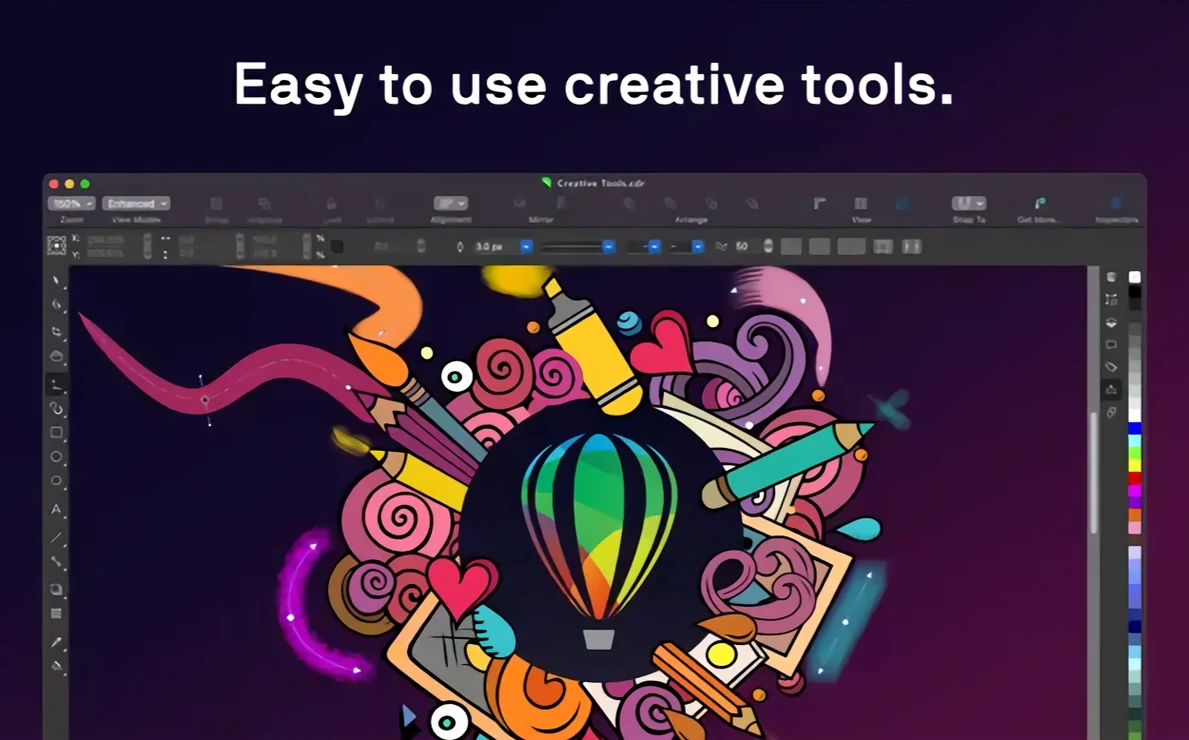
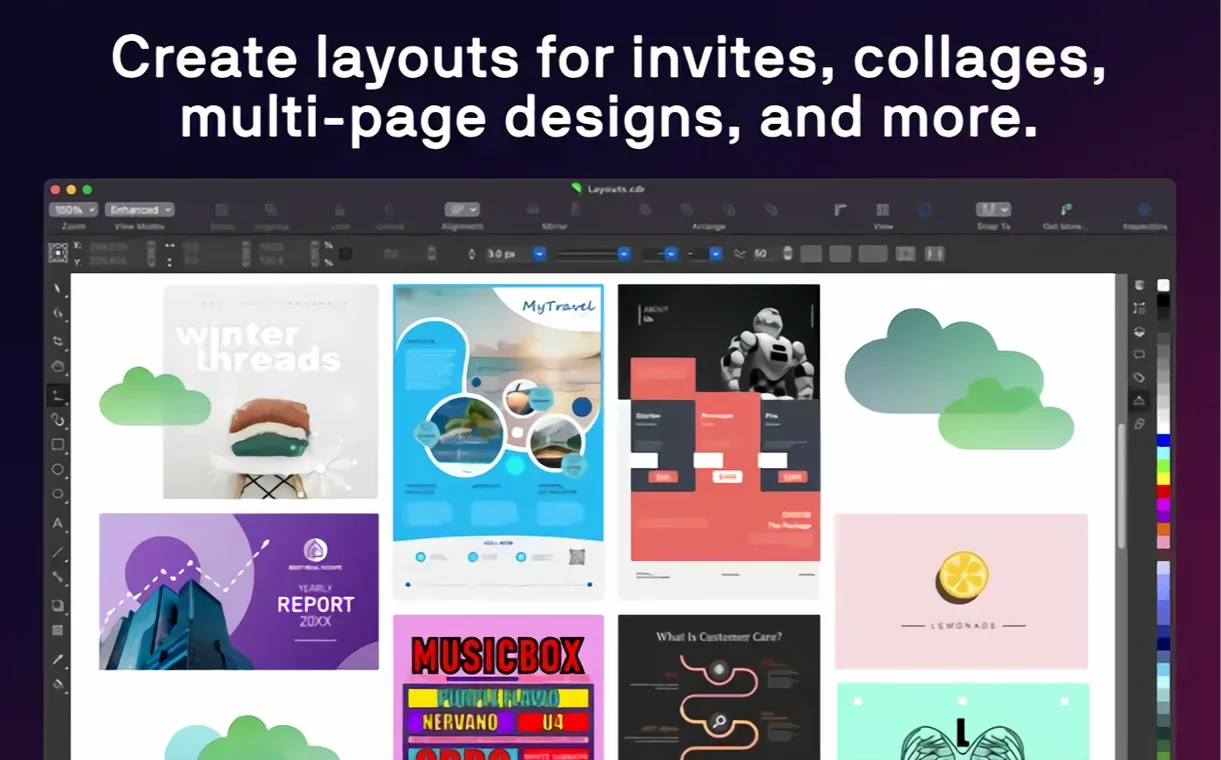
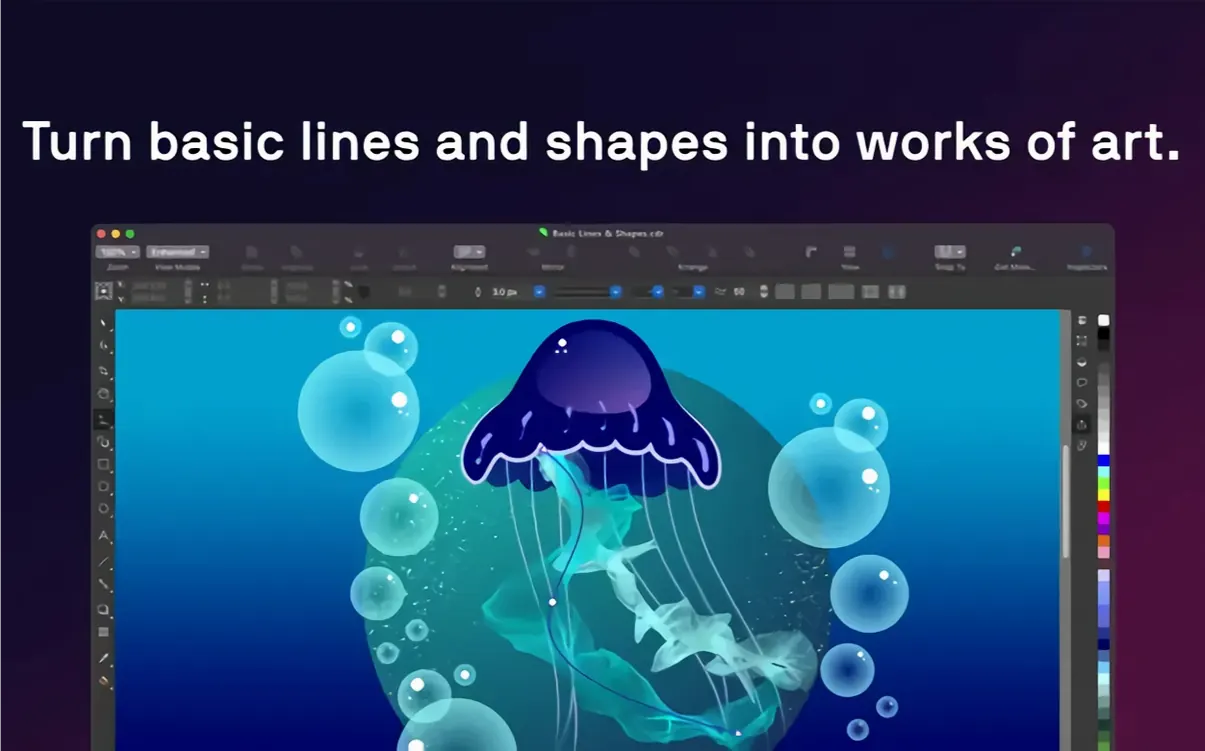
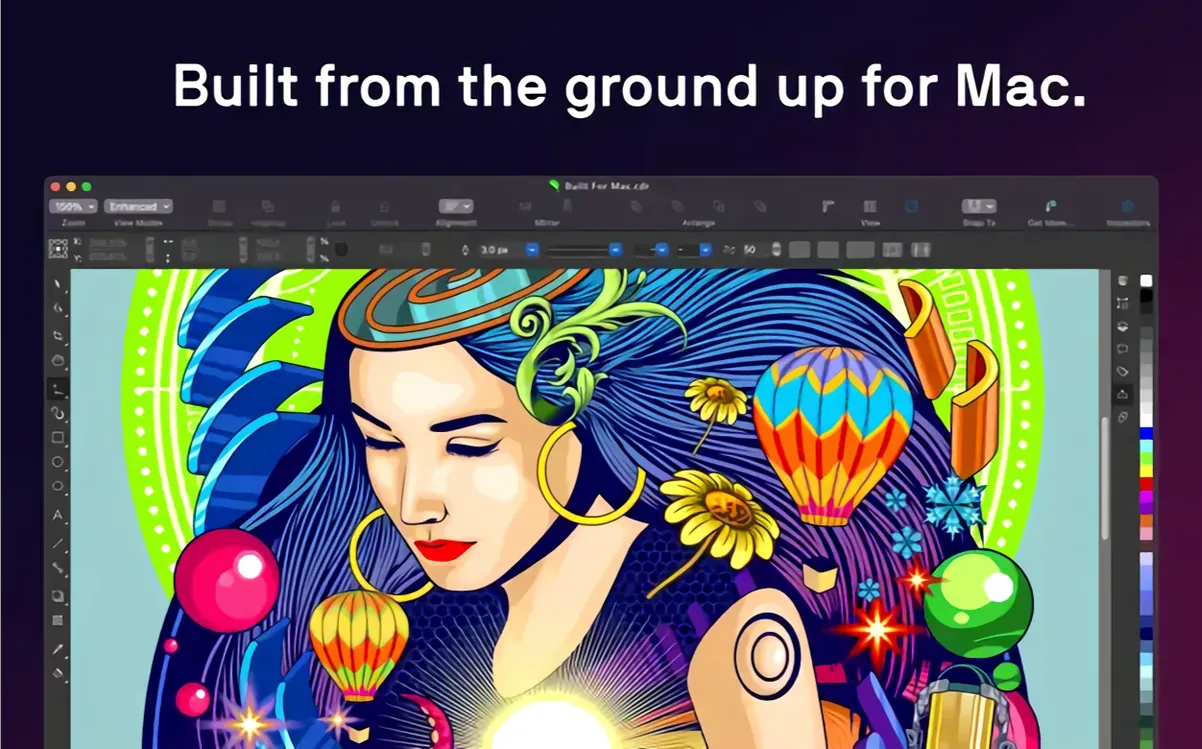
The suite ships with Corel PHOTO‑PAINT for raster work and Corel Font Manager for type organisation. You get vector drawing tools, page layout for multi‑page documents, and a native macOS interface. Support for both ARM and Intel code means it should run efficiently on any recent Mac that meets the GPU and memory minimums.
Variable fonts update without stutter
Version 27.2.0.135 doesn't rewrite the interface, but it refines a few routines that matter when you work against a deadline. The variable fonts support is more responsive now — adjusting weight or width sliders updates the canvas without the stutter that earlier builds had on complex documents. The AI upscaling and JPEG artifact removal tools, both introduced in the 27 cycle, are fully baked; they live in the bitmap menu and handle common jobs like pulling a usable image from a low-res source file without launching a separate application.
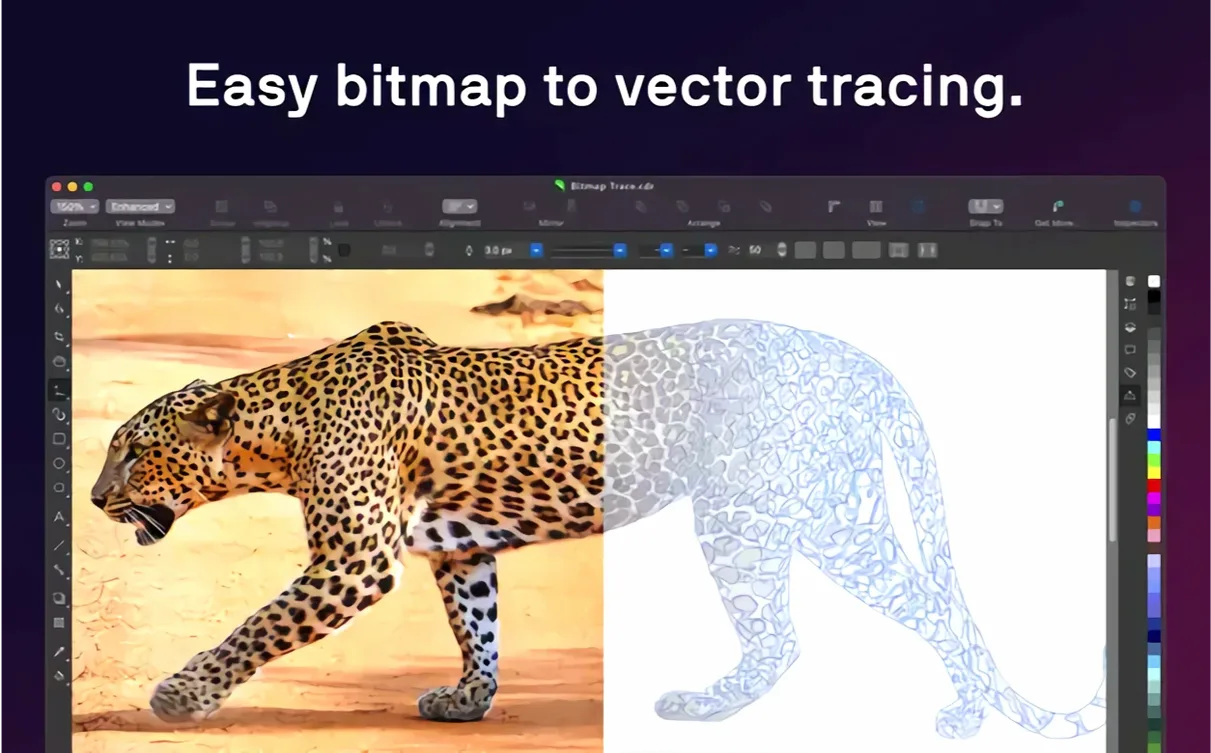
Corel PHOTO‑PAINT inherits the same engine updates, so masking and retouching steps feel consistent between the two applications. The trace engine for raster-to-vector conversion hasn't changed its core algorithm, but the presets for line art and logo tracing produce cleaner paths on the first pass, which saves time when you're converting client scans. If you use the Touch Bar on a MacBook Pro, the layer and text tool controls remain in place — nothing new there, but they still beat reaching for the trackpad for quick font size bumps.
Falls short for print-heavy page layouts
Three applications share CorelDRAW's territory on the Mac: Affinity Designer, Adobe Illustrator, and Vectorstyler. Each takes a different approach, and the right choice depends on your daily work.
Where it falls short for print-heavy workflows is page layout: Designer handles single-artboard projects well, but multi‑page documents with facing pages and master pages require Affinity Publisher. CorelDRAW does it all in one application, which matters if you regularly switch between a logo and a 16‑page brochure in the same session.
Adobe Illustrator remains the industry standard for file exchange with agencies and print shops. Illustrator's pen tool and path editing are more mature, but CorelDRAW's approach to object styles and style sets is faster when you need to apply a consistent look across dozens of objects. The native macOS interface of CorelDRAW also feels less transplanted than Illustrator's, which still carries Windows‑era dialog conventions.
Vectorstyler is a newer contender with a leaner feature set and a lower entry cost. It handles vector illustration and typography competently, and its GPU acceleration is notable on recent hardware. However, it lacks the photo‑editing side — you'd need a separate raster editor — and its file format support doesn't include CDR or the full range of CAD formats like DWG and DXF that CorelDRAW handles. For mixed vector‑raster jobs or print production, CorelDRAW is the more complete suite.
Can run alongside CorelDRAW 2023 or 2024
Can I run it alongside an older version? Yes, provided you install to a different folder. The version 27 installer won't overwrite a previous installation by default, so you can keep CorelDRAW 2023 or 2024 on the same machine while you test the new release. Just be aware that file formats from version 27 may not open correctly in older builds.
Will my existing CDR files open without problems? Generally yes. Corel maintains backward compatibility, and version 27.2.0.135 opens CDR files from the past several major releases. The one caveat is if your older files rely on effects or objects from third‑party plugins that haven't been updated — those might render differently until you update the plugins themselves.
Does it work with Apple's Sidecar and an iPad? Yes. You can use Sidecar to extend your Mac display to an iPad and use Apple Pencil for drawing or selecting objects. The changes appear on the Mac screen in real time.
Is the installation straightforward on an M‑series Mac? Yes. The installer detects Apple Silicon and runs in native ARM mode. No Rosetta 2 translation is needed for the main application, though some third‑party plugins may require it if they haven't been compiled for ARM.
How much disk space does it need after installation? The suite with PHOTO‑PAINT and Font Manager occupies several gigabytes.
Set default page units to millimetres or points
Before you start a project, adjust these preferences to match a print‑oriented workflow. Open the CorelDRAW preferences dialog and look for these items:
- Page size and units – set the default page unit to millimetres or points, depending on your industry. The factory default is inches for some regions, which leads to conversion errors on first use.
- CorelDRAW writes backup files to a hidden folder, and a shorter interval saves time when a complex document crashes.
- Colour management – choose a working RGB space (sRGB or Adobe RGB) and a CMYK profile that matches your print provider. The default is generic US Web Coated (SWOP), which may not suit European or Asian print shops.
- Undo levels – the default is 20, but you can raise it to 50 or more if you have enough RAM. Each undo stores object states, so watch performance if you work on files with hundreds of objects.
- This setting is in the workspace options and applies immediately.
Explore the workspace layout first
Spend the first session exploring the workspace layout, not finishing a project. The default workspace is called CorelDRAW Default, but you can switch to Illustrator or Lite workspaces from the Window menu if the tool arrangement feels unfamiliar. The Illustrator workspace rearranges tools to match Adobe's layout, which helps if you're migrating.
Open a few of your existing CDR files and check how effects and text blocks render. Variable fonts that used to fall back to static weights should now display correctly. If you see any missing font warnings, open Corel Font Manager and activate the missing typefaces from there — it can scan common font folders and batch‑activate them.
Try the AI upscaling on a small test image. Select a bitmap, go to the bitmap menu, and choose the upscale option. The default factor is 2x, but you can adjust it. Keep the original file backed up because the operation is destructive — undo works, but once you save and close, you can't revert to the original resolution.
Set up a custom style set for your most common text and object formatting. Create a paragraph style with your body‑text font, size, and leading, then save it as a style set. This one step cuts repetitive formatting work drastically when you're laying out a multi‑page document. You can export the style set and reuse it across projects.
If you work with files from other designers, enable the View → Enhanced display mode to see transparency and shadow effects accurately on screen. The default Draft mode is faster for navigation but hides gradient blends and drop shadows, which can lead to surprises at print time.
Before it goes on the Mac
- macOS 13 or later
- Apple Silicon or multicore Intel processor with AVX2 support
- 8 GB RAM (16 GB or more recommended)
- OpenCL 1.2-compatible video card with 3 GB or more VRAM
- About 8 GB of free disk space for installation
Installing it on the Mac
- Open the included installation and activation instructions.
- Follow the instructions provided inside the package.
Notes from the control room
Sign in or open a catalogue account to leave a note.
No notes from the room yet. If you have used this build for a week, a short note helps the next person.