Updated
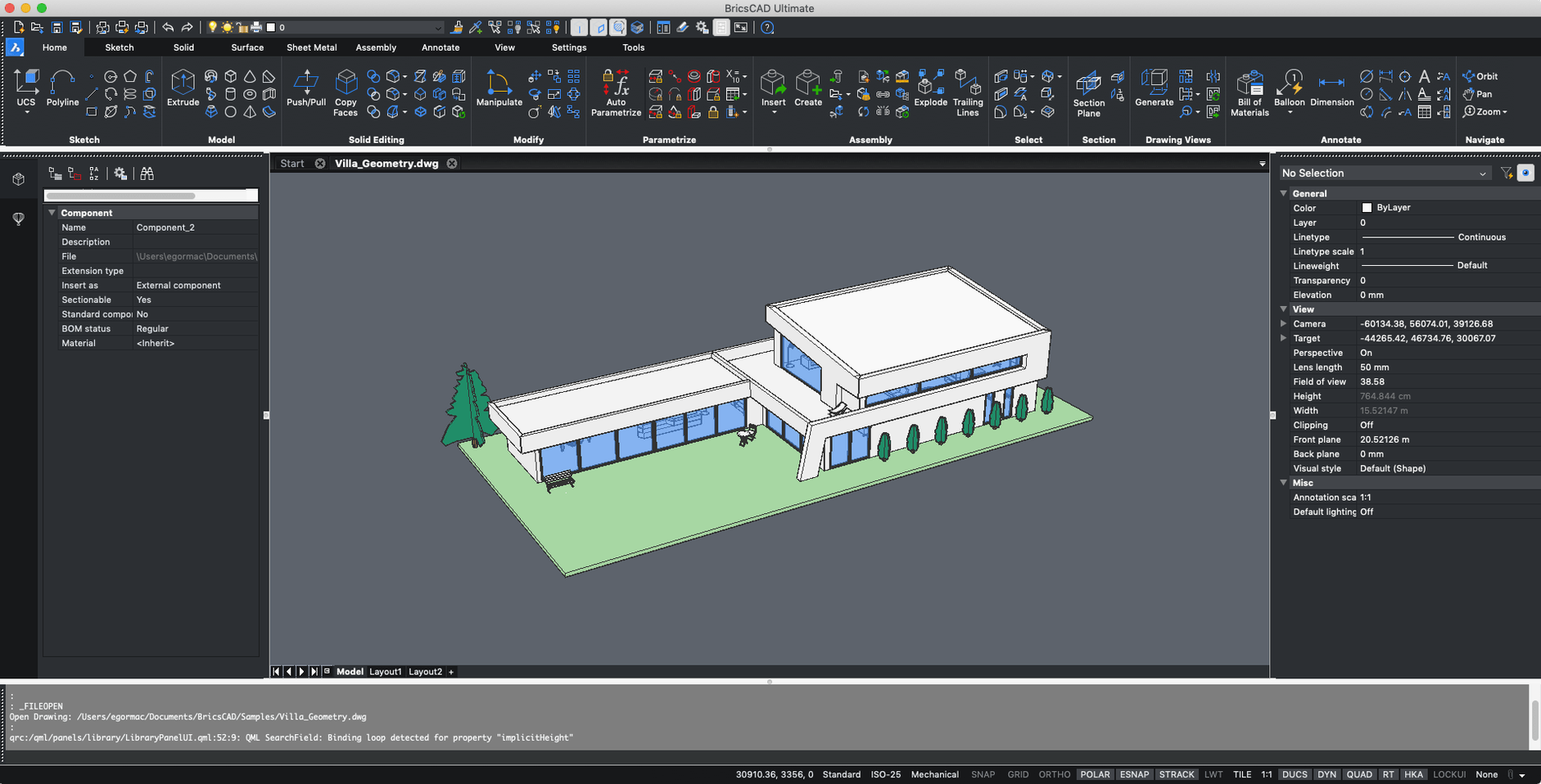
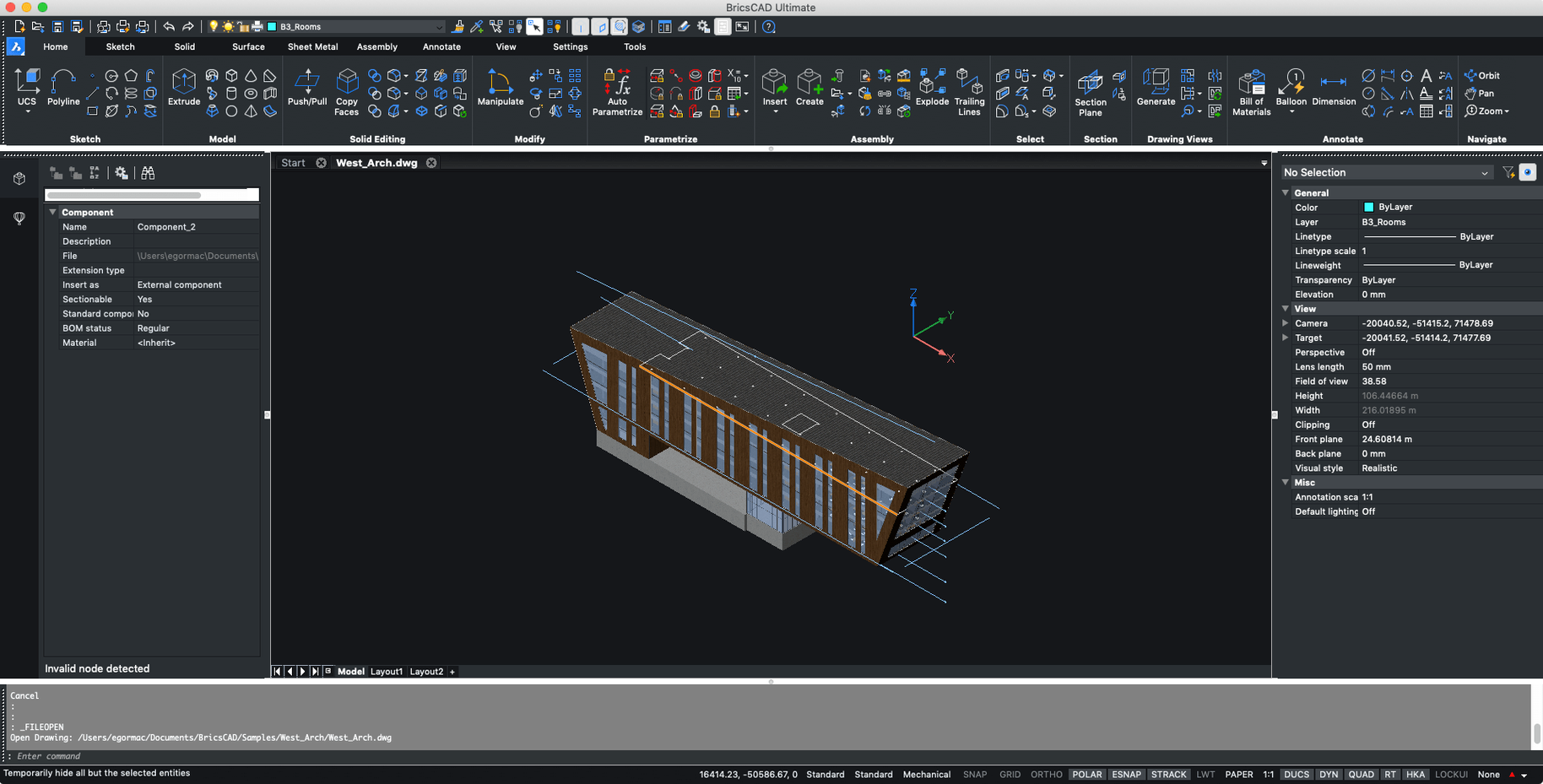
The catalogue note
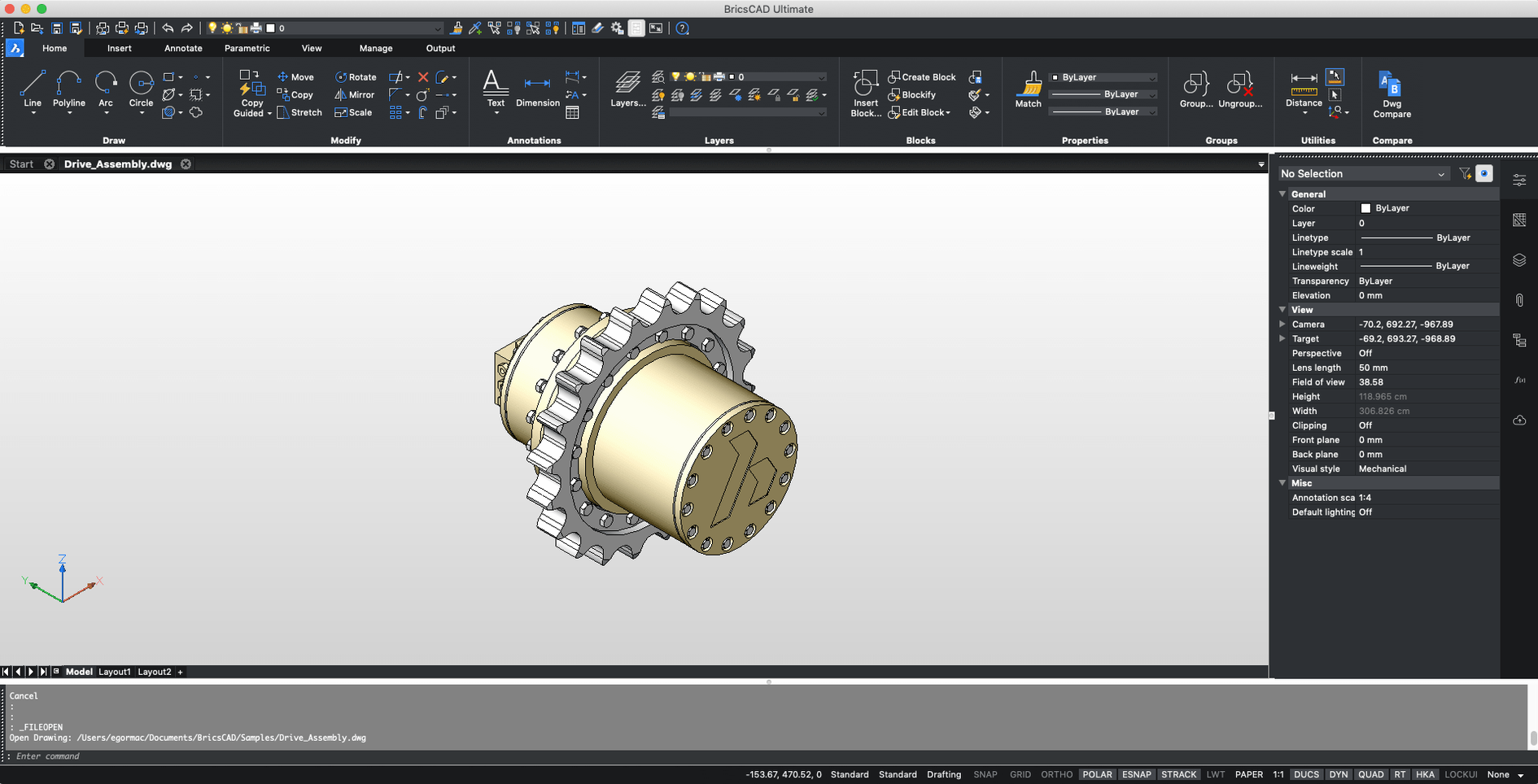
You sit down at a Mac in a mixed Windows office, open a DWG that came from a colleague, and keep working without asking for a conversion. That is the everyday reality BricsCAD aims for: a CAD application that treats the file format as the common language, not a selling point.
Covers 2D drafting and 3D modeling in a single install
| Item | Detail |
|---|---|
| Version | 24.2.04-05-1 |
| Developer | Bricsys NV |
| Platforms | macOS, Windows, Linux |
| macOS support | Sonoma, Ventura, Monterey, Big Sur |
| Architecture | Intel, Rosetta 2 on Apple silicon |
| Languages | Russian, English |
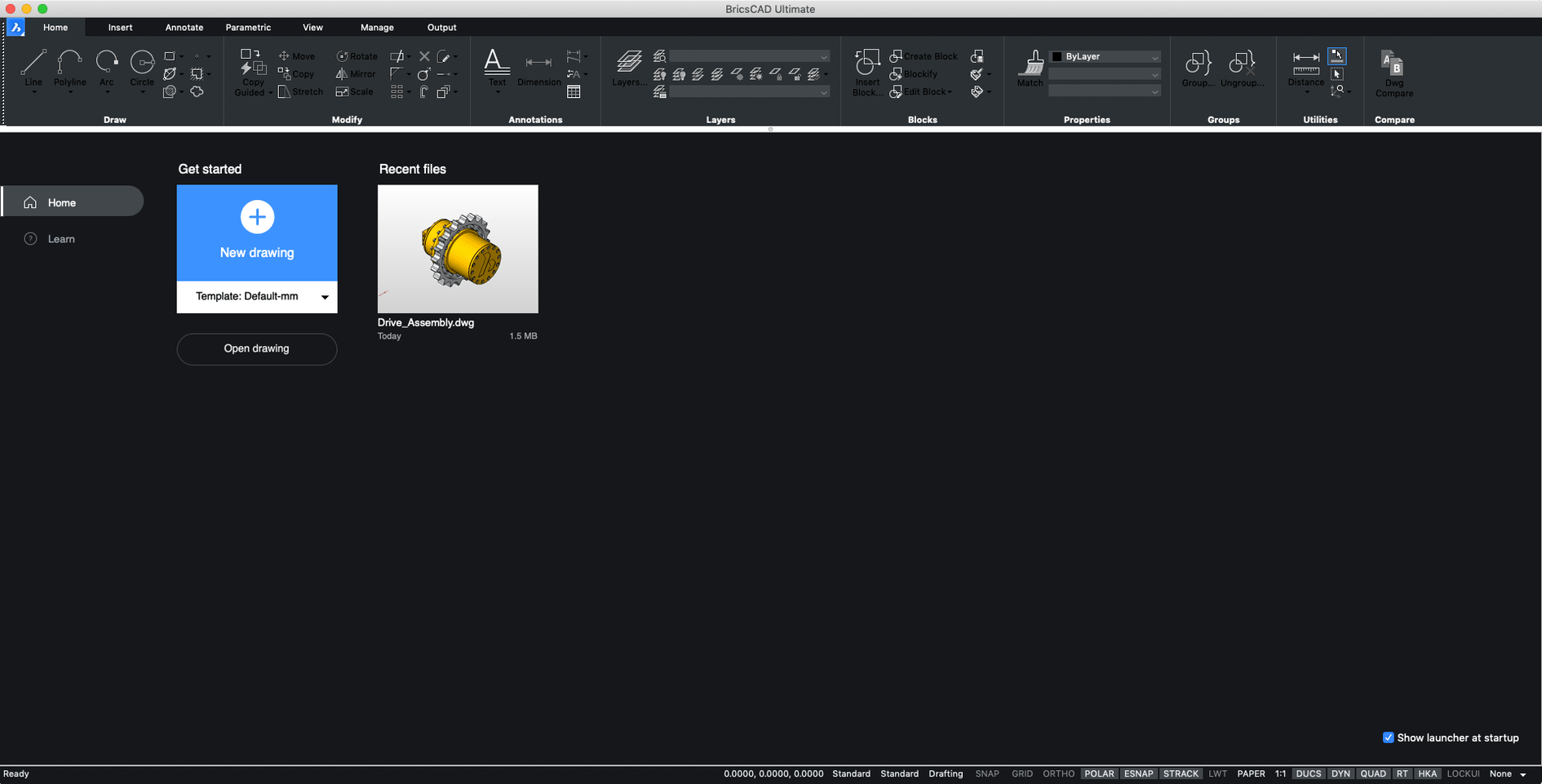
BricsCAD covers 2D drafting and 3D modeling in a single install, with the edition set (Shape, Lite, Pro, Mechanical, BIM, Ultimate) included in the package. It positions itself as an AutoCAD alternative, and on macOS that means a familiar command line and toolset rather than a touch-first reimagining. The current build runs independently of previous versions, so you can test it side by side with an older install. On Apple silicon it works through Rosetta 2, which has been the case since V21.2.06. Nothing radical changed in this update; it is a steady point release for those who already rely on BricsCAD daily.
Increase command-line history and crosshair size for comfort
After installation, a few adjustments make the environment more comfortable for day-to-day drafting. The command-line history defaults to a modest length; I usually increase it to 50 or 100 in the settings dialogue. The crosshair size is another quick change — many users coming from AutoCAD prefer a full-screen crosshair, which is available under the drafting options. The default file-save format can be set to an older DWG version if your collaborators use earlier releases; this avoids repeated conversion prompts. Finally, the automatic backup interval defaults to 10 minutes — worth lowering to 5 if you work on complex files that take time to rebuild.
V24 and V25 bundle all editions in one installer
BricsCAD V24 and V25 have introduced a few practical improvements for the Mac build. The installer now contains all editions in one package — Shape, Lite, Pro, Mechanical, BIM and Ultimate — so you no longer need separate downloads to evaluate different feature sets. The macOS release notes for V25 confirm that it installs and runs independently of previous BricsCAD versions, which makes testing a new release alongside an existing setup straightforward. For Apple silicon users, Rosetta 2 support has been stable since V21.2.06, and nothing in the recent updates changes that arrangement.
A workflow: importing a civil engineer’s survey and preparing it for architectural overlay
This is a common scenario in mixed-discipline offices. A colleague sends a DWG survey file with points, contours and a coordinate system that does not match your project base point.
- Open the survey DWG as-is. BricsCAD reads the file without conversion, so you see exactly what the engineer intended.
- Check the coordinate system using the drawing settings. Note the origin and rotation relative to your project.
- Align the survey using the ALIGN command. Select the entire drawing, pick two known reference points from the survey and match them to corresponding points in your architectural shell. BricsCAD handles the rotation and scaling in one step.
- Freeze or isolate layers that are not needed for your work — vegetation, utility lines, text annotations. Use the LAYISO command or the layer manager to hide them without deleting.
- Create a reference file (XREF) from the cleaned-up survey. This keeps the original file untouched and lets you reload it later if the engineer sends updates.
- Draw your architectural overlay on top of the XREF, using the survey as a background guide. The DWG format stays native throughout, so sending the combined file back to the engineer requires no export step.
This approach keeps the survey data live and avoids duplicating geometry. If the engineer revises the survey, you simply reload the XREF.
Start with a familiar 2D DWG to test basic commands
- Start with a simple 2D drawing you already know. Open an old DWG, try the basic draw and modify commands, and check that the command line responds the way you expect. This builds familiarity without the pressure of a deadline.
- Map your AutoCAD alias file if you have one. BricsCAD can read PGP files, so your existing keyboard shortcuts carry over. Place the file in the support path and restart the application.
- Test the edition switcher. Since the installer contains all editions, you can run BricsCAD in Lite mode for 2D work and switch to Pro or BIM when you need 3D solids or building elements. No reinstallation is needed.
- Set a manual save habit for the first week. The auto-backup works, but a manual Cmd+S every few minutes ensures you do not lose work while you adjust to any interface quirks.
- Check the language toggle if you work in a bilingual office. The Russian and English interface can be switched via the application preferences, which helps when sharing the machine or following tutorials in either language.
- Keep the release notes handy for the first few sessions. BricsCAD’s Mac-specific notes are concise and cover known issues, so a quick glance saves time later.
Before it goes on the Mac
- macOS 10.15 or later
- Intel processor (Rosetta 2 on Apple silicon)
Questions from the room
Does BricsCAD run on Apple silicon Macs?
Yes, BricsCAD (Mac) runs on Apple silicon via Rosetta 2 since V21.2.06.
Which macOS versions does BricsCAD V24 support?
BricsCAD V24 supports Sonoma, Ventura, Monterey, and Big Sur.
Is BricsCAD available in languages other than English?
The build includes Russian and English versions.
Installing it on the Mac
- Use the included installation instructions.
- Follow the included activation instructions.
Notes from the control room
Sign in or open a catalogue account to leave a note.
No notes from the room yet. If you have used this build for a week, a short note helps the next person.