Home › Mac Apps › Beauty Box Photo

Beauty Box Photo 6.0.5 (Mac)
Updated
The catalogue note
Version 6.0.5 arrives with the same core promise: automatic skin retouching without the usual plastered look. It is an Adobe-only build, so you work inside Photoshop, Premiere Pro or After Effects rather than a standalone app.
Detect skin tone
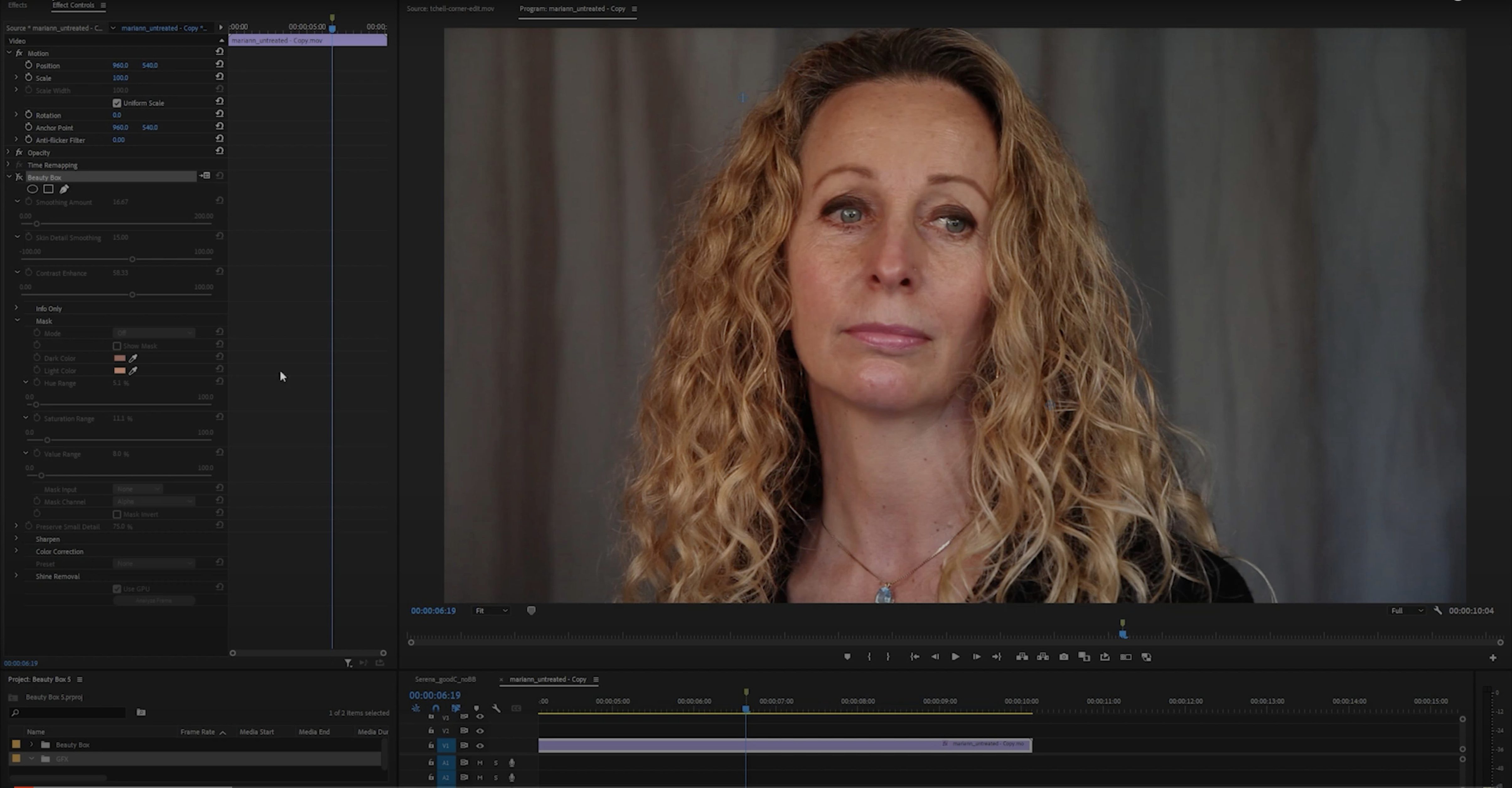
Drop the plugin on a portrait and it samples the skin colour range automatically. The mask preview shows you exactly what it sees, so you can tighten or loosen the detection before anything gets smoothed.
Adjust smoothing and detail
Two sliders do the heavy lifting. Smoothing controls the blur radius, Detail brings back texture in the eyes, brows and lips. The balance between them is where the natural look lives.
Preview in real time
CUDA and OpenGL acceleration give you a live preview while you drag. No waiting for renders, no guessing at values. What you see is what you get before you commit.
First days with Beauty Box Photo
When you first open the disk image and run the standard installation process, the plugin places itself into Photoshop's filter menu under Digital Anarchy. Before you start retouching a full shoot, spend a few minutes with a single portrait to learn how the automatic skin detection behaves on different faces.
Load a well-lit headshot and apply the filter. The default mask will show you what the plugin considers skin. Move the mask preview slider back and forth — this is where you see whether the detection is picking up background tones or missing shadows on the jawline. Adjust the skin colour range until the mask covers the face without spilling onto hair, clothing or the background. That calibration takes thirty seconds per image the first time, but once you understand how the sampler responds to your lighting, subsequent images need far less tweaking.
Work on a duplicate layer. The plugin is destructive by nature — it writes the effect onto the active layer — so keeping the original underneath lets you paint back detail with a layer mask if you oversmooth an area.
Duplicate the layer, then let automatic skin detection work
Here is a practical sequence for a typical corporate portrait or beauty shot.
- Open the image in Photoshop and duplicate the background layer.
- Apply Beauty Box Photo from the Digital Anarchy filter menu.
- Let the automatic skin detection run. Check the mask preview to confirm coverage. If the mask misses the neck or includes a bright wall, nudge the skin colour range until it fits.
- Set Smoothing to a moderate value — around 40–50 for an adult face. Set Detail high enough that the eyes and brows remain crisp, usually 70 or above.
- Toggle the preview on and off to compare. If pores vanish completely, reduce Smoothing or raise Detail.
- Click OK to apply. The plugin processes the image and returns you to Photoshop.
- Add a layer mask to the retouched layer. Paint with black at low opacity over areas you want to preserve — hair strands, stubble, skin texture around the mouth.
The entire process takes under two minutes once you are familiar with the sliders. For batch work, you can record this as a Photoshop action, though each image may need its own skin colour tweak if the lighting varies.
Real-time preview updates as you drag sliders
Several features in version 6.0.5 do not announce themselves loudly but make daily use more predictable.
- Real-time rendering with CUDA and OpenGL — the preview updates as you drag the Smoothing or Detail slider, not after you release the mouse. That may sound minor, but it changes how quickly you can audition different looks.
- The mask preview toggle lives inside the plugin window, not buried in a menu. One click shows you exactly where the effect will be applied, which removes the guesswork when you are working with mixed lighting or backlit subjects.
- Automatic skin colour detection runs every time you open the plugin, not just at first install. If you switch between subjects with different skin tones — pale skin in one image, darker skin in the next — the plugin re-samples each time. You still need to check the mask, but you rarely start from zero.
- The Detail slider preserves facial features independently of the smoothing amount. This means you can keep eyes, brows and lips sharp even with high Smoothing values, which is useful when you want to soften skin texture heavily but avoid the doll-face look.
Native support for both ARM and x86 64-bit architectures
Version 6.0.5 is a maintenance release, so the core workflow remains the same as earlier 6.x builds. What shifted is the underlying compatibility. The plugin now ships with native support for both ARM and x86 64-bit architectures, which matters if you run Photoshop on an Apple Silicon Mac. Earlier versions ran through Rosetta 2; this one runs natively, so the real-time preview responds without the translation layer overhead.
The activation system was also updated to be included in the installer — no separate licence file to locate. You open the disk image, run the installer, and the plugin is ready to use inside Photoshop, Premiere Pro or After Effects. For editors who move between video and stills work, the same install covers both the still retouching in Photoshop and the Beauty Box plugin for Premiere Pro Mac setups, which saves a separate download step.
Beauty Box Photo uses AI to automatically retouch skin in portraits, and a beauty box crack for mac is unnecessary with its streamlined activation. The plugin format remains Adobe-only, so it will not show up in other hosts, but within the Adobe ecosystem the installation is straightforward.
Before it goes on the Mac
- macOS (Intel or Apple Silicon)
- Adobe Photoshop, Premiere Pro or After Effects
- Interface language: English
Questions from the room
Does Beauty Box work with Premiere Pro on Mac?
Yes, the plugin is Adobe-only and supports Premiere Pro alongside Photoshop and After Effects on macOS.
Can I see the effect before applying it?
Yes, the plugin renders in real time using CUDA or OpenGL, so the preview updates as you adjust the sliders.
Does it detect skin tone automatically?
It does. The plugin samples skin colours in the image and builds a mask automatically, which you can refine manually.
Installing it on the Mac
- Open the downloaded disk image.
- Run the standard installation process.
Notes from the control room
Sign in or open a catalogue account to leave a note.
No notes from the room yet. If you have used this build for a week, a short note helps the next person.