Bookends 15.4.3 (Mac)
Updated
The catalogue note
Bookends 15.4.3.3.7 keeps the core workflow intact: a reference manager for students and professionals, with a focus on getting citations into a document without leaving your writing environment. The current release still supports macOS 11 Big Sur and later, and it remains a solid choice if you need deep search and import options.
Searching arXiv, Web of Science, and Amazon for references
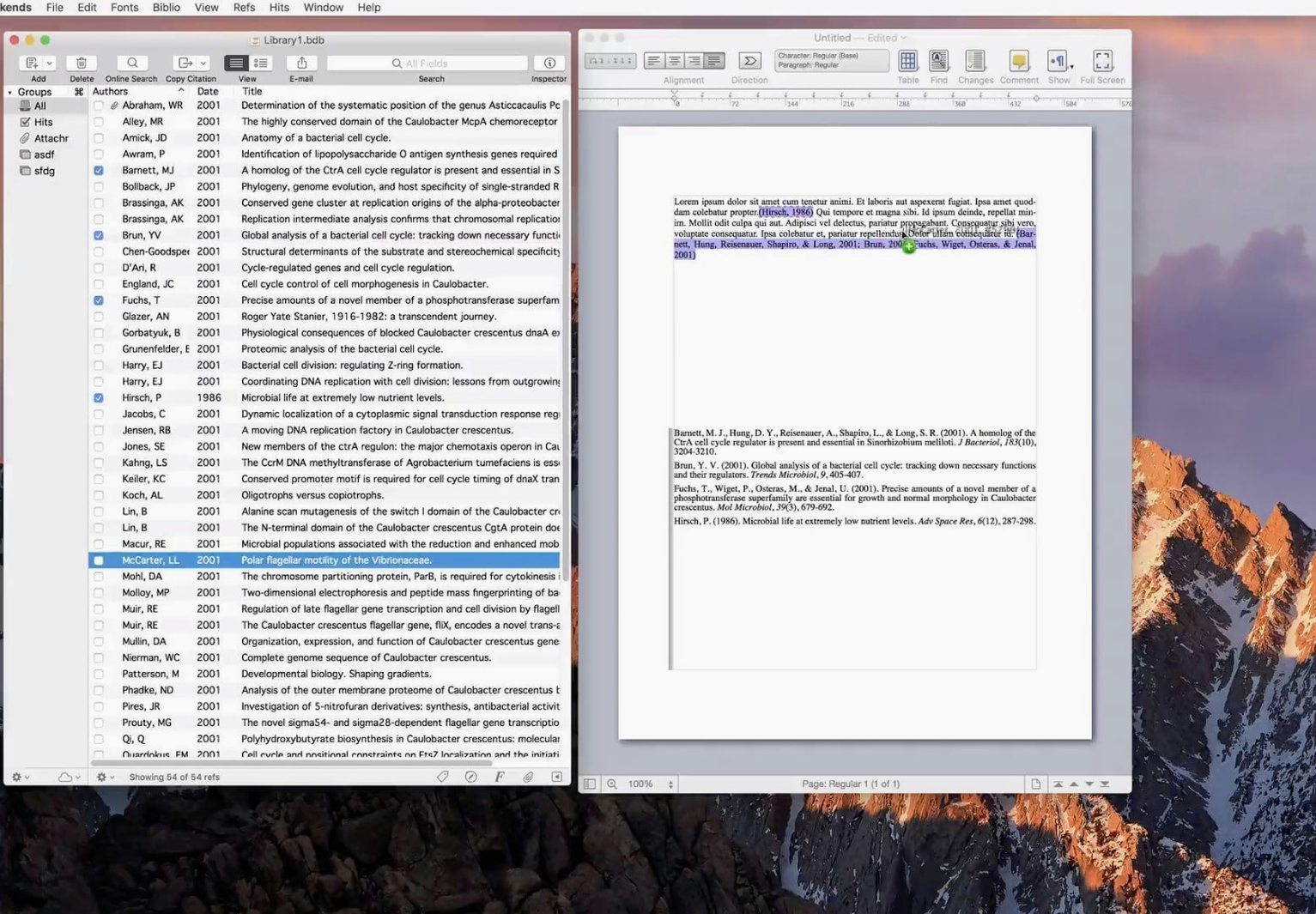
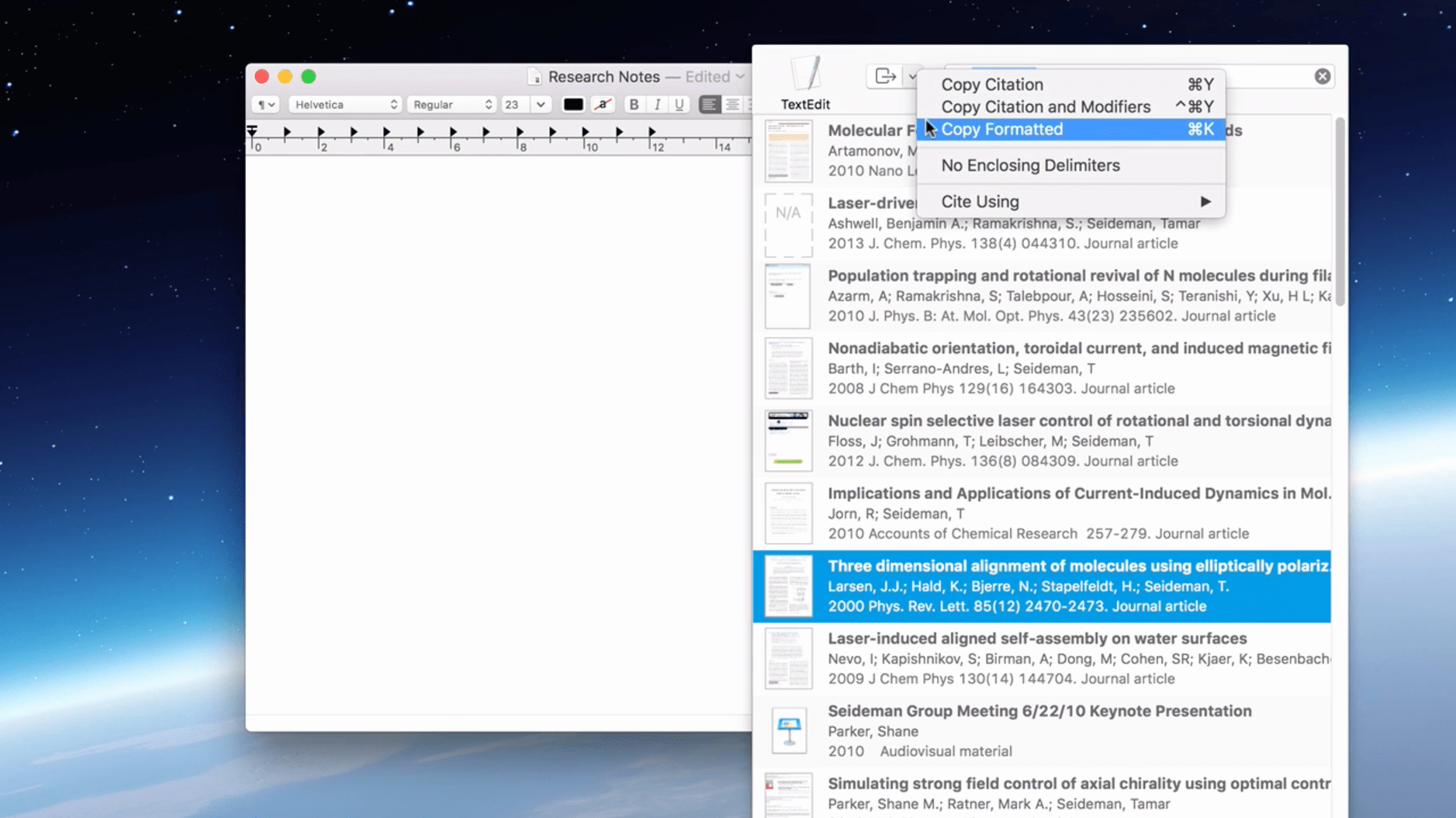
Searching and importing references is where Bookends earns its keep. It can pull records directly from arXiv, Web of Science, the Library of Congress, and Amazon. That breadth means you can gather sources from preprint servers, academic databases, and general catalogues without switching tools.
Syncing references to iOS with Bookends On Tap
Bookends still pairs with word processors to create citations and bibliographies, and the iOS companion (Bookends On Tap) syncs your library to iPad, iPhone, and iPod touch. For anyone juggling a Mac and a mobile device, that continuity is useful. The interface remains English-only, and the system requirement of macOS 10.13 or later has not changed in this update.
Importing references from RIS, BibTeX, or EndNote XML
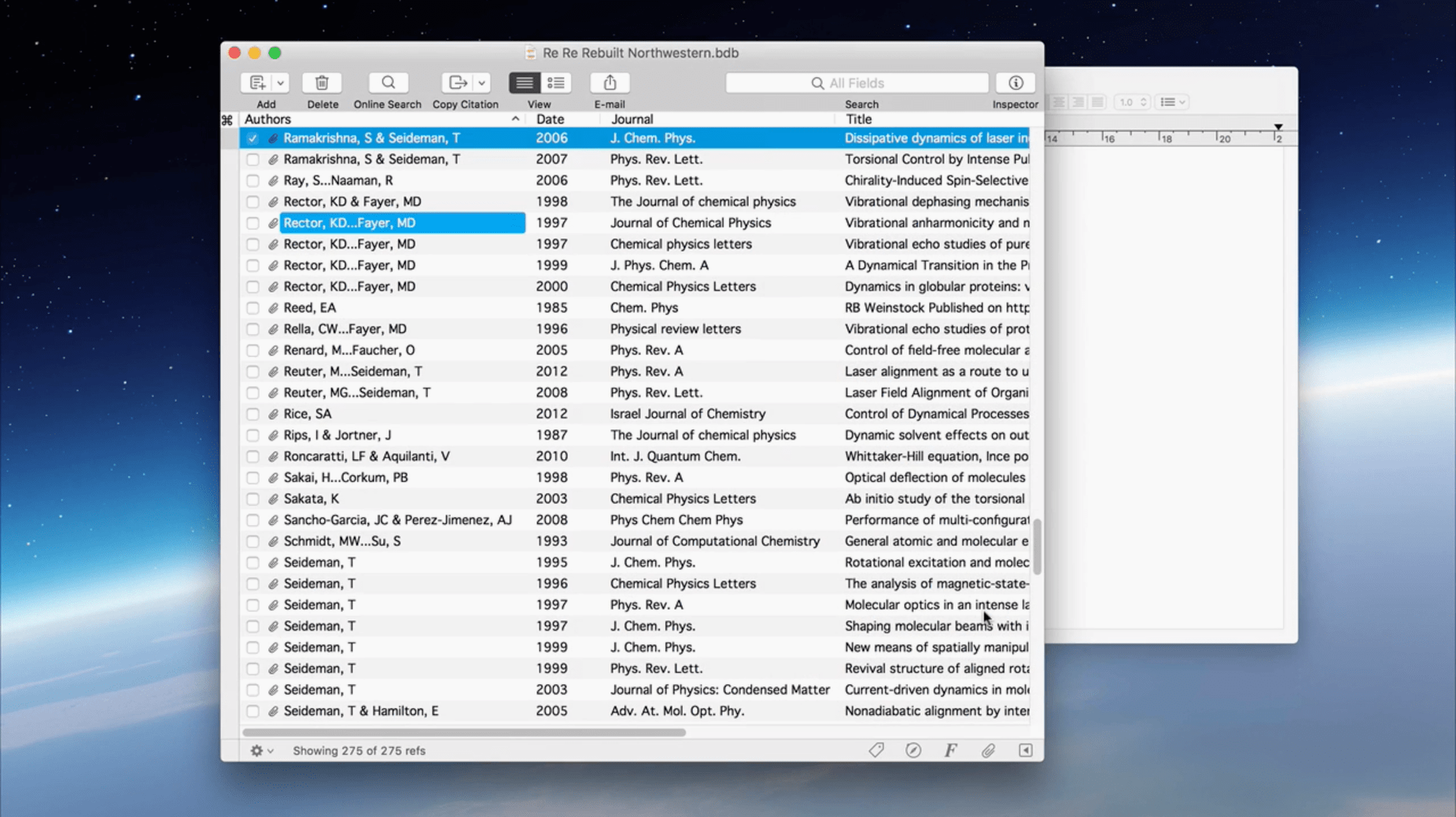
Once Bookends is open, take a moment to set up your reference library structure. The app can import references from common formats like RIS, BibTeX, and EndNote XML, so if you are moving from another manager, start with File → Import rather than retyping everything. For new libraries, begin by adding a few sample references manually to learn how the fields work — author, title, date, journal name — before bulk-importing.
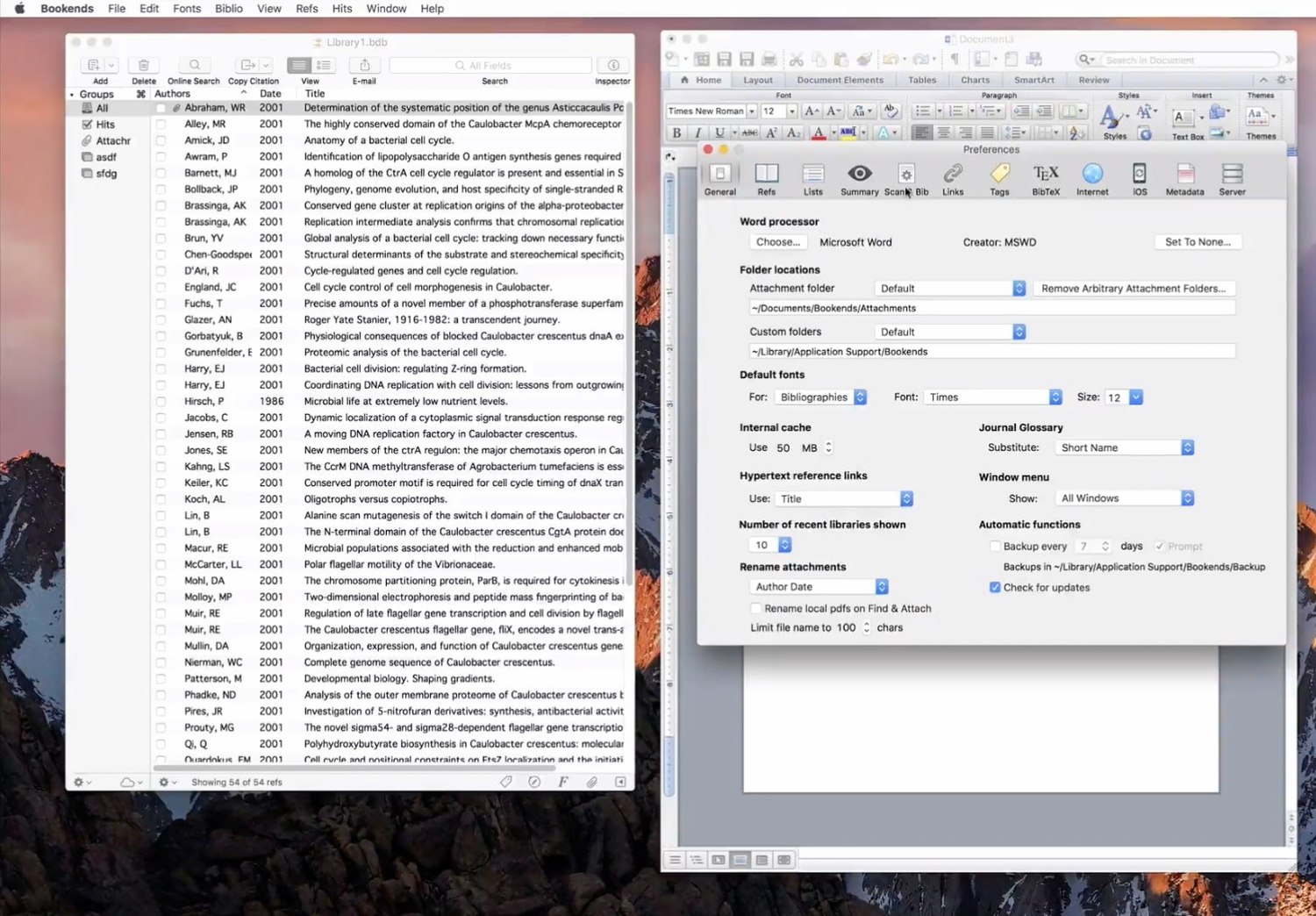
Link Bookends to your word processor early. The integration with Microsoft Word, Pages, Mellel, Nisus Writer Pro, and OpenOffice requires a plugin or a connection step. Open the preferences and check the word processor pane; the app will guide you to enable the citation toolbar or menu commands. Without this step, you will be copying and pasting formatted references instead of using the live citation system.
Set up synchronisation with Bookends On Tap on your iOS device straight away. The sync uses your own cloud service (Dropbox, iCloud, or a WebDAV server) rather than a proprietary server, so decide which one you trust and configure it in the Sync preferences. Once active, any reference added on the iPad or iPhone appears on the Mac, and edits to notes or attachments sync back.
Enabling automatic lookup for DOI and ISBN
The default preferences work for a general workflow, but a few adjustments make daily use faster:
- Automatic lookup — in Preferences → Reference, enable automatic lookup of reference data when you type a DOI or ISBN. This saves time if you add sources by identifier rather than by hand.
- Attachment handling — set a default folder for PDFs and other files in Preferences → Folders. Bookends can rename and organise attached files automatically, which prevents a cluttered Downloads folder.
- Format manager — open the format manager and select the citation style you use most often as the default. If you write for a specific journal, load its style file early and test a citation before the deadline.
- List display — customise the columns shown in the reference list. Most users benefit from seeing author, year, title, and journal at a glance. Hide fields you rarely need to reduce visual noise.
Improved PDF metadata extraction in version 15.x
The current version 15.4.3.3.7 is a maintenance release, so the everyday workflow remains familiar. Changes in the 15.x series have been incremental rather than dramatic:
- Improved handling of PDF metadata extraction when importing new attachments. The app reads embedded titles and authors more reliably than in earlier versions.
- Better compatibility with newer macOS versions, particularly around file permissions and cloud storage locations. Users on macOS 14 and later should see fewer permission prompts.
- Refinements to the PubMed search filter, making it easier to narrow results by date or article type before importing.
- Fixes to the citation formatting engine when switching between very different bibliography styles mid-document.
None of these changes require retraining — the interface and core commands are the same as in version 14. If you have been hesitating to update from an older release, the workflow will feel familiar within minutes.
Using Bookends without a word processor
Can I use Bookends without a word processor?
Yes. You can build a reference library, attach PDFs, annotate them, and export formatted bibliographies as RTF or plain text. The word processor integration is a convenience, not a requirement.
Does it work with LaTeX?
Not directly. Bookends does not include a LaTeX plugin. You can export your library as a BibTeX file and use it with your LaTeX editor, but the live citation workflow is aimed at word processors.
Will it handle a library of thousands of references?
Yes. The database format scales well into tens of thousands of entries. Search speed remains acceptable on older Macs because the app uses local indexing rather than querying a remote server each time.
Can I share references with colleagues who use Windows or Linux?
Bookends for macOS does not run on other operating systems. However, you can share references as RIS, BibTeX, or XML files, which any reference manager on any platform can import. The internet sharing feature lets others view your public library through a web browser, regardless of their OS.
Do I need an internet connection to use Bookends?
No. Searching online databases like PubMed or JSTOR requires a connection, but your local library is fully accessible offline. You can edit references, add notes, and generate bibliographies without being online.
Before it goes on the Mac
- macOS 10.13 or later
- Intel or Apple Silicon
- English interface
Installing it on the Mac
- Mount the downloaded disk image.
- Drag the app to the Applications folder alias.
- After copying finishes, open the app from Launchpad.
- Use SN.txt for activation.
Notes from the control room
Sign in or open a catalogue account to leave a note.
No notes from the room yet. If you have used this build for a week, a short note helps the next person.